> ## Documentation Index
> Fetch the complete documentation index at: https://docs.skyfree.io/llms.txt
> Use this file to discover all available pages before exploring further.
# WhatsApp OAuth
> Set up Meta Embedded Signup so customers can connect WhatsApp Business accounts, plus Twilio TURN for WhatsApp Calling.
## What is this?
The **WhatsApp OAuth** tab configures **Meta Embedded Signup** — a Meta-provided onboarding flow that lets users connect their WhatsApp Business account, grant the required permissions, and finish onboarding without leaving your platform.
Embedded Signup reduces onboarding friction, automates the WhatsApp Business API connection, removes manual Meta setup steps, and improves conversion for new users. It requires a properly configured and approved Meta app.
This tab also holds the **Twilio TURN** settings needed for WhatsApp Calling.
To use Embedded Signup in production, your Meta app must be **verified** and set to **Live Mode**. Missing permissions or an incomplete review video will cause Meta to reject the submission, and business verification is mandatory.
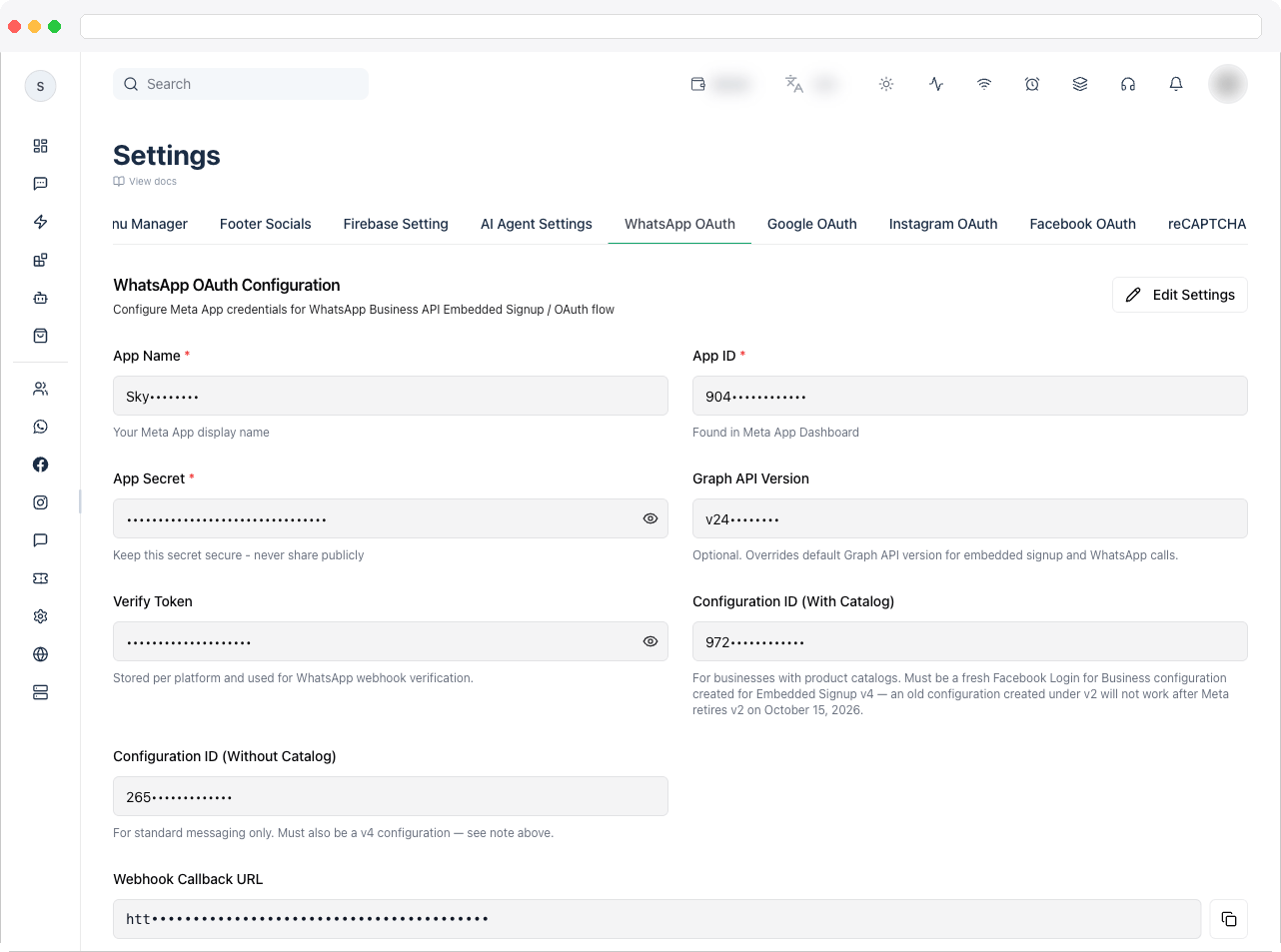 ## What can I do here?
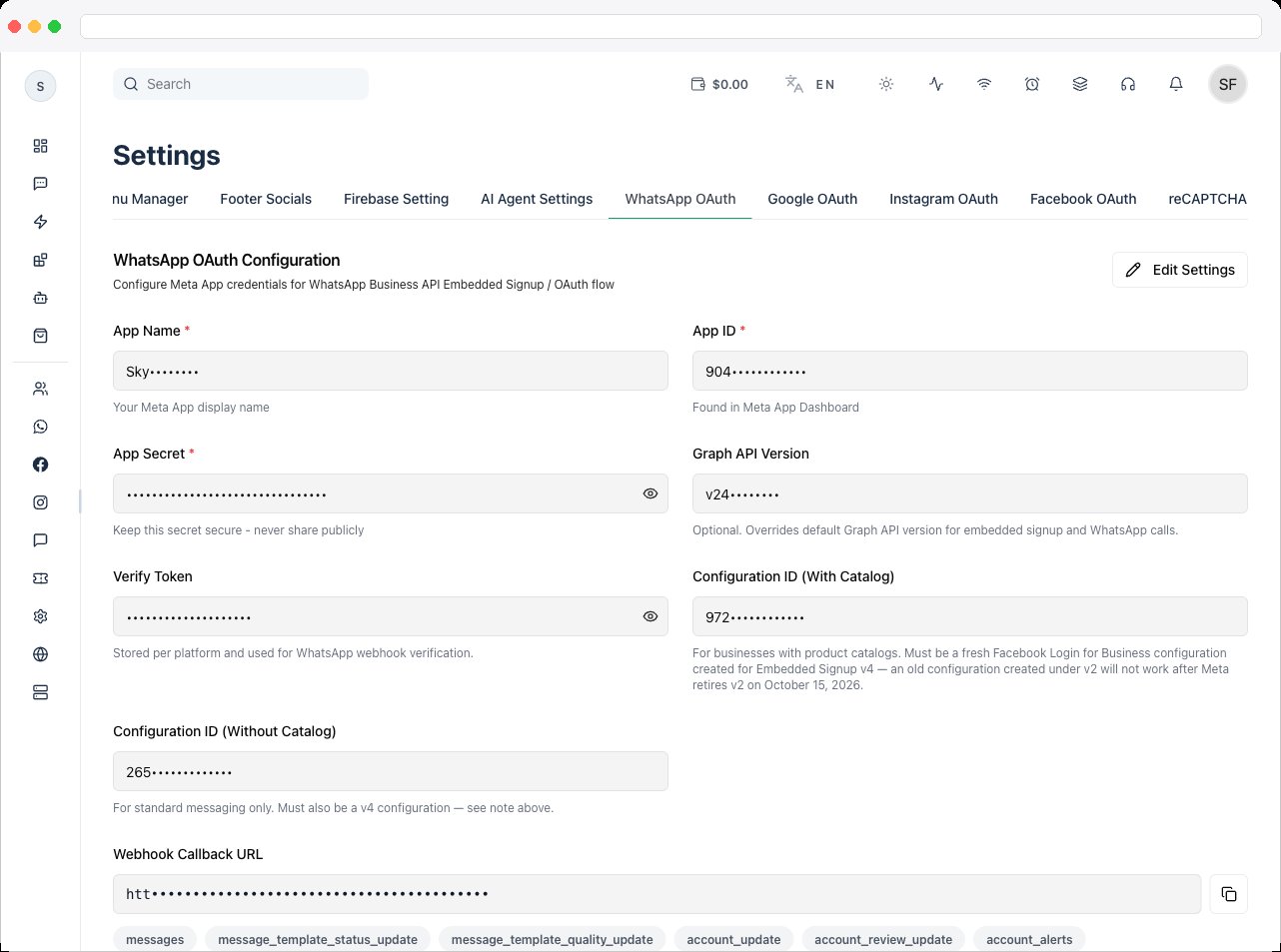
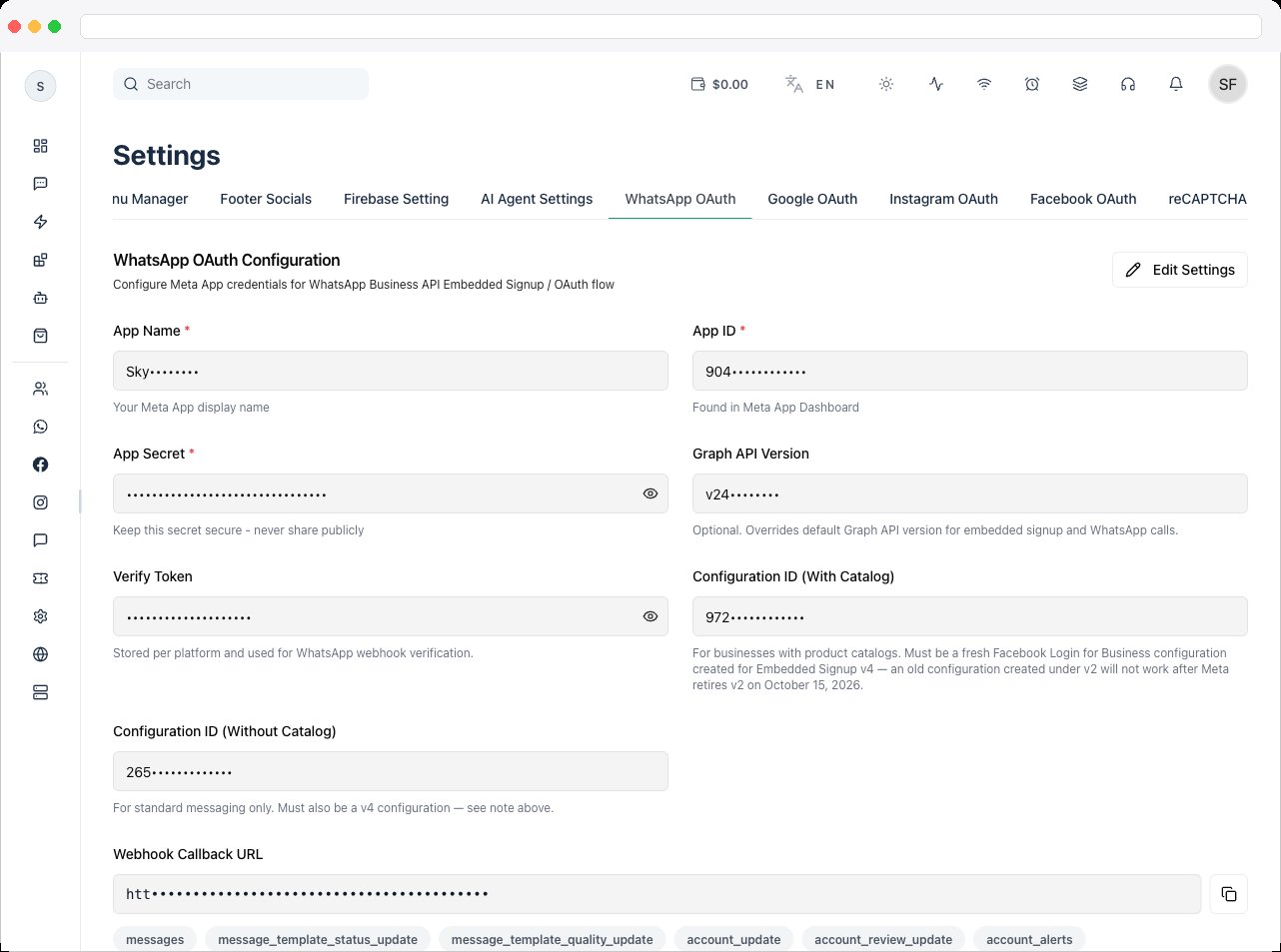
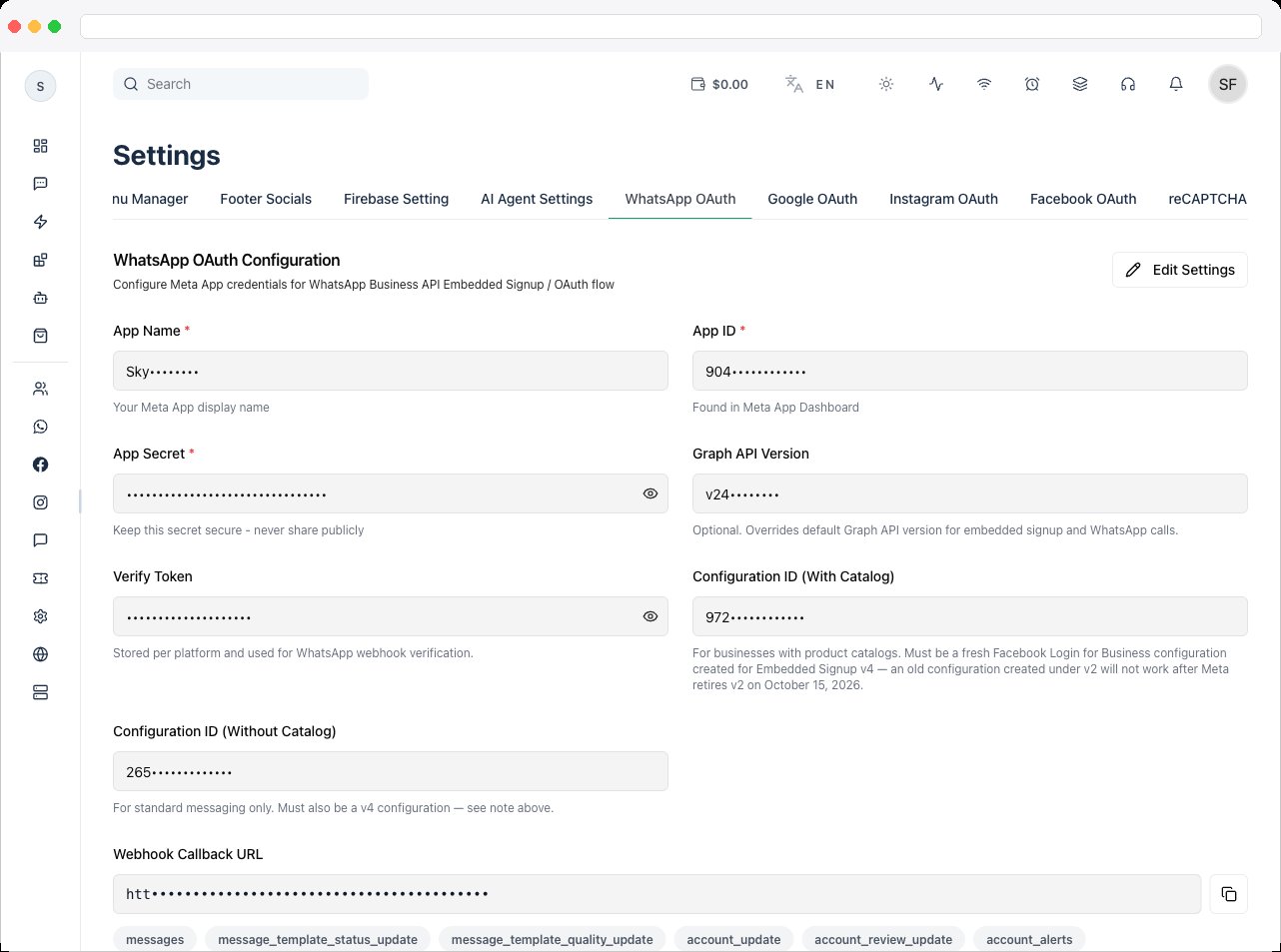
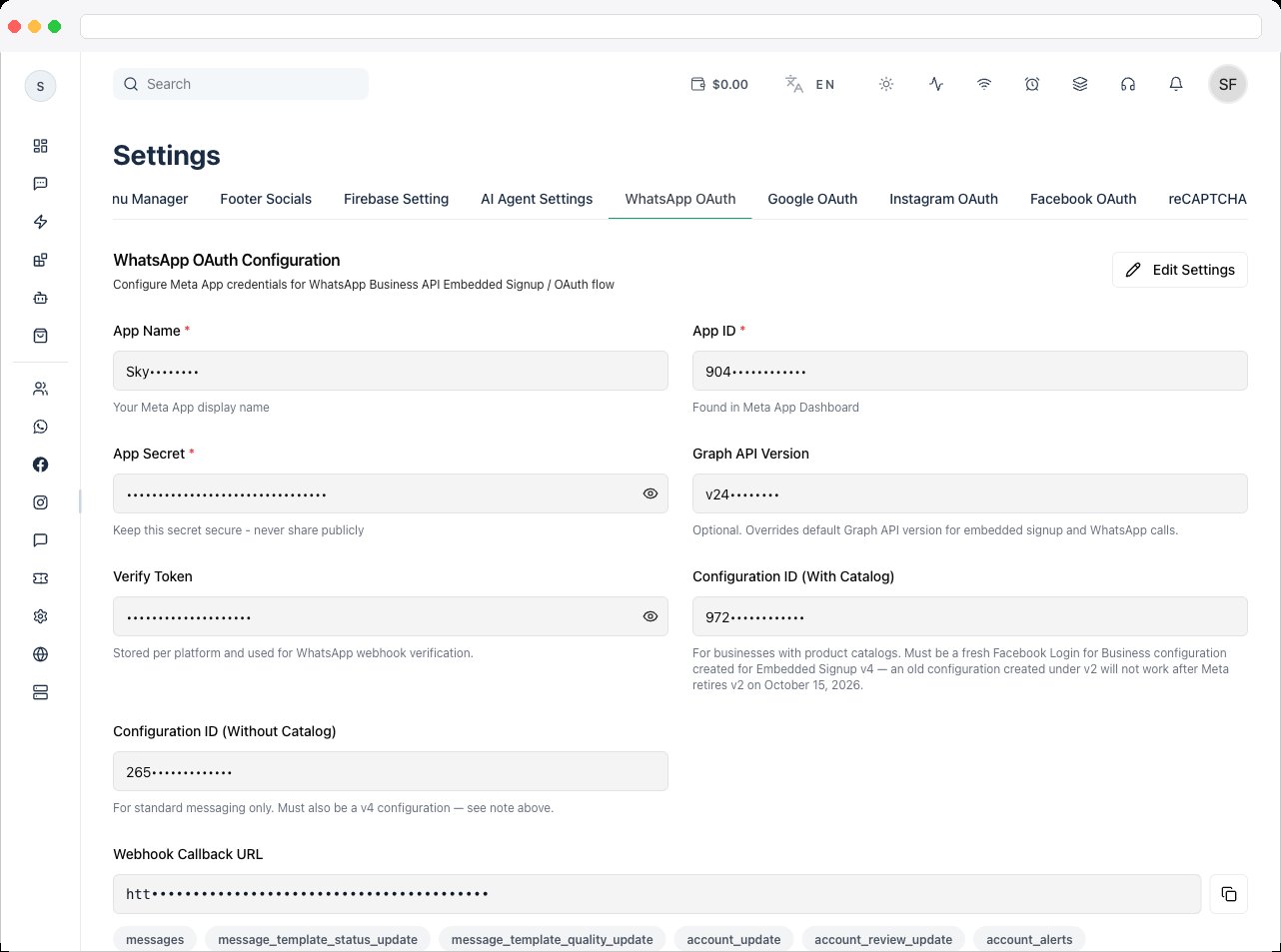
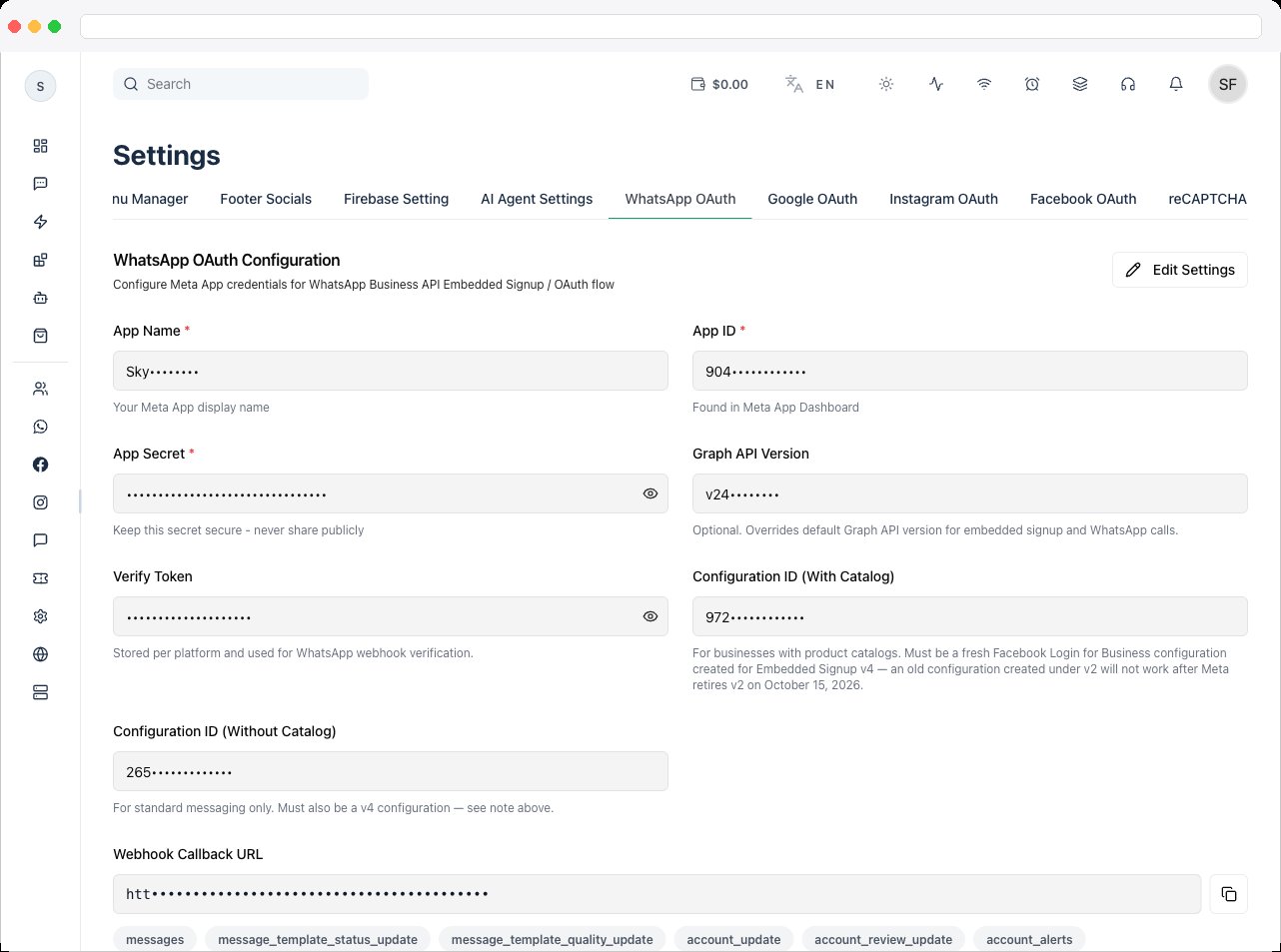
* Save your Meta **App Name**, **App ID**, and **App Secret** (all three are required)
* Set an optional **Graph API Version** override
* Set the **Verify Token** used for WhatsApp webhook verification
* Enter the **Configuration ID (With Catalog)** and **Configuration ID (Without Catalog)**
* Copy the **Webhook Callback URL** for your Meta app
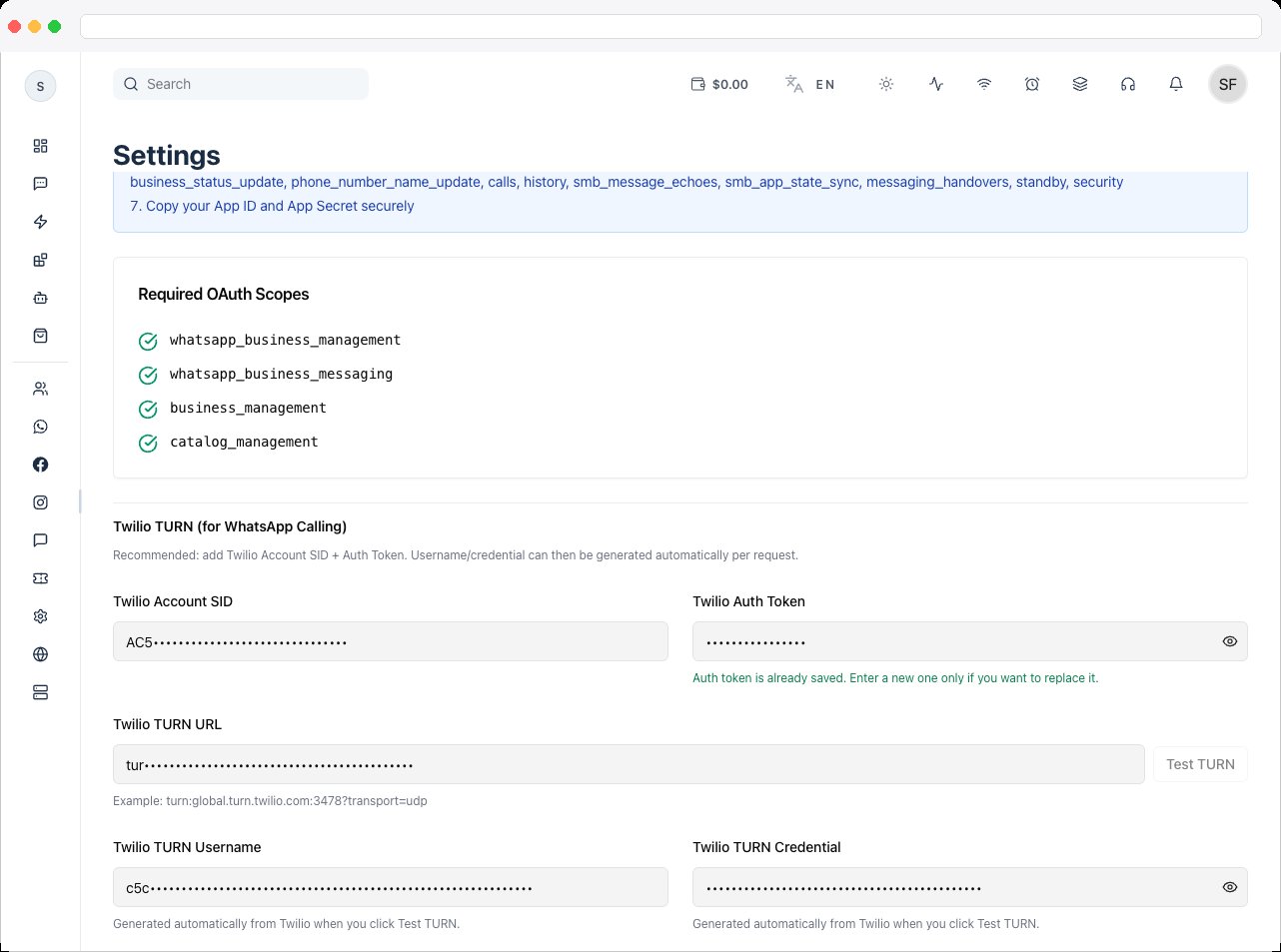
* Review the **Required OAuth Scopes**
* Add **Twilio TURN** credentials and run **Test TURN** for WhatsApp Calling
## How to use it
### Before you start
You will need to:
* create a Meta app in the Meta Developer Console
* enable the WhatsApp Business Platform API
* collect the App ID and App Secret
* create configuration IDs (with and without catalog)
* set up webhook verification
### Required OAuth scopes
| Scope | Notes |
| ------------------------------ | --------------------------------------------- |
| `whatsapp_business_management` | Required |
| `whatsapp_business_messaging` | Required |
| `business_management` | Required |
| `catalog_management` | Only when using catalog and commerce features |
Use the **with catalog** configuration ID when `catalog_management` is included, and the **without catalog** ID when it is not.
### Configure WhatsApp OAuth in Meta
1. Go to [developers.facebook.com](https://developers.facebook.com/) and click **My Apps → Create App**.
## What can I do here?
* Save your Meta **App Name**, **App ID**, and **App Secret** (all three are required)
* Set an optional **Graph API Version** override
* Set the **Verify Token** used for WhatsApp webhook verification
* Enter the **Configuration ID (With Catalog)** and **Configuration ID (Without Catalog)**
* Copy the **Webhook Callback URL** for your Meta app
* Review the **Required OAuth Scopes**
* Add **Twilio TURN** credentials and run **Test TURN** for WhatsApp Calling
## How to use it
### Before you start
You will need to:
* create a Meta app in the Meta Developer Console
* enable the WhatsApp Business Platform API
* collect the App ID and App Secret
* create configuration IDs (with and without catalog)
* set up webhook verification
### Required OAuth scopes
| Scope | Notes |
| ------------------------------ | --------------------------------------------- |
| `whatsapp_business_management` | Required |
| `whatsapp_business_messaging` | Required |
| `business_management` | Required |
| `catalog_management` | Only when using catalog and commerce features |
Use the **with catalog** configuration ID when `catalog_management` is included, and the **without catalog** ID when it is not.
### Configure WhatsApp OAuth in Meta
1. Go to [developers.facebook.com](https://developers.facebook.com/) and click **My Apps → Create App**.
 2. Enter an **App Name** and **Contact Email**.
 3. Select the use case **Connect with customers through WhatsApp**.
 4. Select your verified Business Manager.
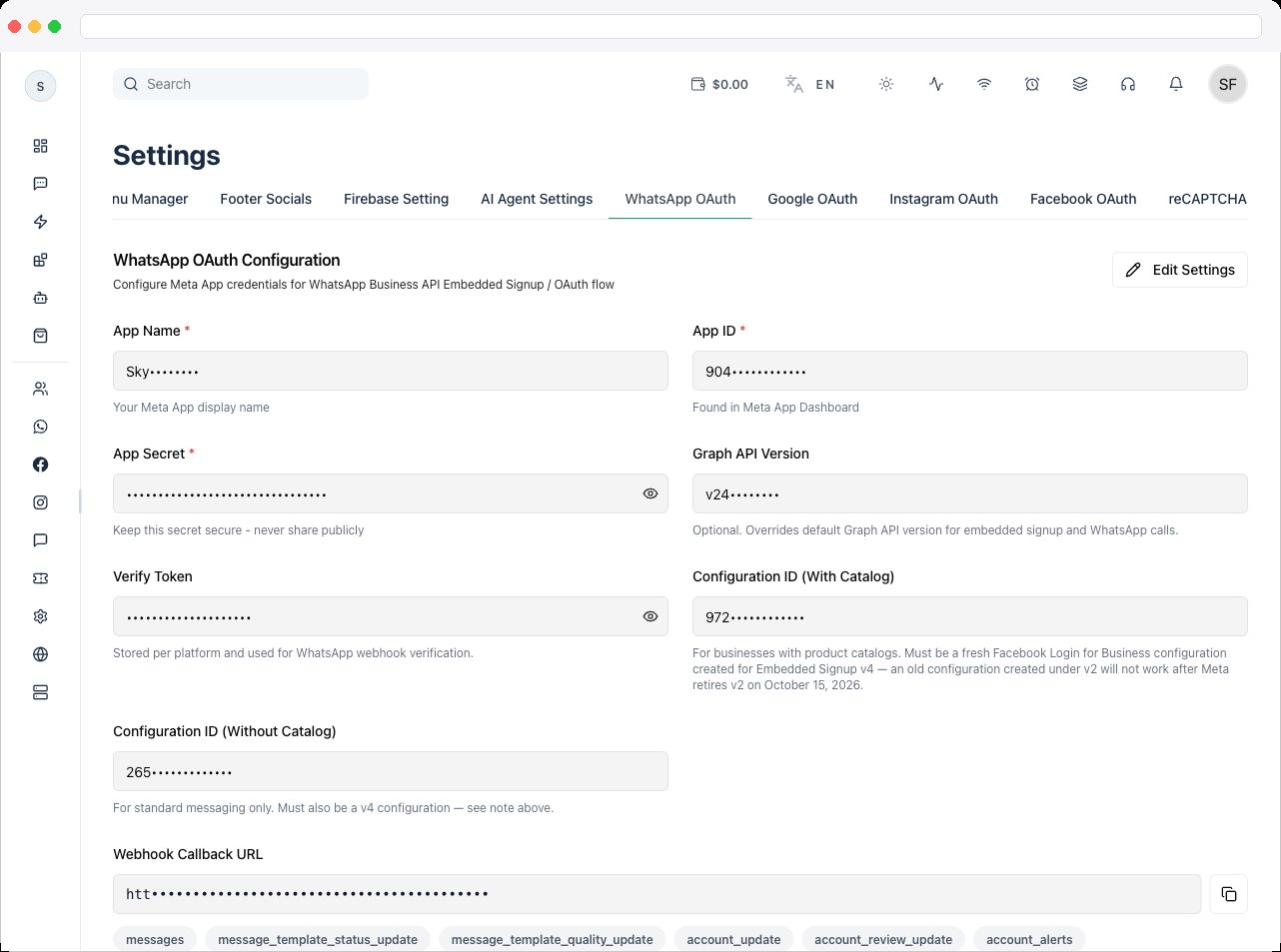 On your app dashboard, scroll down and click **Add Product**. Add **WhatsApp**, **Facebook Login for Business**, **Instagram**, and **Messenger**, and complete the basic setup.
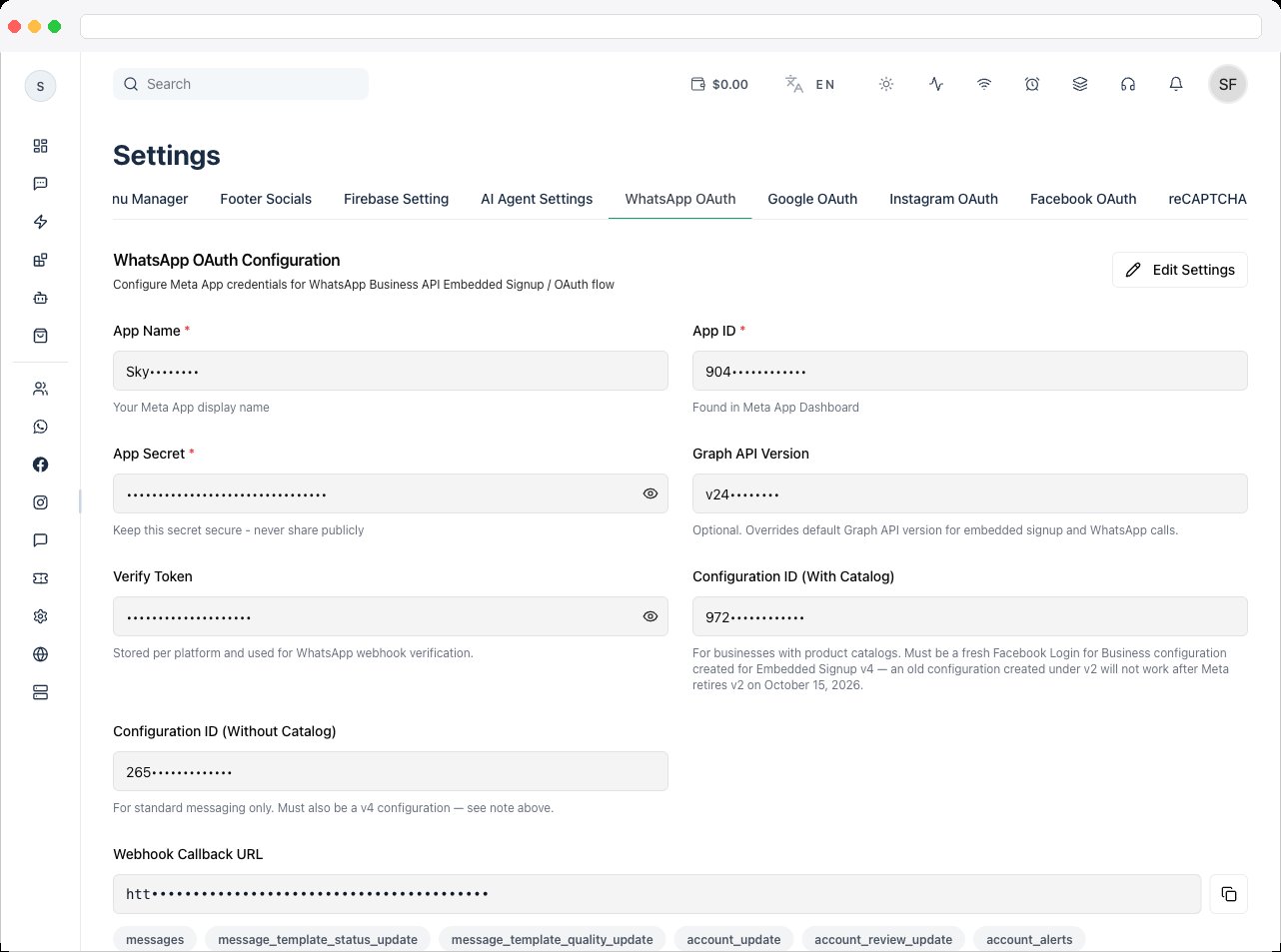 Go to **App Settings → Basic** and add the app name and logo, a **Privacy Policy URL**, a **Terms of Service URL**, and the **App Domain** (your platform domain). Then go to **Business Settings → Security Center**.
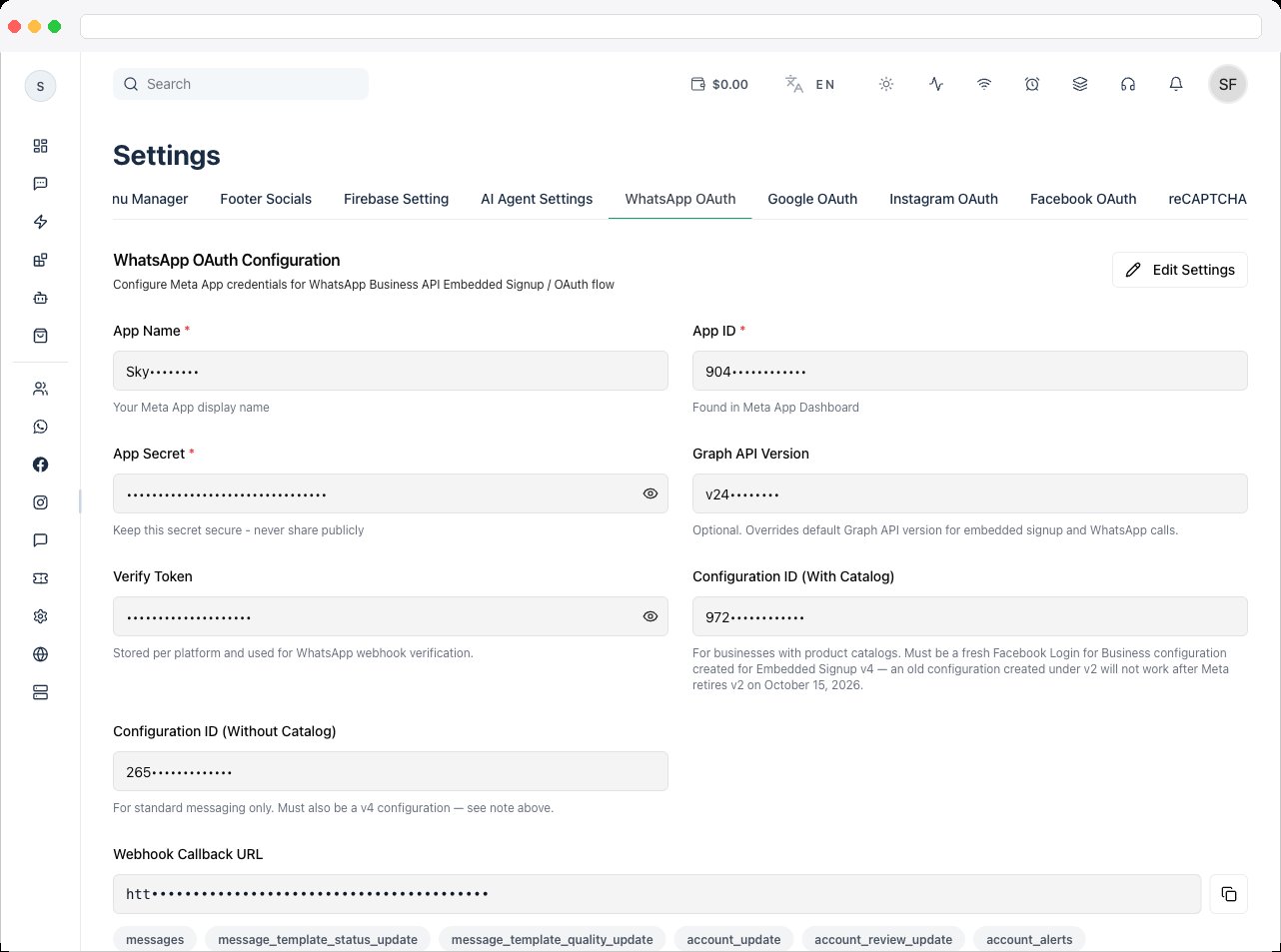 1. Go to **Facebook Login for Business → Configuration** and click **Create configuration**.
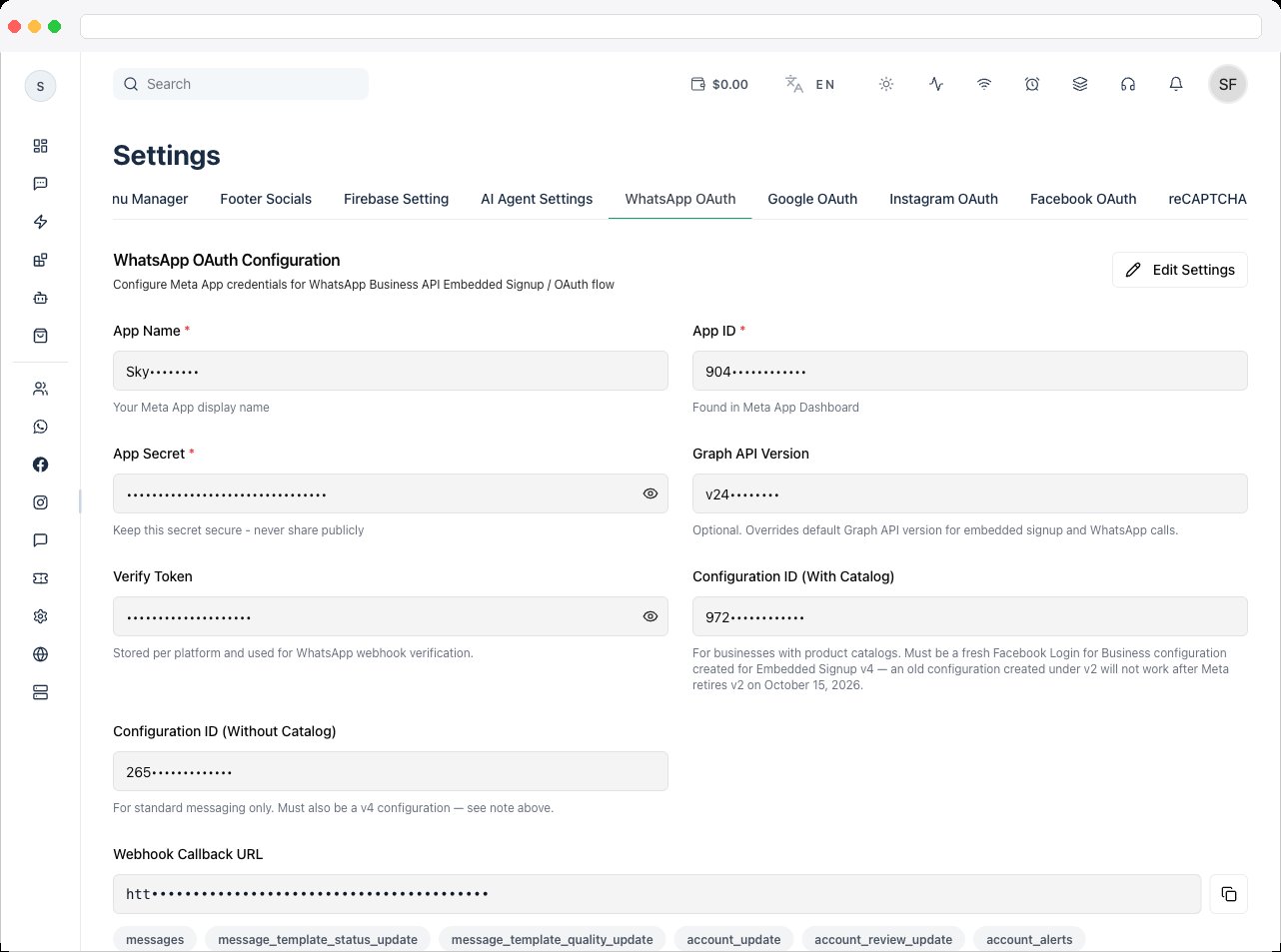
 2. Create and save **both** configuration IDs, selecting scopes from the Required OAuth Scopes table: one **with catalog** and one **without catalog**.
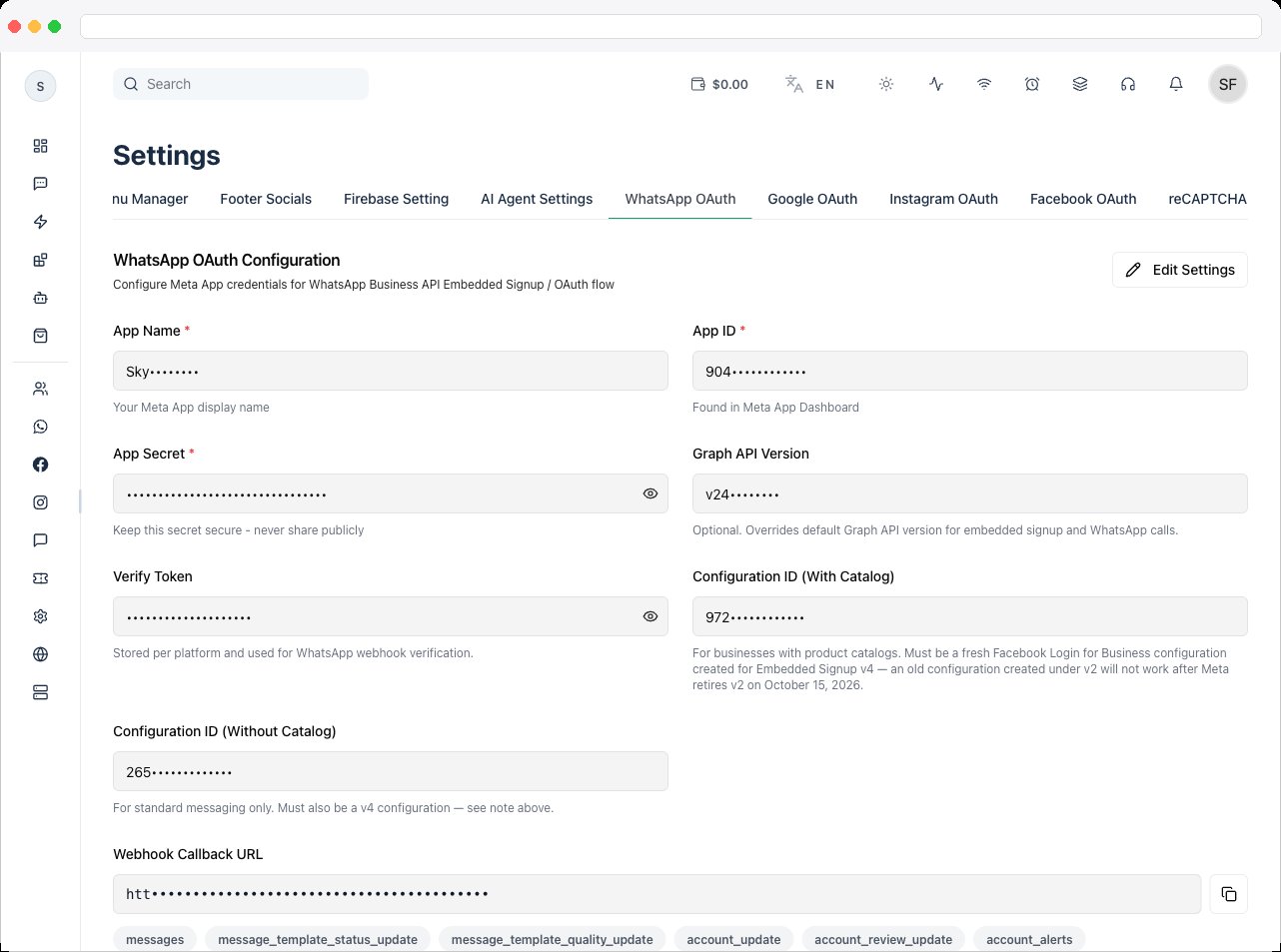
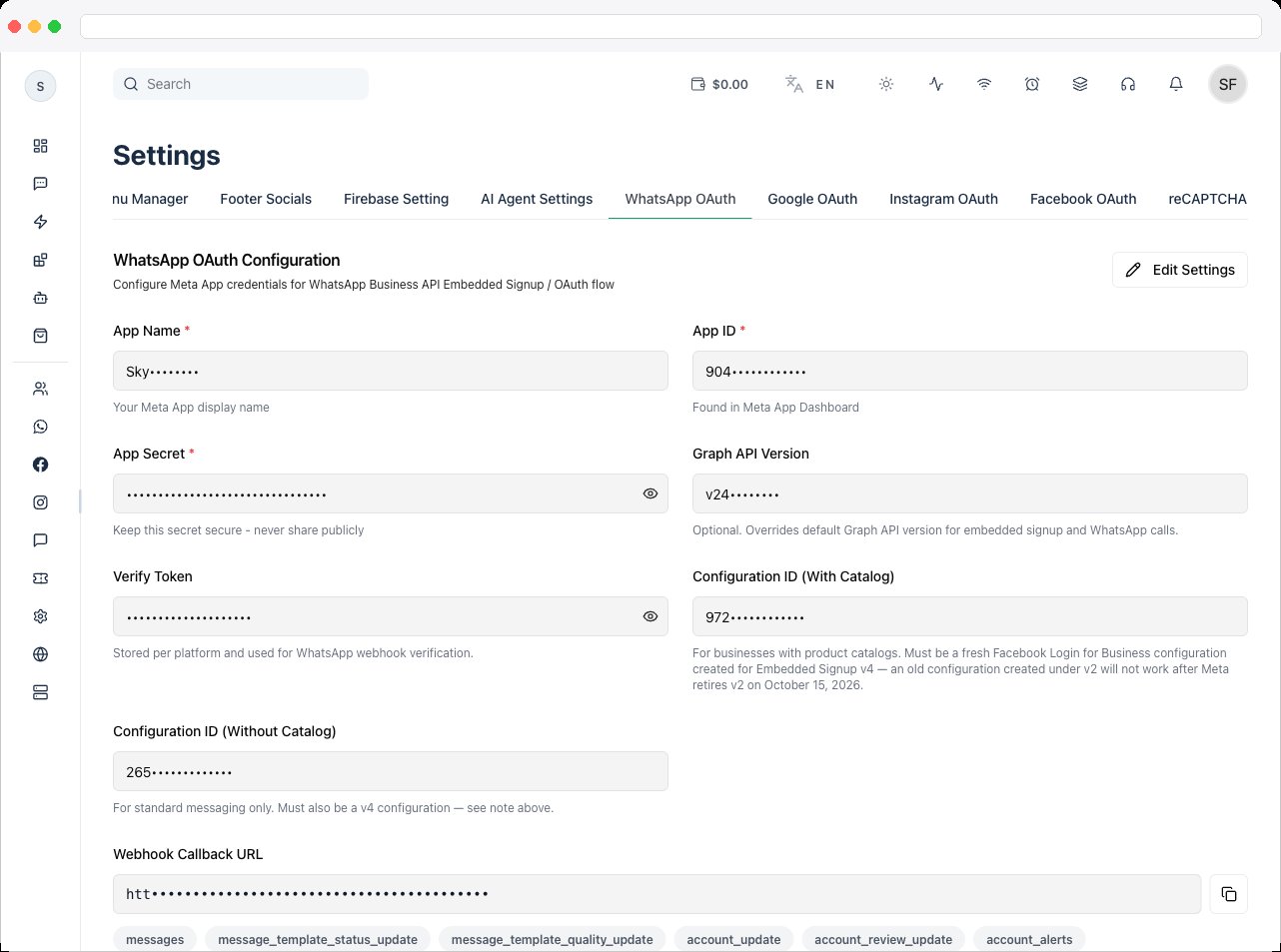 Both configuration IDs must be created for **Embedded Signup v4**. An older configuration created under v2 will stop working when Meta retires v2 on October 15, 2026.
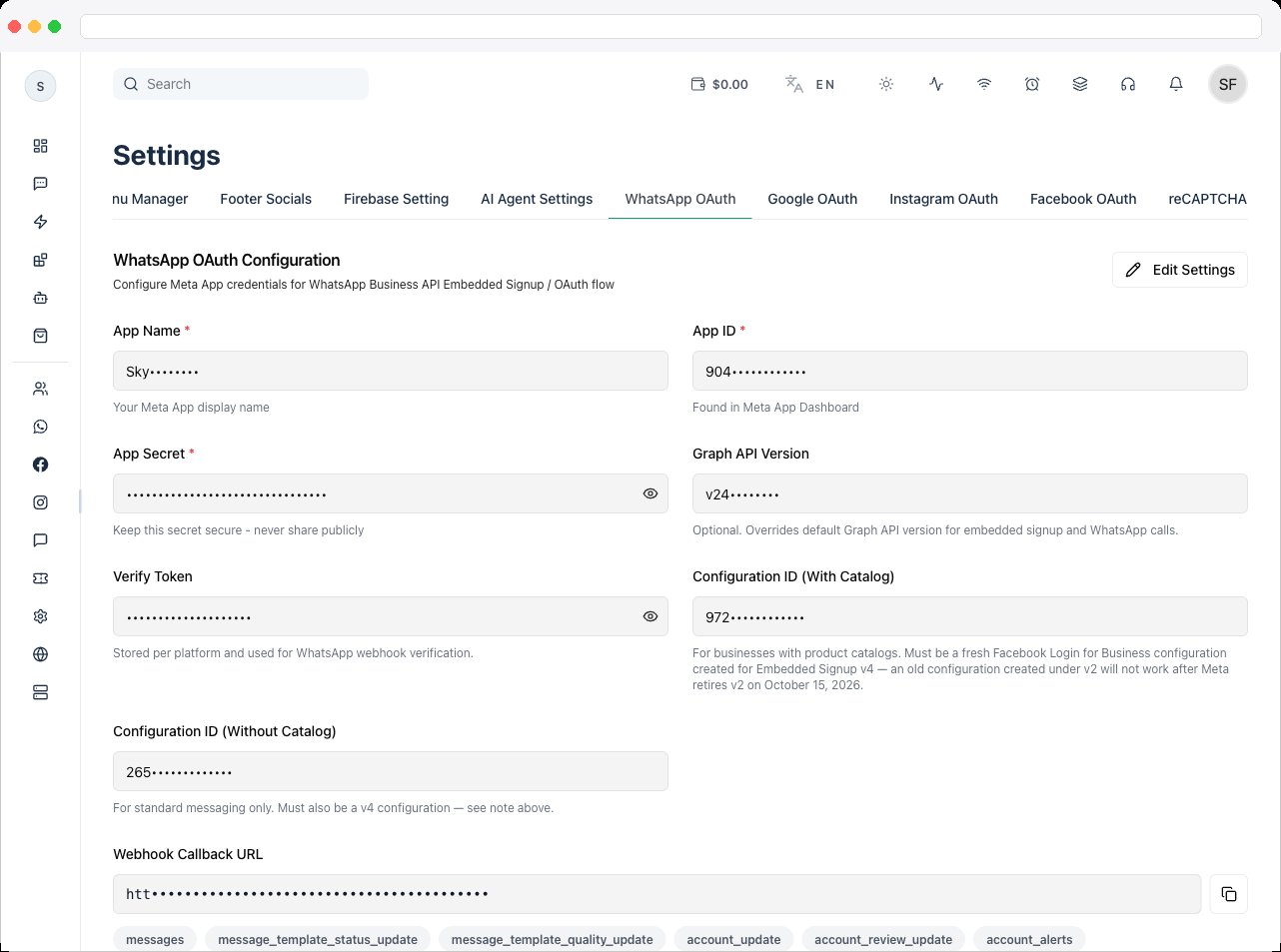
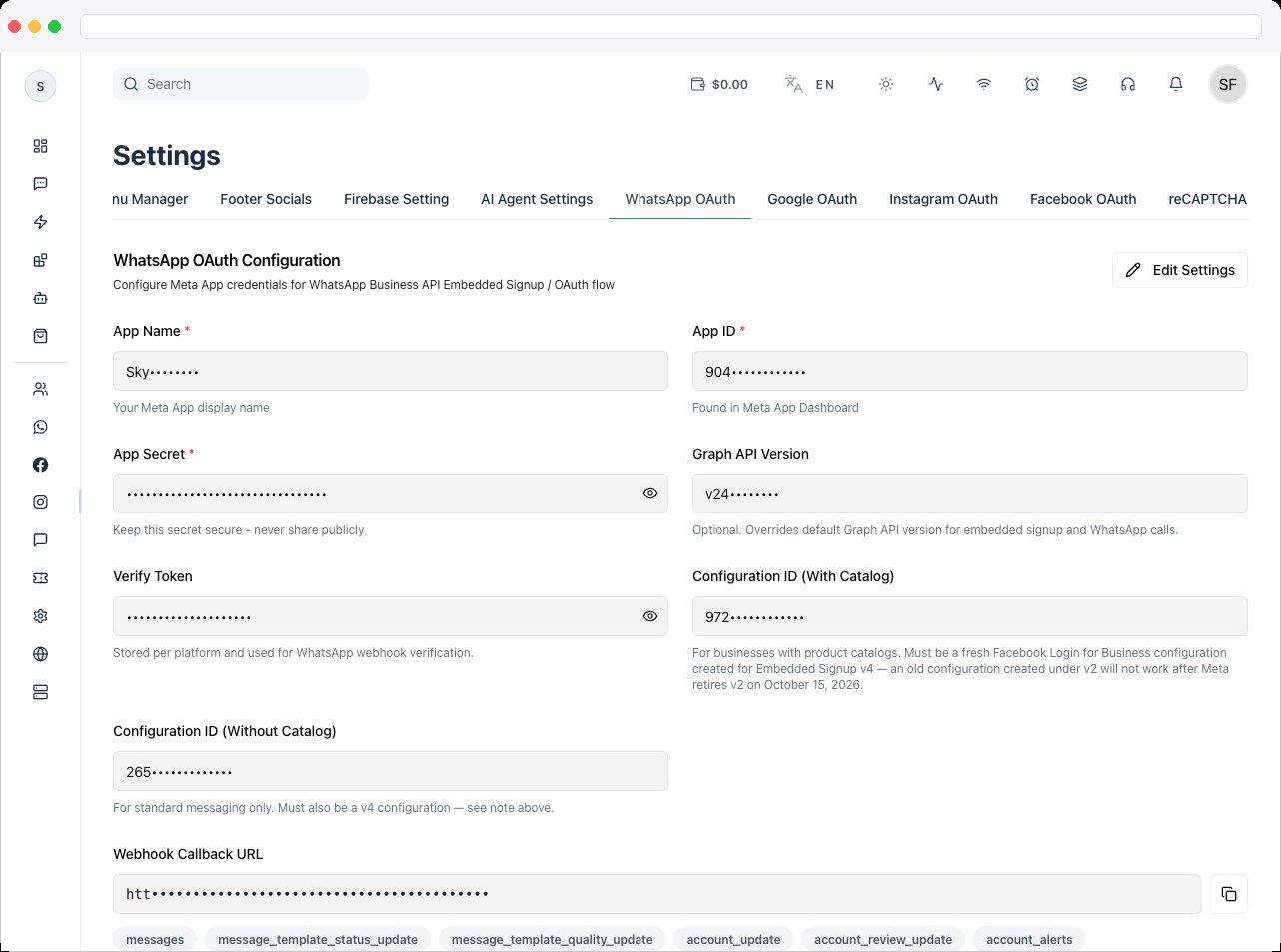
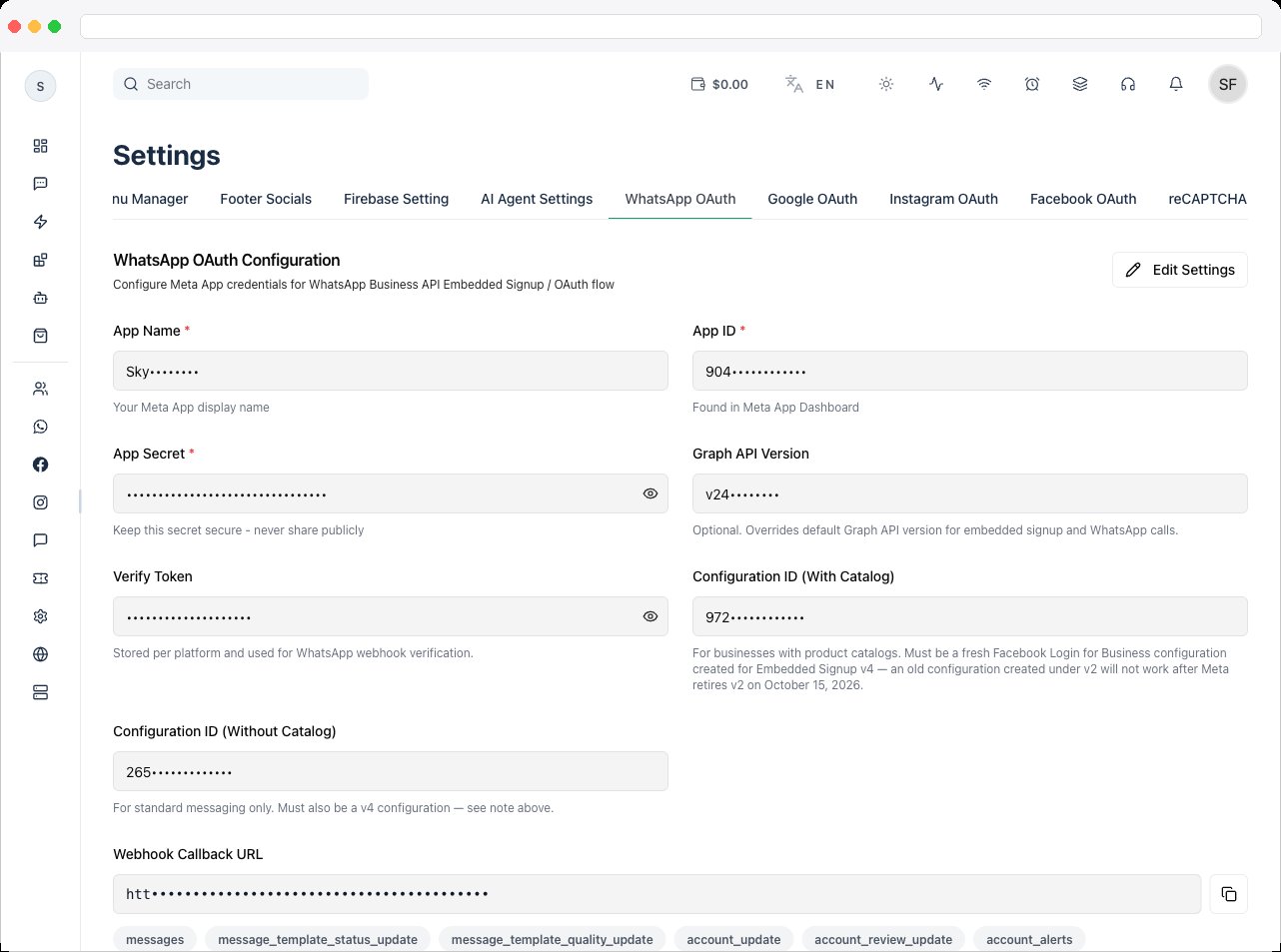
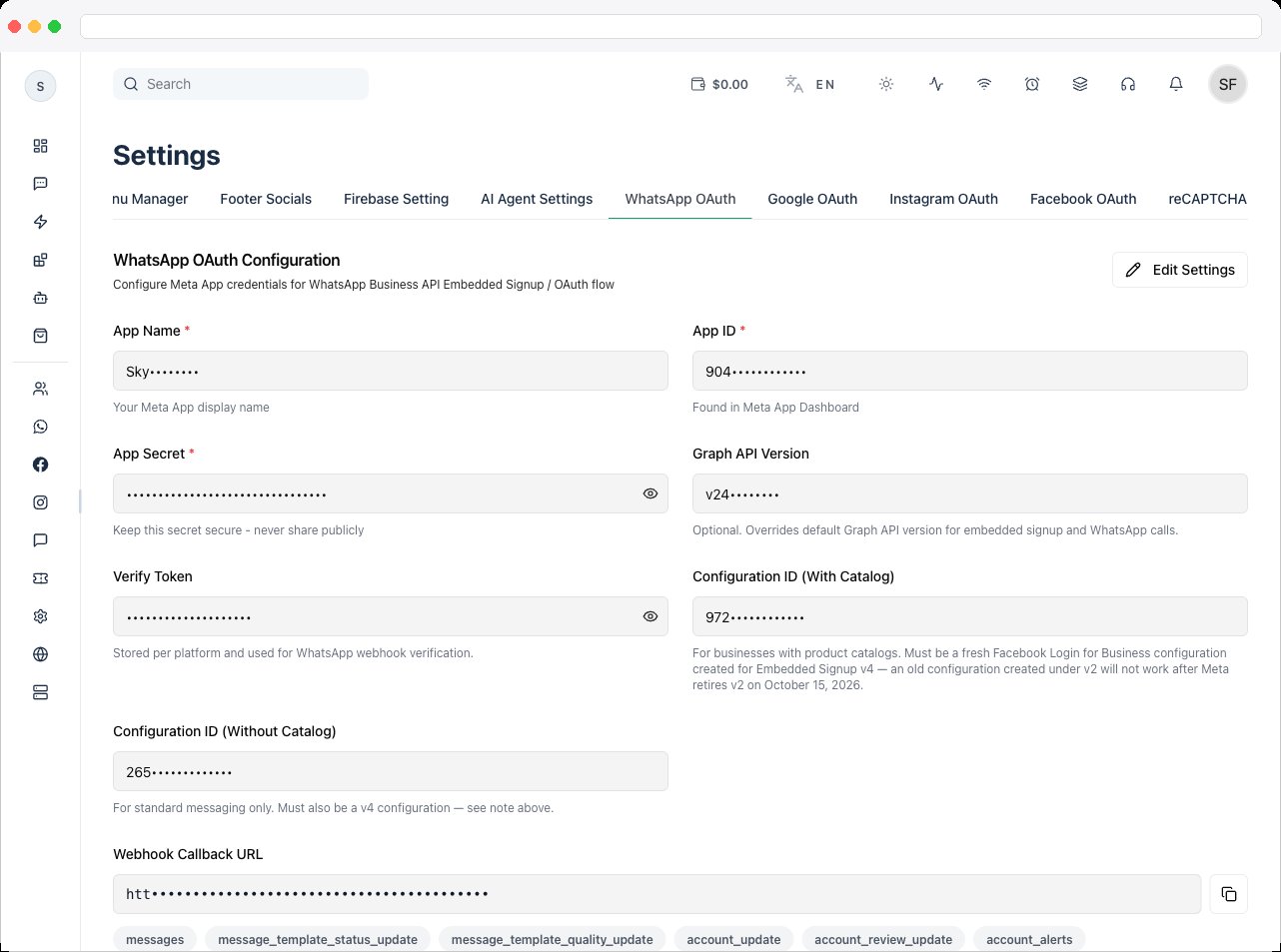
In **Platform Settings → WhatsApp OAuth**, click **Edit Settings** and enter the **App Name**, **App ID**, **App Secret**, **Verify Token**, and both **Configuration IDs**. Click **Save Settings**.
Both configuration IDs must be created for **Embedded Signup v4**. An older configuration created under v2 will stop working when Meta retires v2 on October 15, 2026.
In **Platform Settings → WhatsApp OAuth**, click **Edit Settings** and enter the **App Name**, **App ID**, **App Secret**, **Verify Token**, and both **Configuration IDs**. Click **Save Settings**.
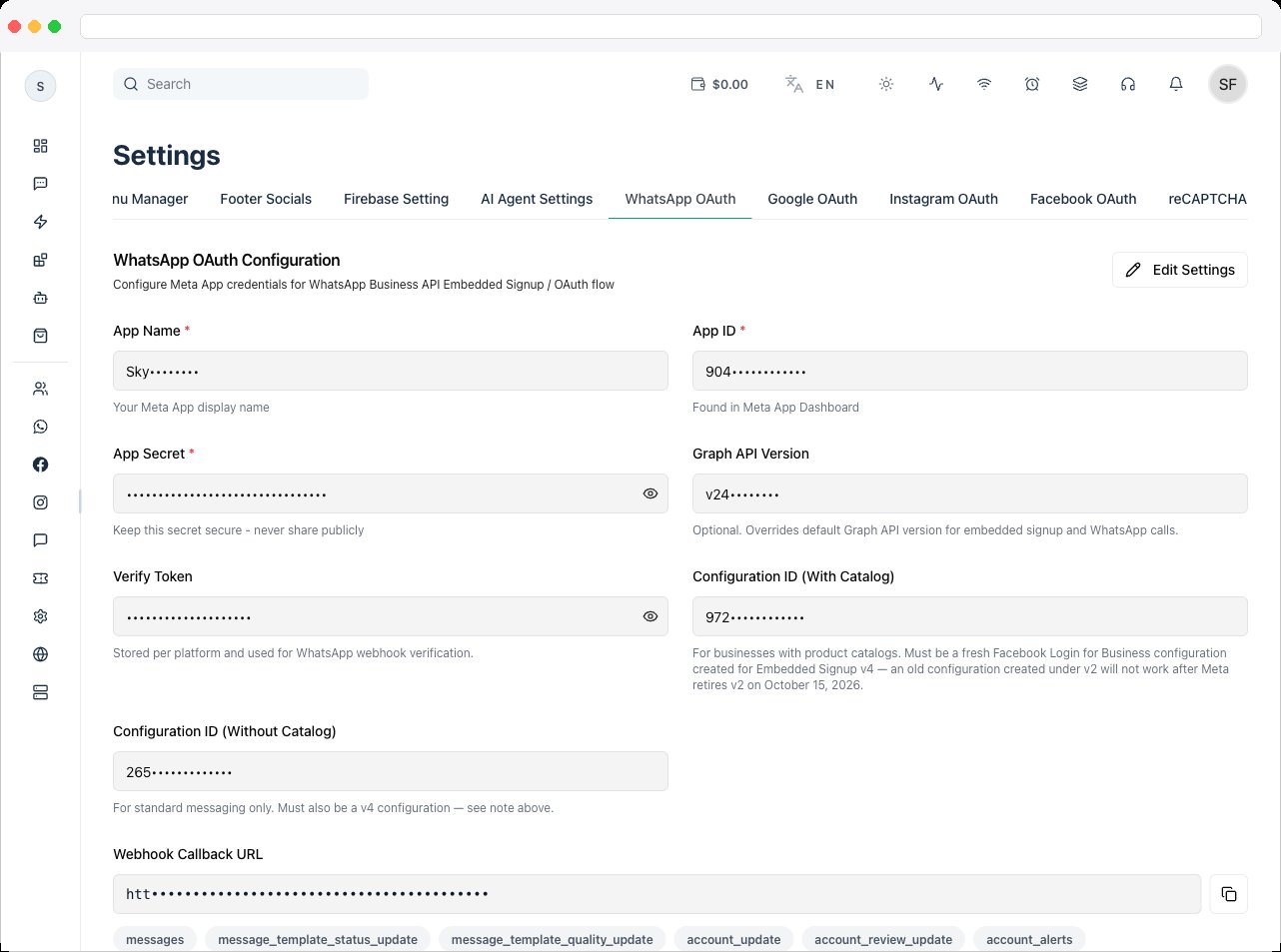 In Meta, go to **WhatsApp → Configuration** and add the **Webhook Callback URL** from this tab, using the same **Verify Token**. Select the required events so incoming WhatsApp messages are delivered.
 Go to **App Review → Permissions and Features** and request **Advanced access** for the scopes in the Required OAuth Scopes table.
 Go to **App Review → Settings** and complete every section — **Branding**, **Audience**, **Clients**, **Data Access**, and **Verification**. All sections must be complete before you submit.
Go to **App Review**, submit the requested permissions, and wait for Meta's approval.
### Review Submission Pack
Use this when Meta asks for a detailed description of how your app uses the permission or feature requested, how it adds value for a person using the app, and why it's necessary.
> Our platform helps businesses onboard to WhatsApp Business API, manage customer conversations, and run messaging workflows from a centralized dashboard. We use Meta Embedded Signup so a business can connect its own WhatsApp assets directly inside our platform with explicit user consent.
>
> The requested permissions are necessary to complete onboarding, configure business assets, enable messaging, and optionally support catalog commerce features. Without these permissions, users cannot complete account connection or use WhatsApp messaging features in our app.
**business\_management** — Our platform allows businesses to connect and manage their WhatsApp Business accounts. This permission is required to access business-level assets and enable account linking via embedded signup.
**whatsapp\_business\_management** — This permission is required to manage WhatsApp Business account settings, phone numbers, and configurations after the user connects their account through our platform.
**whatsapp\_business\_messaging** — Our platform enables users to send and receive WhatsApp messages, including automated notifications, campaigns, and customer conversations. This permission is essential for message delivery and communication workflows.
**catalog\_management** — This permission is used for businesses that utilize product catalogs. It allows syncing and managing catalog items for use in WhatsApp commerce features such as product messages and interactive flows.
Record one complete reviewer journey (5–12 minutes is recommended):
1. Show your platform login and open Platform Settings → WhatsApp OAuth.
2. Show the app is configured (mask the App Secret and tokens).
3. Start Embedded Signup from the platform UI.
4. Complete the Meta flow and grant the requested permissions.
5. Show the WhatsApp account connected in the platform.
6. Send a test message from the platform and show delivery and status.
7. Receive a reply and show it appears in the inbox or webhook-driven view.
8. If you're requesting `catalog_management`, show a catalog-related action.
1. Upload the video to Google Drive (public link for reviewers) or as an unlisted YouTube video.
2. Go to Meta App Dashboard → App Review → Permissions and Features.
3. For each permission, paste the permission-specific justification, the reviewer test steps, and the video URL.
4. Submit with test business credentials if the Meta reviewer requests them.
* App Review sections (Branding, Audience, Clients, Data Access, Verification) are completed.
* Requested permissions match the Required OAuth Scopes list above.
* Embedded Signup works end to end in your test account.
* The video shows the permission grant plus send and receive proof.
* Secrets are masked and reviewer credentials are prepared.
Meta verification can be complex and time-consuming. If you need help, contact our support team — verification setup is available as an add-on service.
### Set up Twilio TURN for WhatsApp Calling
WhatsApp Calling relies on WebRTC, which can fail behind firewalls, strict NAT, or corporate networks. A **TURN** (Traversal Using Relays around NAT) server relays audio when a direct connection isn't possible. Twilio TURN is recommended for reliable performance.
1. Sign up or log in at [twilio.com](https://www.twilio.com/) and open the **Twilio Console Dashboard**.
2. Copy your **Account SID** and **Auth Token**. These authenticate TURN requests.
3. In the **Twilio TURN (for WhatsApp Calling)** section of this tab, enter the **Twilio Account SID** and **Twilio Auth Token**.
4. Click **Test TURN**. The platform generates the **TURN URL**, **TURN Username**, and **TURN Credential** automatically and reports whether a relay candidate was received.
Go to **App Review → Settings** and complete every section — **Branding**, **Audience**, **Clients**, **Data Access**, and **Verification**. All sections must be complete before you submit.
Go to **App Review**, submit the requested permissions, and wait for Meta's approval.
### Review Submission Pack
Use this when Meta asks for a detailed description of how your app uses the permission or feature requested, how it adds value for a person using the app, and why it's necessary.
> Our platform helps businesses onboard to WhatsApp Business API, manage customer conversations, and run messaging workflows from a centralized dashboard. We use Meta Embedded Signup so a business can connect its own WhatsApp assets directly inside our platform with explicit user consent.
>
> The requested permissions are necessary to complete onboarding, configure business assets, enable messaging, and optionally support catalog commerce features. Without these permissions, users cannot complete account connection or use WhatsApp messaging features in our app.
**business\_management** — Our platform allows businesses to connect and manage their WhatsApp Business accounts. This permission is required to access business-level assets and enable account linking via embedded signup.
**whatsapp\_business\_management** — This permission is required to manage WhatsApp Business account settings, phone numbers, and configurations after the user connects their account through our platform.
**whatsapp\_business\_messaging** — Our platform enables users to send and receive WhatsApp messages, including automated notifications, campaigns, and customer conversations. This permission is essential for message delivery and communication workflows.
**catalog\_management** — This permission is used for businesses that utilize product catalogs. It allows syncing and managing catalog items for use in WhatsApp commerce features such as product messages and interactive flows.
Record one complete reviewer journey (5–12 minutes is recommended):
1. Show your platform login and open Platform Settings → WhatsApp OAuth.
2. Show the app is configured (mask the App Secret and tokens).
3. Start Embedded Signup from the platform UI.
4. Complete the Meta flow and grant the requested permissions.
5. Show the WhatsApp account connected in the platform.
6. Send a test message from the platform and show delivery and status.
7. Receive a reply and show it appears in the inbox or webhook-driven view.
8. If you're requesting `catalog_management`, show a catalog-related action.
1. Upload the video to Google Drive (public link for reviewers) or as an unlisted YouTube video.
2. Go to Meta App Dashboard → App Review → Permissions and Features.
3. For each permission, paste the permission-specific justification, the reviewer test steps, and the video URL.
4. Submit with test business credentials if the Meta reviewer requests them.
* App Review sections (Branding, Audience, Clients, Data Access, Verification) are completed.
* Requested permissions match the Required OAuth Scopes list above.
* Embedded Signup works end to end in your test account.
* The video shows the permission grant plus send and receive proof.
* Secrets are masked and reviewer credentials are prepared.
Meta verification can be complex and time-consuming. If you need help, contact our support team — verification setup is available as an add-on service.
### Set up Twilio TURN for WhatsApp Calling
WhatsApp Calling relies on WebRTC, which can fail behind firewalls, strict NAT, or corporate networks. A **TURN** (Traversal Using Relays around NAT) server relays audio when a direct connection isn't possible. Twilio TURN is recommended for reliable performance.
1. Sign up or log in at [twilio.com](https://www.twilio.com/) and open the **Twilio Console Dashboard**.
2. Copy your **Account SID** and **Auth Token**. These authenticate TURN requests.
3. In the **Twilio TURN (for WhatsApp Calling)** section of this tab, enter the **Twilio Account SID** and **Twilio Auth Token**.
4. Click **Test TURN**. The platform generates the **TURN URL**, **TURN Username**, and **TURN Credential** automatically and reports whether a relay candidate was received.
 Once the auth token is saved, you only need to enter a new one to replace it.
### Forward Meta webhooks to another system
To copy incoming Meta webhook events to a second endpoint without changing your primary webhook, use **Meta Relay**. It forwards the raw payload and headers to your target URL, so you can feed automation tools, CRMs, or monitoring systems in parallel. Configure it in [Meta Relay](/platform/settings/meta-relay) (self-managed instances only), and use **Test Verification** and **Send Meta-Style Sample** to validate it.
## Troubleshooting / Technical Notes
* **"App Name, App ID, and App Secret are required."** Fill in all three before saving.
* **Embedded Signup stops working after October 15, 2026.** Your configuration IDs were created under Embedded Signup v2. Create new v4 configurations in Meta and update both IDs here.
* **Incoming messages don't arrive.** Confirm the webhook callback URL and Verify Token match in Meta, and that the required events are selected.
* **"No relay candidate found."** Check the Twilio Account SID, Auth Token, and any firewall rules, then click **Test TURN** again.
* **Meta rejected the review.** Missing permissions or an incomplete video are the most common causes. Make sure the video shows both the permission grant and a real send and receive.
* **Webhook forwarding isn't working.** Verify that your target endpoint accepts `POST` requests and returns a successful response.
## Related docs
* [Meta Relay](/platform/settings/meta-relay)
* [Facebook OAuth](/platform/settings/facebook-oauth)
* [Instagram OAuth](/platform/settings/instagram-oauth)
* [WhatsApp Calls](/workspace/whatsapp/calls)
* [WhatsApp Overview](/workspace/whatsapp/overview)
Once the auth token is saved, you only need to enter a new one to replace it.
### Forward Meta webhooks to another system
To copy incoming Meta webhook events to a second endpoint without changing your primary webhook, use **Meta Relay**. It forwards the raw payload and headers to your target URL, so you can feed automation tools, CRMs, or monitoring systems in parallel. Configure it in [Meta Relay](/platform/settings/meta-relay) (self-managed instances only), and use **Test Verification** and **Send Meta-Style Sample** to validate it.
## Troubleshooting / Technical Notes
* **"App Name, App ID, and App Secret are required."** Fill in all three before saving.
* **Embedded Signup stops working after October 15, 2026.** Your configuration IDs were created under Embedded Signup v2. Create new v4 configurations in Meta and update both IDs here.
* **Incoming messages don't arrive.** Confirm the webhook callback URL and Verify Token match in Meta, and that the required events are selected.
* **"No relay candidate found."** Check the Twilio Account SID, Auth Token, and any firewall rules, then click **Test TURN** again.
* **Meta rejected the review.** Missing permissions or an incomplete video are the most common causes. Make sure the video shows both the permission grant and a real send and receive.
* **Webhook forwarding isn't working.** Verify that your target endpoint accepts `POST` requests and returns a successful response.
## Related docs
* [Meta Relay](/platform/settings/meta-relay)
* [Facebook OAuth](/platform/settings/facebook-oauth)
* [Instagram OAuth](/platform/settings/instagram-oauth)
* [WhatsApp Calls](/workspace/whatsapp/calls)
* [WhatsApp Overview](/workspace/whatsapp/overview)