> ## Documentation Index
> Fetch the complete documentation index at: https://docs.skyfree.io/llms.txt
> Use this file to discover all available pages before exploring further.
# Automation Templates
> Review and approve automation templates that users submit to share publicly.
**Included with every self-managed instance.** It requires the `instance:view` permission. It isn't part of the White-Label add-on.
## What is this?
**Automation Templates** is the moderation queue for automation templates that users across your instance have submitted to be shared publicly. As the instance admin, you review each submission and approve or reject it before it becomes visible to everyone.
 ## What can I do here?
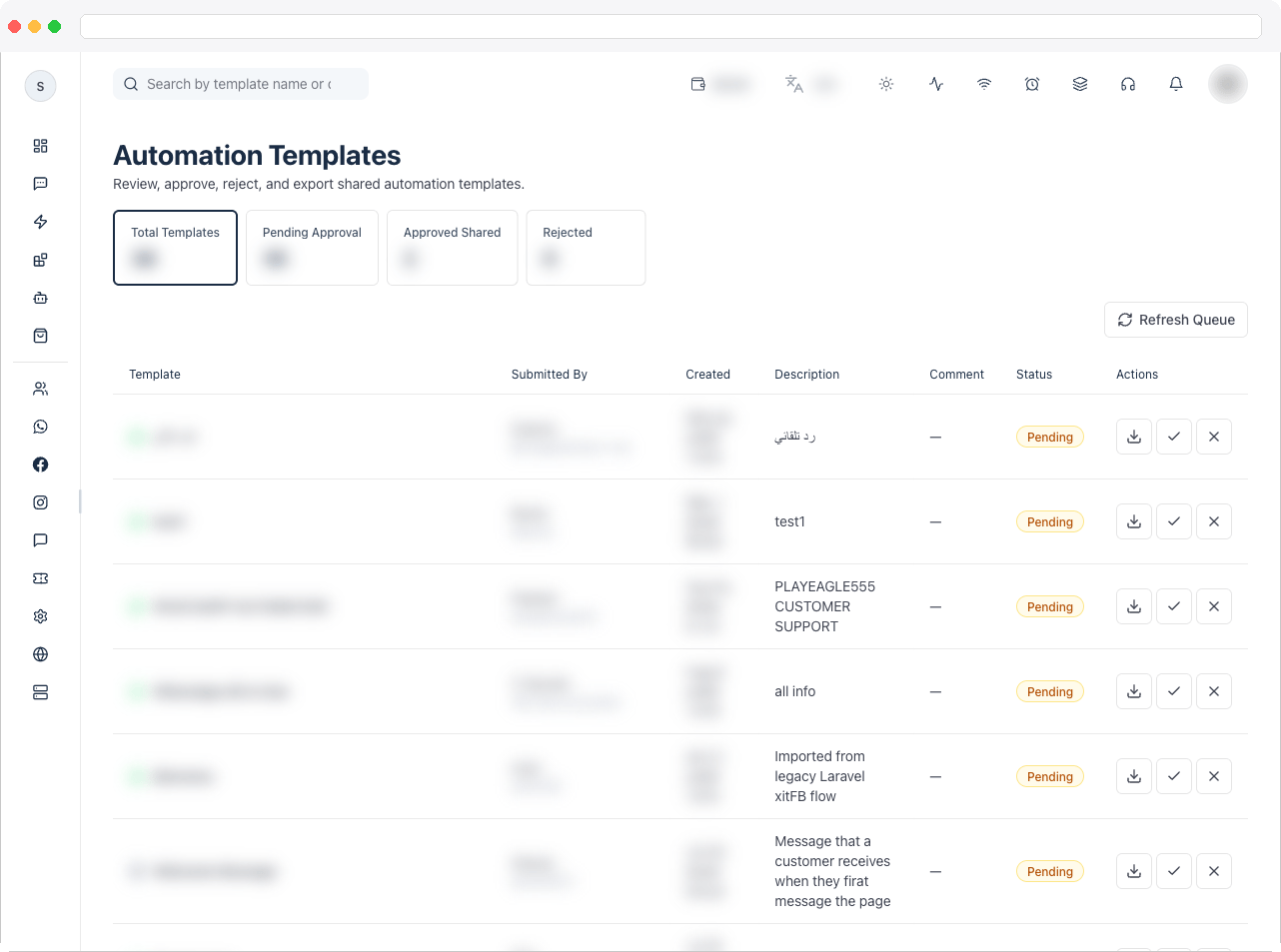
* View summary tiles: **Total Templates**, **Pending Approval**, **Approved/Shared**, and **Rejected**
* Search templates by name or description
* See, per template: name and channel (WhatsApp, Instagram, Google, Web Chat, etc.), who submitted it and when, its description, any review comment, and its current approval status
* **Approve** or **Reject** a submitted template, with an optional review comment or rejection reason
* Use **AI Rewrite** to polish your review comment before submitting
* **Export** any template as a downloadable JSON file
* Refresh the queue on demand
## How to use it
### Approve or reject a template
1. Find the template in the table (search by name/description if needed).
2. Click the **check icon** to approve it, or the **X icon** to reject it. This opens the review dialog.
3. Optionally enter a **Review Comment** (for an approval) or a **Reason for Rejection** (for a rejection).
4. Optionally click **AI Rewrite** to have the comment rewritten before saving.
5. Click **Approve** or **Reject** to submit. Approved templates become visible to all users on your instance.
## What can I do here?
* View summary tiles: **Total Templates**, **Pending Approval**, **Approved/Shared**, and **Rejected**
* Search templates by name or description
* See, per template: name and channel (WhatsApp, Instagram, Google, Web Chat, etc.), who submitted it and when, its description, any review comment, and its current approval status
* **Approve** or **Reject** a submitted template, with an optional review comment or rejection reason
* Use **AI Rewrite** to polish your review comment before submitting
* **Export** any template as a downloadable JSON file
* Refresh the queue on demand
## How to use it
### Approve or reject a template
1. Find the template in the table (search by name/description if needed).
2. Click the **check icon** to approve it, or the **X icon** to reject it. This opens the review dialog.
3. Optionally enter a **Review Comment** (for an approval) or a **Reason for Rejection** (for a rejection).
4. Optionally click **AI Rewrite** to have the comment rewritten before saving.
5. Click **Approve** or **Reject** to submit. Approved templates become visible to all users on your instance.
 ### Export a template
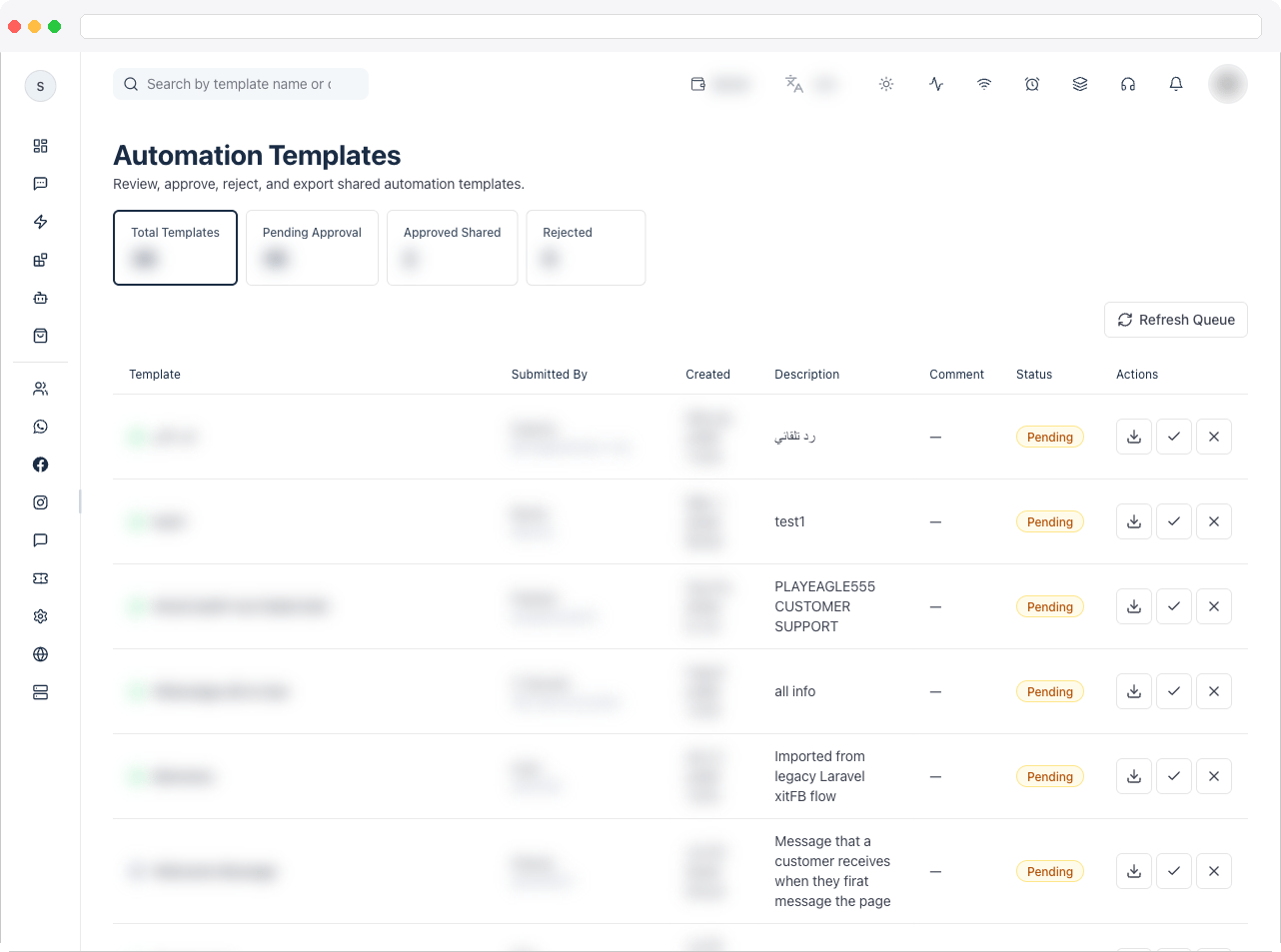
1. Click the **download icon** on a template's row.
2. A `.template.json` file with the full template snapshot downloads to your device.
### Export a template
1. Click the **download icon** on a template's row.
2. A `.template.json` file with the full template snapshot downloads to your device.
