> ## Documentation Index
> Fetch the complete documentation index at: https://docs.skyfree.io/llms.txt
> Use this file to discover all available pages before exploring further.
# WhatsApp Credit Line Pricing
> Manage the rate card used to price WhatsApp Credit Line messages, by country and category.
Requires **Credit Line** on your license. If it isn't included, the page shows "Credit line is not included in your current plan" — contact support or purchase the add-on to enable it. It also requires the `instance:view` permission.
## What is this?
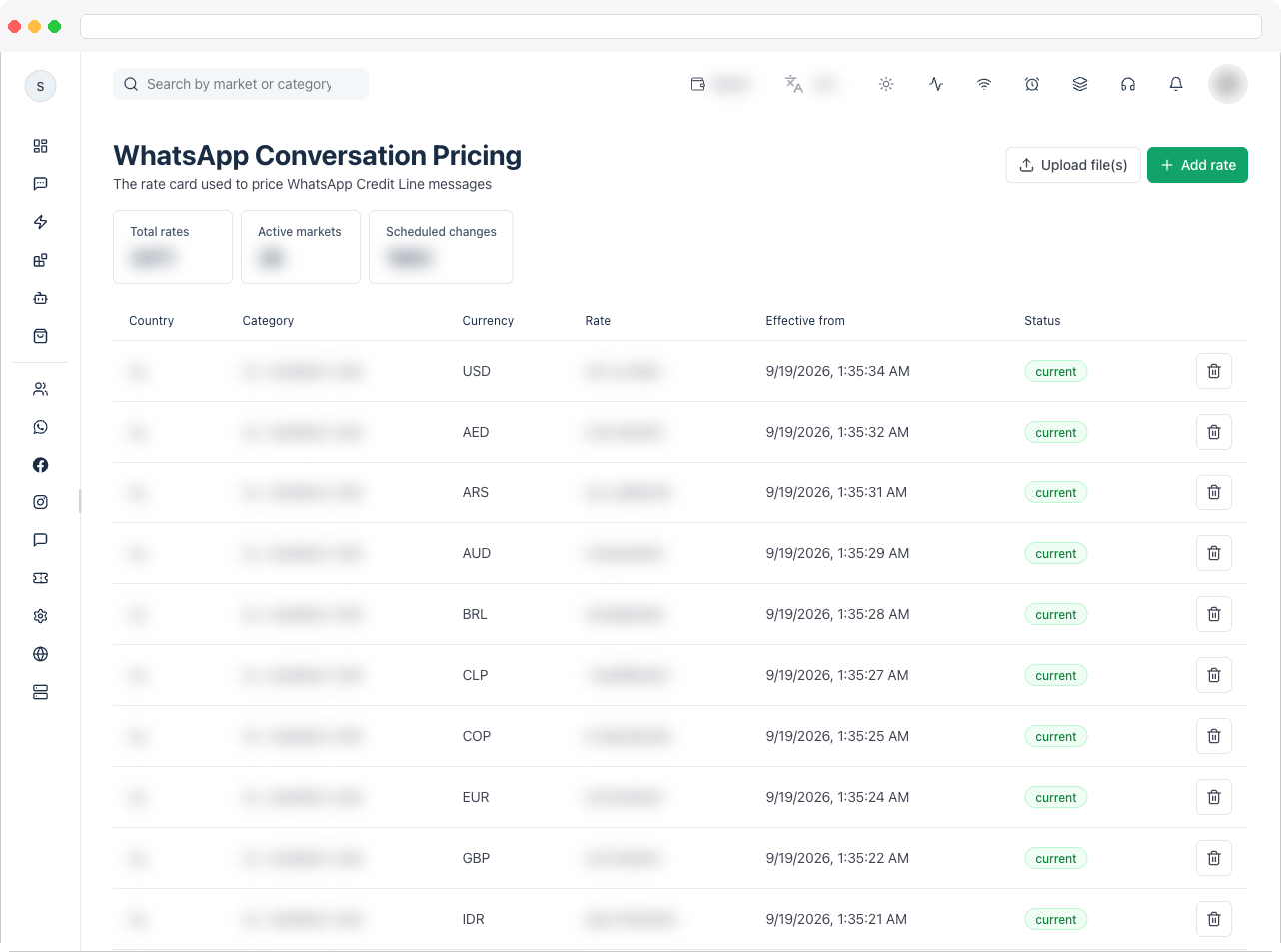
**WhatsApp Credit Line Pricing** (shown on the page as **WhatsApp Conversation Pricing**) is the rate card that prices WhatsApp Credit Line messages on your instance. Each rate is set for a market (country) and a message category, with a currency and an effective date.
 ## What can I do here?
* See summary tiles: **Total rates**, **Active markets**, and **Scheduled changes**
* Review each rate's **Country**, **Category**, **Currency**, **Rate**, **Effective from**, and **Status**
* **Add rate** to add or update a single rate
* **Upload file(s)** to import a whole rate card from a `.csv` or `.xlsx` file
* **Deactivate** a rate you no longer want to apply
## How to use it
### Add or update a rate
1. Go to **Platform → Instance → WhatsApp Credit Line Pricing** and click **Add rate**.
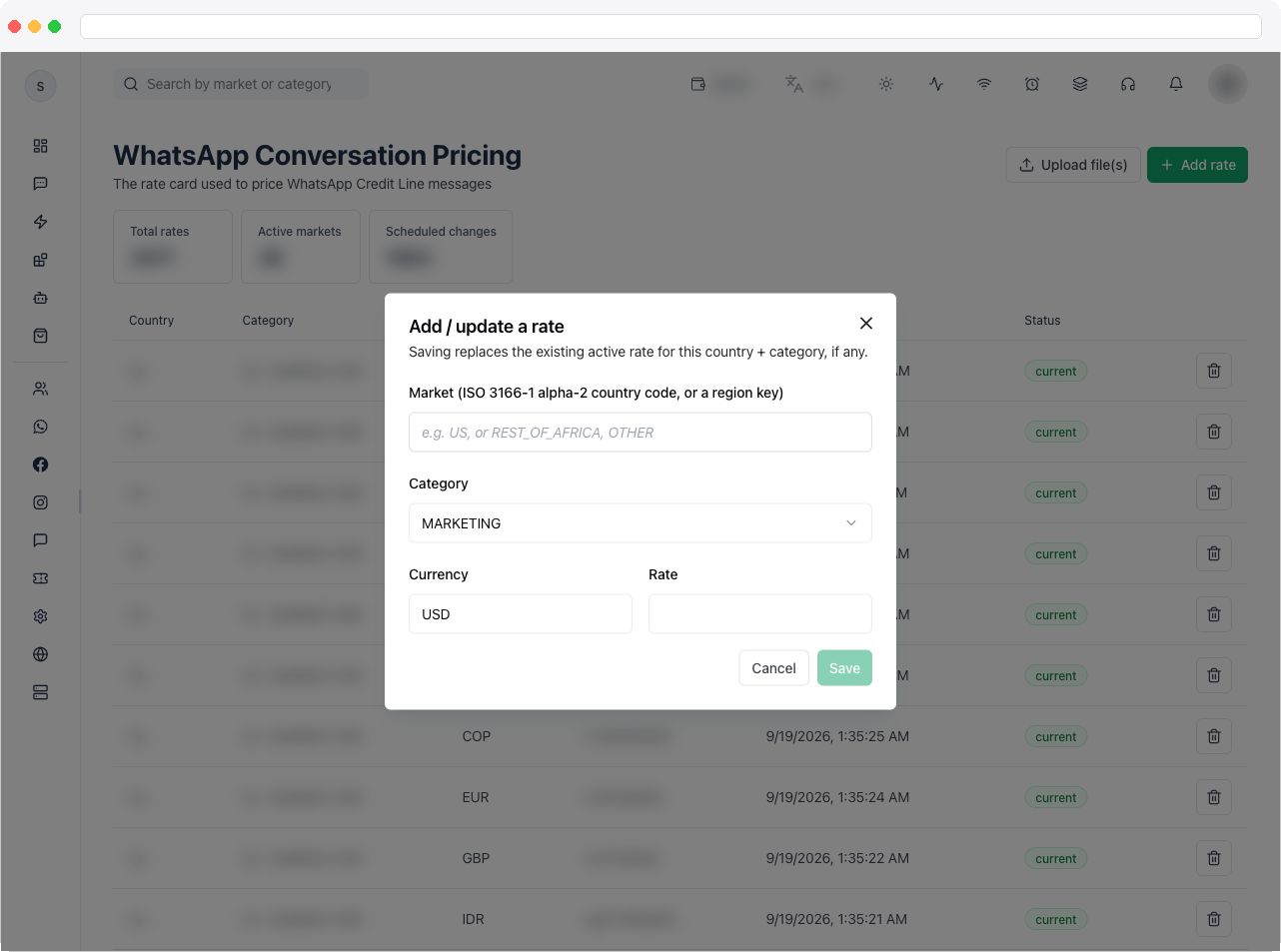
2. Enter the **Market** as an ISO 3166-1 alpha-2 country code, such as `US`, or a region key such as `REST_OF_AFRICA` or `OTHER`.
3. Choose the **Category** and **Currency**, and enter the **Rate**.
4. Save. Saving replaces the existing active rate for the same country and category, if there is one.
## What can I do here?
* See summary tiles: **Total rates**, **Active markets**, and **Scheduled changes**
* Review each rate's **Country**, **Category**, **Currency**, **Rate**, **Effective from**, and **Status**
* **Add rate** to add or update a single rate
* **Upload file(s)** to import a whole rate card from a `.csv` or `.xlsx` file
* **Deactivate** a rate you no longer want to apply
## How to use it
### Add or update a rate
1. Go to **Platform → Instance → WhatsApp Credit Line Pricing** and click **Add rate**.
2. Enter the **Market** as an ISO 3166-1 alpha-2 country code, such as `US`, or a region key such as `REST_OF_AFRICA` or `OTHER`.
3. Choose the **Category** and **Currency**, and enter the **Rate**.
4. Save. Saving replaces the existing active rate for the same country and category, if there is one.
 ### Import a rate card
1. Click **Upload file(s)** and choose a `.csv` or `.xlsx` file.
2. In **Import rate card**, optionally set **Effective from** to schedule the changes for a future date. Leave it empty to apply them right away.
3. Review the preview and confirm. The result tells you how many changes were applied or scheduled, and lists any rows that had errors.
### Deactivate a rate
Click **Deactivate** on a rate's row to stop applying it.
## Troubleshooting / Technical Notes
* **"Credit line is not included in your current plan."** Your license doesn't include Credit Line. Contact support or purchase the add-on.
* **"Import finished with errors."** Some rows in your file couldn't be applied. Check the messages listed for each file, fix those rows, and import again.
* **A rate isn't applying yet.** It may be a **Scheduled change** with a future **Effective from** date.
* **Where do customers see credit-line billing?** Credit-line wallets are configured in [Wallet Settings](/platform/settings/wallet-settings).
## Related docs
* [Wallet Settings](/platform/settings/wallet-settings)
* [Whitelabel Plans](/self-host/whitelabel-plans)
* [Self-Hosted overview](/self-host/overview)
### Import a rate card
1. Click **Upload file(s)** and choose a `.csv` or `.xlsx` file.
2. In **Import rate card**, optionally set **Effective from** to schedule the changes for a future date. Leave it empty to apply them right away.
3. Review the preview and confirm. The result tells you how many changes were applied or scheduled, and lists any rows that had errors.
### Deactivate a rate
Click **Deactivate** on a rate's row to stop applying it.
## Troubleshooting / Technical Notes
* **"Credit line is not included in your current plan."** Your license doesn't include Credit Line. Contact support or purchase the add-on.
* **"Import finished with errors."** Some rows in your file couldn't be applied. Check the messages listed for each file, fix those rows, and import again.
* **A rate isn't applying yet.** It may be a **Scheduled change** with a future **Effective from** date.
* **Where do customers see credit-line billing?** Credit-line wallets are configured in [Wallet Settings](/platform/settings/wallet-settings).
## Related docs
* [Wallet Settings](/platform/settings/wallet-settings)
* [Whitelabel Plans](/self-host/whitelabel-plans)
* [Self-Hosted overview](/self-host/overview)