> ## Documentation Index
> Fetch the complete documentation index at: https://docs.skyfree.io/llms.txt
> Use this file to discover all available pages before exploring further.
# Whitelabel App Generation
> Track the branded Android and iOS app build jobs generated for your white-label platforms.
**Requires the White-Label add-on.** This page is part of the White-Label add-on, which lets you create and sell white-label platforms to your own customers. Without the add-on, it doesn't appear in the Instance menu. See the [Self-Hosted overview](/self-host/overview) to compare the two levels, and check [Licence](/self-host/whitelabel-setup/licence-status) to see what your instance includes. It also requires the `instance:view` permission.
## What is this?
**Whitelabel App Generation** tracks the mobile app build jobs generated for your white-label platforms — the branded Android and/or iOS apps produced when a platform owner requests their own app build.
 ## What can I do here?
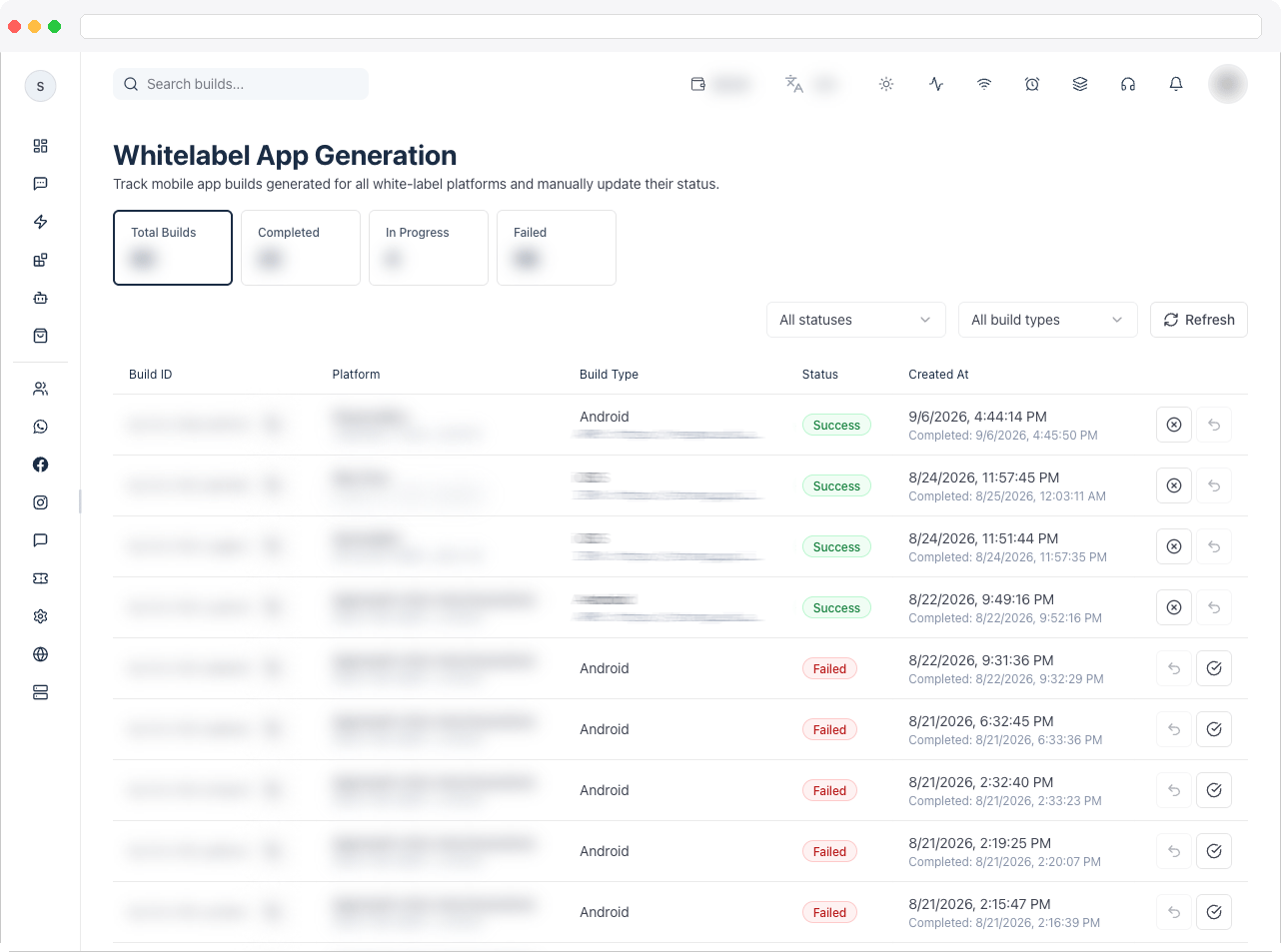
* View summary tiles: **Total Builds**, **Completed**, **In Progress**, and **Failed**
* Filter builds by **status** (All, Completed, In Progress, Pending, Failed) and by **build type** (All, Android, iOS, Android + iOS)
* Search builds by keyword
* Refresh the list on demand
* See, per build: build ID, platform name/ID, build type, current status, any error message, generated app file paths (APK/IPA), created date, and completed date
* Copy a build ID to the clipboard
* Manually mark a build as **Failed** or as **Completed** (and undo either marking)
## How to use it
### Review build status
1. Use the **status** and **build type** dropdowns in the toolbar to narrow the list, or search by keyword.
2. Each row shows the build's current status as a colored pill (Completed, In Progress, Pending, or Failed) along with any error message and the generated Android/iOS file paths once available.
## What can I do here?
* View summary tiles: **Total Builds**, **Completed**, **In Progress**, and **Failed**
* Filter builds by **status** (All, Completed, In Progress, Pending, Failed) and by **build type** (All, Android, iOS, Android + iOS)
* Search builds by keyword
* Refresh the list on demand
* See, per build: build ID, platform name/ID, build type, current status, any error message, generated app file paths (APK/IPA), created date, and completed date
* Copy a build ID to the clipboard
* Manually mark a build as **Failed** or as **Completed** (and undo either marking)
## How to use it
### Review build status
1. Use the **status** and **build type** dropdowns in the toolbar to narrow the list, or search by keyword.
2. Each row shows the build's current status as a colored pill (Completed, In Progress, Pending, or Failed) along with any error message and the generated Android/iOS file paths once available.
 ### Copy a build ID
1. Click the **copy icon** next to a build ID to copy the full ID to your clipboard — useful when following up with the build/CI system directly.
### Mark a build's outcome manually
1. Find the build in the table.
2. Click the **X icon** to mark it **Failed**, or the **check icon** to mark it **Completed**. Each action can be undone with the same icon (which toggles to an undo icon) as long as the build isn't already in that terminal state.
### Copy a build ID
1. Click the **copy icon** next to a build ID to copy the full ID to your clipboard — useful when following up with the build/CI system directly.
### Mark a build's outcome manually
1. Find the build in the table.
2. Click the **X icon** to mark it **Failed**, or the **check icon** to mark it **Completed**. Each action can be undone with the same icon (which toggles to an undo icon) as long as the build isn't already in that terminal state.
