> ## Documentation Index
> Fetch the complete documentation index at: https://docs.skyfree.io/llms.txt
> Use this file to discover all available pages before exploring further.
# Cron Jobs
> Enable, disable, and tune the background jobs your instance runs.
**Included with every self-managed instance.** This tab is part of [Whitelabel Setup](/self-host/whitelabel-setup/overview).
## What is this?
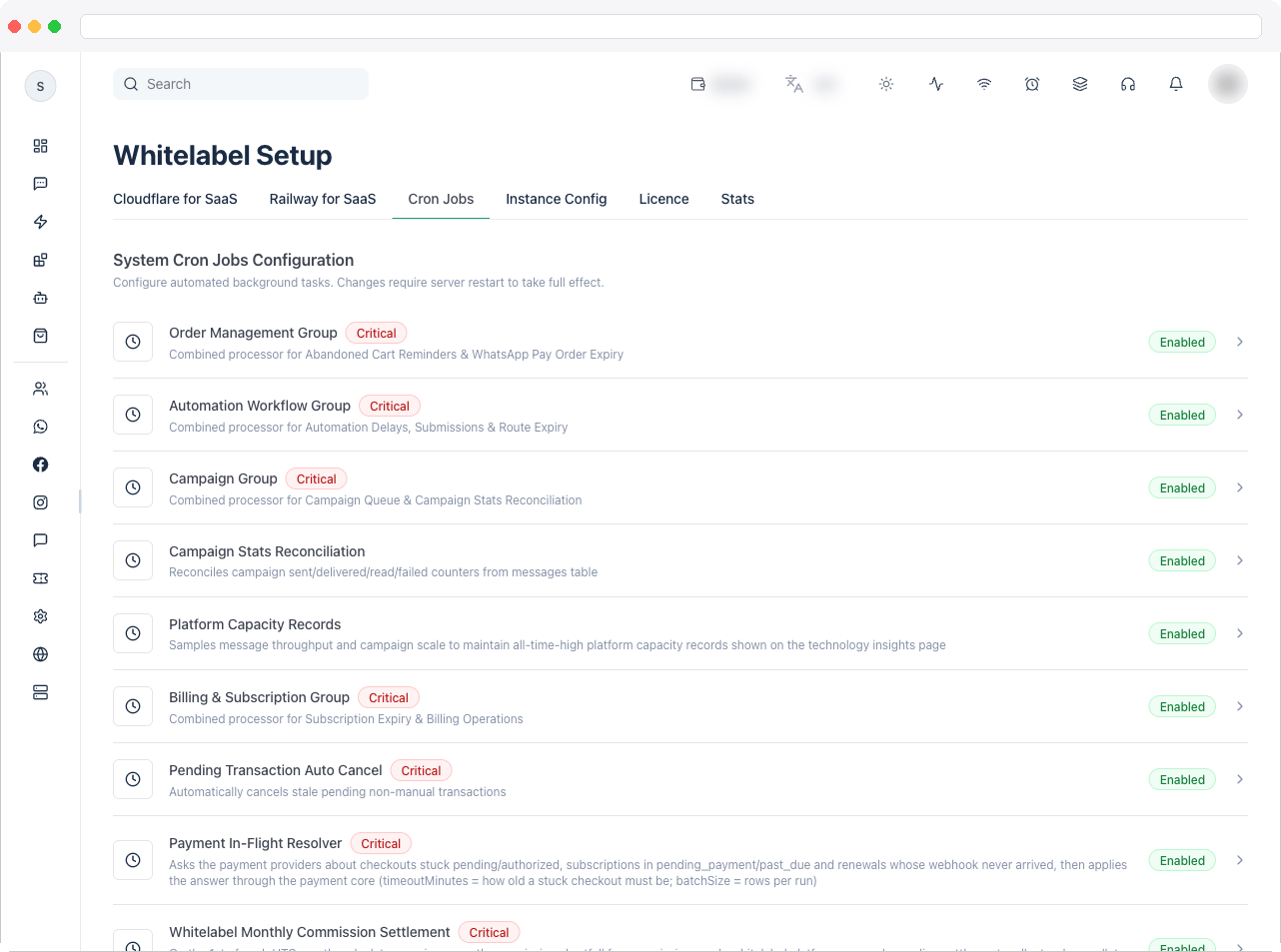
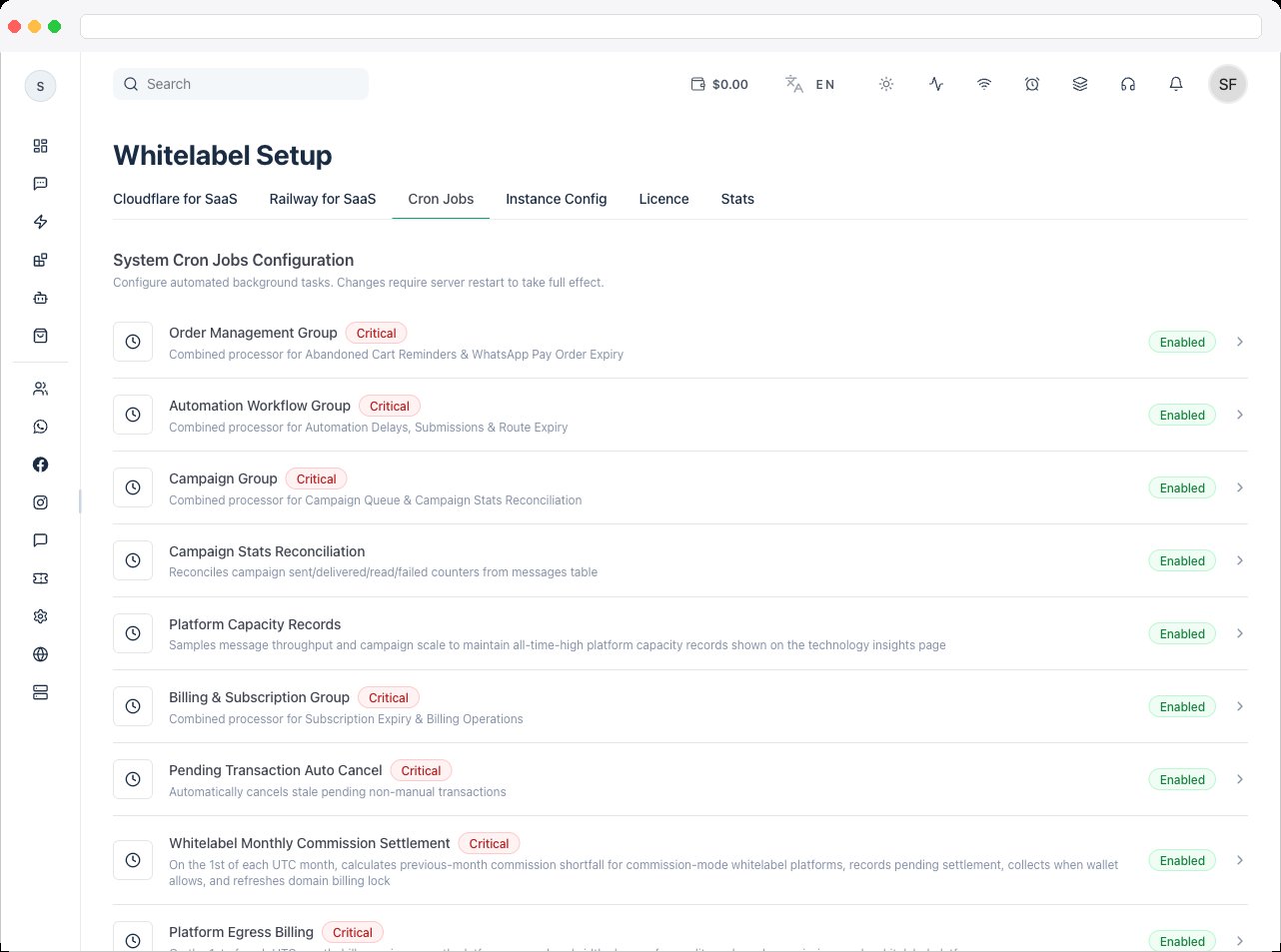
The **Cron Jobs** tab (labeled "System Cron Jobs Configuration" on the page itself) lists every background job the platform runs — campaign sending, billing, cleanup, reminders, license checks, and more — and lets a platform owner enable/disable each one and tune how often it runs. Changes require a server restart to take full effect.
 ## What can I do here?
* See every configured background job as a row, with its name, a short description, and a status pill (**Enabled** or **Disabled**).
* Jobs marked **Critical** are flagged with a badge and cannot be disabled, since they're required for system operation.
* Click any job row to open its settings in a dialog, where you can:
* Toggle it **Enabled** (unless it's critical).
* Adjust its **Interval (seconds)** if it's an interval-based job (higher = less server load).
* Adjust its **Cron Schedule** if it's a schedule-based job (always interpreted in UTC, standard 5-field cron syntax, e.g. `0 0 * * *` for daily at 00:00 UTC).
* Adjust its **Batch Size** if the job processes items in batches.
* Save changes with **Save Changes**.
Examples of jobs you'll find in the list (the exact set is instance-specific and may grow over time):
* **Order Management Group** (critical) — combined processor for abandoned cart reminders and WhatsApp Pay order expiry.
* **Campaign Group** (critical) — combined processor for the campaign queue and campaign stats reconciliation.
* **Billing & Subscription Group** (critical) — combined processor for subscription expiry and billing operations.
* **Ticket Auto Close** (critical) — automatically closes resolved support tickets after a grace period.
* **License Heartbeat** (critical) — periodic license validation heartbeat.
* **OTP Cleanup** — removes expired OTP codes.
* **Log Retention Cleanup** — deletes old audit/activity logs and memory snapshots.
* **Message Archive** — moves messages older than 90 days to an archive table.
* **Channel Health Monitor** — checks WhatsApp channel health status.
* **Event Reminder** — sends automated pre-event WhatsApp reminders to registrants.
## How to use it
1. From the job list, click a row for the job you want to adjust. This opens a dialog with that job's name and description.
## What can I do here?
* See every configured background job as a row, with its name, a short description, and a status pill (**Enabled** or **Disabled**).
* Jobs marked **Critical** are flagged with a badge and cannot be disabled, since they're required for system operation.
* Click any job row to open its settings in a dialog, where you can:
* Toggle it **Enabled** (unless it's critical).
* Adjust its **Interval (seconds)** if it's an interval-based job (higher = less server load).
* Adjust its **Cron Schedule** if it's a schedule-based job (always interpreted in UTC, standard 5-field cron syntax, e.g. `0 0 * * *` for daily at 00:00 UTC).
* Adjust its **Batch Size** if the job processes items in batches.
* Save changes with **Save Changes**.
Examples of jobs you'll find in the list (the exact set is instance-specific and may grow over time):
* **Order Management Group** (critical) — combined processor for abandoned cart reminders and WhatsApp Pay order expiry.
* **Campaign Group** (critical) — combined processor for the campaign queue and campaign stats reconciliation.
* **Billing & Subscription Group** (critical) — combined processor for subscription expiry and billing operations.
* **Ticket Auto Close** (critical) — automatically closes resolved support tickets after a grace period.
* **License Heartbeat** (critical) — periodic license validation heartbeat.
* **OTP Cleanup** — removes expired OTP codes.
* **Log Retention Cleanup** — deletes old audit/activity logs and memory snapshots.
* **Message Archive** — moves messages older than 90 days to an archive table.
* **Channel Health Monitor** — checks WhatsApp channel health status.
* **Event Reminder** — sends automated pre-event WhatsApp reminders to registrants.
## How to use it
1. From the job list, click a row for the job you want to adjust. This opens a dialog with that job's name and description.
 2. If the job isn't critical, use the **Enabled** switch to turn it on or off.
3. Depending on the job type, set either:
* **Interval (seconds)** — how often the job runs, in seconds (min 10, max 3600 in the UI), or
* **Cron Schedule** — a standard cron expression, always evaluated in UTC.
4. If the job supports batching, set the **Batch Size** — how many items it processes per run.
5. Click **Save Changes**. A confirmation toast appears once the update is applied; note that some jobs only fully pick up the new settings after the server restarts.
6. Close the dialog and repeat for any other job you want to adjust.
\[NEEDS VERIFICATION] Whether "changes require server restart to take full effect" applies to every field (e.g. toggling Enabled) or only to interval/schedule changes isn't fully spelled out in the UI copy — treat any cron change as needing a restart to be safe.
2. If the job isn't critical, use the **Enabled** switch to turn it on or off.
3. Depending on the job type, set either:
* **Interval (seconds)** — how often the job runs, in seconds (min 10, max 3600 in the UI), or
* **Cron Schedule** — a standard cron expression, always evaluated in UTC.
4. If the job supports batching, set the **Batch Size** — how many items it processes per run.
5. Click **Save Changes**. A confirmation toast appears once the update is applied; note that some jobs only fully pick up the new settings after the server restarts.
6. Close the dialog and repeat for any other job you want to adjust.
\[NEEDS VERIFICATION] Whether "changes require server restart to take full effect" applies to every field (e.g. toggling Enabled) or only to interval/schedule changes isn't fully spelled out in the UI copy — treat any cron change as needing a restart to be safe.