> ## Documentation Index
> Fetch the complete documentation index at: https://docs.skyfree.io/llms.txt
> Use this file to discover all available pages before exploring further.
# Whitelabel Transactions
> Review every payment made on your white-label instance, with revenue totals and payment status.
**Requires the White-Label add-on.** This page is part of the White-Label add-on, which lets you create and sell white-label platforms to your own customers. Without the add-on, it doesn't appear in the Instance menu. See the [Self-Hosted overview](/self-host/overview) to compare the two levels, and check [Licence](/self-host/whitelabel-setup/licence-status) to see what your instance includes. It also requires the `instance:view` permission.
## What is this?
**Whitelabel Transactions** is a ledger of every payment made by platform owners on your white-label instance — setup purchases, credit pack purchases, wallet recharges, and add-ons — with revenue totals and payment status.
 ## What can I do here?
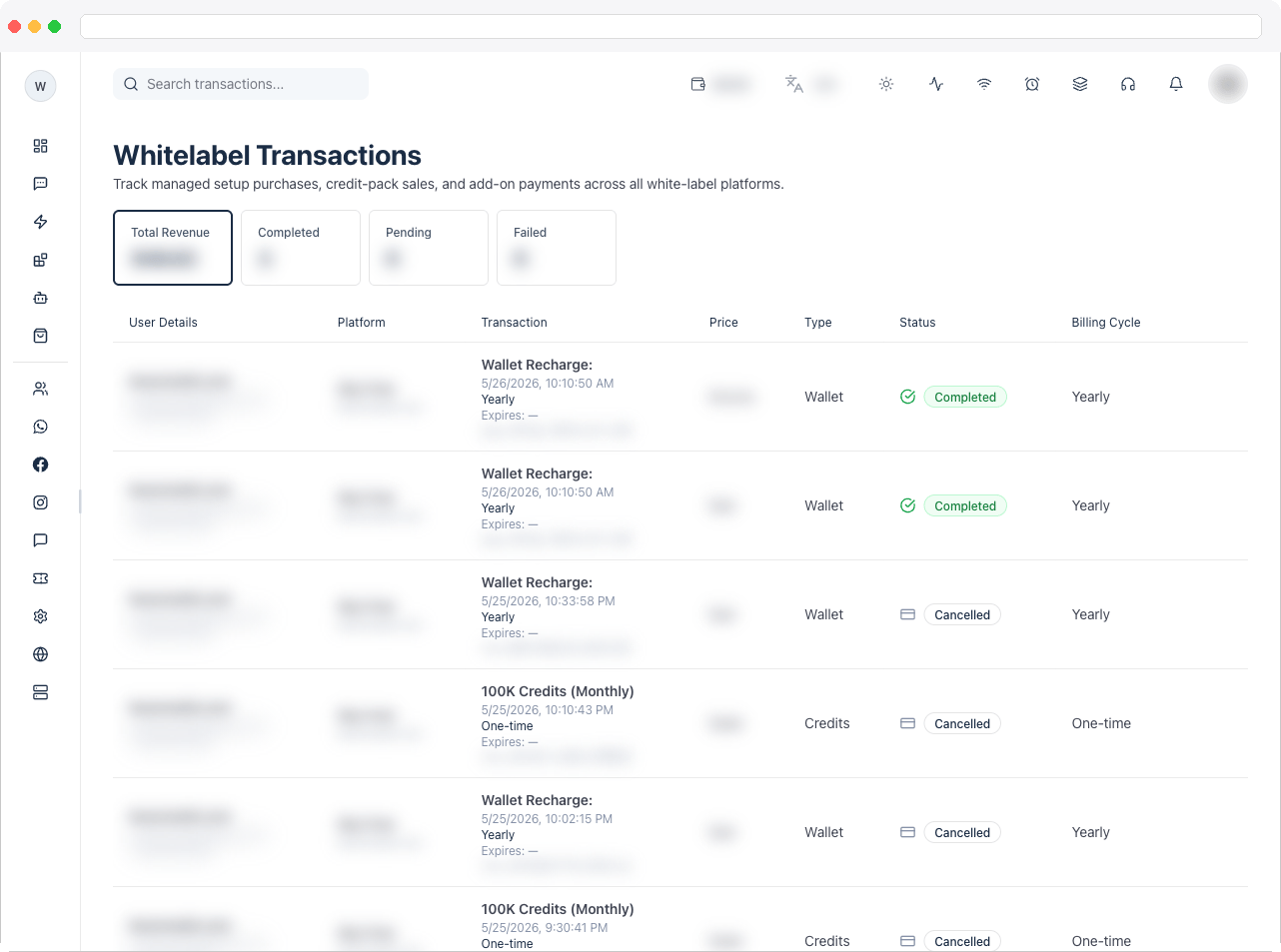
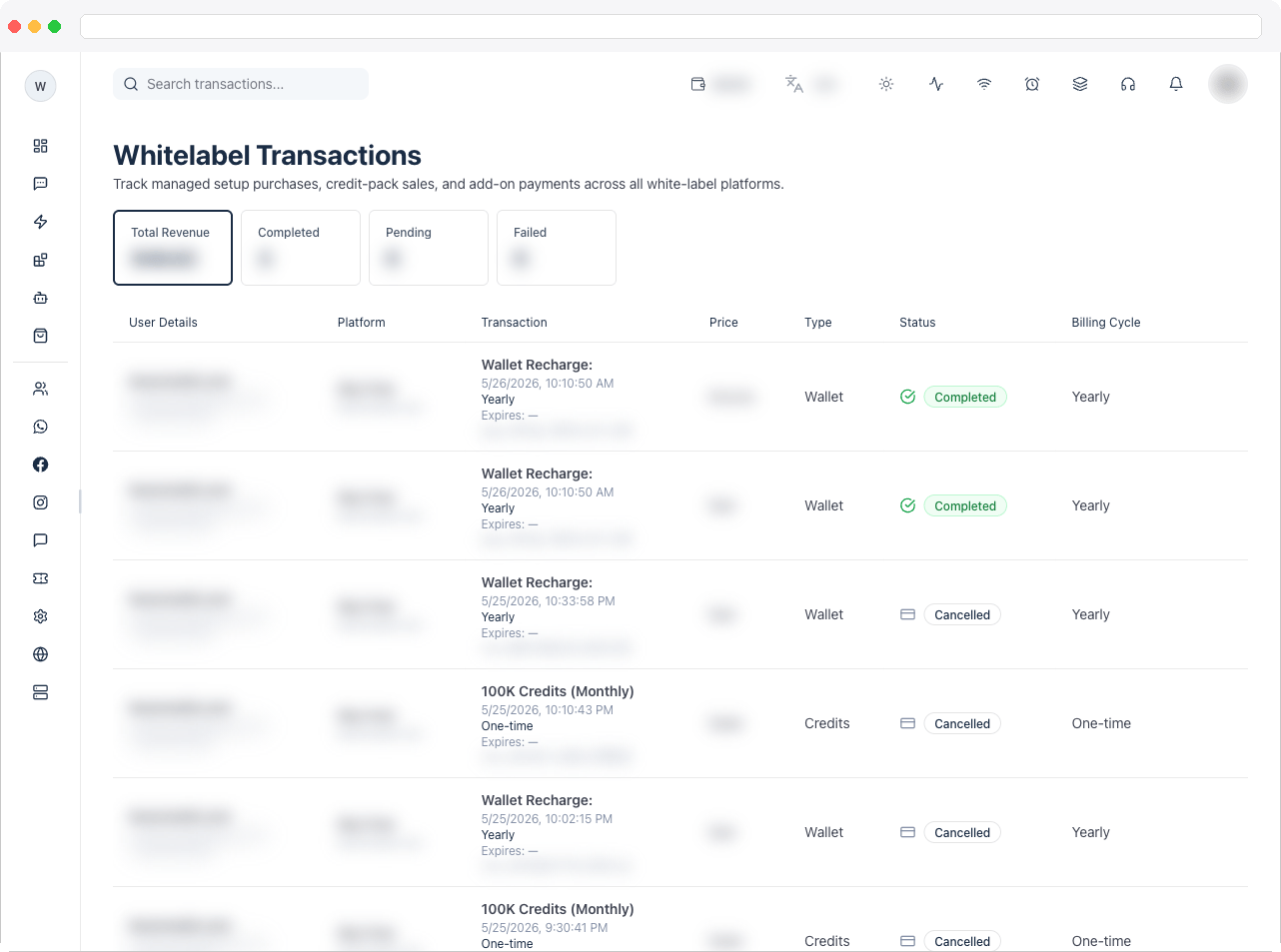
* View summary tiles: **Total Revenue**, **Completed**, **Pending**, and **Failed** (click a tile to filter the table by that status)
* Search transactions by keyword
* See, per transaction: the paying user's company/owner email/phone, the platform name and domain, what was purchased (with credits, validity, and expiry where applicable), the amount, the pricing category, the payment status, and the billing cycle (One-time, Monthly, Quarterly, Half-Yearly, or Yearly)
* Copy a transaction's payment/order reference ID to the clipboard
## How to use it
### Filter and review transactions
1. Click a stat tile (**Total Revenue**, **Completed**, **Pending**, or **Failed**) to filter the table to that status, or use the search box to find a specific company, email, or domain.
2. Each row shows what was purchased, when it was paid, how many credits (if any) were added, its validity/expiry, and the current status as a colored pill with an icon.
## What can I do here?
* View summary tiles: **Total Revenue**, **Completed**, **Pending**, and **Failed** (click a tile to filter the table by that status)
* Search transactions by keyword
* See, per transaction: the paying user's company/owner email/phone, the platform name and domain, what was purchased (with credits, validity, and expiry where applicable), the amount, the pricing category, the payment status, and the billing cycle (One-time, Monthly, Quarterly, Half-Yearly, or Yearly)
* Copy a transaction's payment/order reference ID to the clipboard
## How to use it
### Filter and review transactions
1. Click a stat tile (**Total Revenue**, **Completed**, **Pending**, or **Failed**) to filter the table to that status, or use the search box to find a specific company, email, or domain.
2. Each row shows what was purchased, when it was paid, how many credits (if any) were added, its validity/expiry, and the current status as a colored pill with an icon.
 ### Copy a payment reference
1. Hover over a transaction row and click the **⋯ (more)** menu on the right.
2. Select **Copy to Clipboard** to copy the provider's payment/order/transaction reference — useful when reconciling with your payment gateway's dashboard.
### Copy a payment reference
1. Hover over a transaction row and click the **⋯ (more)** menu on the right.
2. Select **Copy to Clipboard** to copy the provider's payment/order/transaction reference — useful when reconciling with your payment gateway's dashboard.