> ## Documentation Index
> Fetch the complete documentation index at: https://docs.skyfree.io/llms.txt
> Use this file to discover all available pages before exploring further.
# AI Agents
> Create AI agents that handle conversations, follow your instructions, and hand off to your team.
## What is this?
AI Agents (beta) lets you create AI-powered agents that automatically handle conversations on your connected channels — answering questions from knowledge sources, taking actions like updating contacts or handing off to a human, and following the instructions and guardrails you define, without needing a manual automation flow for every scenario.
 ## What can I do here?
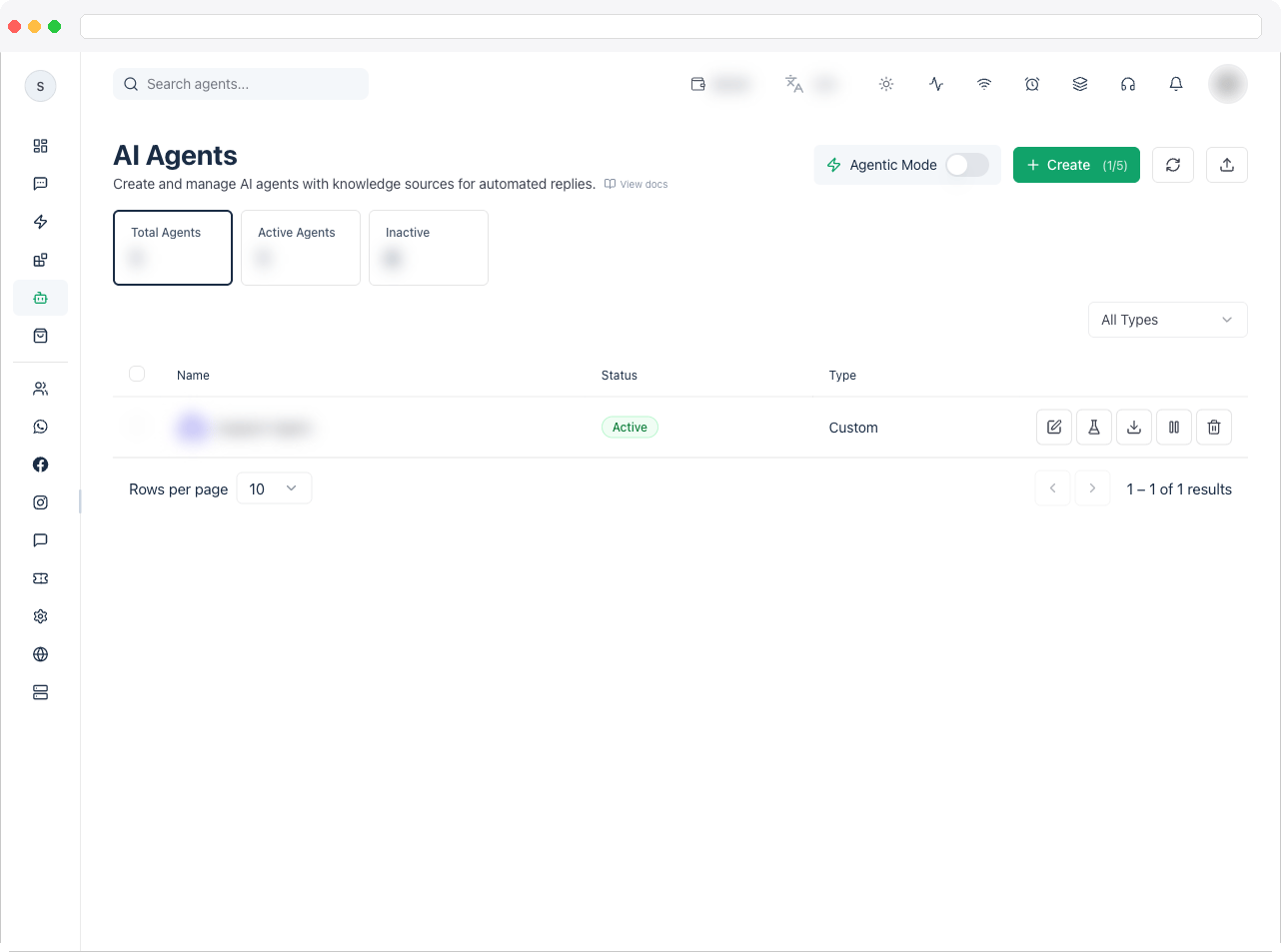
* See all AI agents for the active channel with **Total Agents**, **Active Agents**, and **Inactive** stat tiles you can click to filter.
* Search agents by name or description, and filter by type (**Support**, **Sales**, **FAQ**, **Booking**, **Custom**).
* Toggle **Agentic Mode** on or off for the channel from the top toolbar. This is the channel's master switch: when it's off, no agent answers incoming messages, even if the agent itself is **Active**.
* Create a new agent (subject to your plan's agent limit, shown as a counter on the Create button).
* For each agent in the table: **Edit**, **Test** (opens the agent builder), **Export** (downloads the agent as a JSON file), **Activate/Pause**, and **Delete**.
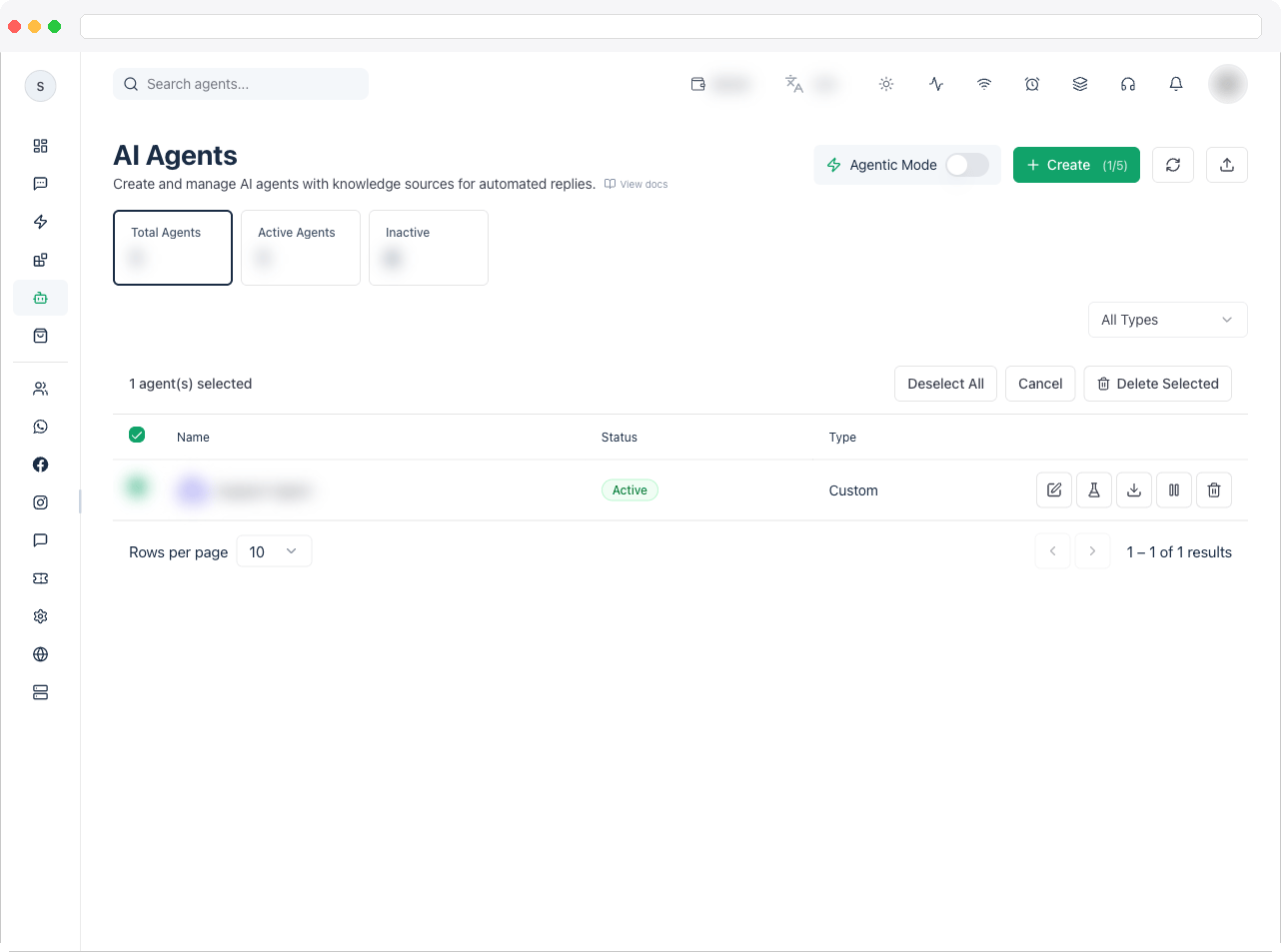
* Select multiple agents to bulk-select and delete.
* **Import** an agent from a previously exported JSON file into any channel you choose.
* Refresh the agent list.
## How to use it
New to AI agents? Follow [Create Your First AI Agent](/workspace/ai-agents/create-your-first-agent) — a step-by-step guide with a full example. Come back here afterward for the full detail on any one tab.
1. Go to **AI Agents** in the sidebar (`/ai-agents`). You need an active channel connected to WhatsApp, Instagram, Facebook, or Web Chat.
2. Click **Create** to start a new agent (or **Edit**/**Test** on an existing row to open the same builder). The builder has one tab for each area of the agent.
## What can I do here?
* See all AI agents for the active channel with **Total Agents**, **Active Agents**, and **Inactive** stat tiles you can click to filter.
* Search agents by name or description, and filter by type (**Support**, **Sales**, **FAQ**, **Booking**, **Custom**).
* Toggle **Agentic Mode** on or off for the channel from the top toolbar. This is the channel's master switch: when it's off, no agent answers incoming messages, even if the agent itself is **Active**.
* Create a new agent (subject to your plan's agent limit, shown as a counter on the Create button).
* For each agent in the table: **Edit**, **Test** (opens the agent builder), **Export** (downloads the agent as a JSON file), **Activate/Pause**, and **Delete**.
* Select multiple agents to bulk-select and delete.
* **Import** an agent from a previously exported JSON file into any channel you choose.
* Refresh the agent list.
## How to use it
New to AI agents? Follow [Create Your First AI Agent](/workspace/ai-agents/create-your-first-agent) — a step-by-step guide with a full example. Come back here afterward for the full detail on any one tab.
1. Go to **AI Agents** in the sidebar (`/ai-agents`). You need an active channel connected to WhatsApp, Instagram, Facebook, or Web Chat.
2. Click **Create** to start a new agent (or **Edit**/**Test** on an existing row to open the same builder). The builder has one tab for each area of the agent.
 ### Every tab, in its own page
Save the agent first — the Capabilities, External Capabilities, Skills, and Workflows tabs only unlock once the agent has been created.
| Tab | What it's for |
| ------------------------------------------------------------------------ | ---------------------------------------------------------- |
| [General](/workspace/ai-agents/tabs/general) | Name the agent and describe its job |
| [Behavior](/workspace/ai-agents/tabs/behavior) | Tone, priority, and status |
| [Instructions](/workspace/ai-agents/tabs/instructions) | How it should think and act |
| [Knowledge](/workspace/ai-agents/tabs/knowledge) | Facts it can look things up in |
| [Capabilities](/workspace/ai-agents/tabs/capabilities) | Real actions it can take, including triggering automations |
| [External Capabilities](/workspace/ai-agents/tabs/external-capabilities) | Your own APIs or MCP tools |
| [Skills](/workspace/ai-agents/tabs/skills) | A specific procedure for one situation |
| [Workflows](/workspace/ai-agents/tabs/workflows) | Scripted, multi-step flows bound to this agent |
| [Channels](/workspace/ai-agents/tabs/channels) | Where it runs and how it talks |
| [Guardrails](/workspace/ai-agents/tabs/guardrails) | Safety checks |
| [Test](/workspace/ai-agents/tabs/test) | Try it before customers do |
See the full [Builder Tabs](/workspace/ai-agents/tabs/overview) section for all eleven, with worked examples.
### Export and import an agent
Back on the list page, use **Export** to download an agent's configuration as JSON, and **Import** to bring that JSON into another channel — this creates brand-new agent, source, and knowledge records rather than overwriting anything.
### Working with more than one agent
When a channel has two or more active agents, the platform automatically adds a hidden router that reads each customer message and hands it to the agent whose [Description](/workspace/ai-agents/tabs/general) fits best — clear, different descriptions per agent are what make this accurate. Priority (set in [Behavior](/workspace/ai-agents/tabs/behavior)) decides who goes first when more than one could plausibly answer.
## Troubleshooting / Technical Notes
* **The agent doesn't reply at all.** Check the three master switches: the agent's **Status** is Active, **Agentic Mode** is on for the channel, and the agent's **Channels** tab includes the channel the message came from.
* **I can't create another agent.** Your plan limits how many agents you can create — the limit shows on the **Create** button.
* **A customer is stuck with the agent.** Any teammate can take over the conversation in the Inbox, and you can **Pause** the agent from the list at any time.
## In this section
* [Create Your First AI Agent](/workspace/ai-agents/create-your-first-agent)
* [Builder Tabs](/workspace/ai-agents/tabs/overview)
## Related docs
* [Automation Overview](/workspace/automation/overview)
* [Inbox](/workspace/inbox/overview)
* [Analytics](/workspace/analytics) — AI Usage tab
* [AI Agent Settings](/platform/settings/ai-agent-settings)
### Every tab, in its own page
Save the agent first — the Capabilities, External Capabilities, Skills, and Workflows tabs only unlock once the agent has been created.
| Tab | What it's for |
| ------------------------------------------------------------------------ | ---------------------------------------------------------- |
| [General](/workspace/ai-agents/tabs/general) | Name the agent and describe its job |
| [Behavior](/workspace/ai-agents/tabs/behavior) | Tone, priority, and status |
| [Instructions](/workspace/ai-agents/tabs/instructions) | How it should think and act |
| [Knowledge](/workspace/ai-agents/tabs/knowledge) | Facts it can look things up in |
| [Capabilities](/workspace/ai-agents/tabs/capabilities) | Real actions it can take, including triggering automations |
| [External Capabilities](/workspace/ai-agents/tabs/external-capabilities) | Your own APIs or MCP tools |
| [Skills](/workspace/ai-agents/tabs/skills) | A specific procedure for one situation |
| [Workflows](/workspace/ai-agents/tabs/workflows) | Scripted, multi-step flows bound to this agent |
| [Channels](/workspace/ai-agents/tabs/channels) | Where it runs and how it talks |
| [Guardrails](/workspace/ai-agents/tabs/guardrails) | Safety checks |
| [Test](/workspace/ai-agents/tabs/test) | Try it before customers do |
See the full [Builder Tabs](/workspace/ai-agents/tabs/overview) section for all eleven, with worked examples.
### Export and import an agent
Back on the list page, use **Export** to download an agent's configuration as JSON, and **Import** to bring that JSON into another channel — this creates brand-new agent, source, and knowledge records rather than overwriting anything.
### Working with more than one agent
When a channel has two or more active agents, the platform automatically adds a hidden router that reads each customer message and hands it to the agent whose [Description](/workspace/ai-agents/tabs/general) fits best — clear, different descriptions per agent are what make this accurate. Priority (set in [Behavior](/workspace/ai-agents/tabs/behavior)) decides who goes first when more than one could plausibly answer.
## Troubleshooting / Technical Notes
* **The agent doesn't reply at all.** Check the three master switches: the agent's **Status** is Active, **Agentic Mode** is on for the channel, and the agent's **Channels** tab includes the channel the message came from.
* **I can't create another agent.** Your plan limits how many agents you can create — the limit shows on the **Create** button.
* **A customer is stuck with the agent.** Any teammate can take over the conversation in the Inbox, and you can **Pause** the agent from the list at any time.
## In this section
* [Create Your First AI Agent](/workspace/ai-agents/create-your-first-agent)
* [Builder Tabs](/workspace/ai-agents/tabs/overview)
## Related docs
* [Automation Overview](/workspace/automation/overview)
* [Inbox](/workspace/inbox/overview)
* [Analytics](/workspace/analytics) — AI Usage tab
* [AI Agent Settings](/platform/settings/ai-agent-settings)