> ## Documentation Index
> Fetch the complete documentation index at: https://docs.skyfree.io/llms.txt
> Use this file to discover all available pages before exploring further.
# Conversation view
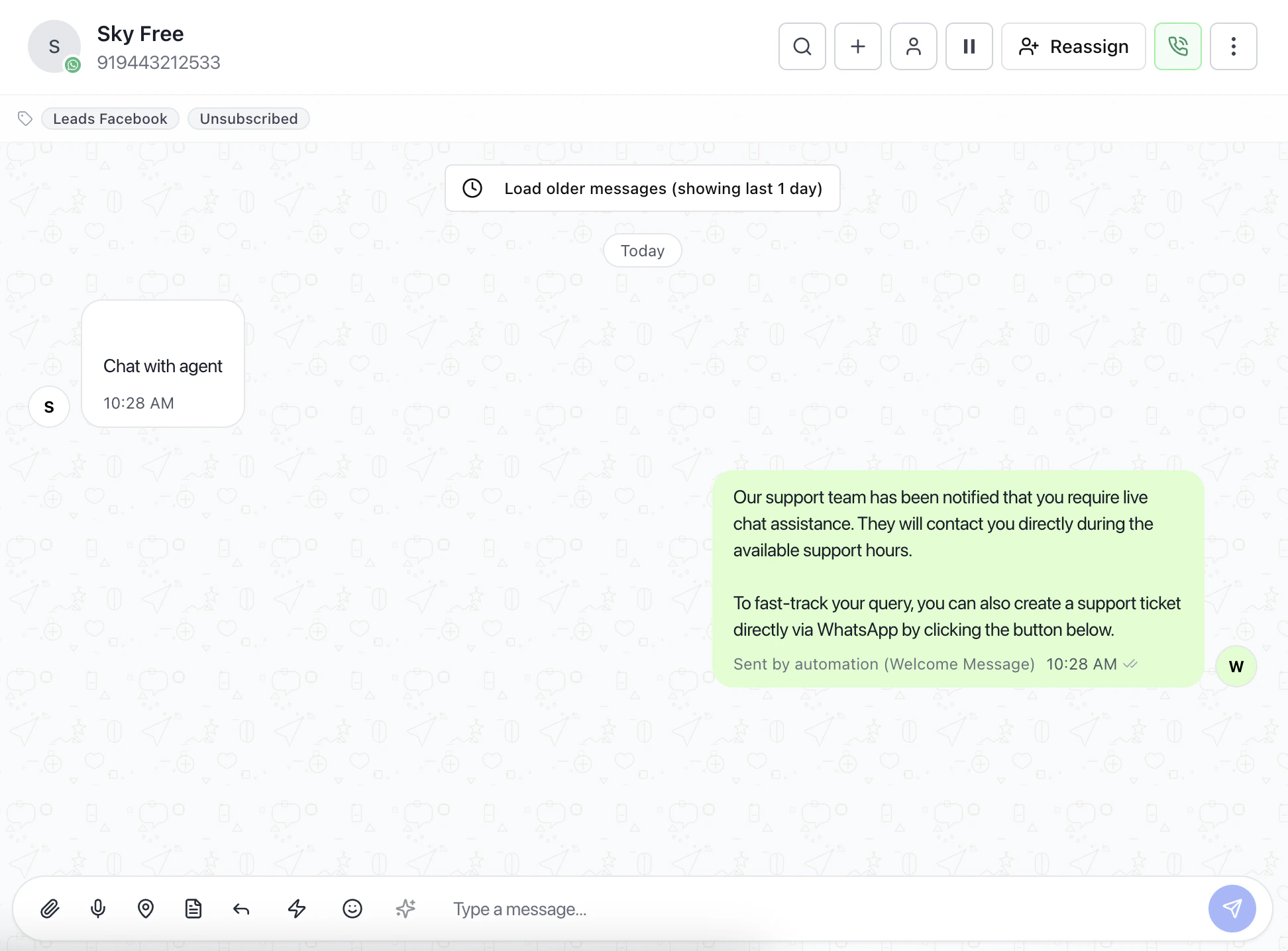
The Conversation View is the active chat workspace where messages are read, managed, and replied to.
This is the core area where operators interact directly with customers.
 ***
## Message Timeline
The center of the screen displays the full conversation history.
### What users do here
* Read previous messages before replying
* Understand customer context
* Track automated vs manual responses
* View timestamps and delivery status
### Why it matters
Reviewing the timeline prevents:
* Duplicate replies
* Out-of-context responses
* Missed customer intent
***
## Conversation Header
The top section contains key conversation controls.
### What users see
* Contact name and phone number
* Channel (e.g., WhatsApp)
* Labels and status (e.g., Unsubscribed)
### What users can do
* Reassign conversation
* Pause or resume automation
* Start actions like call or menu options
***
## Message Timeline
The center of the screen displays the full conversation history.
### What users do here
* Read previous messages before replying
* Understand customer context
* Track automated vs manual responses
* View timestamps and delivery status
### Why it matters
Reviewing the timeline prevents:
* Duplicate replies
* Out-of-context responses
* Missed customer intent
***
## Conversation Header
The top section contains key conversation controls.
### What users see
* Contact name and phone number
* Channel (e.g., WhatsApp)
* Labels and status (e.g., Unsubscribed)
### What users can do
* Reassign conversation
* Pause or resume automation
* Start actions like call or menu options
 ***
## Conversation Actions
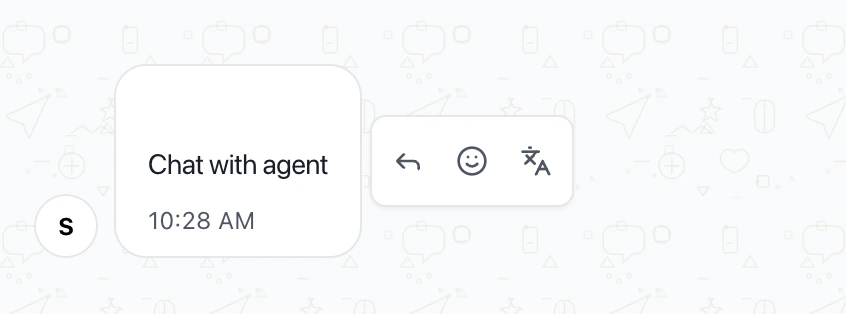
Actions are available directly within the chat.
### Examples
* Translate message
* React to messages
* Perform quick actions (reply tools)
These help operators respond faster without leaving the chat.
***
## Conversation Actions
Actions are available directly within the chat.
### Examples
* Translate message
* React to messages
* Perform quick actions (reply tools)
These help operators respond faster without leaving the chat.
 ***
## Reply Composer
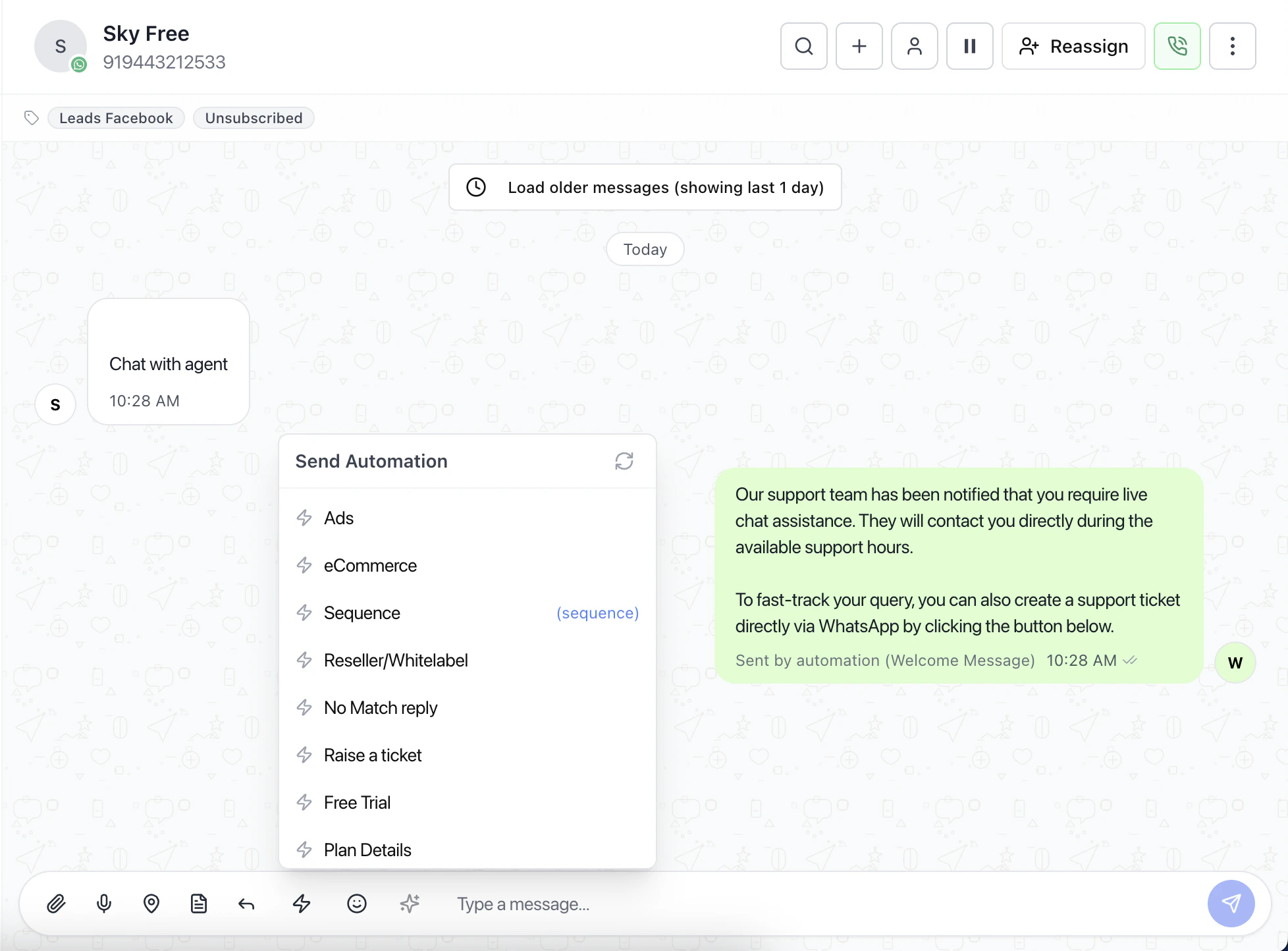
The bottom input area is used to send messages.
***
## Reply Composer
The bottom input area is used to send messages.
 ### Features
* Type and send replies
* Attach files or media
* Send location or documents
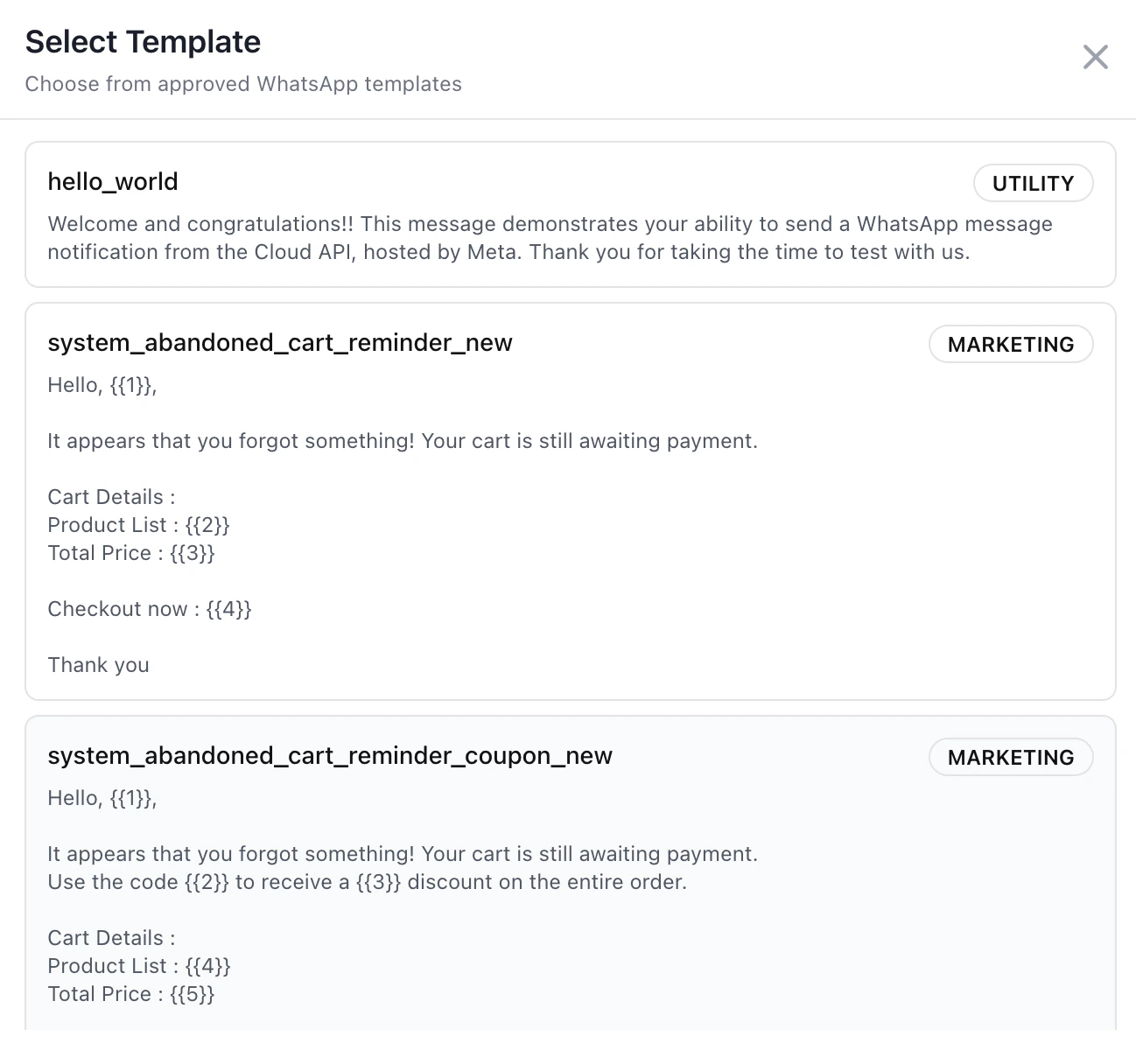
* Use templates or automation triggers
### Features
* Type and send replies
* Attach files or media
* Send location or documents
* Use templates or automation triggers
 ### Best practice
Before sending a reply:
1. Review recent messages
2. Confirm correct conversation
3. Check assignment
4. Send appropriate response
### Best practice
Before sending a reply:
1. Review recent messages
2. Confirm correct conversation
3. Check assignment
4. Send appropriate response
 ***
## System Messages
Some messages are generated automatically.
### Examples
* Automation responses
* Welcome messages
* System notifications
These are marked clearly (e.g., "Sent by automation") to differentiate from manual replies.
***
## Load More Messages
Older messages can be loaded when needed.
* Helps review past conversations
* Useful for long-running support threads
***
## Why Conversation View Matters
This is where actual communication happens.
* Centralizes all interaction
* Ensures context-aware replies
* Improves response quality and speed
***
## Related Docs
* [Inbox](/docs/inbox)
* [Assign a Conversation](/docs/inbox/assign-a-conversation)
* [Reply to a Customer](/docs/inbox/reply-to-a-customer)
* [Manage Conversation Actions](/docs/inbox/manage-conversation-actions)
***
## System Messages
Some messages are generated automatically.
### Examples
* Automation responses
* Welcome messages
* System notifications
These are marked clearly (e.g., "Sent by automation") to differentiate from manual replies.
***
## Load More Messages
Older messages can be loaded when needed.
* Helps review past conversations
* Useful for long-running support threads
***
## Why Conversation View Matters
This is where actual communication happens.
* Centralizes all interaction
* Ensures context-aware replies
* Improves response quality and speed
***
## Related Docs
* [Inbox](/docs/inbox)
* [Assign a Conversation](/docs/inbox/assign-a-conversation)
* [Reply to a Customer](/docs/inbox/reply-to-a-customer)
* [Manage Conversation Actions](/docs/inbox/manage-conversation-actions)