

What is this?
Account is where you review and maintain your own account: your profile, password and two-factor authentication, billing details, privacy and consent preferences, and the devices signed in to your account.Account is opened from the profile menu in the top-right corner. It has five tabs: Profile Information, Billing Information, Privacy & Data, Sessions, and Security.
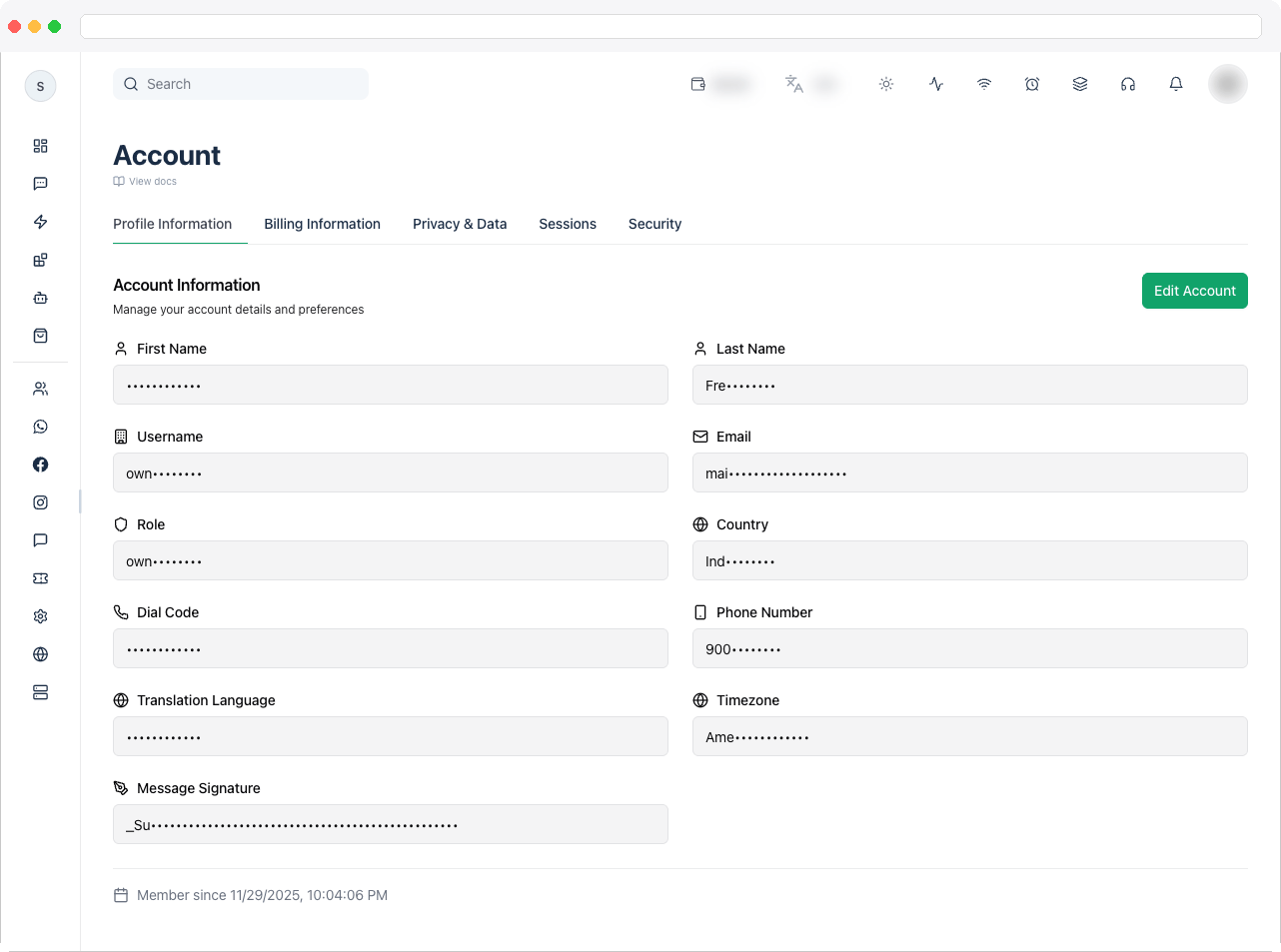
What can I do here?
- Update your profile — name, username, email, role, country, phone, translation language, timezone, and message signature
- Choose the language the app is shown in
- Verify your phone number when your platform requires it
- Change your password and manage Two-Factor Authentication
- Save your company and tax details under Billing Information
- Export your data and manage Consent preferences
- See and revoke active sessions
- Delete your account
How to use it
Open Account from the profile menu and choose a tab.- Profile Information
- Billing Information
- Privacy & Data
- Sessions
- Security
- Click Edit Account.
- Update your First Name, Last Name, Username, Email, Country, Dial Code, and Phone Number.
- Choose a Translation Language — used to translate messages — and your Timezone.
- Optionally set a Message Signature, the optional join-chat signature added to your messages.
- Save your changes.
Change the app language
The app can be shown in 12 languages: English, Spanish, French, German, Portuguese, Arabic, Hindi, Chinese, Tamil, Telugu, Kannada, and Malayalam.- In the top bar, click the language button (it shows a language icon and a short code, with the tooltip Change language).
- Pick a language from the list. The app switches straight away and remembers your choice in this browser.
This is different from Translation Language on the Profile Information tab, which controls what language customer messages are translated into. If a piece of text hasn’t been translated into your language yet, it appears in English instead.
Verify your phone number
If your platform administrator turned on phone verification, a dialog appears after you sign in until your phone number is verified. It can’t be closed by clicking outside it or pressing Escape.- Enter your Phone number — the dialog is titled Add your phone number if you haven’t saved one yet, or Verify your phone number if you have. Pick the country code first, then click Send code.
- A 6-digit code is sent to your number. Enter it under Enter verification code and click Verify. The code boxes accept digits only.
- If it doesn’t arrive, wait for the countdown (Resend code in a number of seconds) and click Resend code. To use a different number, click Change number.
- When it works you see Phone number verified and the dialog closes.
Troubleshooting / Technical Notes
- “Please enter a valid phone number” or “Please enter the complete 6-digit code”. Check the country code and number, and fill all six code boxes.
- The verification code doesn’t arrive. Wait for the countdown and click Resend code, check the number with Change number, or use Skip for now.
- “Phone number must contain 6-15 digits.” Enter the number without spaces or symbols and pick the right dial code.
- Lost your authenticator app. Use one of your backup recovery codes.
- Delete Account isn’t available. It requires the right delete permission on your account.
- Update your details before billing or support changes so ownership and contact history stay correct.