

What is this?
Orders (shown as Catalog Orders) lists every order customers place from a catalog. You can open an order to see who ordered what, where it’s going, and how it was paid, and update its status as you fulfil it.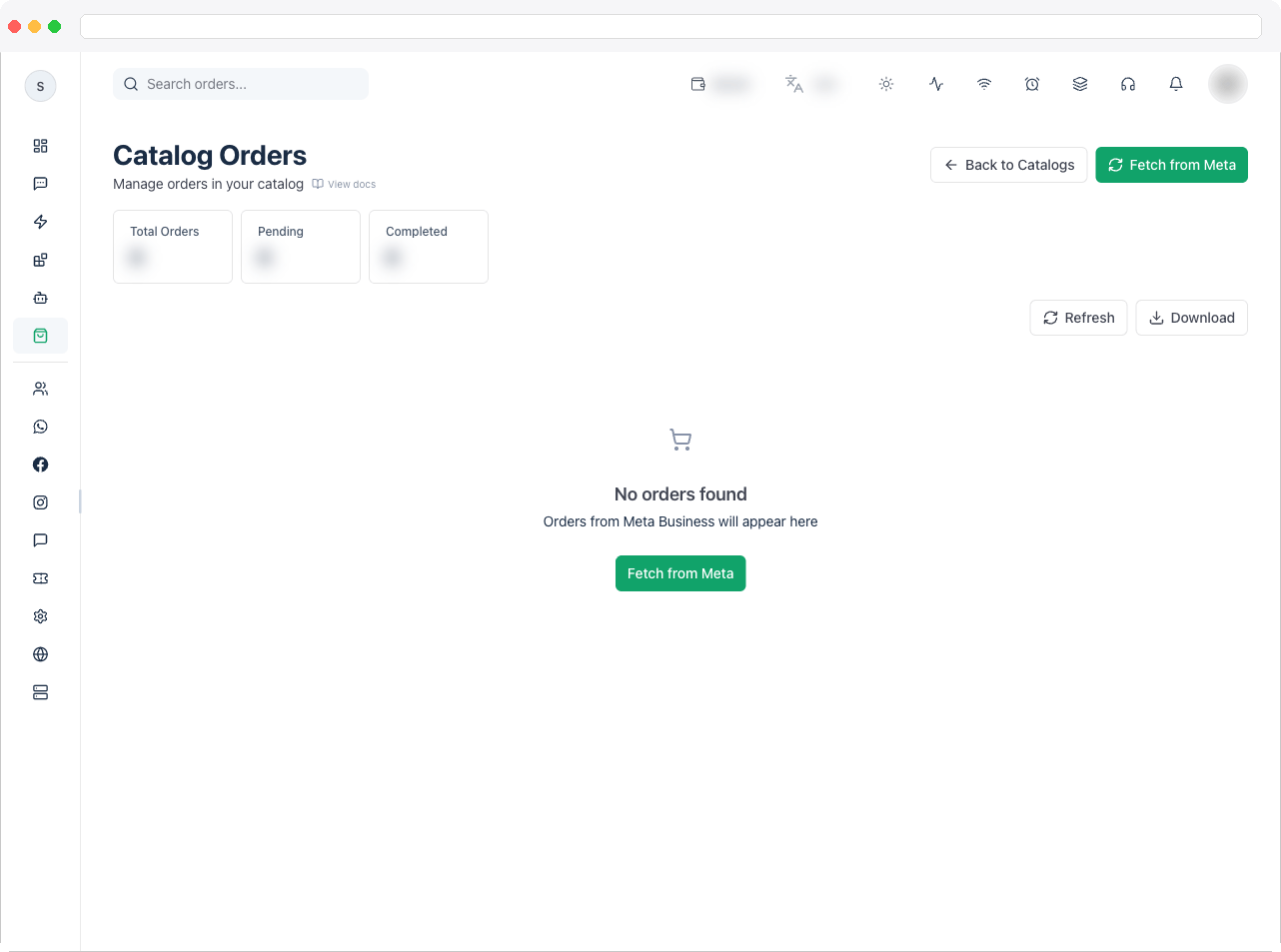
Open Orders from a catalog’s row on the Storefront overview, and use Back to Catalogs to return.
What can I do here?
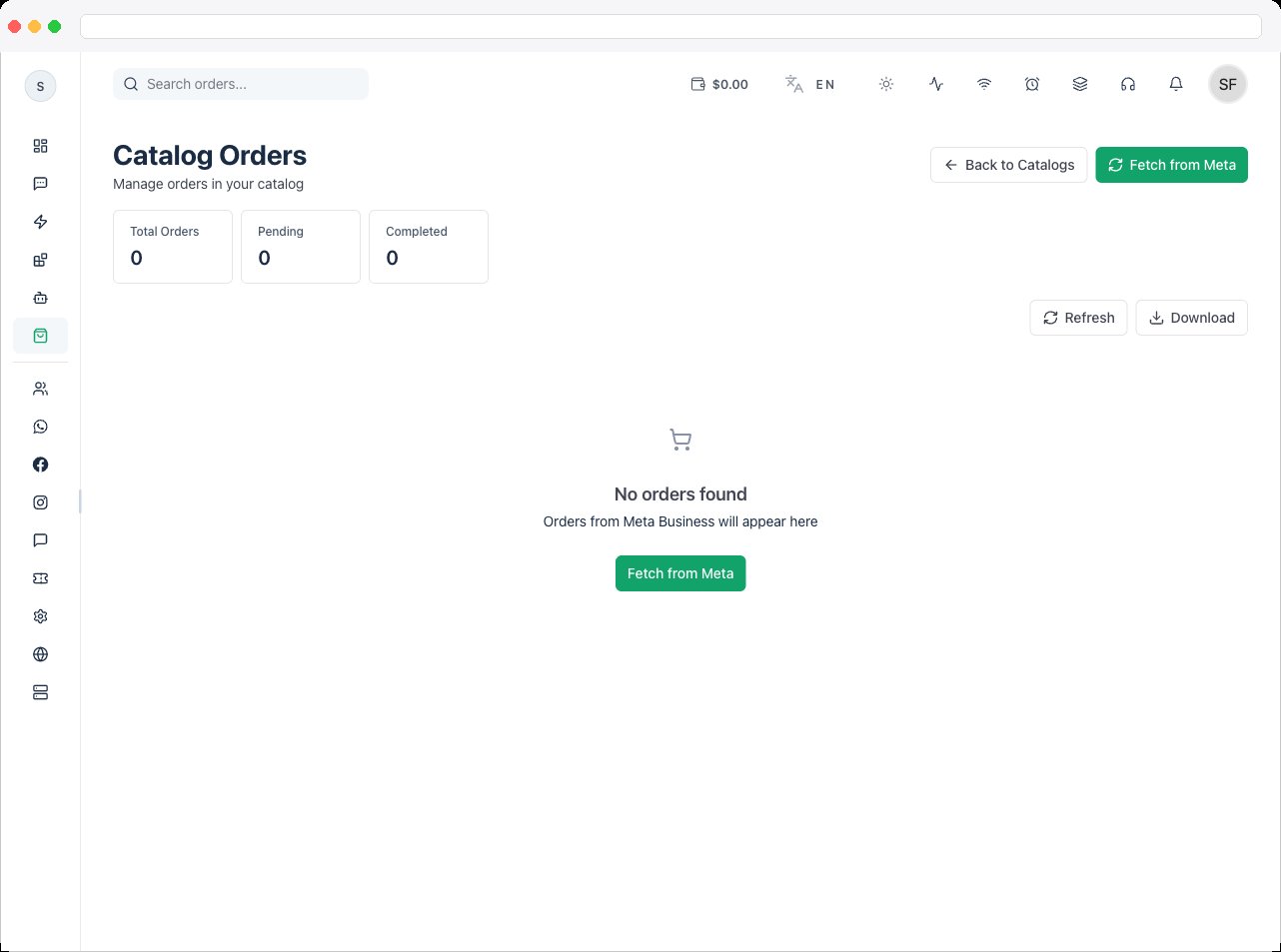
- See summary tiles: Total Orders, Pending, and Completed
- Search orders
- Read each order’s Order Display ID, Customer, Products, Total Amount, Status, and Created date
- View an order’s full details
- Update Status as you fulfil the order
- Delete an order
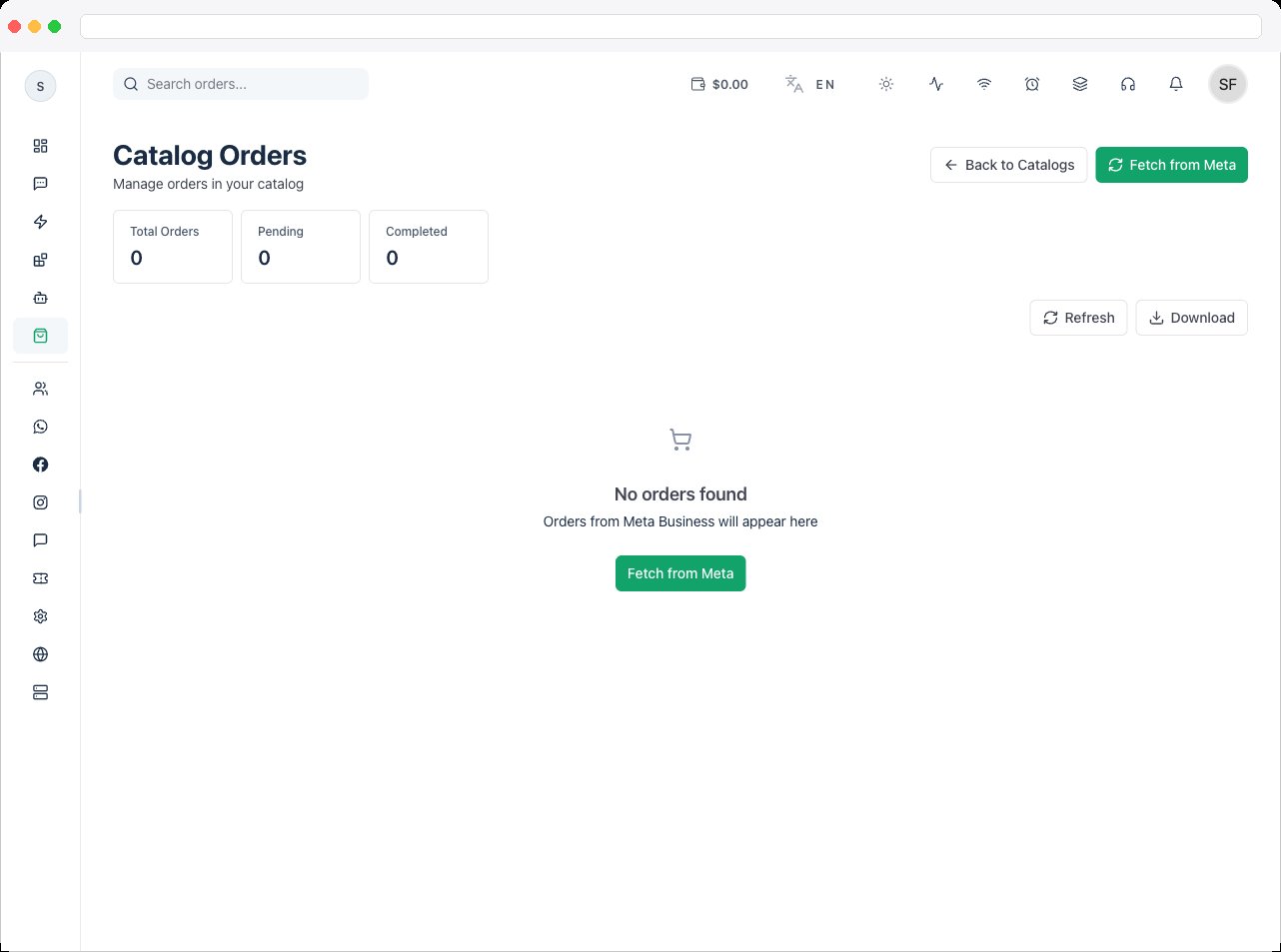
- Fetch from Meta to pull in the latest orders, Refresh the list, and Download the orders as a file
How to use it
Review an order
- Click View on an order.
- In Order Details, check:
- Customer Information — name, phone, and email
- Shipping Address — the address, plus location coordinates and delivery instructions if the customer shared them
- Payment Information — payment method and status, Subtotal, Shipping, Tax, Total Amount, and, for online payments, the Transaction ID and Provider. A Failure Reason shows if a payment failed.
- Order Notes
Update an order’s status
- In the order details, click Update Status.
-
Choose a New Status:
- For Shipped and Partially Shipped, enter the Tracking ID (required) and an optional Description, such as “Shipped via FedEx Express”.
- Click Update.
Export or refresh
- Click Fetch from Meta to pull the latest orders from your Meta catalog.
- Click Refresh to reload the list.
- Click Download to export the orders. The export starts in the background.
Troubleshooting / Technical Notes
- “Tracking ID is required for shipping status updates.” Enter a tracking ID before setting Shipped or Partially Shipped.
- “No Change.” Choose a status different from the current one.
- “No orders found.” Orders from Meta Business appear here after customers order, or after you click Fetch from Meta.
- A payment shows a failure reason. Check the provider in your payment gateway settings — see Settings.
- Deleting is permanent. A deleted order can’t be restored.