

What is this?
Event Studio is where you create and manage events — workshops, webinars, meetups, or any gathering that needs sign-ups. For each event, the platform generates a public registration form, collects registrations, sends tickets, and tracks who checks in at the door.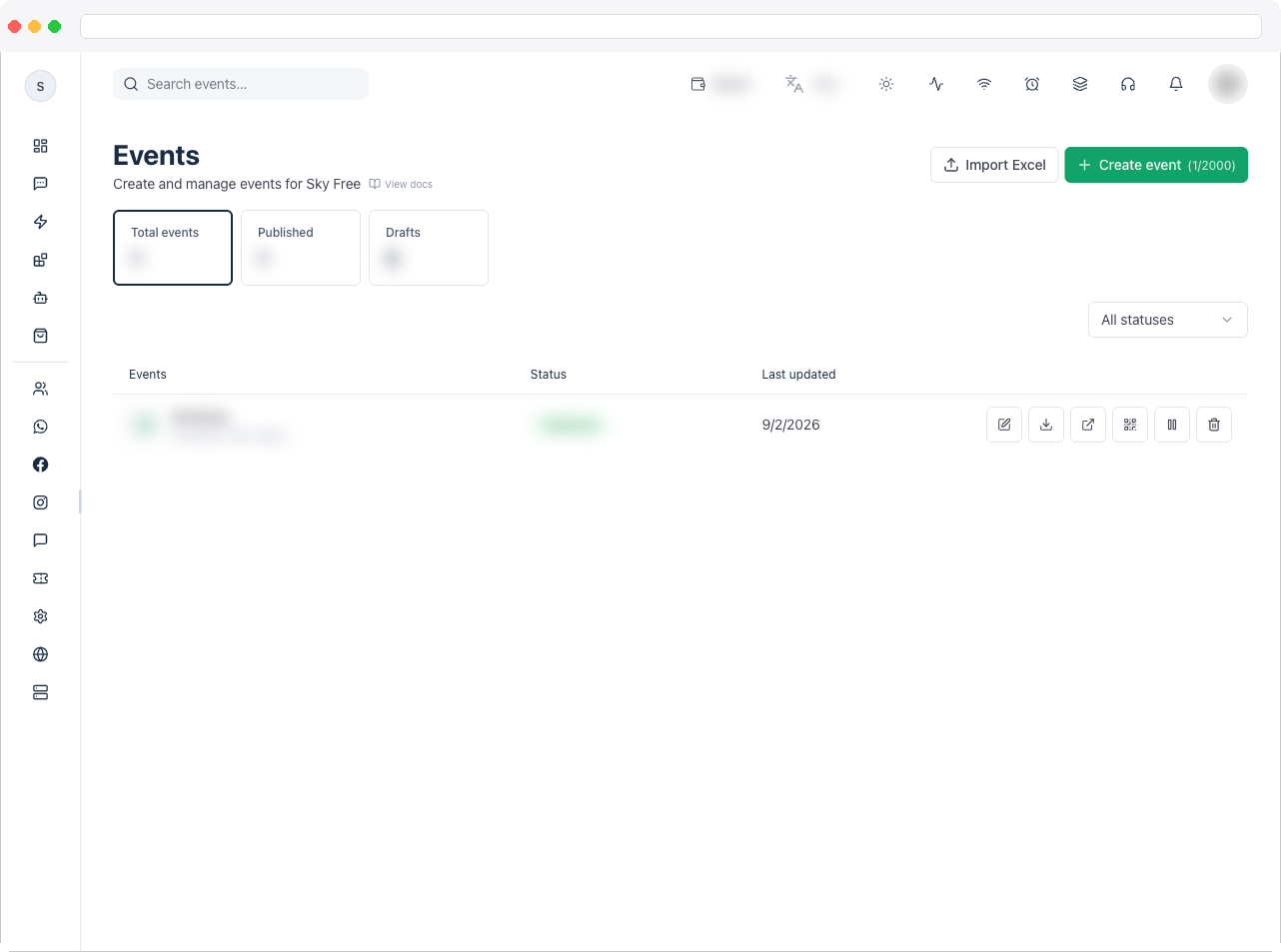
Event Studio requires the
events:view permission, an active channel, and a plan that includes Event Studio. Your plan may also limit how many events you can create — the page shows your usage, for example 2/10. Checking attendees in is done on the separate Event Scan page.What can I do here?
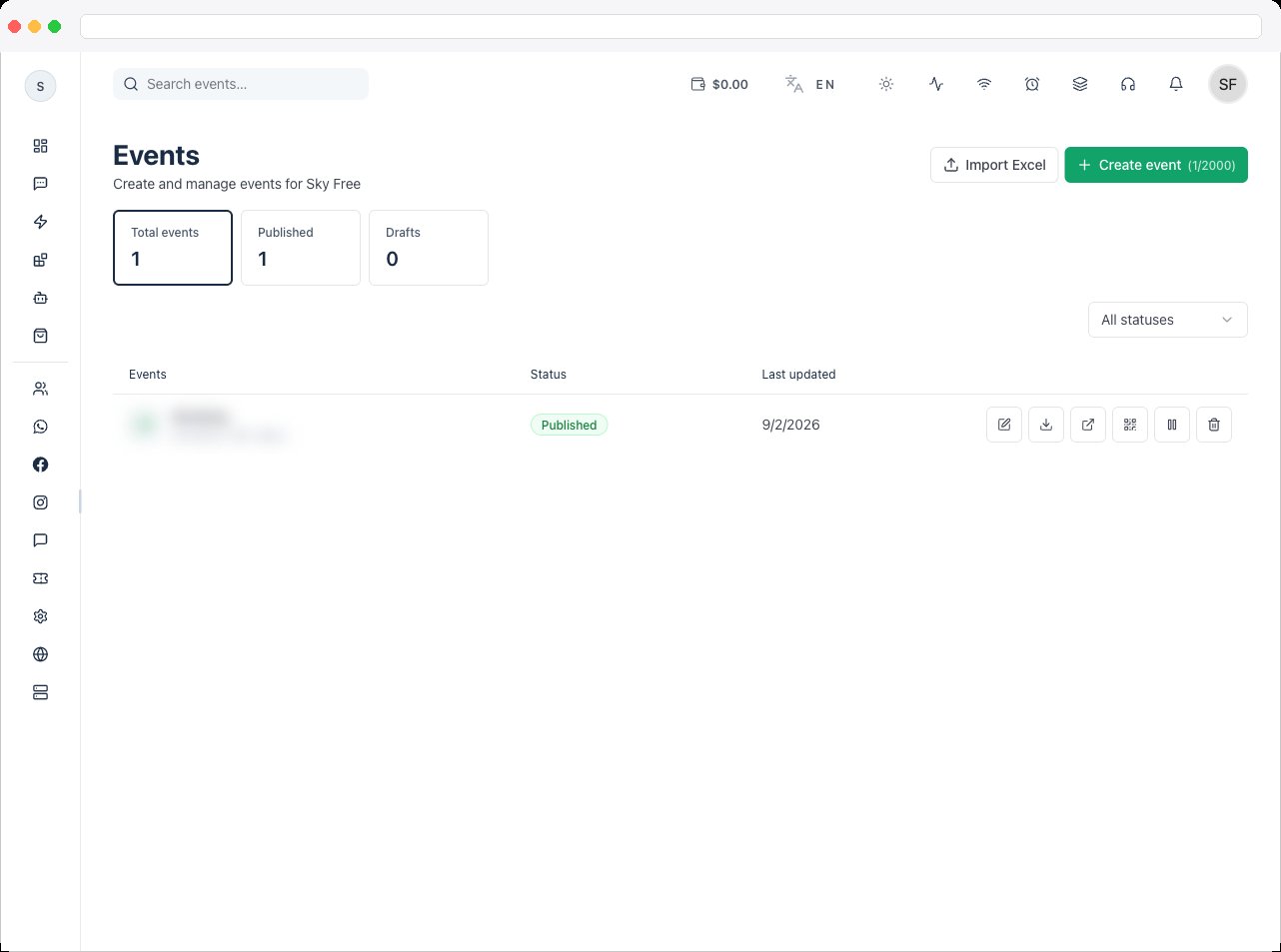
- See summary tiles: Total events, Published, and Drafts
- Search events and filter by Status (Draft or Published)
- Create event, or Import Excel to bring in event data
- Edit an event, Publish or Unpublish it, and Open public page
- Set the QR tickets option to issue QR tickets at the door, or use confirmation only with no QR
- Show a Ticket serial number (such as
#12) on each ticket - Require guests to accept and sign a waiver (Require a signed waiver) before they can book
- Export registrations for reporting
- Open any registration to see its Details, Tickets, and signed Waiver, and download the signed waiver as a PDF
- Jump into Scan to check attendees in
- Delete an event
How to use it
Create an event
- Go to Event Studio → Events and click Create event.
- Enter the basics — Event name, a description, and the Event timezone.
- Choose the Ticket type: QR tickets at the door, or Confirmation only, no QR.
- Save the event, then use the event detail page to finish setting it up.
Set up the event detail page
Each event opens with these tabs. The Overview tab also shows summary tiles for Capacity, Sold, Remaining, and Checked in.- Overview
- Description
- Fields
- Products
- Slots
- Locations
- Public Link
- Settings
- Webhook
- Registrations
- Scans
Event name, slug, description, Max tickets per registration, Status, Ticket type, Multiple scans (Allowed or Not allowed), Ticket serial number, Require a signed waiver, timezone, and cover image. You can also add your company logo, name, contact details, and address.Ticket serial number controls whether each ticket shows its booking order, for example
#12:This applies to new bookings only.Require a signed waiver — guests must accept the waiver and sign with their full legal name before booking, and a signed PDF copy is attached to the confirmation email. Turn it on, then fill in:
- Waiver title
- Waiver text — if you leave this empty, no waiver is shown to guests
- Who signs — One signature per booking or Each attendee signs separately
Publish and share
- Review the event, then click Publish. The event gets a public registration page.
- Copy the Public event link from the Public Link tab, or click Open public page from the events list.
- Share the link. Registrants receive their ticket by WhatsApp and, if enabled, email.
Turn your public event pages off and on
In Event Studio’s settings, the Public pages switch controls your public event pages and sign-ups. When it’s off, those pages stop working. Your events, tickets and contacts are kept, and you can turn it back on any time. To delete everything, use Delete Channel on the Channels page.Use events in automations
Two automation steps work with events: Send Event Invite sends a registration button with an auto-built event link, and Send Event QR resends a ticket QR using the contact’s phone or email. See Automation Overview.Troubleshooting / Technical Notes
- “Event Studio is not included in your plan.” Use View Plans to upgrade.
- “You have reached your event limit.” Delete an old event or upgrade your plan.
- The public link isn’t available. Publish the event first.
- Tickets aren’t going out over WhatsApp. WhatsApp delivery needs an approved ticket template — check Settings and Templates.
- “Select an active channel to manage events.” Pick a channel in Channels.
- Guests aren’t asked to sign a waiver. Check that Require a signed waiver is on and that Waiver text is filled in — with no text, no waiver is shown. Save the event after changing it.
- There is no Waiver tab on a registration. The tab appears only for registrations where the guest signed a waiver, so registrations made before you turned the waiver on won’t have it.
- “Download failed” when downloading the waiver PDF. Try again; the message shown comes from the server. If it keeps failing, contact support.
- Ticket numbers don’t appear on old tickets. Ticket serial number applies to new bookings only.
- Deleting an event is permanent. It removes the event, its registrations, and its tickets, and can’t be undone.