

What is this?
AI Agents (beta) lets you create AI-powered agents that automatically handle conversations on your connected channels — answering questions from knowledge sources, taking actions like updating contacts or handing off to a human, and following the instructions and guardrails you define, without needing a manual automation flow for every scenario.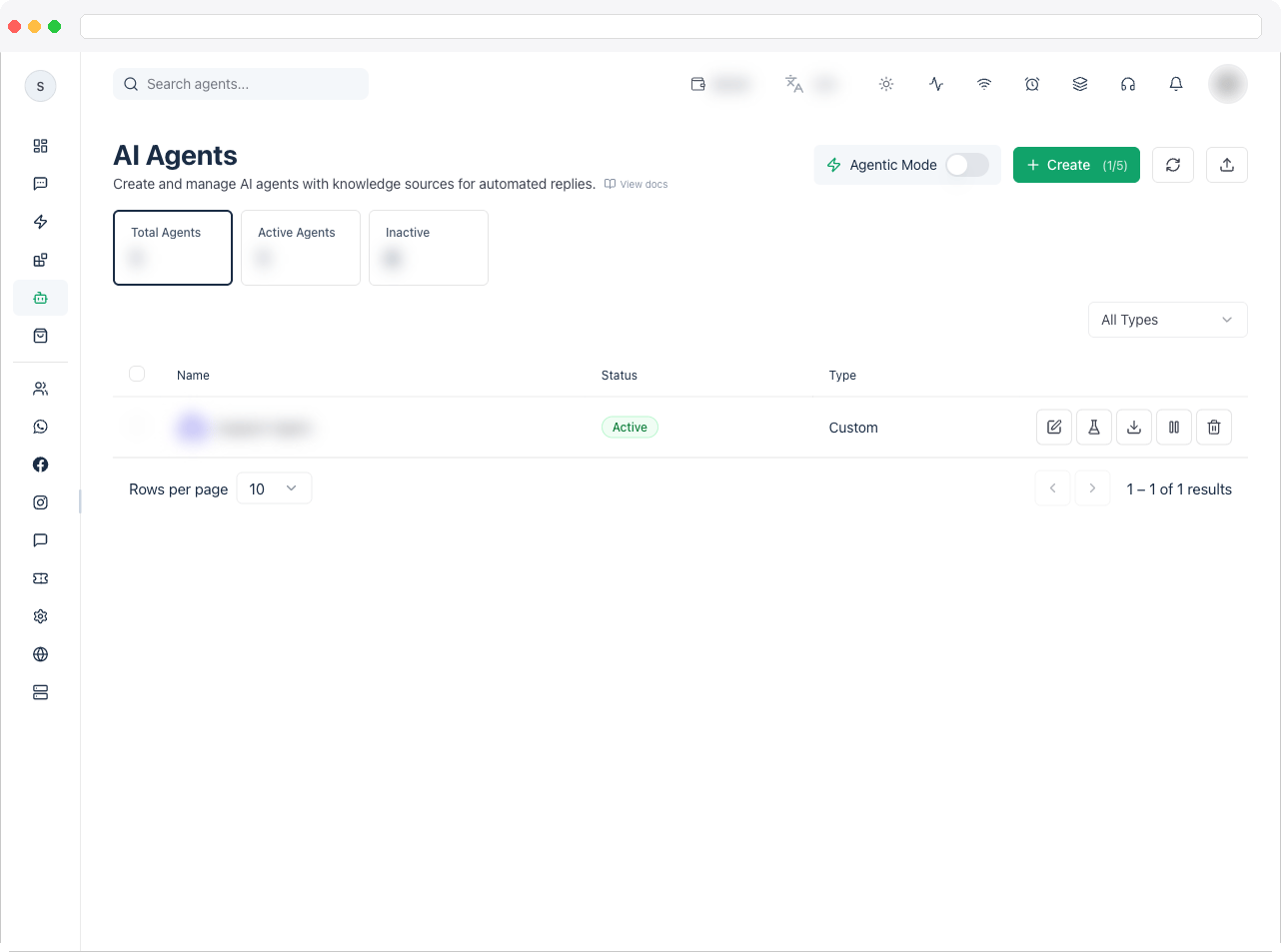
What can I do here?
- See all AI agents for the active channel with Total Agents, Active Agents, and Inactive stat tiles you can click to filter.
- Search agents by name or description, and filter by type (Support, Sales, FAQ, Booking, Custom).
- Toggle Agentic Mode on or off for the channel from the top toolbar. This is the channel’s master switch: when it’s off, no agent answers incoming messages, even if the agent itself is Active.
- Create a new agent (subject to your plan’s agent limit, shown as a counter on the Create button).
- For each agent in the table: Edit, Test (opens the agent builder), Export (downloads the agent as a JSON file), Activate/Pause, and Delete.
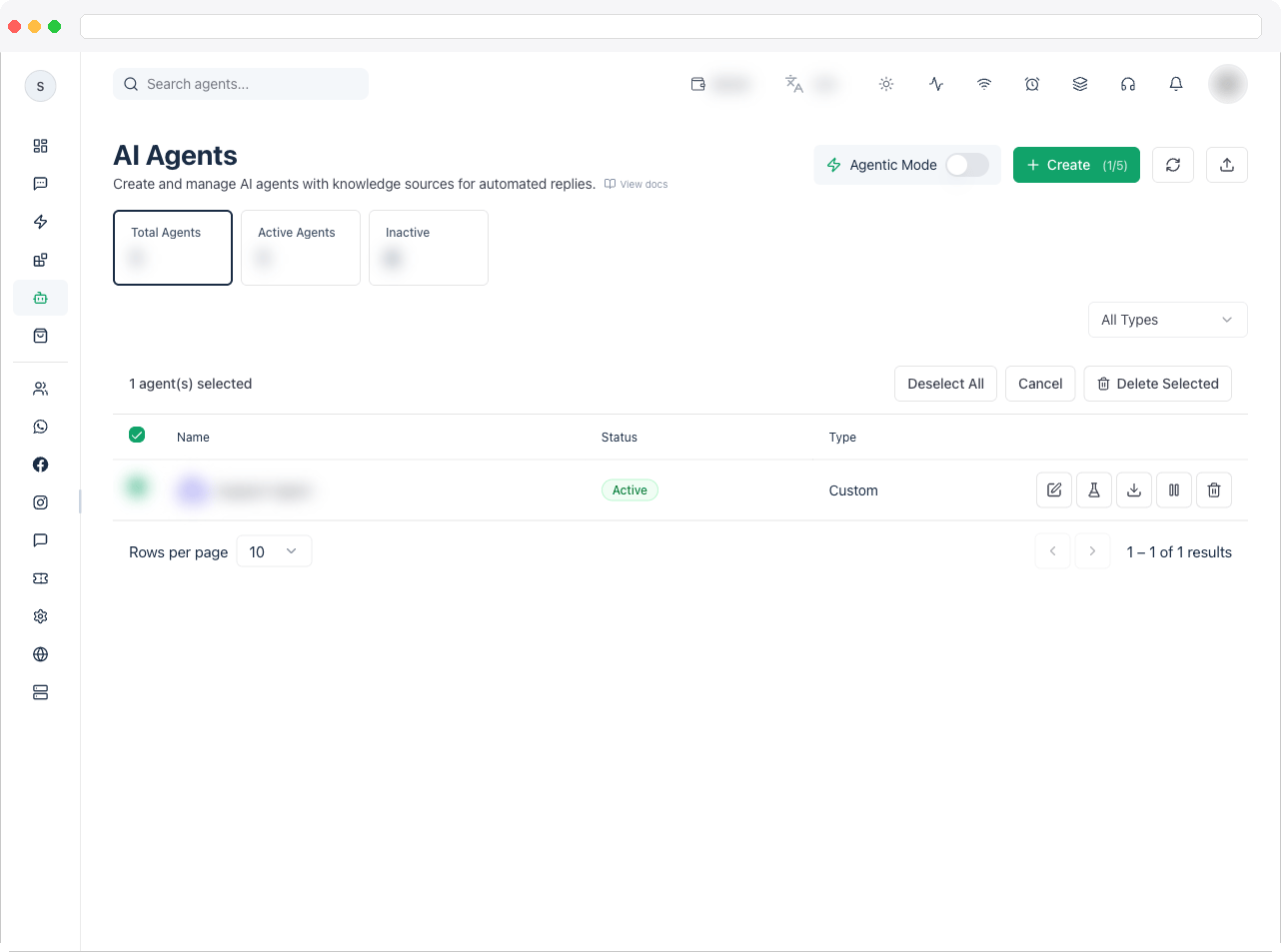
- Select multiple agents to bulk-select and delete.
- Import an agent from a previously exported JSON file into any channel you choose.
- Refresh the agent list.
How to use it
- Go to AI Agents in the sidebar (
/ai-agents). You need an active channel connected to WhatsApp, Instagram, Facebook, or Web Chat. - Click Create to start a new agent (or Edit/Test on an existing row to open the same builder). The builder has one tab for each area of the agent.
Every tab, in its own page
Save the agent first — the Capabilities, External Capabilities, Skills, and Workflows tabs only unlock once the agent has been created.
See the full Builder Tabs section for all eleven, with worked examples.
Export and import an agent
Back on the list page, use Export to download an agent’s configuration as JSON, and Import to bring that JSON into another channel — this creates brand-new agent, source, and knowledge records rather than overwriting anything.Working with more than one agent
When a channel has two or more active agents, the platform automatically adds a hidden router that reads each customer message and hands it to the agent whose Description fits best — clear, different descriptions per agent are what make this accurate. Priority (set in Behavior) decides who goes first when more than one could plausibly answer.Troubleshooting / Technical Notes
- The agent doesn’t reply at all. Check the three master switches: the agent’s Status is Active, Agentic Mode is on for the channel, and the agent’s Channels tab includes the channel the message came from.
- I can’t create another agent. Your plan limits how many agents you can create — the limit shows on the Create button.
- A customer is stuck with the agent. Any teammate can take over the conversation in the Inbox, and you can Pause the agent from the list at any time.
In this section
Related docs
- Automation Overview
- Inbox
- Analytics — AI Usage tab
- AI Agent Settings