

What is this?
Pipelines turn contacts into trackable progress. A pipeline is a set of ordered stages that represent your process, shown as a board. Each contact sits in one stage at a time and moves forward as work progresses, so you always know who is where and what to do next.Pipelines track business state, not conversation content. Messages live in Inbox; Pipelines answer “where are we in the process?” The page requires the
pipeline:view permission and an active channel.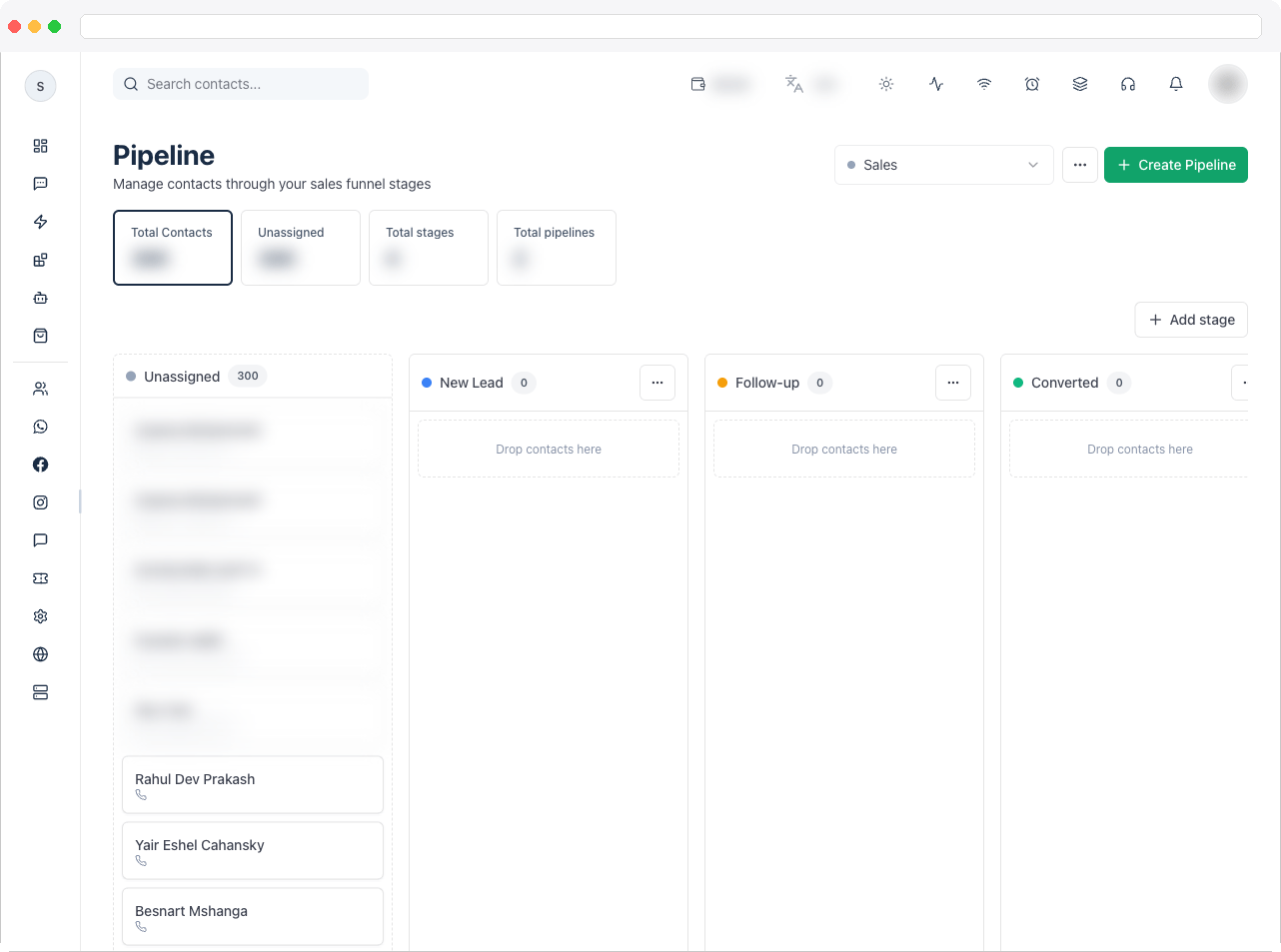
What can I do here?
- See summary counts: Total Contacts, Unassigned, Total stages, and Total pipelines
- Create Pipeline — new pipelines start with stages like New Lead, Follow-up, Converted, and Not Interested, which you can change
- Switch between pipelines with Select pipeline
- Add stage, Rename stage, or Delete stage
- Rename pipeline or Delete pipeline
- Search contacts on the board
- Drag a contact card to another stage to move it — or drop it in Unassigned to take it out of the funnel
How to use it
Create a pipeline
- Go to Contacts → Pipeline and click Create Pipeline.
- Enter a Pipeline name — for example Sales, Onboarding, or Support.
- Click Create. Default stages are added automatically.
Manage stages
- Open the pipeline and click Add stage, then enter a Stage name such as “New Lead”.
- Use a stage’s actions to Rename stage or Delete stage.
Move contacts
Drag a contact card from one stage to another, or drop it in the Unassigned area. Moving a contact is a business decision, so agree as a team on what each stage means.Trigger automation from stage changes
Use the Pipeline Stage Changed trigger to start a workflow when a contact is added to or moved within a pipeline, optionally for one specific stage. For the step-by-step setup and examples, see Pipeline Stage Changed.Good operating habits
- Match stages to your real process, not an ideal one. If your team keeps skipping a stage, remove it.
- Keep one pipeline per distinct process. Don’t mix sales and support in the same pipeline, so counts stay meaningful.
- Review stage distribution weekly. Many contacts stuck in one stage usually signals a bottleneck in the process.
- Pair stage changes with Notes where a human judgment happened. The board shows moved to Qualified; a Note explains why — “Customer confirmed budget and timeline.”
Pipelines, Activity Logs, Notes, and Conversations
Use all four together — they complement each other.
Troubleshooting / Technical Notes
- “No channel selected.” Select or create a channel in Channels first.
- “No pipelines yet.” Click Create Pipeline to make your first one.
- “No stages in this pipeline.” Add stages to start moving contacts through the funnel.
- A contact card won’t move. Try again — “Could not move contact” is shown if the move fails. Check that you have permission to edit pipelines.
- The Pipeline item is missing from the sidebar. Your account may not have
pipeline:view— ask an administrator, or see Team.
Related docs
- Automation Overview — building workflows
- Pipeline Stage Changed — including Pipeline Stage Changed
- Notes — handoff context when you move a contact
- Contacts — the contact behind each card
- Inbox — where conversations happen