

What is this?
Google Sheets lets you link spreadsheets to your workspace and keep them up to date with your data — contacts, every message, order events, and WhatsApp Flow submissions. It’s the Sheets tab of the Google panel under Channels → Google.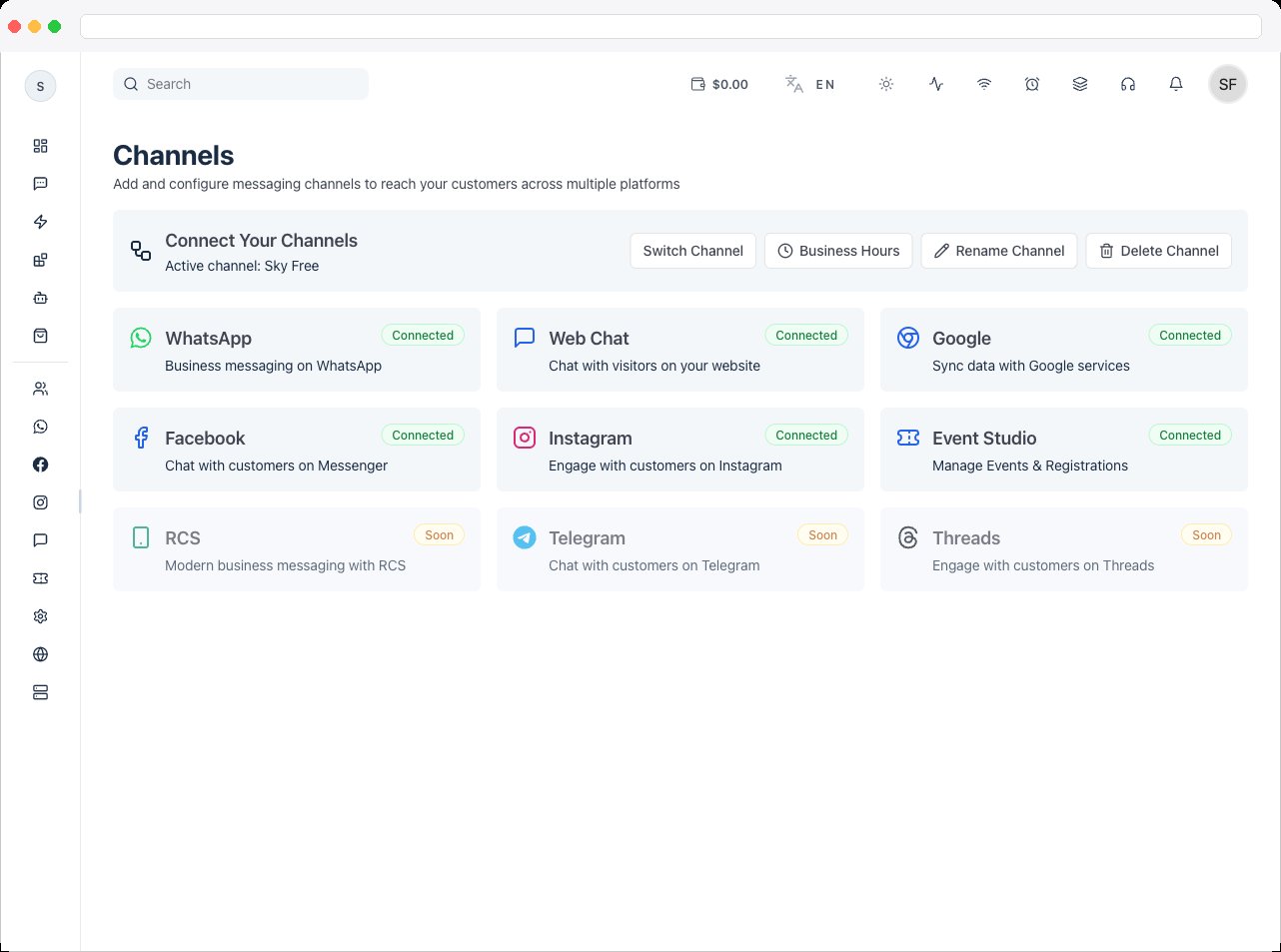
Connect your Google account first — see Google. The Google integration needs a plan that includes Google, and your platform administrator must have set up Google OAuth first. Permissions control what you can do:
google:view to see it, google:create to connect an account, google:edit to change sync settings, and google:delete to remove sheets or disconnect.What can I do here?
- Add Existing Sheet by pasting a spreadsheet ID or Google Sheet link, or Create New Sheet from the platform
- See all linked sheets under Registered sheets for this Google account, and Open any of them in Google
- Sync contacts, messages, orders, and flow submissions to a sheet and tab of your choice
- Run a Bulk Sync to send everything that already exists
- Unlink a sheet without touching the file in Google
How to use it
Link a spreadsheet
- Click Add Existing Sheet and paste a spreadsheet ID or the full Google Sheet link, then click the link button. Or click Create New Sheet, enter a Sheet name, and create it.
- Linked sheets are listed under Registered sheets for this Google account. Click Open to view one in Google.
- To remove a sheet from the list, use its remove action and confirm Unlink Google Sheet?. This only removes it from the platform — the original file in Google is unchanged.
Set up syncing
Each sync type has an Enable toggle, a Sheet to write to, and a Tab within it. The default tab is Sheet1. After a sync is on, use its Bulk Sync button to send everything that already exists.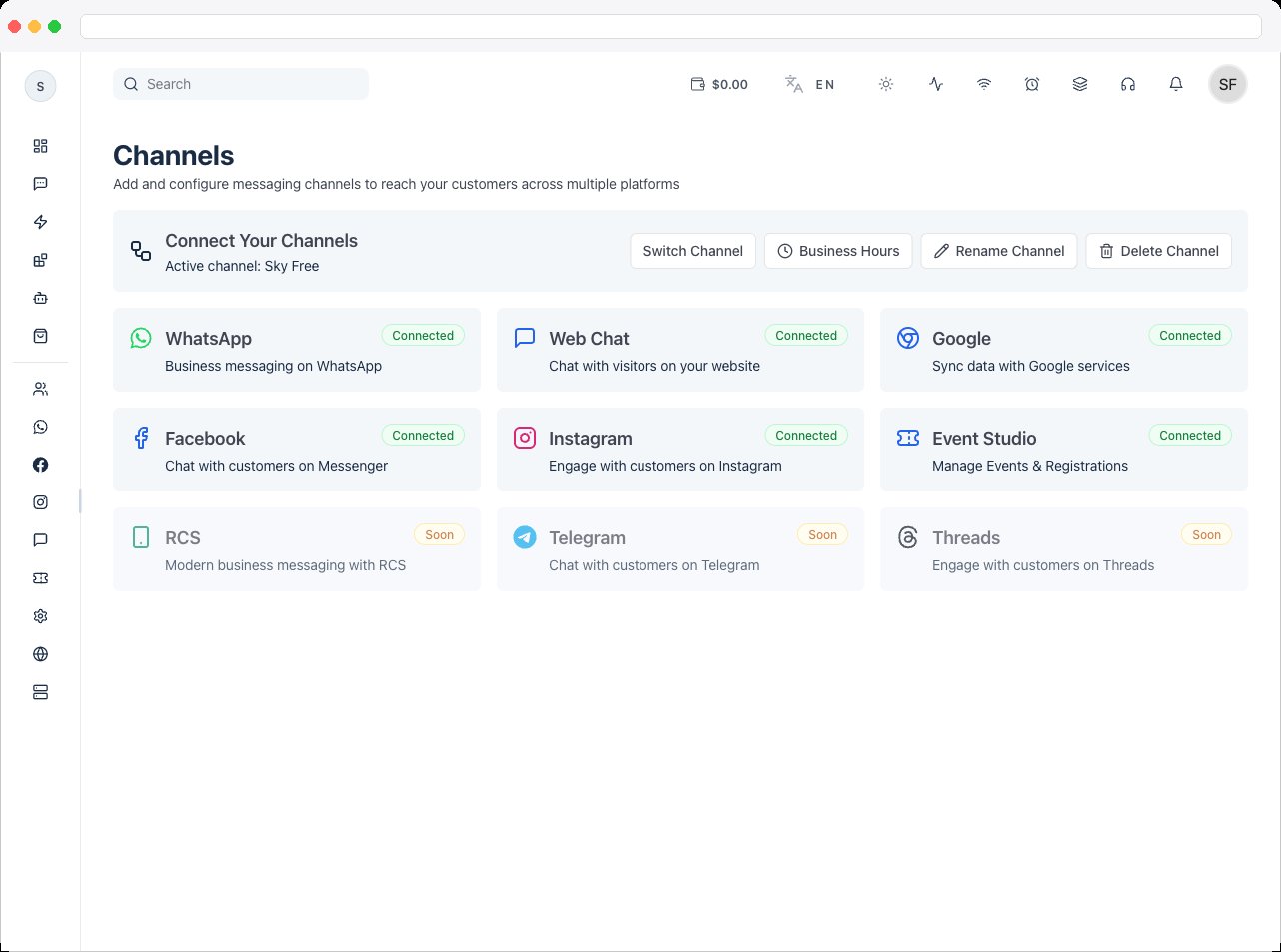
Use sheets in automations
The Google Sheets step in the Automation builder can add, update, or fetch rows in a linked sheet.Troubleshooting / Technical Notes
- “Link Failed” when adding a sheet. Check that you pasted a valid spreadsheet ID or link, and that the connected Google account has access to that sheet.
- Nothing is syncing. Make sure the sync’s Enable toggle is on and a Sheet and Tab are selected. Then use Bulk Sync for data that already existed.
- Where do new rows appear? In the tab you selected. The default tab is Sheet1.
- Unlinking a sheet doesn’t delete the file. It only removes the link from the platform.
- You can’t change sync settings. You need
google:edit, andgoogle:deleteto remove a sheet.