

What is this?
Instagram Publishing lets you publish organic posts to your connected Instagram business account — a photo, a carousel, a reel, or a story. You can publish straight away, schedule a post for later, track every post’s status, or save a draft to finish later.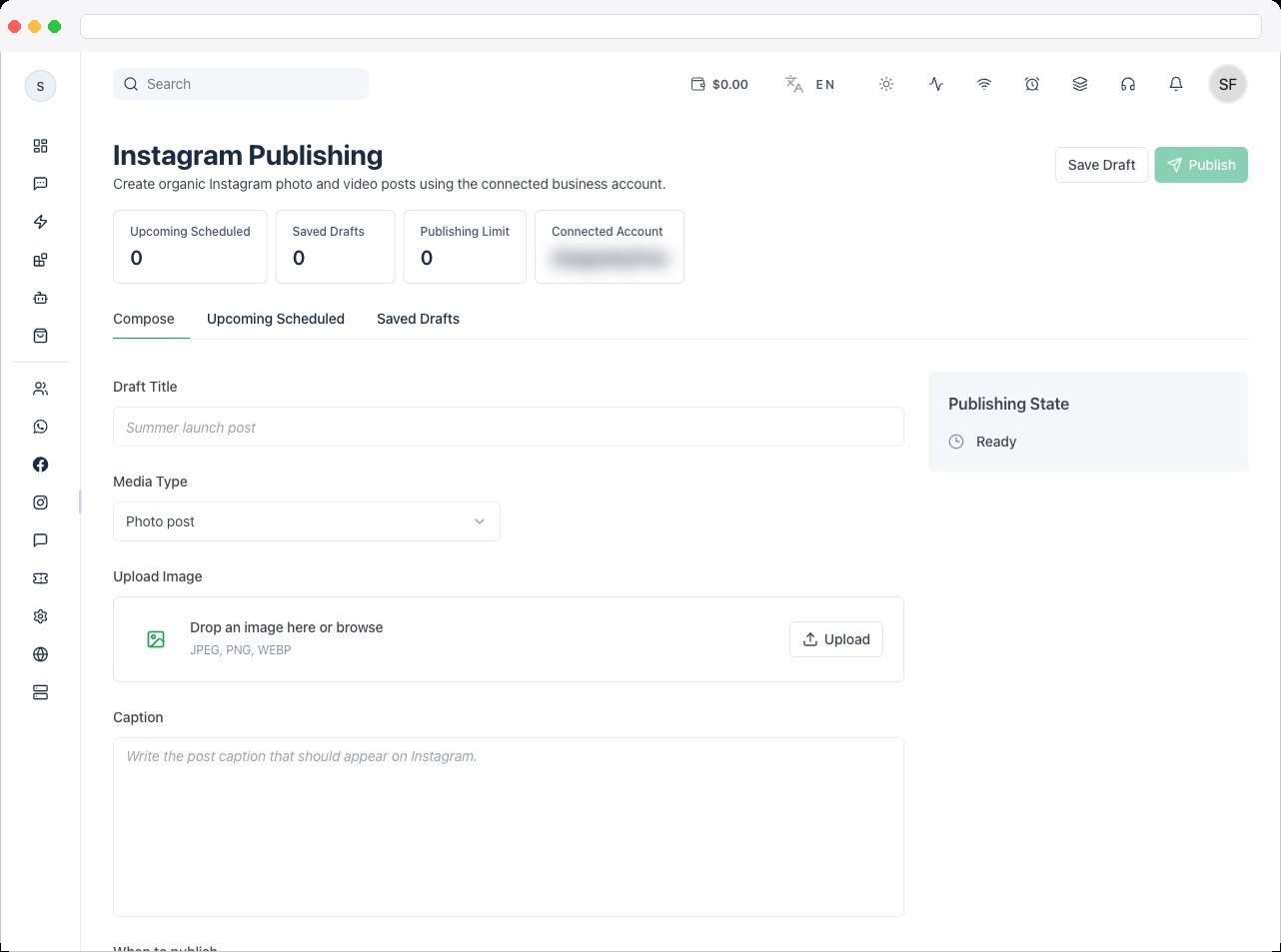
Publishing needs an active channel with a connected Instagram account, a plan that includes Instagram, and the Instagram edit permission. The connection must also allow content publishing — if not, you’ll be asked to reconnect Instagram with content publishing allowed.
What can I do here?
- Publish a Post, Carousel, Reel, or Story
- Preview the post as you build it
- Publish now, or Schedule it
- Follow every post’s status in Posts, cancel a scheduled one, or retry a failed one
- Save a draft and come back to it later in Drafts
- See tiles for Scheduled, In progress, Published and Failed, and how many posts you’ve published in the last 24 hours
How to use it
Go to Instagram → Publishing and choose a tab: Compose, Posts, or Drafts.Compose a post
-
Choose the Post type:
- Upload media (photos must be JPEG; videos MP4 or MOV). For a carousel, add items and use Move left / Move right to put them in order.
- Write the Caption — up to 2,200 characters, with up to 30 hashtags and 20 mentions. The counter shows how much you’ve used.
- Optionally add Collaborators — up to 3 usernames, separated by commas (posts, carousels and reels).
-
For a Reel, open Reel options:
- Cover image — an optional JPEG shown in the Reels tab and on your profile, or pick the Thumbnail frame (milliseconds) from the video.
- Audio name — for example Original audio.
- Also show in the feed — share the reel to your feed as well.
- Trial reel — show it to non-followers first, and either share it with followers yourself or let it share automatically if it performs well.
- Turn on Made with AI to add Instagram’s AI label to the post.
- Under When to publish choose Publish now, or pick a Date and time to schedule — at least 10 minutes ahead and within 75 days, in the time zone shown.
- Click Publish (or Schedule), or Save draft.
Track your posts
The Posts tab lists everything published or scheduled from here with its Type, Status and When. Statuses run Scheduled → Queued → Sending to Instagram → Processing → Publishing → Published, or Failed or Cancelled. Click Cancel on a scheduled or queued post, Retry on a failed one, View on Instagram on a published one, and Refresh to reload.Drafts
Click Save draft at any time. Drafts are kept in this browser only — they aren’t shared with teammates or other devices. In Drafts, use Edit draft to load one back into the composer, or Delete draft to remove it.Troubleshooting / Technical Notes
- “Wrong file type” / “This file can’t be used here.” Instagram takes JPEG photos and MP4 or MOV videos, of the kinds the chosen post type allows.
- “Publishing isn’t allowed for this connection.” Reconnect Instagram and allow content publishing — see Instagram OAuth.
- The post failed. Open it in Posts to see the reason, fix it, and click Retry.
- My draft is gone. Drafts are saved in the browser you used. They’re lost if you clear site data or switch browsers.
- I can’t add a caption to a story. Stories don’t show captions.
- “Upgrade required.” Your plan doesn’t include Instagram.