

What is this?
The Instagram OAuth tab configures Instagram Business login for your platform. It’s required before users can connect Instagram accounts from the Channels page. Instagram integration relies on Meta OAuth. The platform needs approved Meta permissions to securely connect user Instagram accounts, access business profile data, receive messages, manage comments, and support publishing or insights features where enabled. Once configured and approved, a connected Instagram account can be used for messaging, automation, comment management, publishing, and insights, depending on the permissions Meta approves.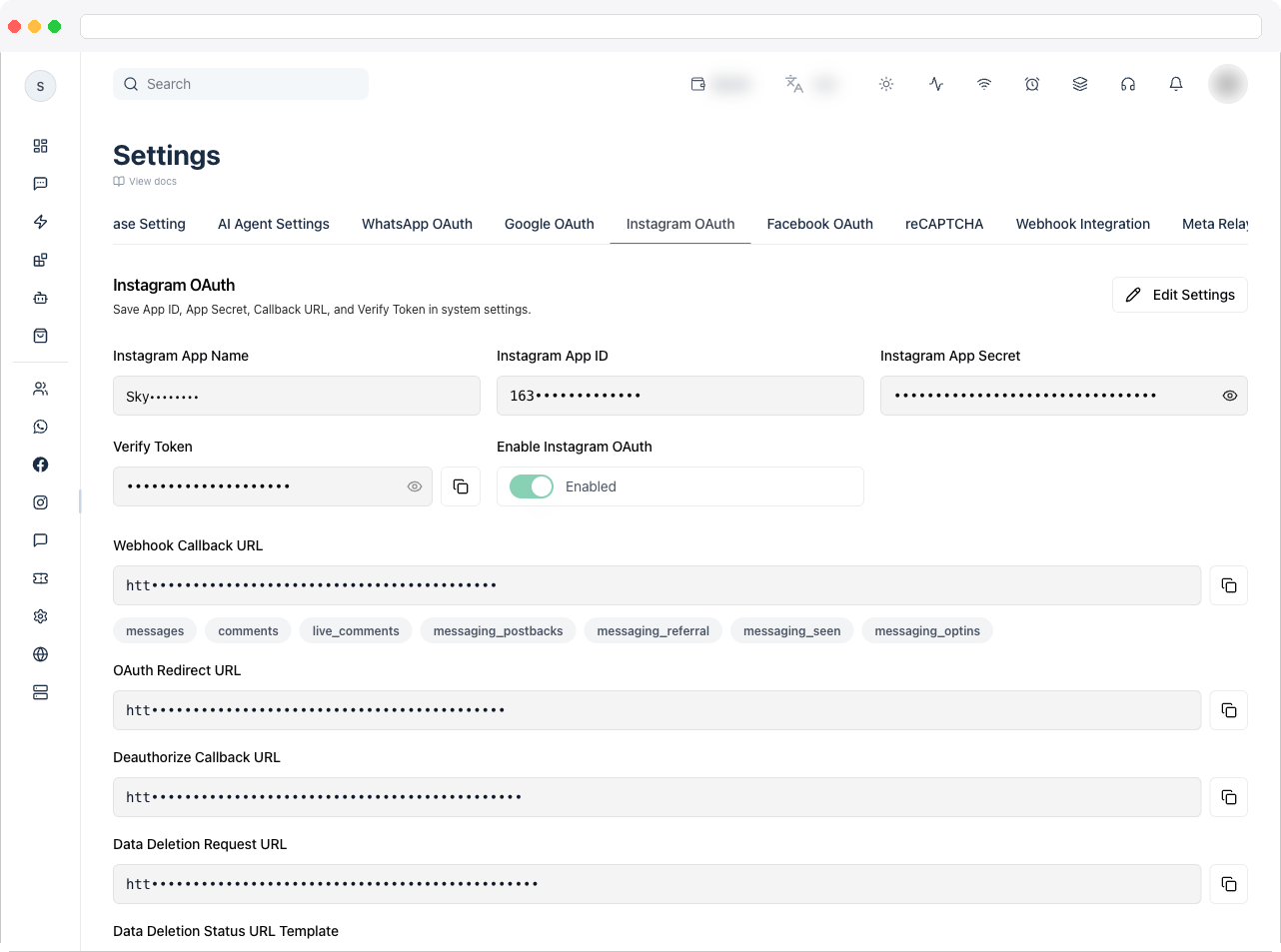
What can I do here?
- Save your Instagram App Name, Instagram App ID, Instagram App Secret, and Verify Token
- Turn Enable Instagram OAuth on or off
- Copy the Webhook Callback URL, OAuth Redirect URL, Deauthorize Callback URL, Data Deletion Request URL, and Data Deletion Status URL Template to paste into your Meta app
- Preview the Embed Login URL
- Review the Required OAuth Scopes
How to use it
Configure Instagram OAuth
1
Create or open your Meta app
Go to Meta for Developers and create a new app or open your existing platform app. Use a business app type if your platform is used for business messaging, automation, or customer engagement.
2
Add the Instagram product
In the Meta App dashboard, add the Instagram product and configure Instagram Business Login, following Meta’s current setup flow.
3
Add the webhook callback URL
Copy the Webhook Callback URL from this tab and add it in Meta’s webhook configuration. It receives Instagram events such as messages and comments. Use the same Verify Token when Meta verifies the webhook.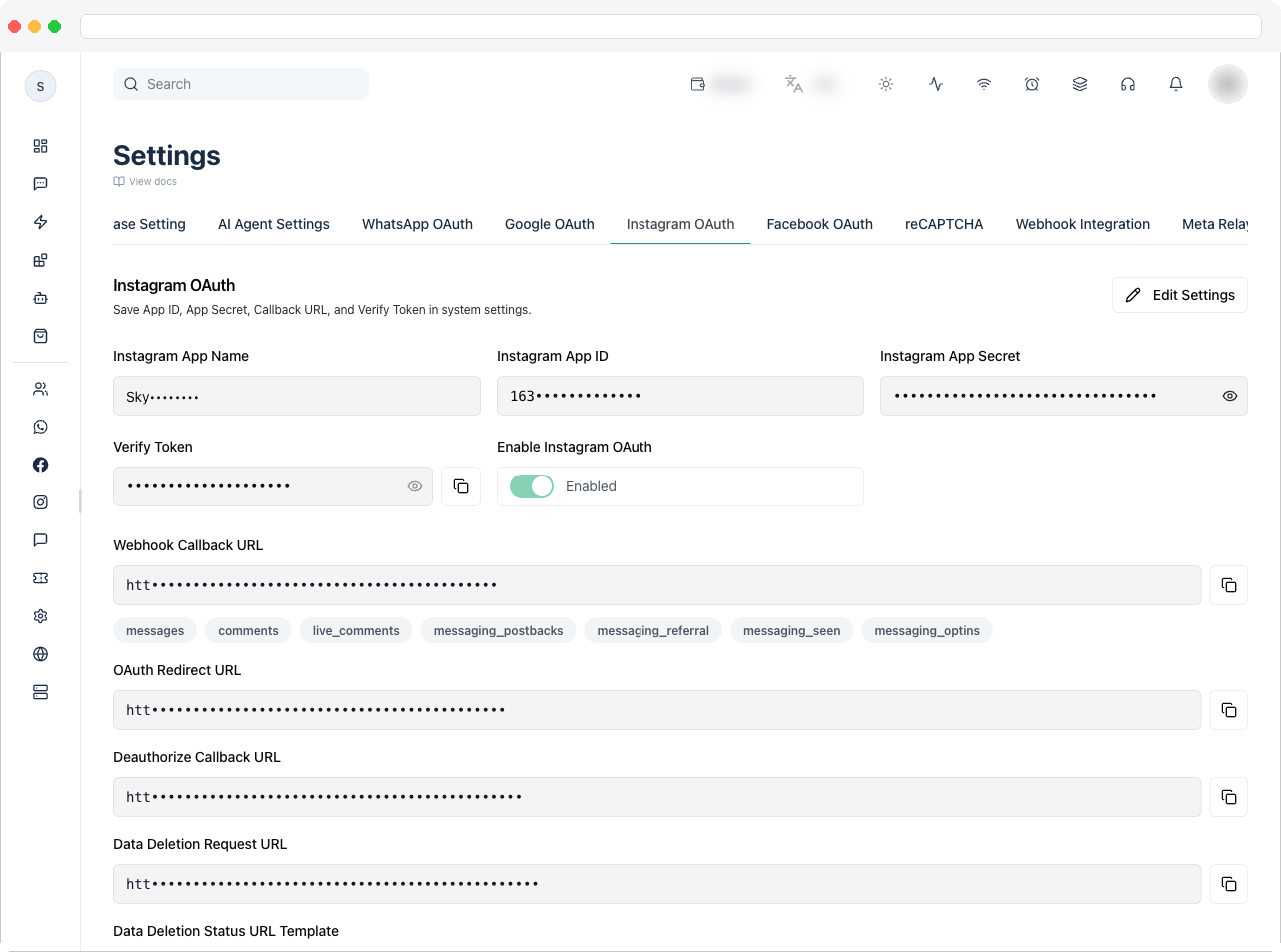
4
Set up Instagram business login URLs
Meta may require additional URLs for compliance and data handling. Add these from this tab where required: the OAuth Redirect URL, the Deauthorize Callback URL, and the Data Deletion Request URL. They let Meta and users manage disconnection and data deletion requests.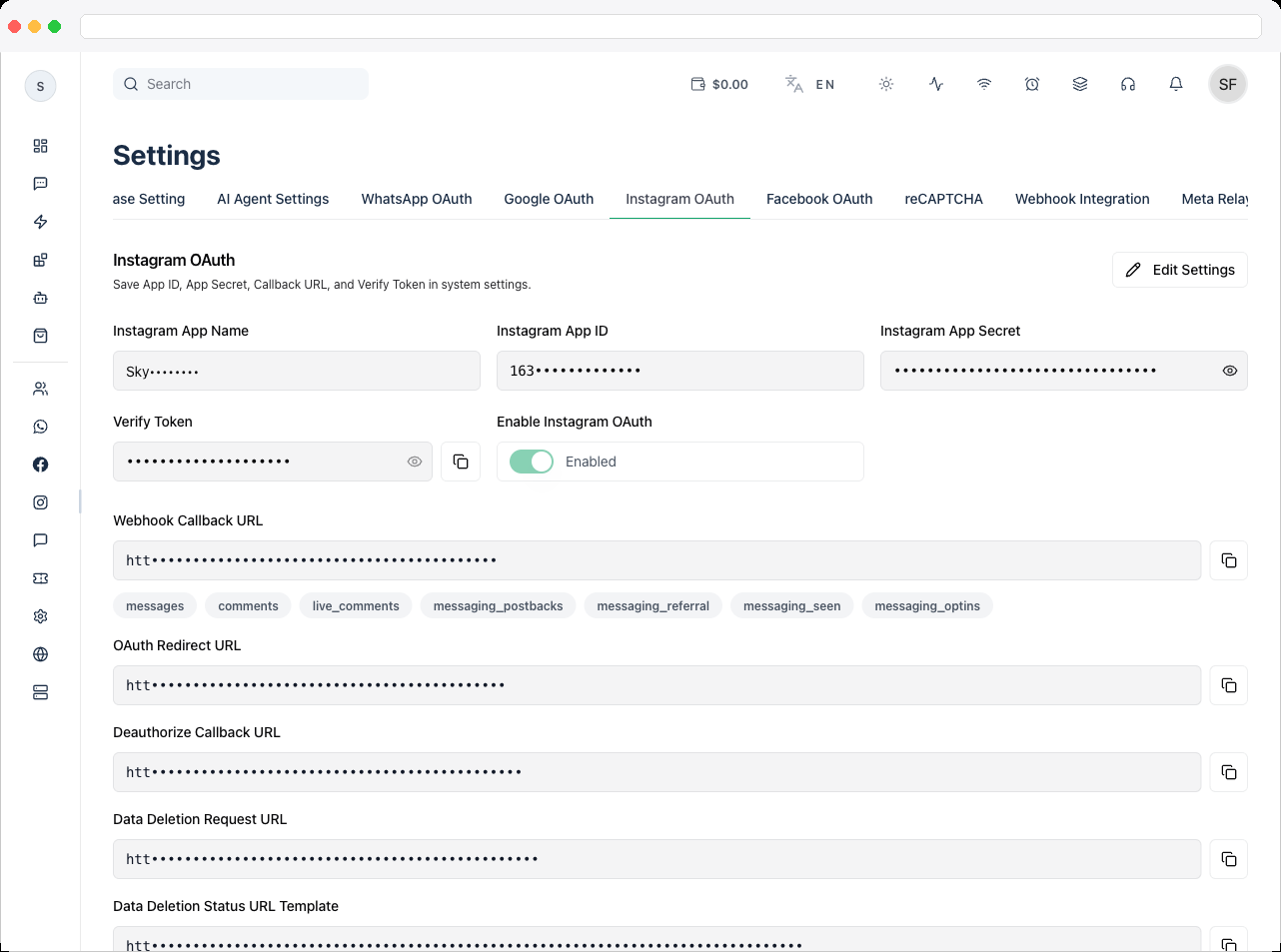
5
Save the credentials here
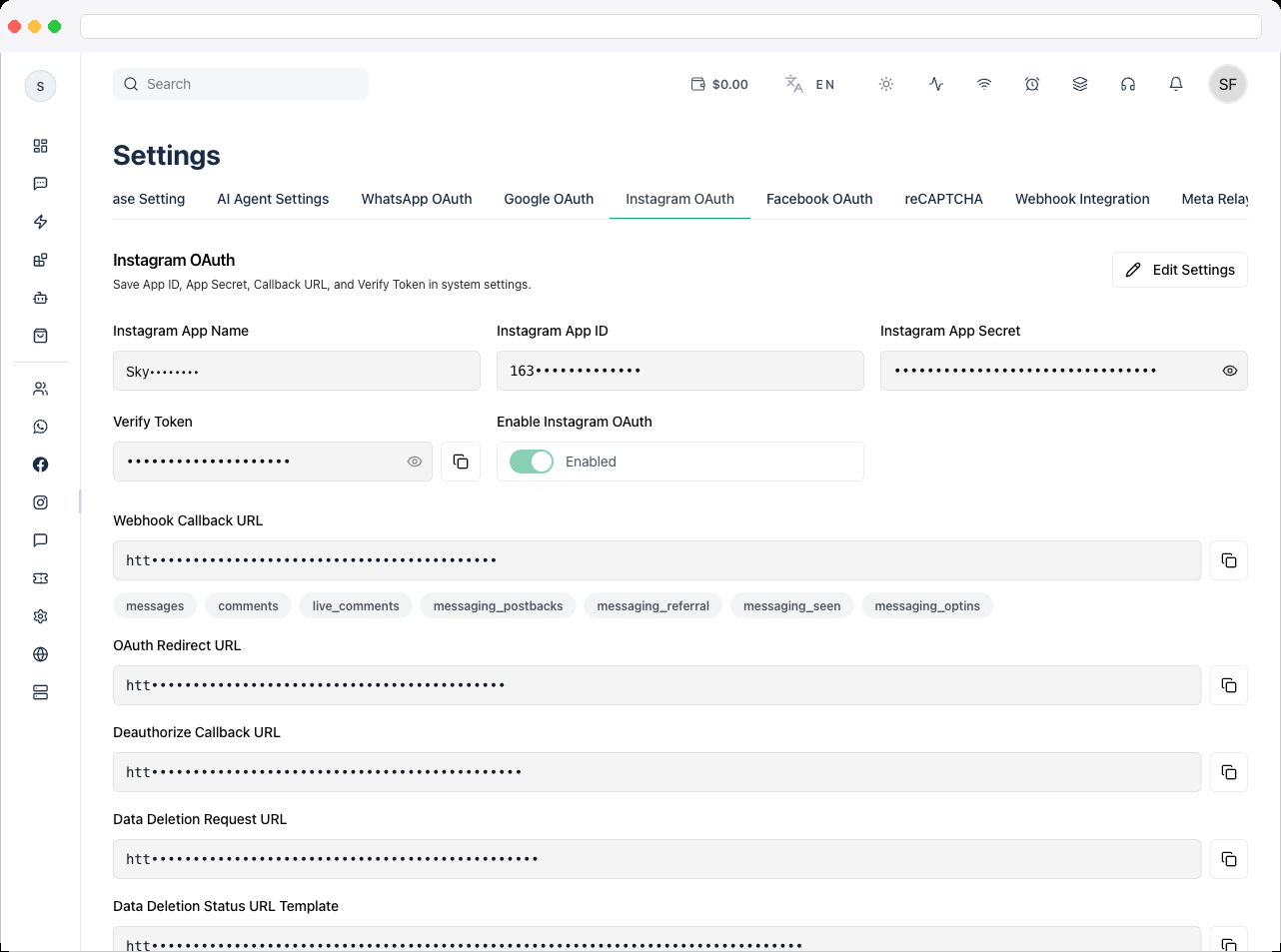
Click Edit Settings, enter the App Name, App ID, App Secret, and Verify Token, turn on Enable Instagram OAuth, and click Save Settings. All of App ID, App Secret, Callback URL, and Verify Token are required.
6
Complete app review
In Meta App Review, request the permissions listed below. For each permission, explain why the platform needs it and show the exact feature in your screencast. Use the Review Submission Pack further down.
7
Connect an account
After saving, go to Channels and click Connect Instagram. The popup login uses the saved configuration.
Required OAuth scopes
Meta verification requirements
Instagram permissions require Meta App Review before production use. Meta may ask for:- valid business details
- a privacy policy URL and terms of service URL
- app domain verification
- a clear use-case explanation
- a screencast video showing the feature flow
- test login credentials, if required
Review Submission Pack
1. App use-case description (copy-paste)
1. App use-case description (copy-paste)
Use this text when Meta asks for a detailed description of how your app uses the permission or feature requested, how it adds value for a person using the app, and why it’s necessary.
Our platform is a business messaging and automation product that helps companies manage Instagram conversations, post engagement, and publishing workflows from a shared team inbox. We request Instagram Business permissions so authenticated business users can connect their own Instagram account, manage interactions, and run approved automation in one place. Each requested permission is tied to a visible user action in the platform (connect account, reply to messages, manage comments, publish approved content, and view insights). These permissions are required for core product behavior and are only used after user consent.
2. Scope-by-scope justification (copy-paste)
2. Scope-by-scope justification (copy-paste)
instagram_business_basic — Required to connect and identify the Instagram Business account selected by the user and show basic account information in the platform.instagram_business_manage_messages — Required to receive and send Instagram direct messages from the platform inbox and automation flows.instagram_business_manage_comments — Required to read, manage, and respond to comments and to trigger comment-based workflows requested by the business user.instagram_business_content_publish — Required when users choose to publish approved posts from the platform to Instagram.instagram_business_manage_insights — Required to retrieve account and content insights so users can analyze engagement and optimize campaign performance.
3. Screen recording checklist
3. Screen recording checklist
Record one continuous flow (4–10 minutes is recommended):
- Show your platform domain and log in.
- Open Platform Settings → Instagram OAuth and show the app is configured (mask secrets).
- Go to Channels and click Connect Instagram.
- Complete Meta OAuth and grant the requested permissions.
- Show the connected Instagram account in your platform.
- Demonstrate each requested permission with a real action:
- messages: receive and reply from the inbox
- comments: view and respond to a post comment
- content publish: publish or schedule a test post (if requested)
- insights: open the analytics or insights screen
- End by showing the success state and where the user can disconnect access.
4. Upload instructions
4. Upload instructions
- Upload the video to Google Drive (Anyone with the link can view) or as an unlisted YouTube video.
- In the Meta App Dashboard, open App Review → Permissions and Features.
- Open each requested permission and paste the use-case description, the exact test steps for the reviewer, the video URL, and test credentials (if Meta asks).
- Make sure your app domain, privacy policy, and terms URLs are valid and publicly accessible before you submit.
5. Pre-submission checklist
5. Pre-submission checklist
- The app is in Live mode or fully ready for review testing.
- The privacy policy, terms URL, and app domain are reachable.
- Requested scopes exactly match the Required OAuth Scopes list above.
- The video demonstrates each requested scope with real UI actions.
- Reviewer steps and (if requested) test credentials are added for every permission request.
Troubleshooting / Technical Notes
- “Missing required fields.” App ID, App Secret, Callback URL, and Verify Token must all be filled in.
- Connect Instagram is blocked. Enable Instagram OAuth is off — turn it on and save.
- Login works but messages or comments don’t. Some permissions haven’t been approved by Meta yet.
- Meta rejected the review. Keep your app name, logo, privacy policy, terms URL, and domain consistent across Meta and your platform. Give a real business use case — avoid vague reasons such as “for testing” — and make sure a working Instagram feature exists before you submit.