

What is this?
SEO Management lets platform administrators set search engine optimization (SEO) metadata for individual pages, based on their route path — for example/, /pricing, or /about. You control how each page appears in search results and how its link previews look when shared on social platforms, without touching code.
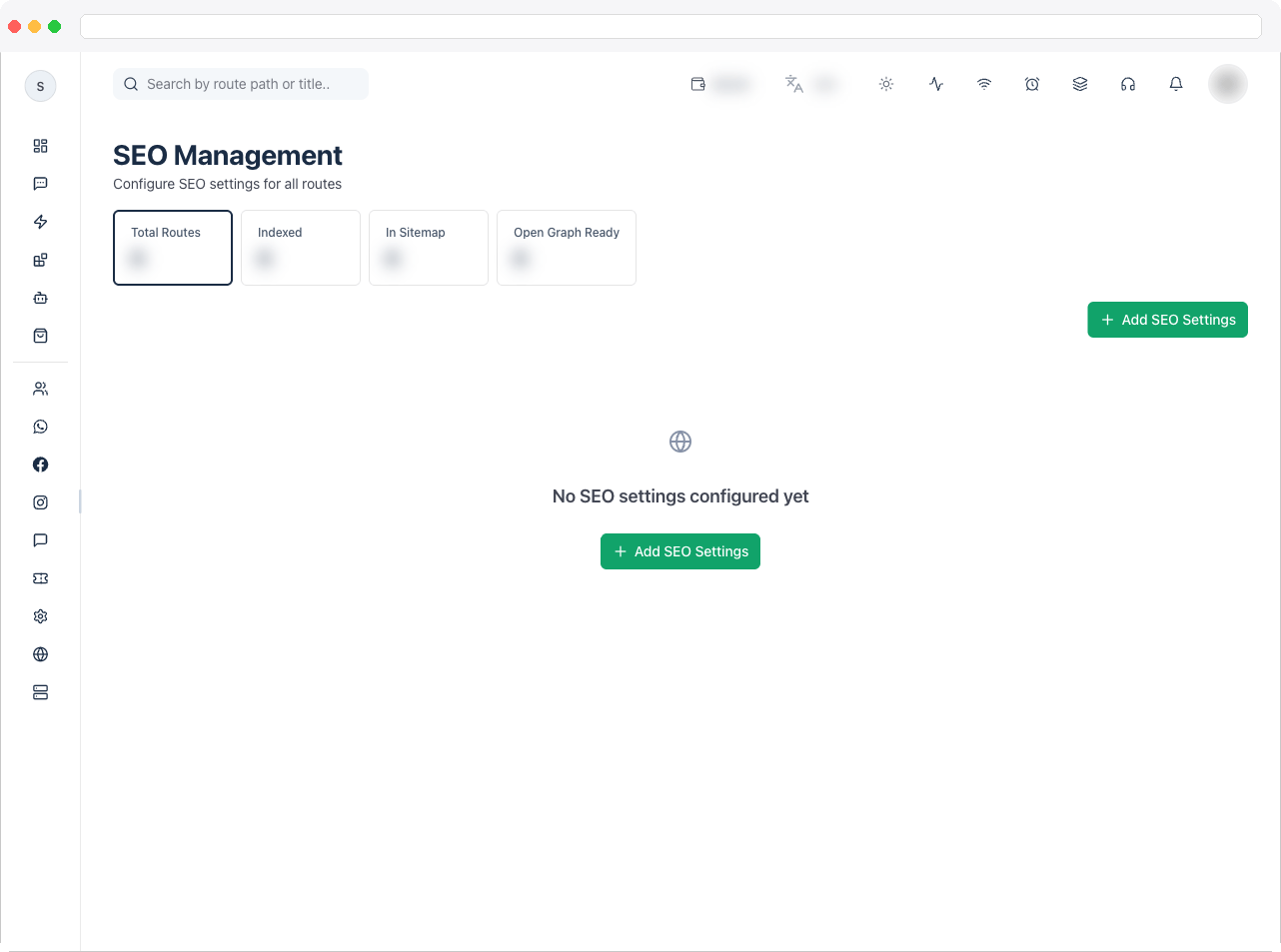
Viewing this page requires the
platform:view permission.What can I do here?
- See summary tiles: Total Routes, Indexed, In Sitemap, and Open Graph Ready
- Search routes by path or title
- Add SEO settings for a route with Add SEO Settings
- Edit or Delete the settings of an existing route
- Set the page Title, Meta Description, Meta Keywords, and Canonical URL
- Control indexing with the Robots setting
- Set Open Graph and Twitter details so shared links show the right title, description, and image
- Add JSON-LD Schema structured data
- Choose whether a route is included in the sitemap, and set its priority and change frequency
How to use it
Add SEO settings for a page
- Go to Platform → SEO Management and click Add SEO Settings.
- Choose a tab in the dialog and fill it in:
- Basic
- Open Graph
- Twitter
- Advanced
Enter the Route Path (required) — for example 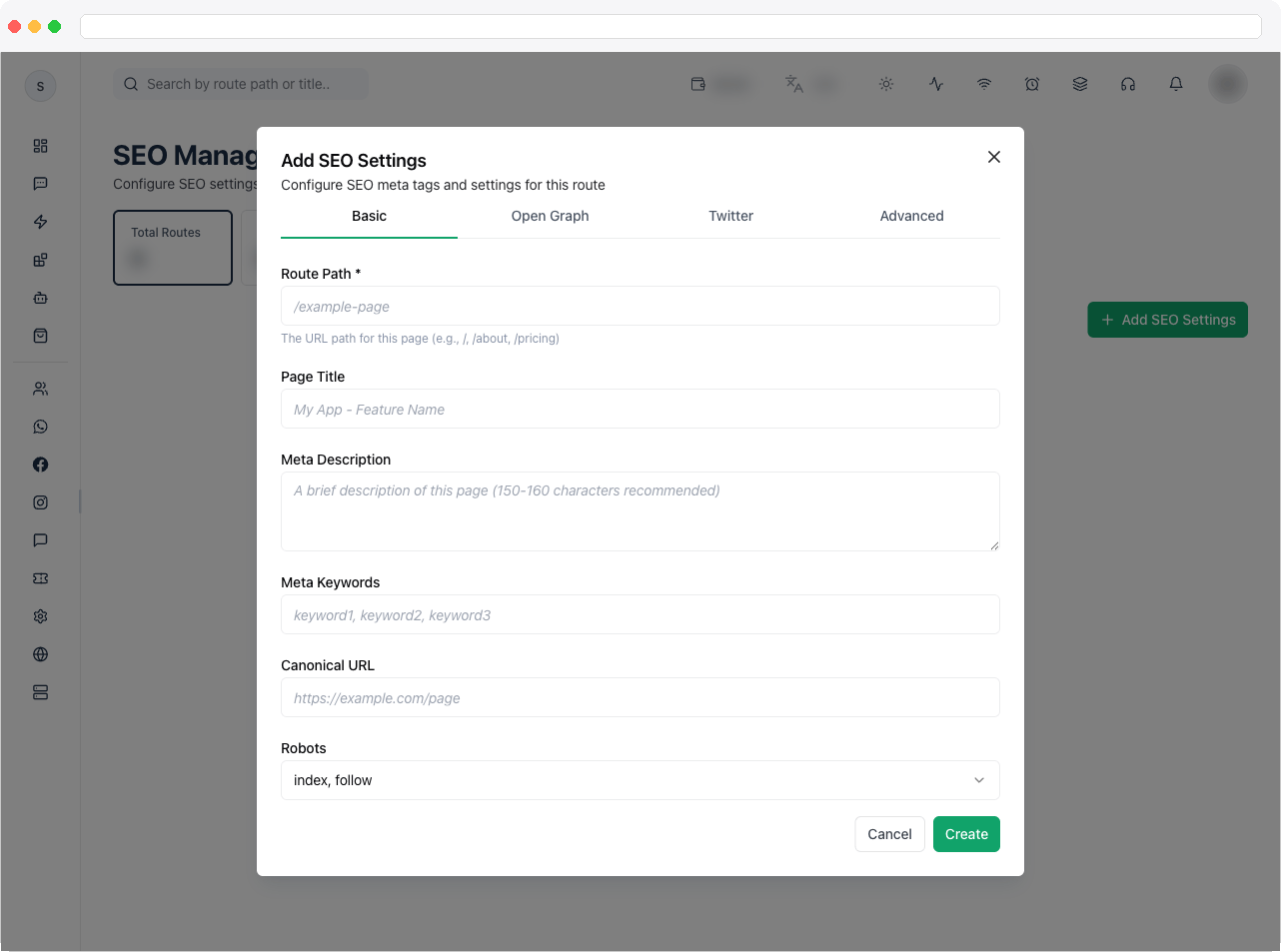
/pricing — plus the Page Title, Meta Description (150–160 characters is recommended), Meta Keywords, and Canonical URL. Choose a Robots value: index, follow, noindex, follow, index, nofollow, or noindex, nofollow.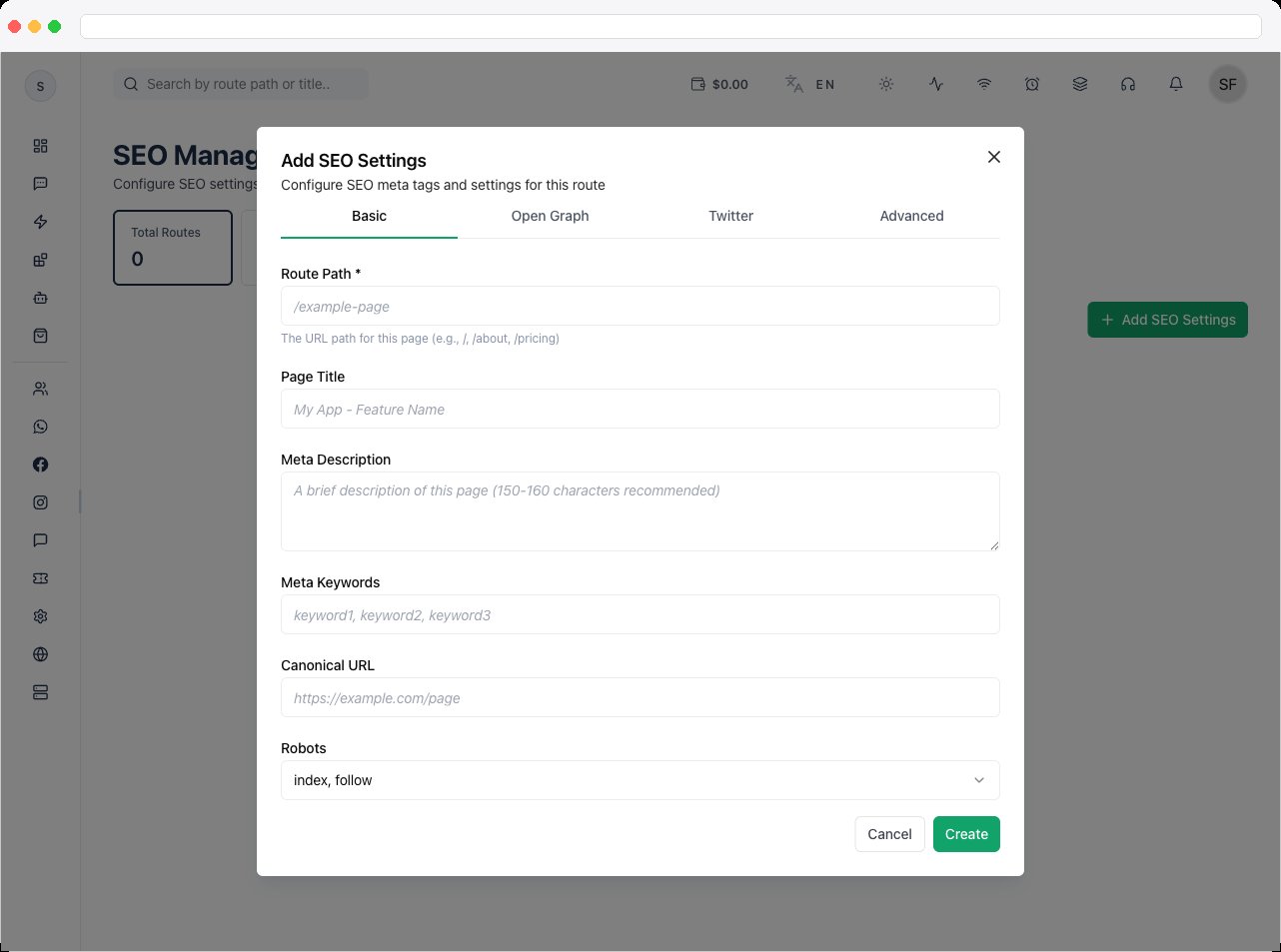
- Click Create.
Edit or remove settings
- Find the route in the table (search by path or title).
- Click Edit to change it, or Delete to remove its SEO settings.
Troubleshooting / Technical Notes
- “Route path is required.” Enter a path such as
/pricingbefore saving. - “Invalid JSON-LD schema format.” The JSON-LD field must be valid JSON. Validate it in a JSON checker and try again.
- A page still shows old metadata in search or social previews. Search engines and social platforms cache previews. Wait for a re-crawl, or use the platform’s own preview-refresh tool.
- A page is hidden from search. Check its Robots value —
noindextells search engines not to list the page.