

What is this?
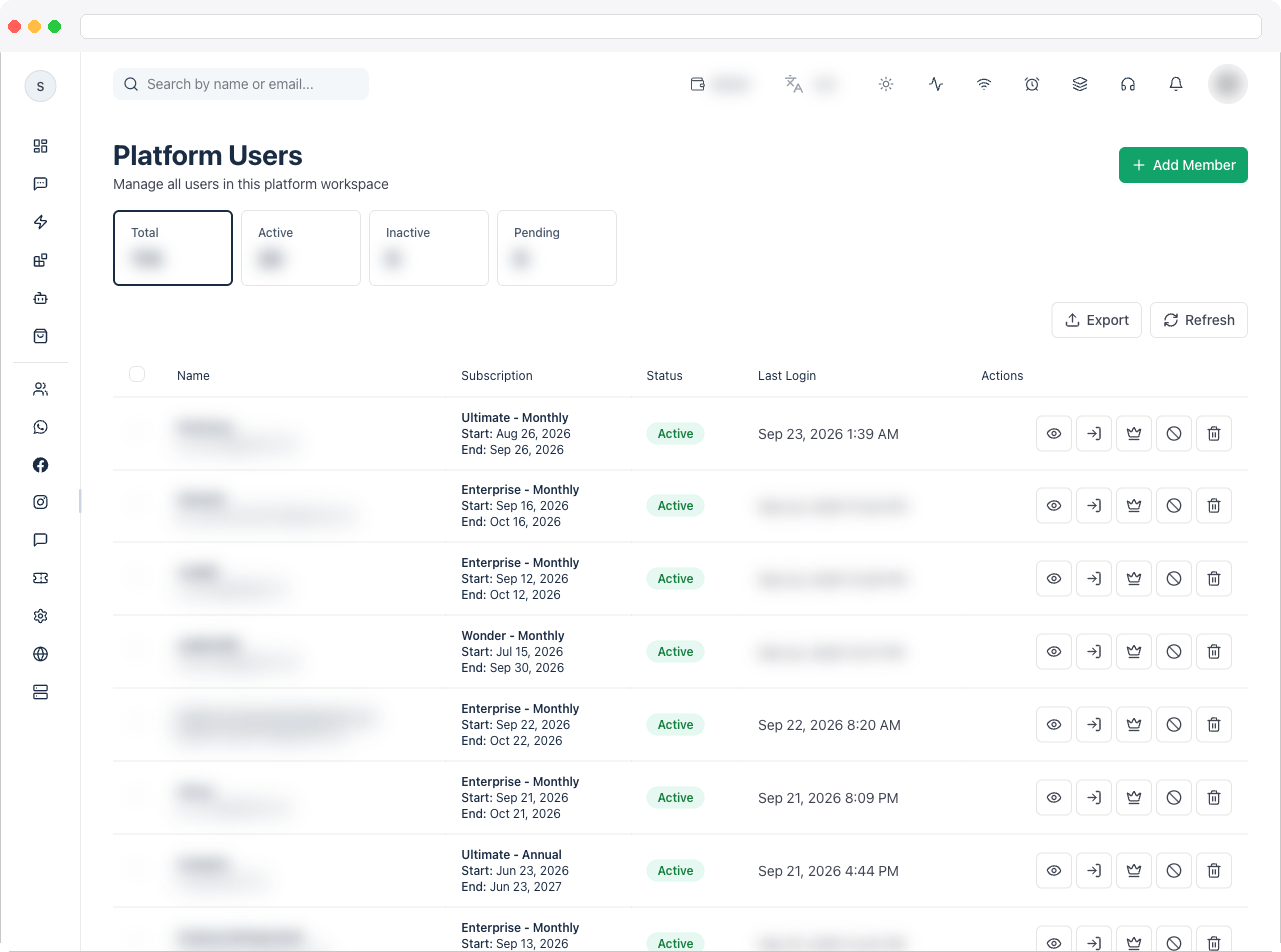
Platform Users is where a platform owner or admin manages every user account created under their platform workspace — creating accounts, checking status, assigning plans and add-ons, logging in as a user for support, and deleting accounts.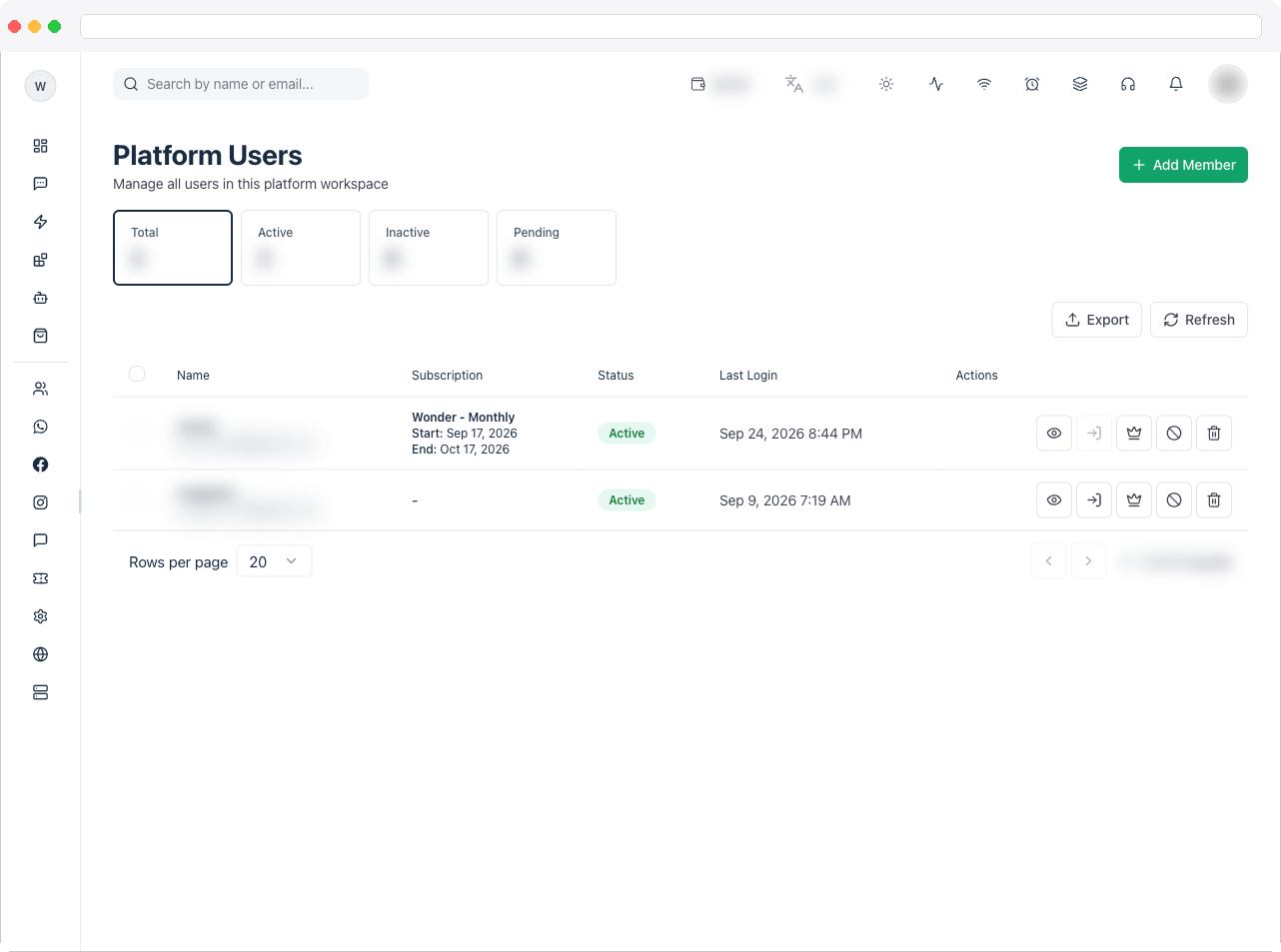
What can I do here?
- Search the user list by username or email
- Filter the list using the summary tiles: Total Users, Active, Inactive, Pending
- Select one or more users with the row checkboxes, then use Select All, Cancel, or Delete selected from the bulk action bar
- Export the user list with Export — the file is emailed to you when it is ready
- Add a new user with Add Member
- View a user’s account details
- View and edit the feature limits of a user’s current subscription, from the Features tab
- Log in as a user (“impersonate”) for support and troubleshooting
- Assign a plan and/or add-ons to a user, with a billing cycle
- Toggle a user’s status between Active and Inactive
- Delete a user, or (owner role only) delete a user immediately instead of waiting for the normal deletion queue
- Delete many users at once with Delete selected, and cancel a pending deletion request
- Refresh the list on demand
How to use it
Add a new user
- Click Add Member in the top-right of the page.
- Fill in the form: Username, Password, and Email are required; First Name and Last Name are optional.
- Click Create User. The button stays disabled until Username, Password, and Email are all filled in.
- If the username or email is already taken, the server’s error message (for example “Username already exists.”) is shown in place.
Search and filter
- Type into the search box to filter by name or email, or click a summary tile (Total Users, Active, Inactive, Pending) to filter by status.
Find accounts that asked to be deleted
Use the Filter by account deletion dropdown next to the status filter: All accounts, Under deletion (accounts with a pending deletion request), or the same restricted to accounts that still have an active subscription — useful to follow up before the account is removed.Export users
- Click Export in the toolbar. The current search, status filter and account-deletion filter are applied to the export.
- A message says “Export job started.” and that you will receive an email at your account’s email address when the file is ready to download.
View a user’s details
- Click the eye icon on a row to open that user’s detail page, which includes usage such as connected channels, team members, contacts, templates, campaigns, and subscription details.
View or edit plan features
- On a user’s detail page, open the Features tab.
- This shows the features of the user’s current subscription in one table, the same list your customers see on their own Plan Features tab:
- Number limits come first (channels, contacts, automations, campaigns, flows, labels, custom fields, team members, AI Agents, events, Booking Studio). Each row shows the Plan Quota (the one value you can edit), the Addon Quota, the Total, how much is Used, and what’s Remaining.
- On/off features follow (WhatsApp, Calling and Groups, Instagram, Facebook, Threads, Telegram, TikTok, Web Chat, Google, Catalog, Custom Domain, Brand Name, AI Assist, MCP, API Access, Outbound Webhook, mobile apps and so on). Each shows a Yes or No and, when you can edit, a toggle. A feature reads Yes when the plan switch or an active add-on turns it on.
- If the user has no active subscription, the tab shows “No active subscription found for this user” instead of the table.
- On a platform that bills by credits, change a Plan Quota number or flip a toggle and click Save (in the card header). On a platform that bills by commission the table is read-only — there is no Save button, and the page says “On commission billing they follow the plan and cannot be edited here.”
Changes here apply only to this user’s current subscription — the page says so directly (“Changes apply only to this user’s current subscription, not to the plan or its other subscribers.”). The plan itself and everyone else on it are not changed.
Log in as a user
- Click the login icon on a row to impersonate that user. You cannot impersonate your own account. On success you’re redirected to the workspace Dashboard as that user.
Assign a plan or add-ons
- Click the crown icon to open Assign Plan.
- Choose a Billing Cycle (Monthly, Quarterly, Yearly — or, if the selected plan is a lifetime plan, the only option is Lifetime/one-time).
- Optionally choose a plan from Select Plan, and/or check one or more items under Add-ons (use the add-on search box to filter a long list).
- Click Assign. You must choose at least a plan or one add-on — the button stays disabled otherwise.
Change status
- Click the block icon on a row to toggle that user’s status between Active and Inactive.
Delete a user
- Click the delete icon on a row.
- Confirm in the dialog. The deletion is queued and runs in the next 00:00 UTC batch — it is not immediate.
- If the account has an active subscription, deletion is blocked and the dialog shows a Cancel subscriptions & delete button instead — click it to cancel the user’s active subscriptions and retry the deletion in one step.
- Users with the owner role also see a Delete Now (force) button in this dialog, which deletes the account immediately, skipping both the queue and the active-subscription check.
Cancel a pending deletion
- While a deletion is queued, the row shows an Under deletion badge and the delete icon is replaced by a Cancel deletion request (x) icon. Click it to stop the queued deletion; a “Deletion Cancelled” message confirms it.
Delete several users at once
- Tick the checkboxes of the users you want (or use Select All in the bar that appears above the table). The bar shows how many users are selected, for example “3 user(s) selected”.
- Click Delete selected. The button is disabled if none of the selected users can be deleted.
- In the Delete N user(s)? dialog, read the notice: deletion is queued for each selected user and runs in the next 00:00 UTC batch. Users with an active subscription, super admins, and users you cannot delete are skipped. Your own account is also skipped.
- Click Delete N user(s). The button shows progress (“Deleting 2 of 10…”) while the requests run. Do not close the dialog until it finishes.
- When it finishes, a message such as “8 queued for deletion, 2 skipped.” appears. If nothing could be queued, the message is shown as an error and includes the first reason the server gave.
- Owners also see a Delete N now button in the dialog, with the hint “Owner-only: deletes immediately, skips the queue and the active-subscription check. This cannot be undone.” The result then reads “N deleted, M skipped.”
Troubleshooting / Technical Notes
- “Create User” stays disabled or nothing happens. Username, Password, and Email are all required. Fill in all three.
- “Username already exists.” (or a similar message) after Create User. The username or email is already taken. Use a different one — this is normal validation, not a bug.
- The login icon is disabled. You can’t log in as your own account, and the icon is also disabled while a login request for that row is in progress. It’s also disabled if you have neither
platform:viewnorplatform:edit. - Logging in as a user fails with an error message. Read the message shown — it comes from the server. If none is shown, you’ll see “Failed to impersonate user”; try again or check the user’s status. On success you’re always taken to the Dashboard.
- The crown (Assign Plan) or block (status) icon is disabled. Both require the
platform:editpermission. Ask an administrator to grant it. - The Features tab shows “No active subscription found for this user.” The user has no currently active subscription — assign one first from Assign Plan on the list page, then reopen the Features tab.
- The Features tab won’t let me edit. The fields are greyed out and there is no Save button on platforms that bill by commission — limits follow the plan there. To change them, edit the plan itself in Platform Plans.
- I changed a quota but another user on the same plan didn’t get it. That’s by design: the Features tab edits only this user’s current subscription. To change every subscriber, edit the plan in Platform Plans.
- The delete icon is disabled (“No permission”). You need
platform:delete, orteam:deletefor your own account or for a user you created. Ask an administrator, or have the account’s creator delete it. - Deletion was confirmed but the account isn’t gone yet. This is expected — deletions are queued for the next 00:00 UTC batch.
- Delete fails with a message about an active subscription. Deletion is blocked while a subscription is active. Click Cancel subscriptions & delete to cancel the user’s active subscriptions and delete the account in one step, rather than retrying the plain delete.
- The “Delete Now (force)” button doesn’t appear. It’s only available to users with the owner role, and it skips both the queue and the active-subscription check.
- Delete selected is disabled. None of the selected users can be deleted by you (for example they are super admins, or you lack
platform:delete). Change the selection. - Bulk delete says “0 queued for deletion” or skips some users. Users with an active subscription are skipped. Cancel their subscriptions first (or delete them one at a time using Cancel subscriptions & delete), then repeat. The error message shows the first reason the server gave.
- I clicked Delete selected but the users are still listed. Bulk deletion is queued like single deletion and runs in the next 00:00 UTC batch. Queued users show an Under deletion badge.
- “Assign” stays disabled in the Assign Plan dialog. Select at least a plan or one add-on.