

What is this?
Platform Subscriptions (shown on the page as Master Subscriptions) is the central view of every subscription across your platform — which users are on which plan or add-on, their billing cycle, and their current status. Platform administrators use it to track subscription activity, approve manual payments, and catch data problems early.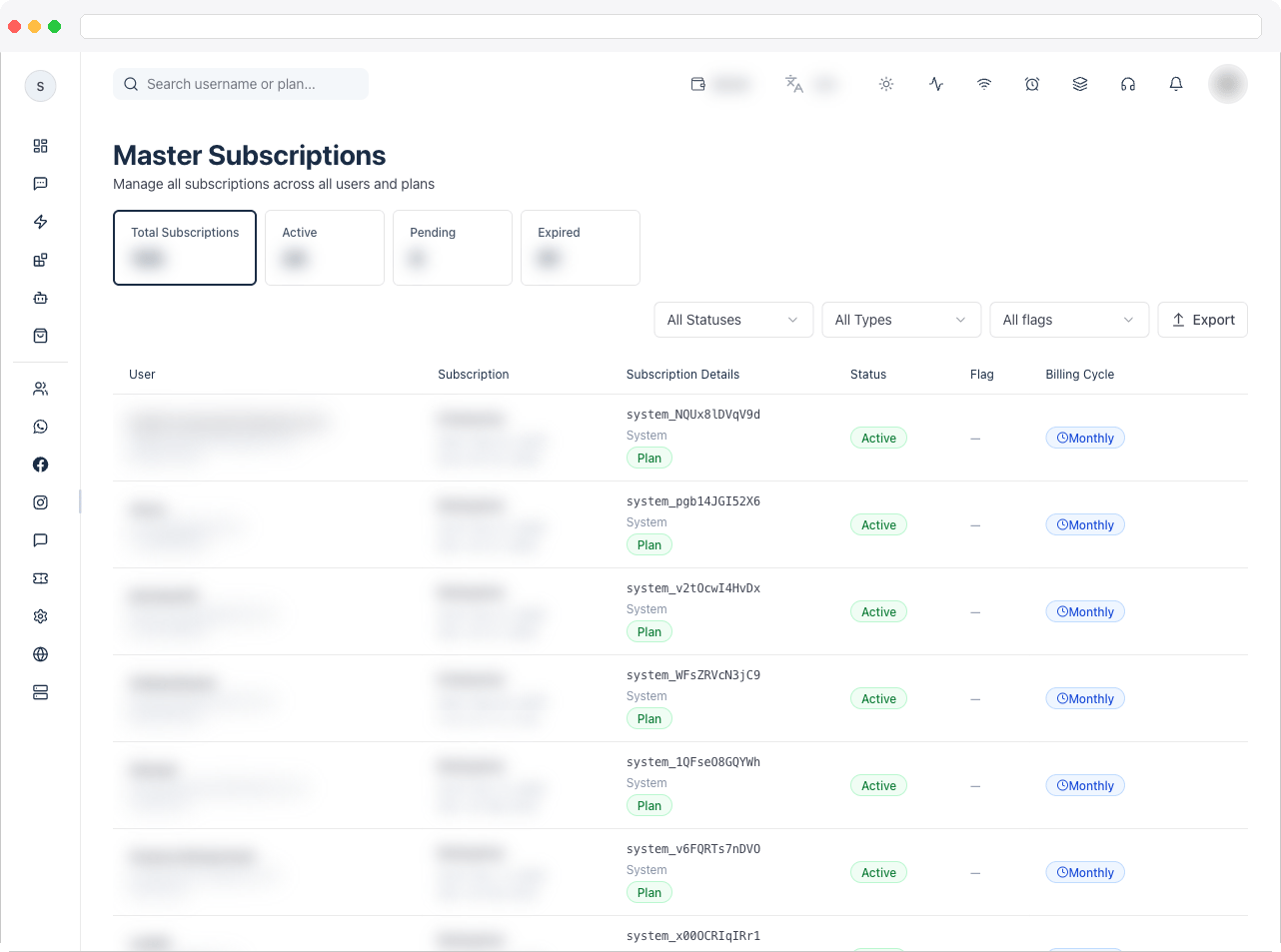
This page requires the
platform:manage permission.What can I do here?
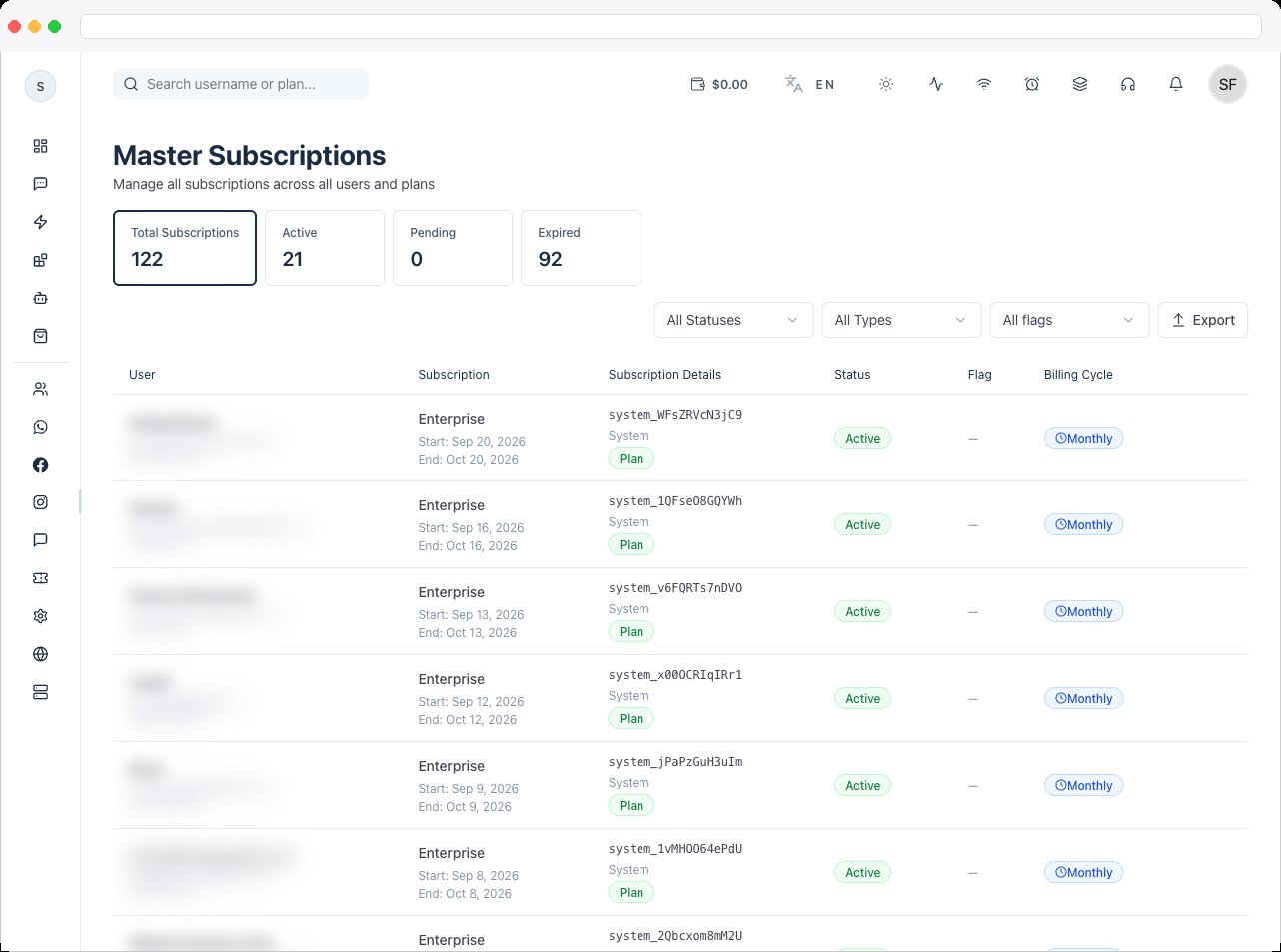
- See summary tiles: Total Subscriptions, Active, Pending, and Expired
- Search by username or plan name
- Filter by status (Active, Pending, Expired, Failed, Cancelled) and by type (Plan or Addon)
- Filter by flag to find subscriptions with data problems
- Review each subscription’s user, plan or add-on, dates, status, and Billing Cycle (Monthly, Quarterly, Yearly, or Lifetime)
- Approve or Reject a pending subscription that was paid with the Manual provider
- Edit a subscription’s provider and reference ID
- Export subscription data for reporting
How to use it
Find and review subscriptions
- Go to Platform → Platform Subscriptions.
- Click a summary tile (for example Pending) or use the status and type dropdowns to narrow the list.
- Type a username or plan name into the search box.
-
Read each row: User, Subscription, Subscription Details, Status, Flag, Billing Cycle, and Actions.
Approve or reject a manual payment
When a customer pays through the Manual provider, their subscription stays Pending until you review it.- Filter the list by Pending.
- Confirm you have received the payment (see Platform Transactions).
- Click the Approve icon in the row’s actions to accept it, or the Reject icon to decline it.
Fix a subscription’s provider reference
- Click Edit on a subscription row.
- In Edit Subscription Details, choose the Provider and enter the Subscription Reference ID.
- Click Save.
Understand the flag filter
The Flag filter surfaces subscriptions whose data looks inconsistent:Troubleshooting / Technical Notes
- A paid subscription still shows Pending. Manual payments need an admin to use the Approve action. Automatic providers update through webhooks — see Payment Gateway if statuses lag.
- A subscription is “Active but expired.” Sync subscriptions from the provider; if the provider also shows it as ended, the platform copy is stale.
- Nothing appears in the list. Subscriptions appear here as soon as a user buys a plan or add-on.