

What is this?
Platform Transactions is the financial record of every payment made on your platform. Each entry is linked to a payment processed through your configured payment gateway, so you can confirm what was paid, by whom, for which plan or add-on, and whether it completed.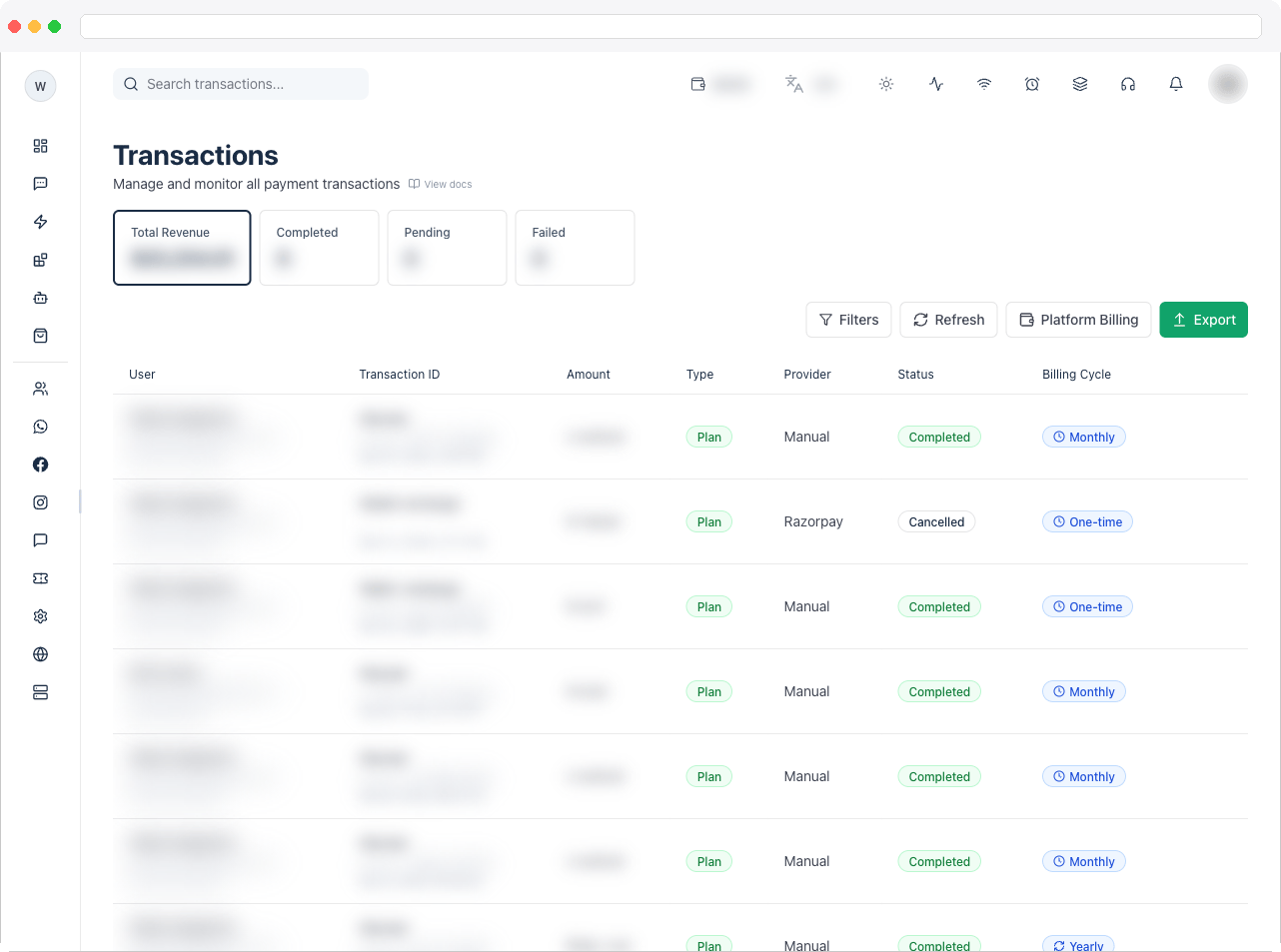
This page requires the
platform:manage permission.What can I do here?
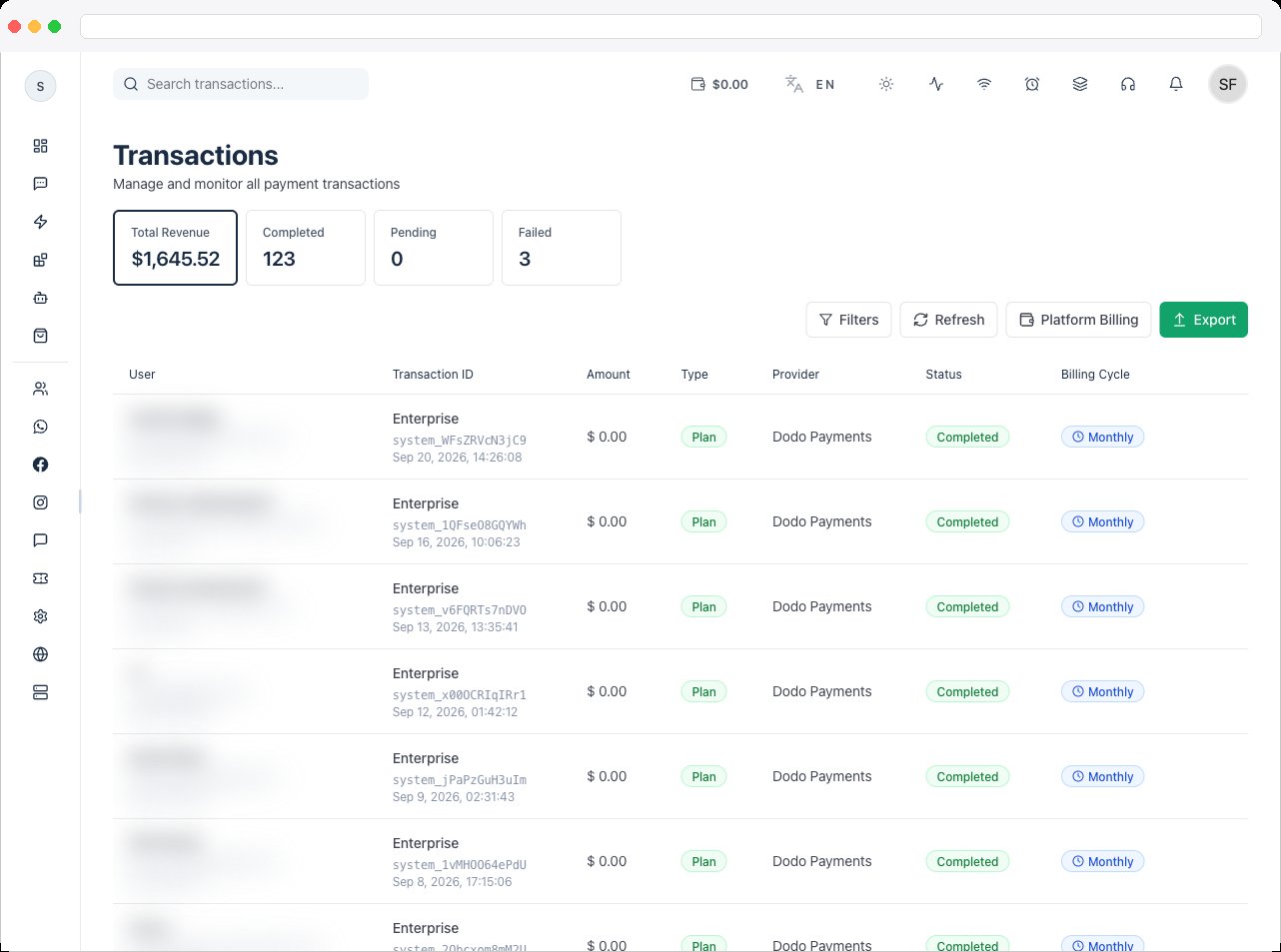
- See summary tiles: Total Revenue, Completed, Pending, and Failed
- Search transactions and open Filters for Status, Payment Method, Type, Billing Cycle, a date range, and a minimum and maximum amount
- Read each transaction’s User, Transaction ID, Amount, Type (Plan or Addon), Provider, Status, and Billing Cycle
- Sync status from provider to refresh a single transaction
- Edit a transaction’s provider and reference IDs
- Export transactions for reporting or reconciliation
- Jump to Platform Billing with the Platform Billing button
- Click Refresh to reload the list
How to use it
Find a payment
- Go to Platform → Platform Transactions.
- Type a user or transaction ID into Search transactions, or click a summary tile to filter by status.
-
Open Filters to narrow by payment method (Card, UPI, Wallet, Net Banking), type, billing cycle, dates, or amount range. Click Clear Filters to reset.
Reconcile with the payment provider
- Find the transaction and click Sync status from provider in its row.
- The status updates from the provider. Statuses are Completed, Pending, Failed, Refunded, or Cancelled.
Correct a transaction’s references
- Click Edit on the row.
- In Edit Transaction Details, set the Provider and fill in the Transaction ID, Order ID, Payment ID, and Provider transaction ID as needed.
- Click Save.
Export transactions
- Apply any filters you need.
- Click Export to start the export.
Troubleshooting / Technical Notes
- A payment is missing. Clear all filters first. If it’s still missing, check that the provider’s webhook is configured in Payment Gateway and run Sync webhooks.
- A transaction is stuck on Pending. Use Sync status from provider. For manual payments, approve the related subscription in Platform Subscriptions.
- The provider ID looks wrong. Use Edit to correct the reference IDs; these are used to cross-check payments with the provider during support and audits.