

What is this?
Notifications lets platform administrators send announcements and push notifications to the people who use the platform. Each notification has a title and message, a target audience, and a sent history you can review at any time.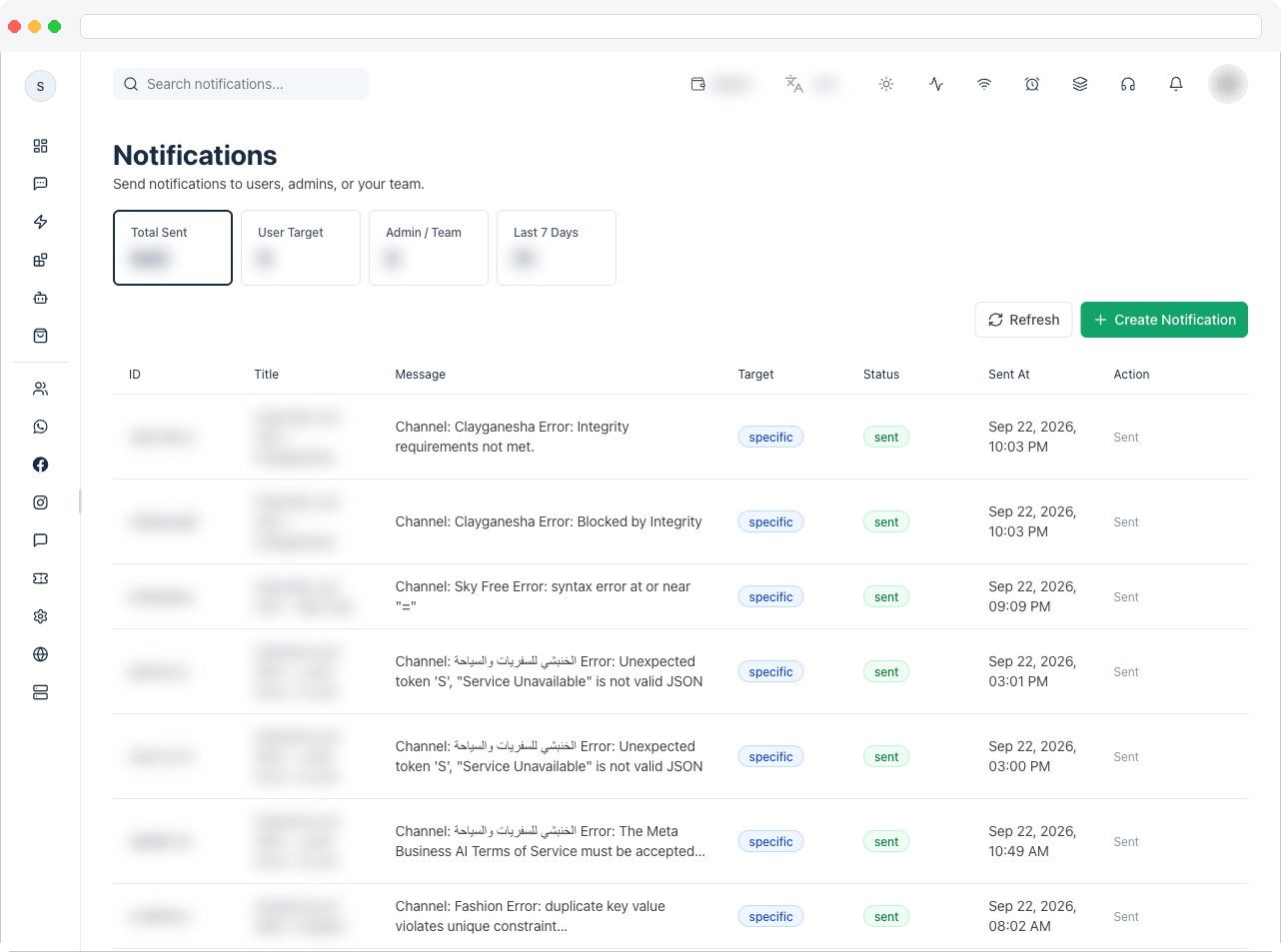
Viewing this page requires the
notifications:view permission, and sending requires notifications:create. Push delivery to browsers and mobile apps also depends on Firebase being configured.What can I do here?
- See summary tiles: Total Sent, User Target, Admin / Team, and Last 7 Days
- Search notifications by title or message
- Review the notification history with Title, Message, Target, Status, and Sent At
- Create and send a notification with Create Notification
- Choose which platforms receive it and which roles to target
- Show a notification as an in-app popup until the user closes it
- Run Push Notification Diagnostics to check that push delivery is set up correctly
- Click Refresh to load the latest notifications
How to use it
Send a notification
- Go to Platform → Notifications and click Create Notification.
- Under Platform, select the platforms that should receive the notification. Use Select All or Deselect All to change every platform at once.
-
Under Send to, choose the audience: All Users, Owners, Super Admins, Admins, or Team Members. A live count shows how many users will receive it.
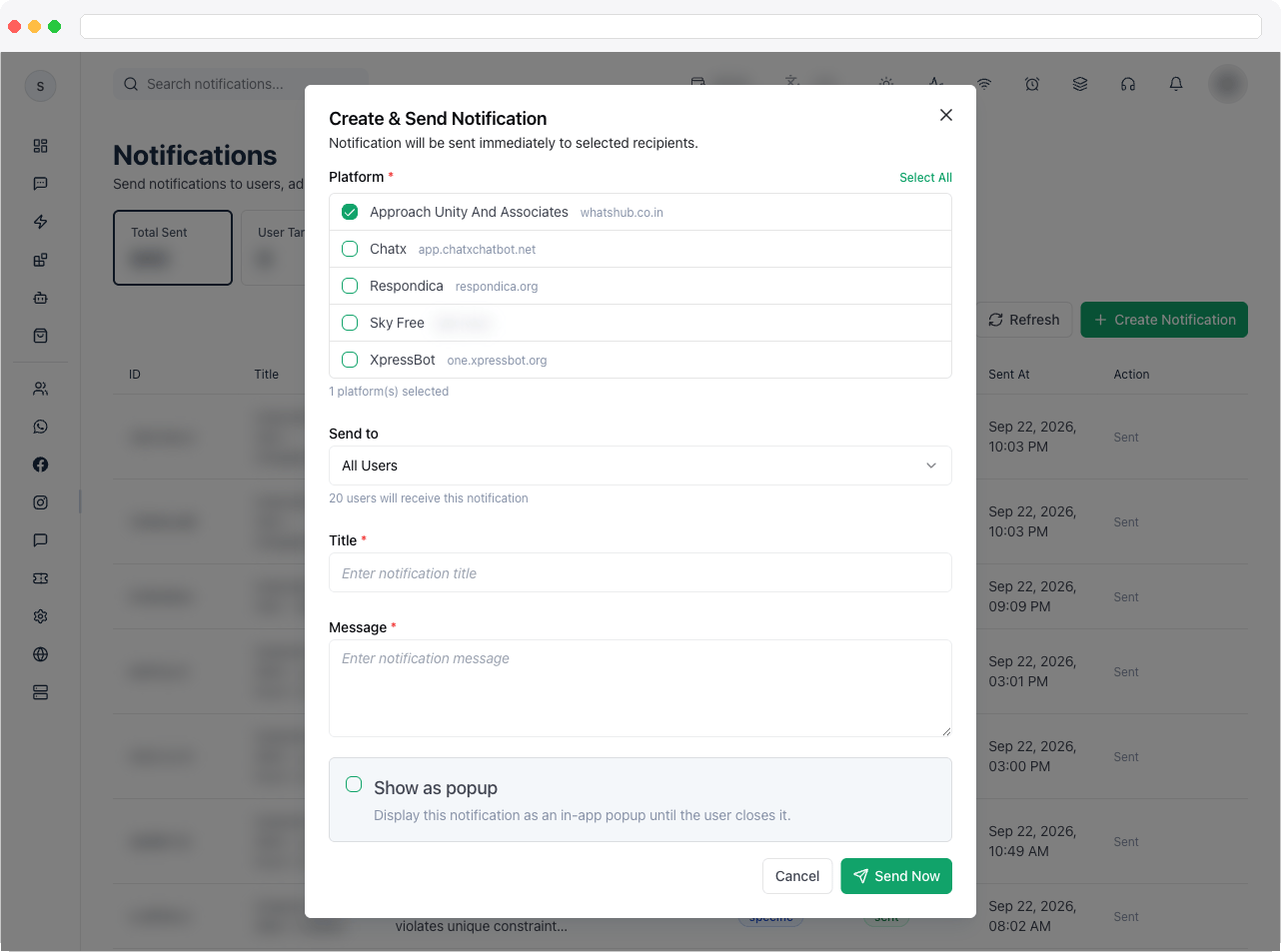
- Enter a Title and Message. Both are required.
- Optionally turn on Show as popup to display the notification in the app until the user closes it.
- Click Send Now. The notification is sent immediately to the selected recipients.
Notifications are sent right away — there is no scheduling. Review the recipient count before you send.
Check your push notification setup
- In the notifications page, open Push Notification Diagnostics.
- Review each check: Browser Support, Service Worker, Notification Permission, Firebase Configuration, FCM Token, and Backend Subscription.
- If Notification Permission isn’t granted, click Grant Permission and allow notifications in your browser.
- Click Test Push Notification to send a test message to your own device. Wait at least five seconds between tests to avoid OS throttling.
Troubleshooting / Technical Notes
- “Please select at least one platform.” Choose at least one platform before sending.
- Push notifications never arrive. Open Push Notification Diagnostics. A failed Firebase Configuration check means Firebase must be set up in Firebase Settings. A missing FCM Token usually means browser notification permission hasn’t been granted.
- The test notification doesn’t show up immediately. It may take a few seconds to appear. Repeated tests in quick succession can be throttled by the operating system.
- You see “Access Denied.” Ask an administrator to grant you the notifications permissions.