

What is this?
Platform Plans (shown on the page as Subscription Plan) is where you define how your SaaS is packaged and priced. You create membership plans with limits and features, add-on packs that extend a plan, and wallet recharge tiers — then control which of them customers see.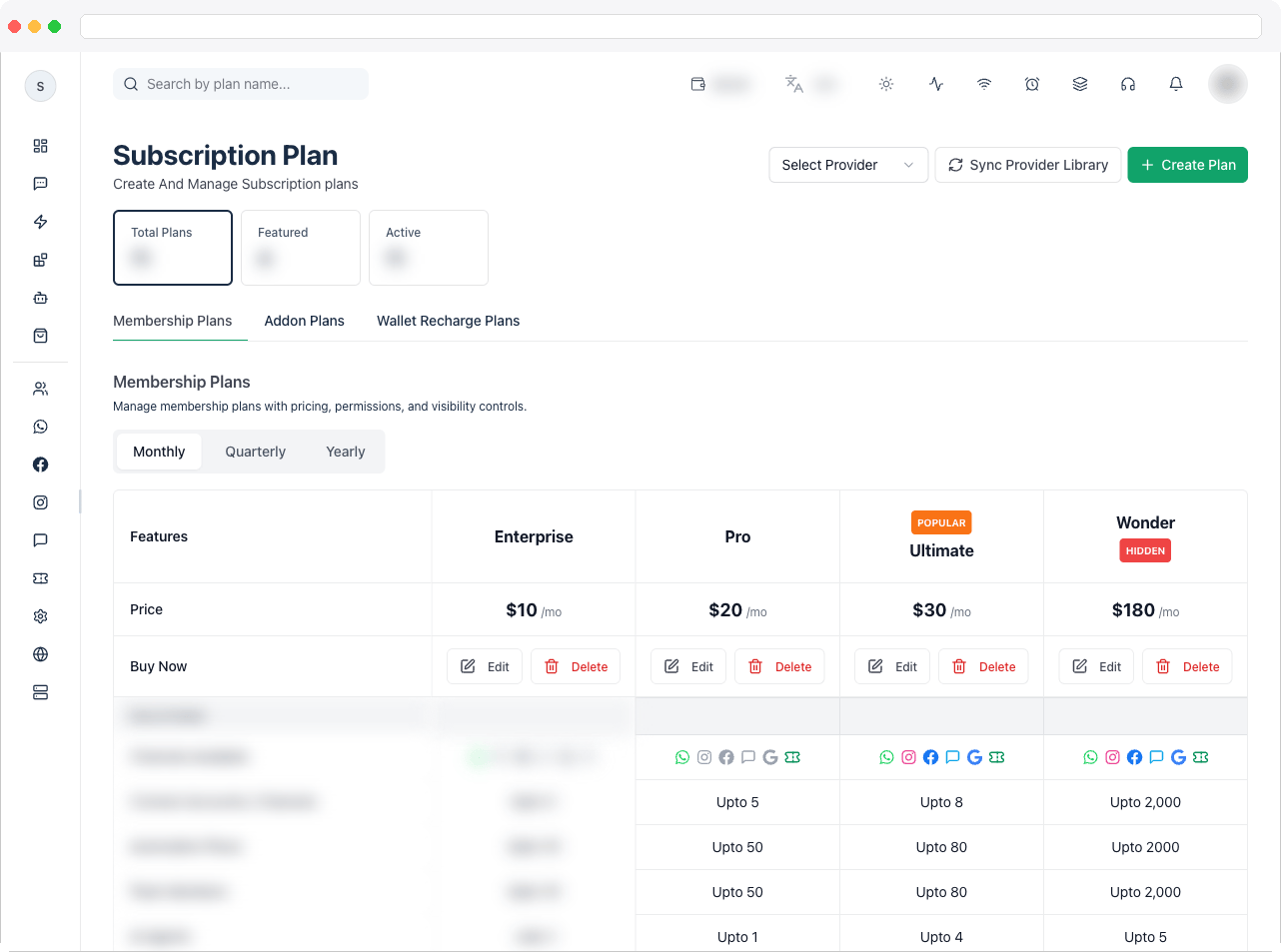
This page requires the
platform:edit permission. Plans are charged through the provider you configure in Payment Gateway. The Wallet Recharge option and tab only appear when the wallet is enabled in Wallet Settings.What can I do here?
- See summary tiles: Total Plans, Featured, and Active
- Search plans by name
- Switch between Membership Plans, Addon Plans, and Wallet Recharge Plans
- Create a plan with Create Plan and choose its Item Type: Membership Plan, Addon, or Wallet Recharge
- Edit or Delete an existing plan
- Set monthly, quarterly, annual, or one-time (lifetime) pricing
- Set limits and feature access for each plan, such as channels, team members, contacts, campaigns, AI agents, and events
- Mark a plan as Popular and control whether it is shown (Show Plan) or Hidden
- Choose a provider and click Sync Provider Library to sync your plans with the payment provider
How to use it
Create a membership plan
- Go to Platform → Platform Plans and click Create Plan.
- Set Item Type to Membership Plan.
- Enter a Plan Name (required), pick an Icon, and optionally add a Badge Text such as “Most Popular” and a short Description.
-
Enter pricing. Monthly Price auto-fills the Quarterly (Monthly × 3) and Annual (Monthly × 12) prices, and you can edit both. Turn on Lifetime one-time plan for a single payment instead.
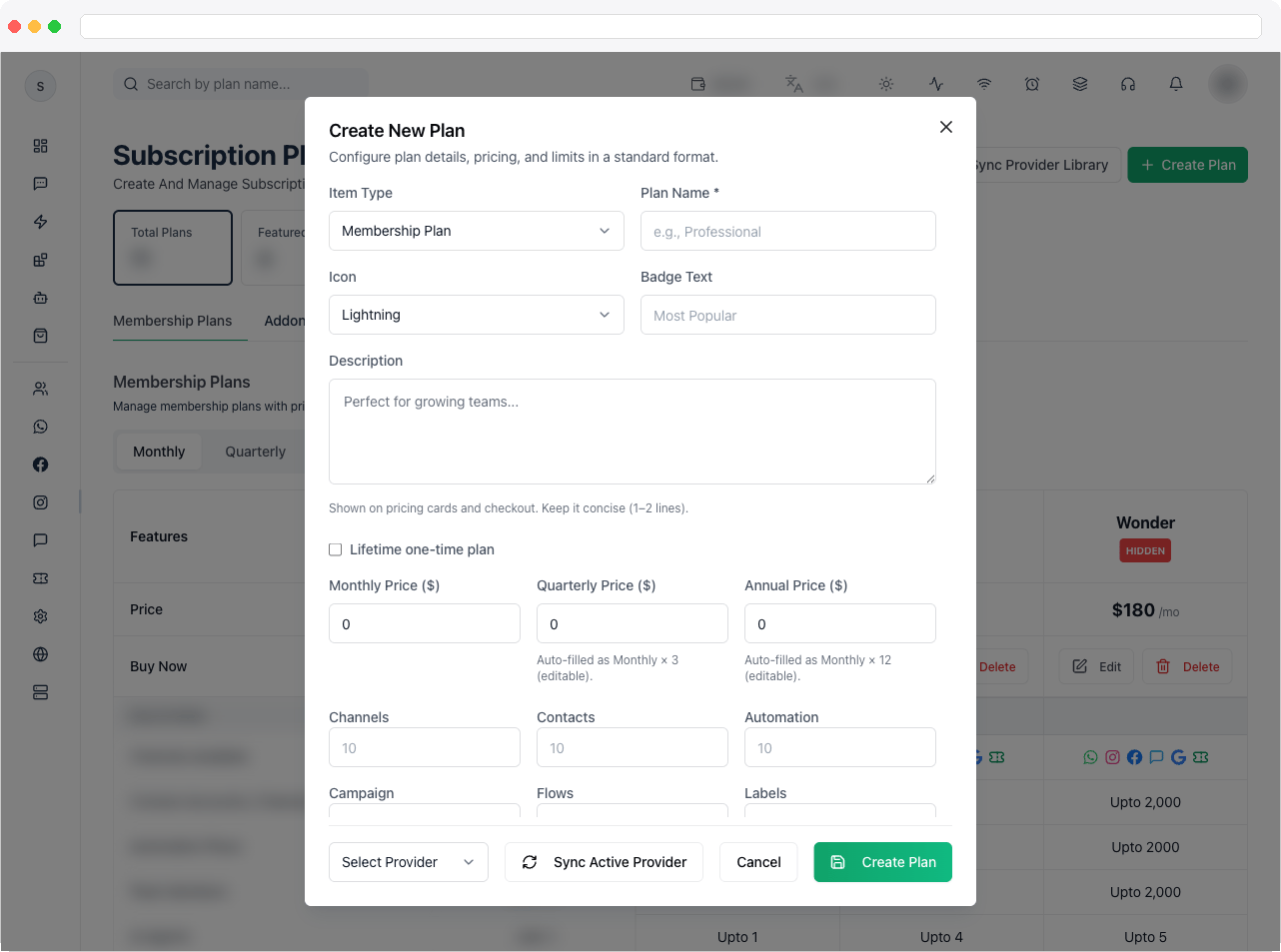
- Set the plan’s limits and features — see Plan limits and features below.
-
Turn on Mark as Popular Plan to highlight the plan, and Show Plan to make it visible to customers.
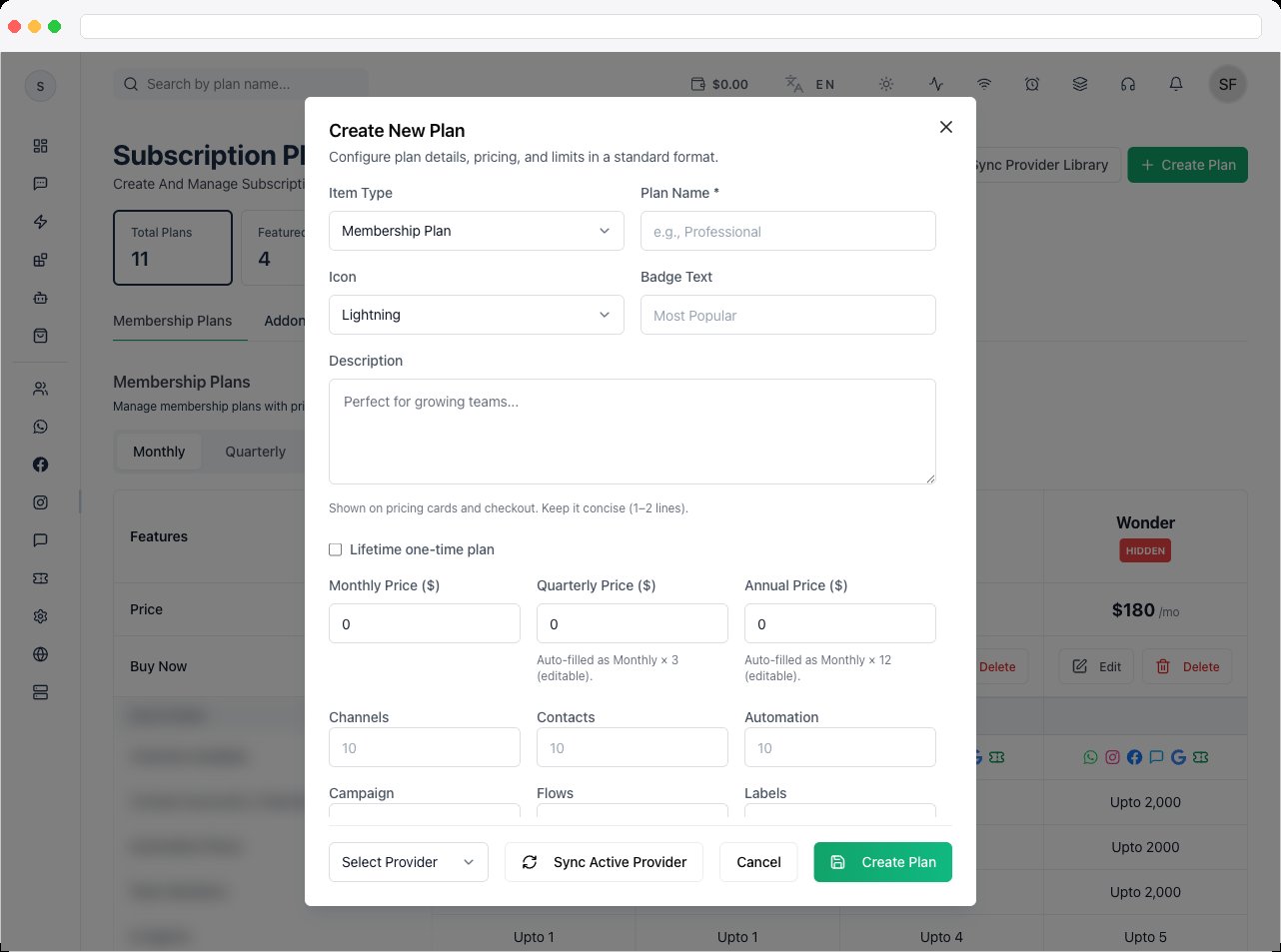
- Click Save.
Pricing rules by billing mode
The minimum-price checks only apply to platforms that bill by commission. On a platform that bills by credits, plan prices have no minimum (the price fields accept 0 and up) and the channel and team-member limits are not capped. On a commission platform, when Item Type is Membership Plan a Pricing rules box at the bottom of the form shows the rules, in your platform’s base currency with the USD equivalents:- Monthly must be at least the minimum shown (USD 3 equivalent).
- Quarterly and Annual must be at least the floors shown, which are worked out from the Monthly price. The maximum discount is 20% off 3 times and 12 times the monthly price — lower quarterly or annual values are rejected.
- With Lifetime one-time plan on, the One-time price must be at least the minimum shown (USD 75 equivalent).
- Channels and Team Members are limited to 10 per plan; typing a larger number sets it back to 10.
Plan limits and features
In the Create New Plan or Edit Plan dialog, limits and features are grouped in tabs. Number fields take a quota (0 = not included); on/off fields are switches.
If a feature isn’t available on your platform — for example it’s hidden in Platform Visibility or not covered by your license — its field shows Not available on this platform and stays off.
The same list of features is what customers see on their Plan Features tab and what you see on a user’s Plan Features tab — a limit shows its plan quota, add-on quota, total, used, and remaining; an on/off feature just shows whether it’s included.
Create an add-on or wallet recharge tier
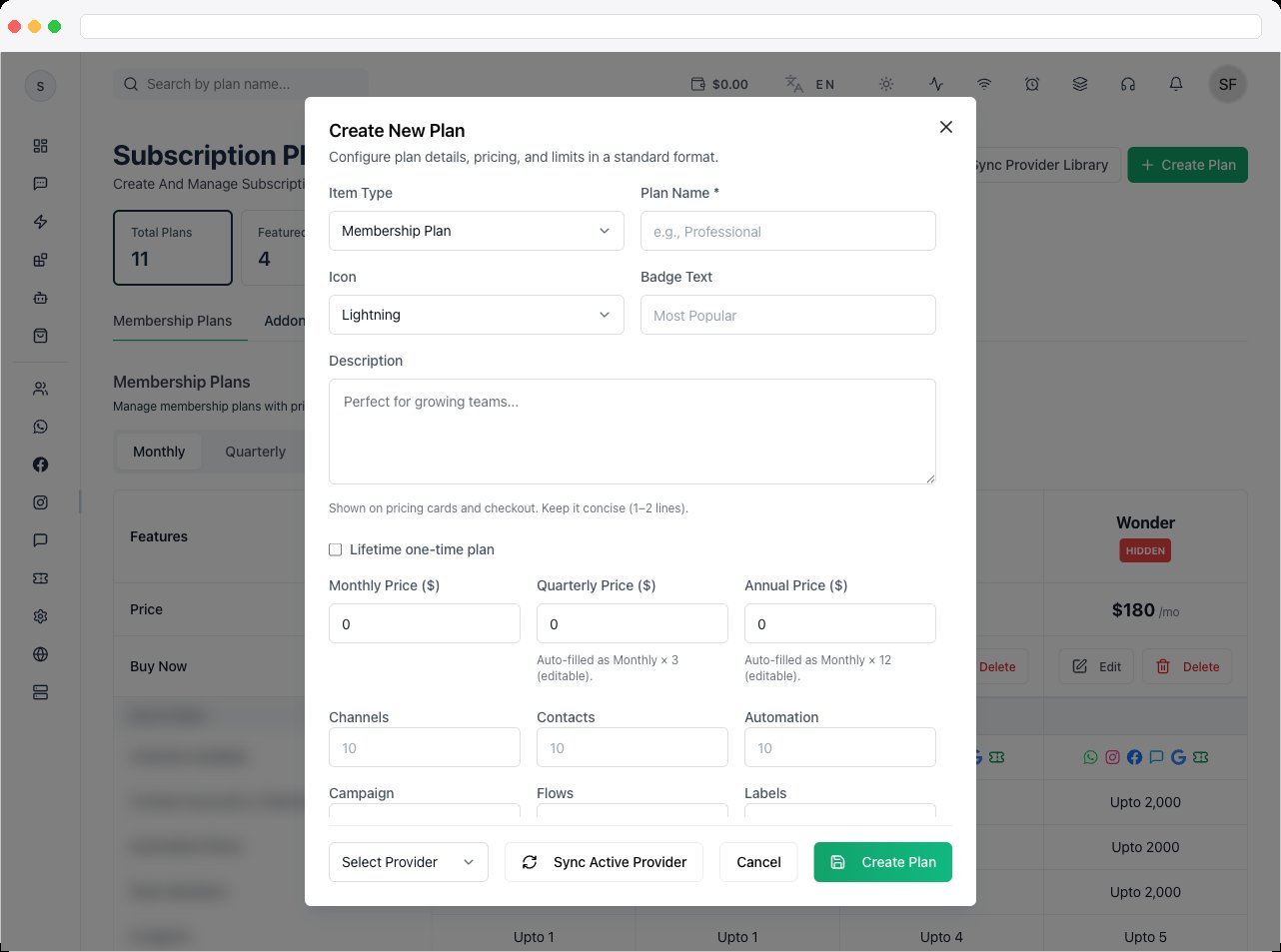
- Click Create Plan and set Item Type to Addon or Wallet Recharge.
- For an Addon, choose the Addon Resource (Flows, Labels, Channel, Contacts, Campaign, Automation, Custom Fields, Team Members, Catalog, Events, Booking Studio, WhatsApp Calling, WhatsApp Groups, or AI Agents), the Addon Quantity, and optionally a Min. Subscription Amount, then set its price.
- For a Wallet Recharge, set the One-time Price customers pay and the Commission %. The Credit Amount is calculated for you (the price minus the commission) and can’t be edited. Wallet credit is one-time and doesn’t expire.
- Click Save.
Sync plans with your payment provider
- Make sure a provider is active in Payment Gateway.
- On Platform Plans, choose the provider in Select Provider.
- Click Sync Provider Library. The sync runs in the background and you get a toast when it finishes.
Troubleshooting / Technical Notes
- “No active payment provider found.” Activate a provider in Payment Gateway before syncing plans.
- A plan doesn’t appear to customers. Check that Show Plan is on — hidden plans are labelled Hidden in the list.
- “Invalid plan pricing.” On a commission-billing platform, a price is below the minimum or the quarterly/annual discount is larger than the allowed 20%. Check the Pricing rules box, adjust the price and save again.
- “Invalid addon pricing.” A non-zero add-on price is below the minimum shown in the Add-on pricing box. Raise it or set that cycle to 0.
- I can’t type more than 10 channels or team members. Commission-billing platforms limit these to 10 per plan. Use an add-on for more.
- A feature field is greyed out. That feature isn’t available on your platform (hidden in Platform Visibility, or not in your license).
- The Wallet Recharge option is missing. Turn the wallet on in Wallet Settings.
- “Invalid provider plan mapping JSON.” The provider mapping field must contain valid JSON. Prefer Sync Provider Library over editing the mapping by hand.