

What is this?
Tax Settings defines how tax is applied to transactions, subscriptions, and invoices on your platform. You choose your tax type, add your registration number, and set the rate, and the details automatically appear on invoices, receipts, and billing summaries.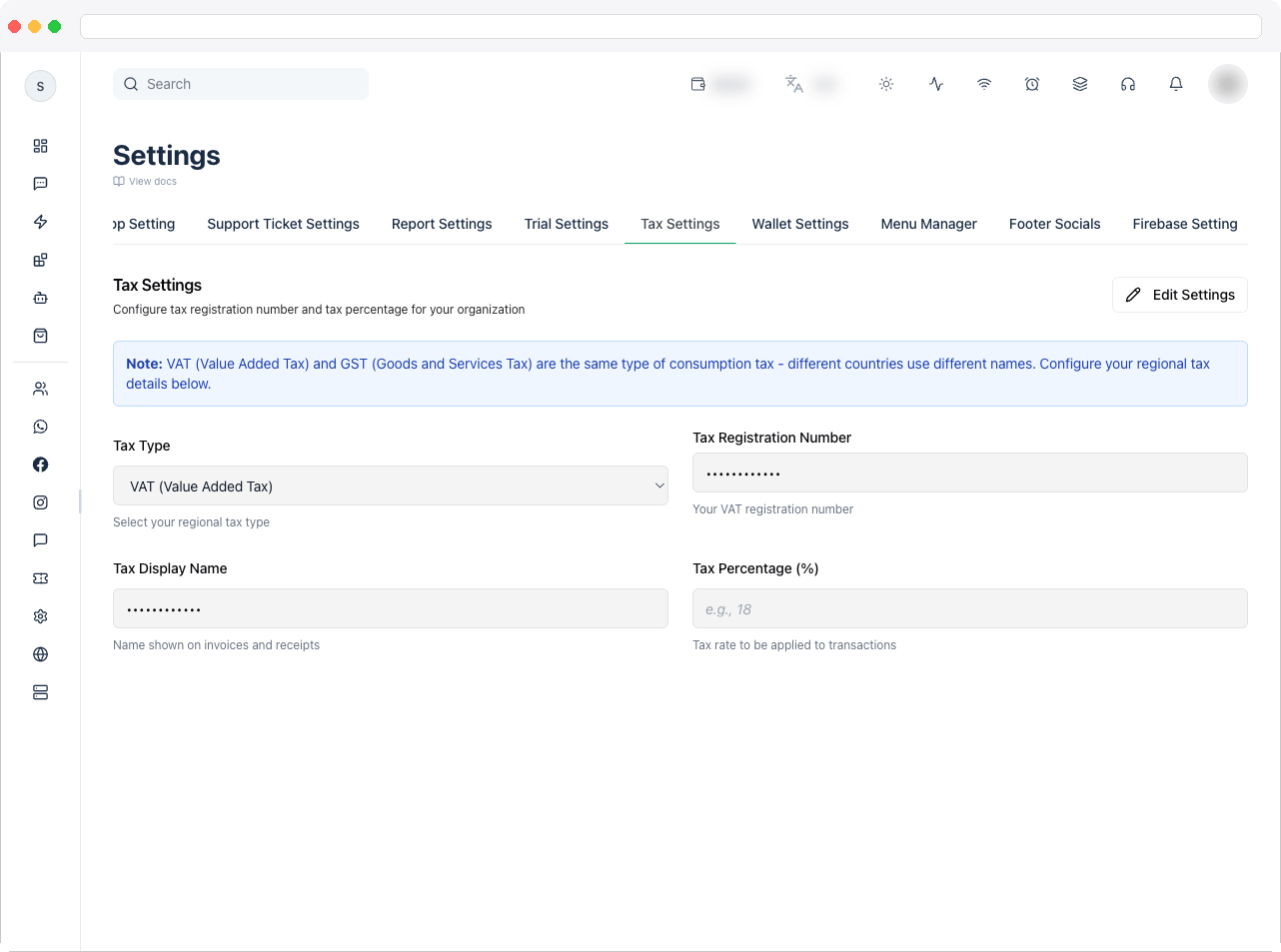
What can I do here?
- Choose a Tax Type: GST (Goods and Services Tax), VAT (Value Added Tax), Sales Tax, or Other
- Enter your tax Registration Number
- Verify GST registration numbers, where supported
- Set the Tax Display Name shown on invoices and receipts, such as GST or VAT
- Set the Tax Percentage (%) applied to transactions
- Review the Tax Configuration Summary
How to use it
- Go to Platform Settings → Tax Settings and click Edit Settings.
- Select your Tax Type.
-
Enter your registration number — for example
22AAAAA0000A1Z5for a GST number, orGB123456789for a VAT number. - For GST, click Verify GST. A verified number is marked Verified, and the legal name, trade name, taxpayer type, and state jurisdiction are shown.
-
Enter the Tax Display Name and Tax Percentage (%), for example
GSTand18. - Click Save. Check the Tax Configuration Summary to confirm the values.
Tax details are automatically included on generated invoices, including the tax type, registration number, and calculated tax amount.
Troubleshooting / Technical Notes
- “Verification Failed.” Re-check the registration number for typos. Verification is only available for supported tax types and regions.
- Using Stripe? Stripe can also calculate tax at checkout — see Use Stripe Tax for Checkout in Payment Gateway.