

What is this?
The Webhook Integration tab sends platform events and user data to external systems in real time. When an event occurs — such as a new signup or an expiring subscription — the platform sends a structured HTTP request to the webhook URL you configured for that event, so you can trigger automation, notifications, or custom processing outside the platform.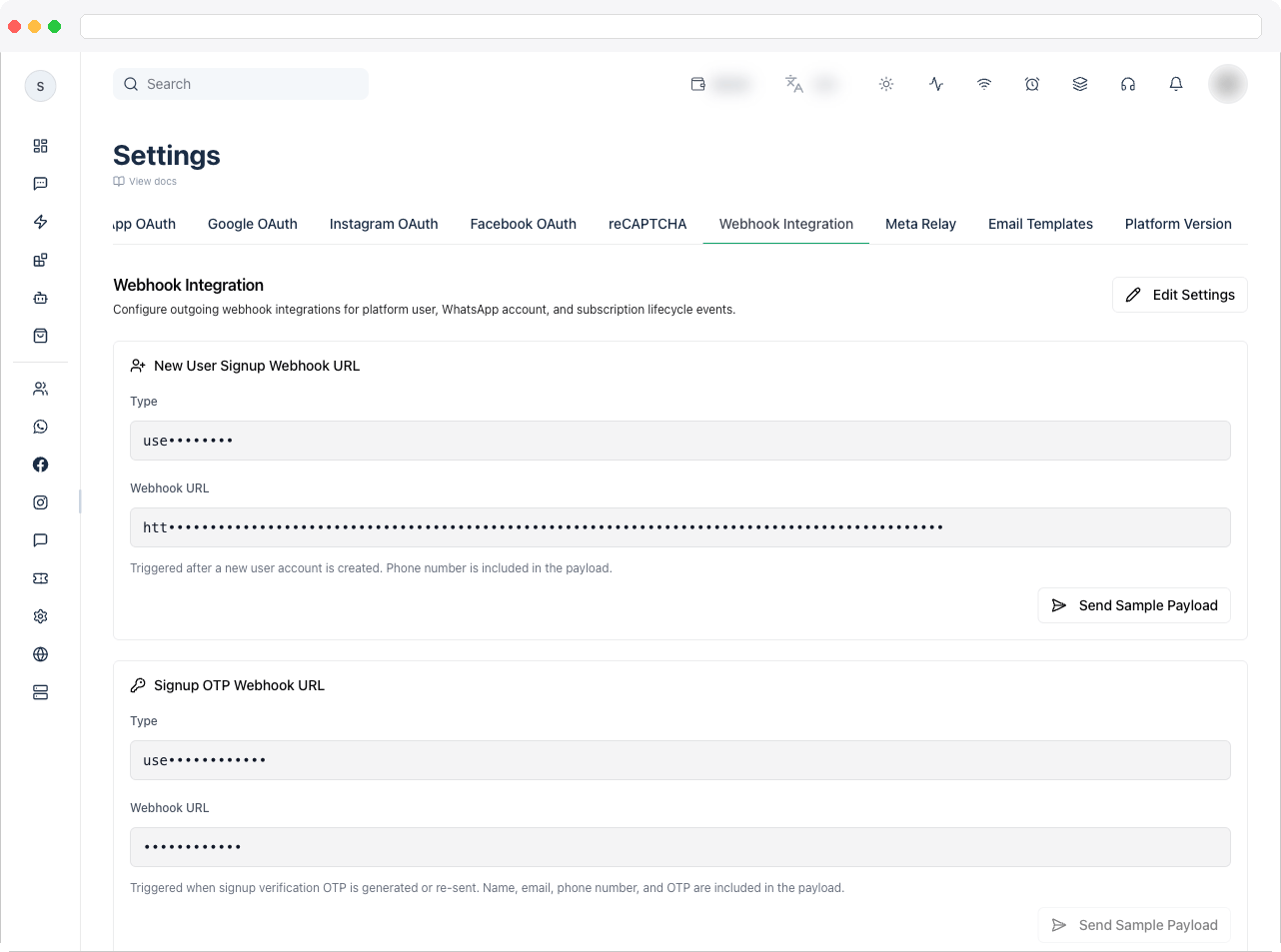
What can I do here?
- Set a separate webhook URL for each supported event
- Click Send Sample Payload to test a URL with sample data
- Use webhooks for automation workflows, third-party integrations, sending WhatsApp templates, and syncing user activity with CRMs or other tools
Supported events
Each request is an HTTP
POST containing type, event, occurredAt, and data. The data includes user details — such as name, email, and phone number — plus event-specific information like the OTP, plan, or expiry details.
How to use it
- Go to Platform Settings → Webhook Integration and click Edit Settings.
-
Enter the external webhook URL for each event you want to send. Leave a URL blank to skip that event.

- Click Save Settings.
- Click Send Sample Payload to confirm your endpoint receives the request.

Your endpoint must accept
POST requests and process JSON data. If no URL is configured for an event, that event is not sent externally.Example: send WhatsApp messages from platform events
A common setup connects webhook events to an automation that sends WhatsApp messages:- user signup → send a welcome message
- subscription expiring → send a reminder message
- ticket created → notify the support team

Troubleshooting / Technical Notes
- An event isn’t reaching my system. Make sure a URL is saved for that event and your endpoint is publicly reachable and returns a success response.
- Test with Send Sample Payload first. It confirms your endpoint accepts the request before real events arrive.
- Security. Make sure your endpoint is secure, validate incoming data before processing it, and avoid exposing sensitive endpoints publicly without protection.