

What is this?
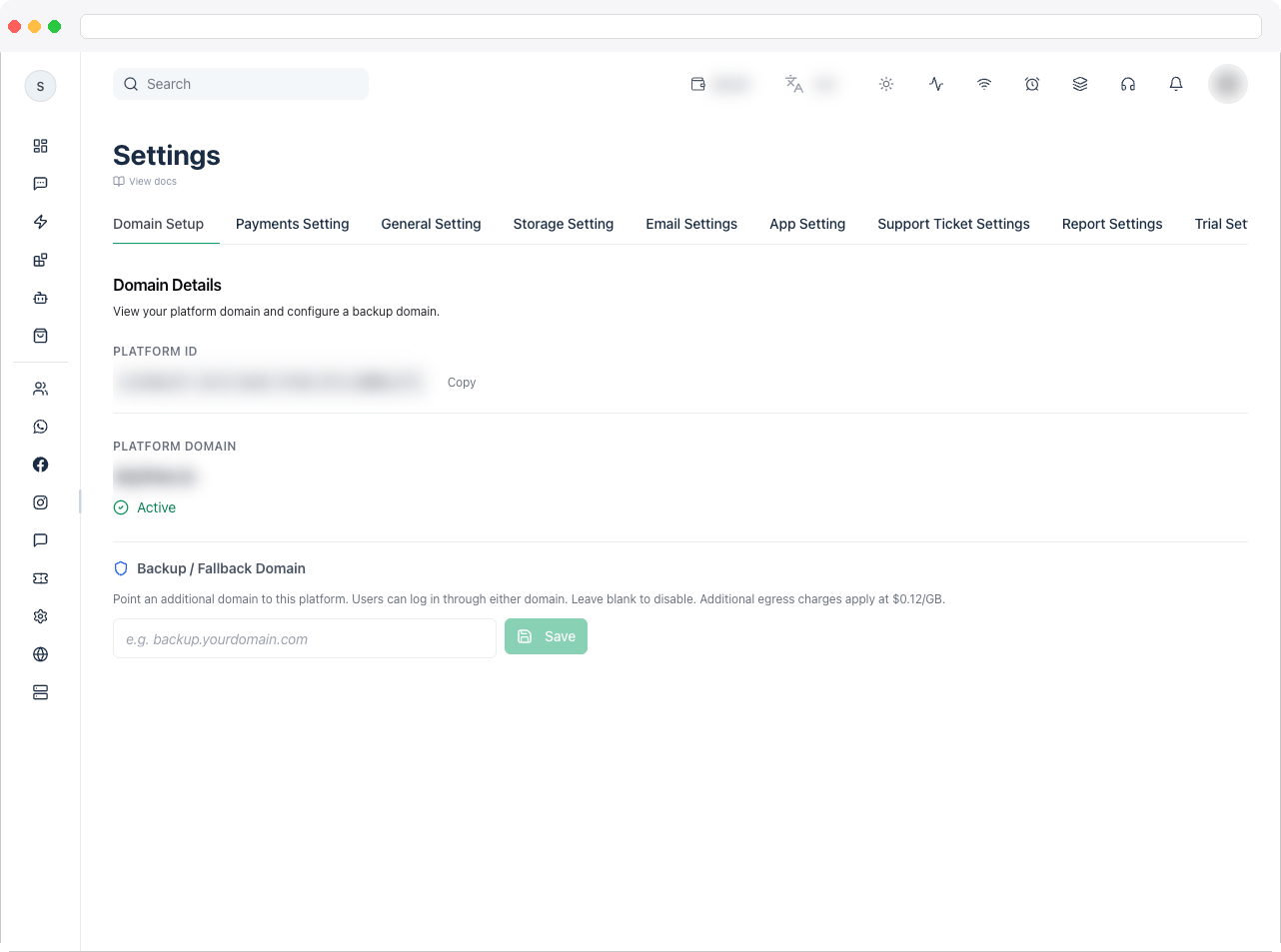
Platform Settings is where you configure your platform’s identity, domains, payments, integrations, and operational behaviour. The screen is split into tabs, and each tab has its own documentation page.This page requires the
platform:edit permission. Some tabs — such as Meta Relay — only appear on self-managed instances.What can I do here?
Platform Settings tabs fall into a few broad jobs:- Identity and access — Domain Setup, General Setting, App Setting, Menu Manager, Footer Socials, Platform Visibility, Platform Version
- Customer-facing billing — Payments Setting, Trial Settings, Tax Settings, Wallet Settings, Affiliate Settings
- Sign-in, messaging, storage, and data services — Firebase Setting, Storage Setting, Email Settings, Email Templates, Data Retention, reCAPTCHA
- Channel connections — WhatsApp OAuth, Facebook OAuth, Instagram OAuth, Google OAuth, TikTok OAuth, Threads, Telegram, Meta Relay
- Automation and support — Webhook Integration, Integration Settings, AI Agent Settings, AI Assist, MCP, Support Ticket Settings, Report Settings
How to use it
- Go to Platform → Platform Settings.
- Start with Domain Setup and General Setting, then set up your billing-related tabs.
- Configure core services next: Firebase Setting, Storage Setting, Email Settings, and the OAuth tabs for the channels you support.
- Finish with operational tabs — Data Retention, Email Templates, Webhook Integration, and Platform Version.
Troubleshooting / Technical Notes
- A tab is missing. Meta Relay is only shown on self-managed instances. Tabs for AI Assist, MCP, Telegram, Threads, and TikTok OAuth show a lock icon when the corresponding add-on is not active on your plan.
- Domain changes don’t take effect. Re-verify your DNS records after every change — see Domain Setup.
- Best practice: document platform-level changes before applying them in production, especially domain, payment, and sign-in settings.