

What is this?
The Storage Setting tab connects your platform to an external object storage provider — such as DigitalOcean Spaces — where all images, videos, documents, and other media are stored and served from.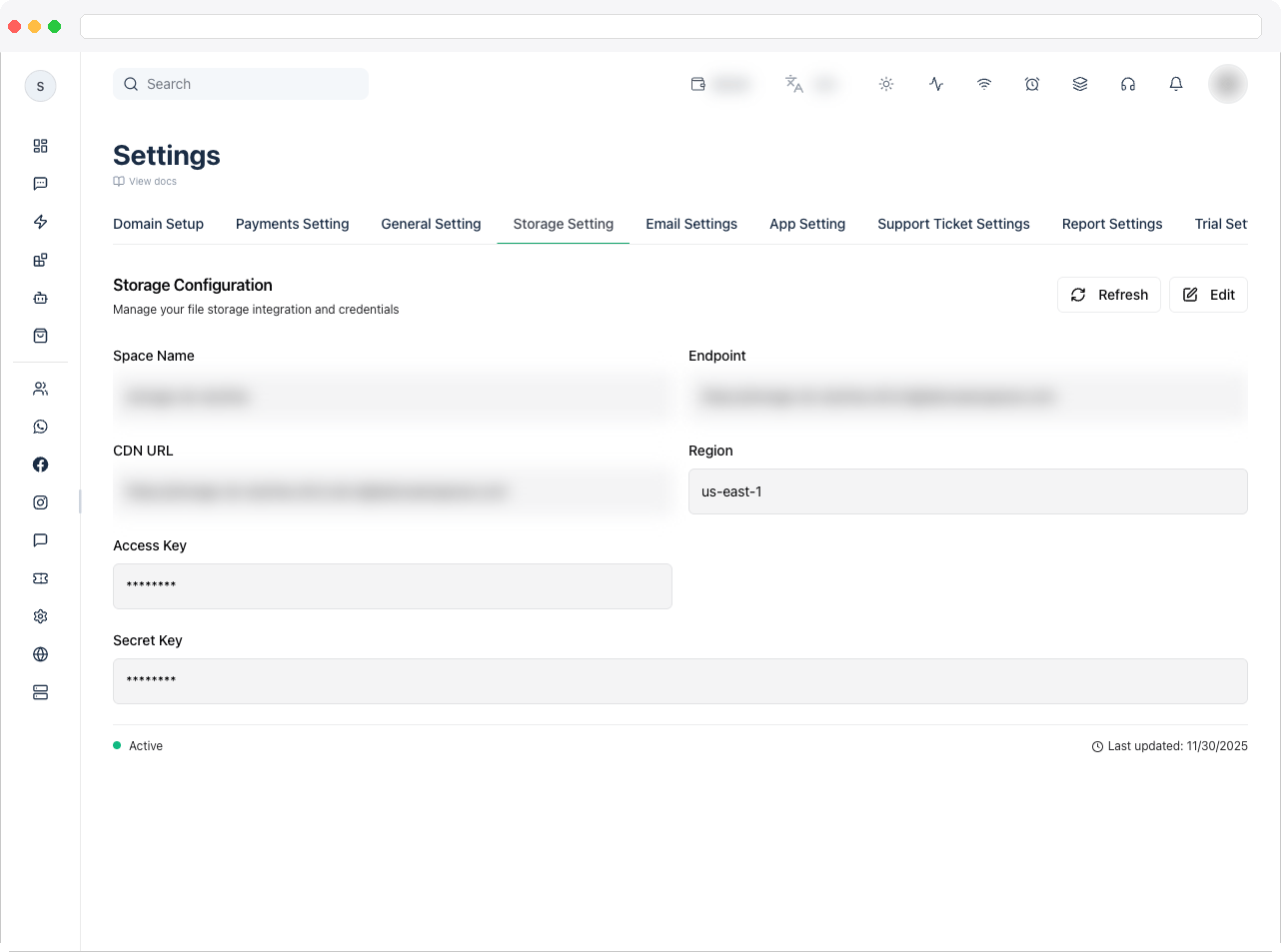
What can I do here?
- View the current storage configuration: Space Name, Endpoint, CDN URL, Region, and a masked Access Key and Secret Key
- See whether the configuration is Active or Inactive, and when it was last updated
- Click Edit to update the values
- Click Refresh to reload the saved configuration
How to use it
Set up a DigitalOcean Spaces bucket, then copy its values into the platform.1
Create a Space
In DigitalOcean, create a new Space (bucket). Choose a region — it becomes part of your endpoint URL — give the Space a unique name, and optionally enable CDN during creation.
2
Create access keys
Go to API → Spaces Keys, click Generate New Key, and copy the Access Key and Secret Key. See DigitalOcean’s access guide.
3
Set access permissions
Bucket access is restricted by default. Set permissions to public or private depending on your use case, following the same access guide.
4
Enable CDN (recommended)
Open your Space → Settings tab, find the CDN section, and click Enable CDN. Files are then served from a CDN endpoint such as
<space-name>.<region>.cdn.digitaloceanspaces.com, so they load quickly for users anywhere. See DigitalOcean’s CDN guide.5
Copy the values into the platform
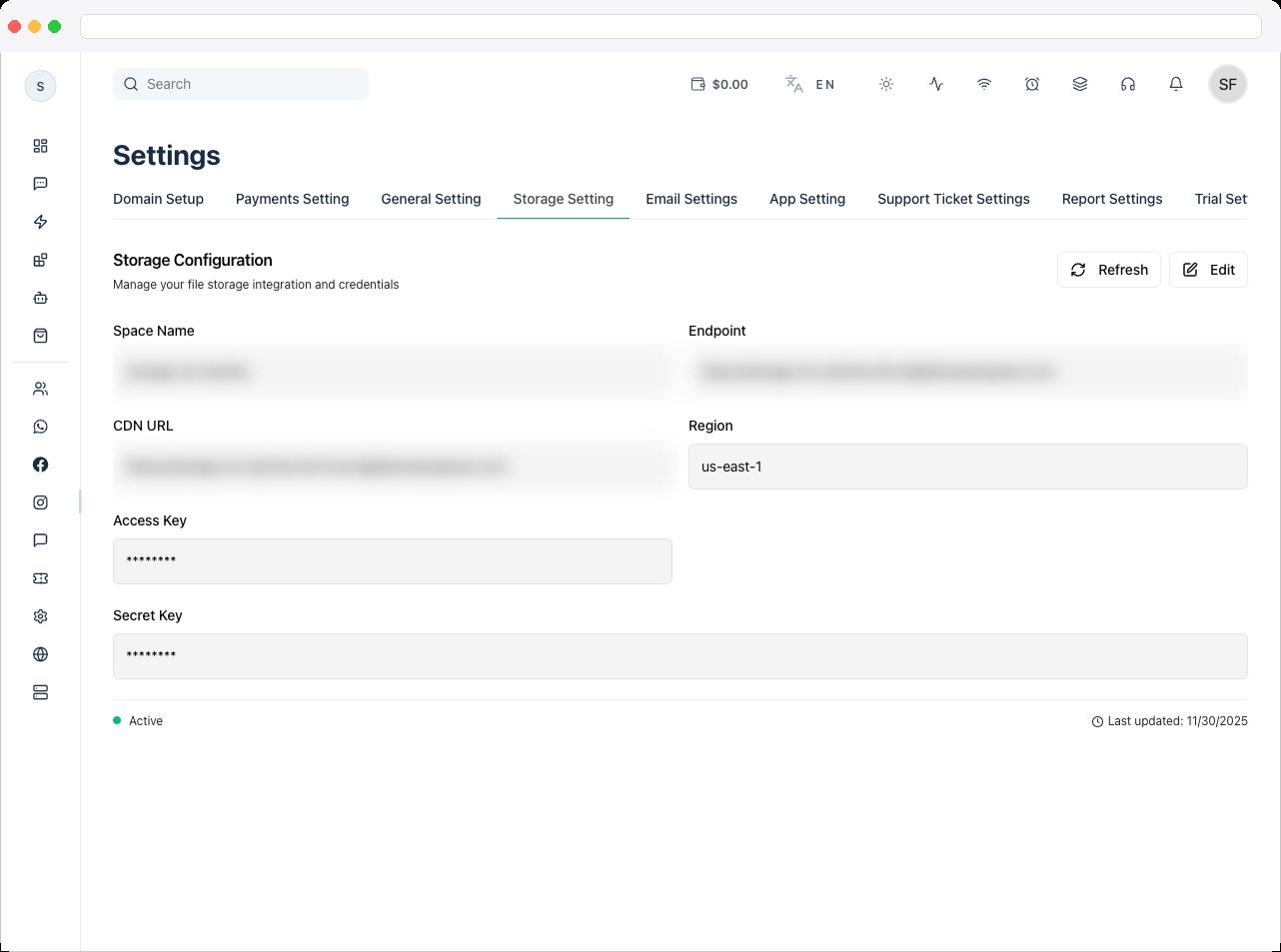
In Platform Settings → Storage Setting, click Edit and enter the Space Name (bucket name), Endpoint URL, CDN URL, Region, Access Key, and Secret Key, then save.
Video guide
Watch this step-by-step guide to set up DigitalOcean Spaces:
Troubleshooting / Technical Notes
- Uploaded media disappears after an update. Storage isn’t configured, or the configuration is Inactive. Complete the steps above.
- Files upload but don’t load. Check the bucket permissions and that the CDN URL matches your Space’s CDN endpoint.
- The Access Key and Secret Key are masked. They are hidden after saving. To change them, click Edit and enter new values.