

What is this?
Live automations affect real customer conversations. The Automation list is where you confirm what’s actually running, pause what’s outdated, and keep production clean.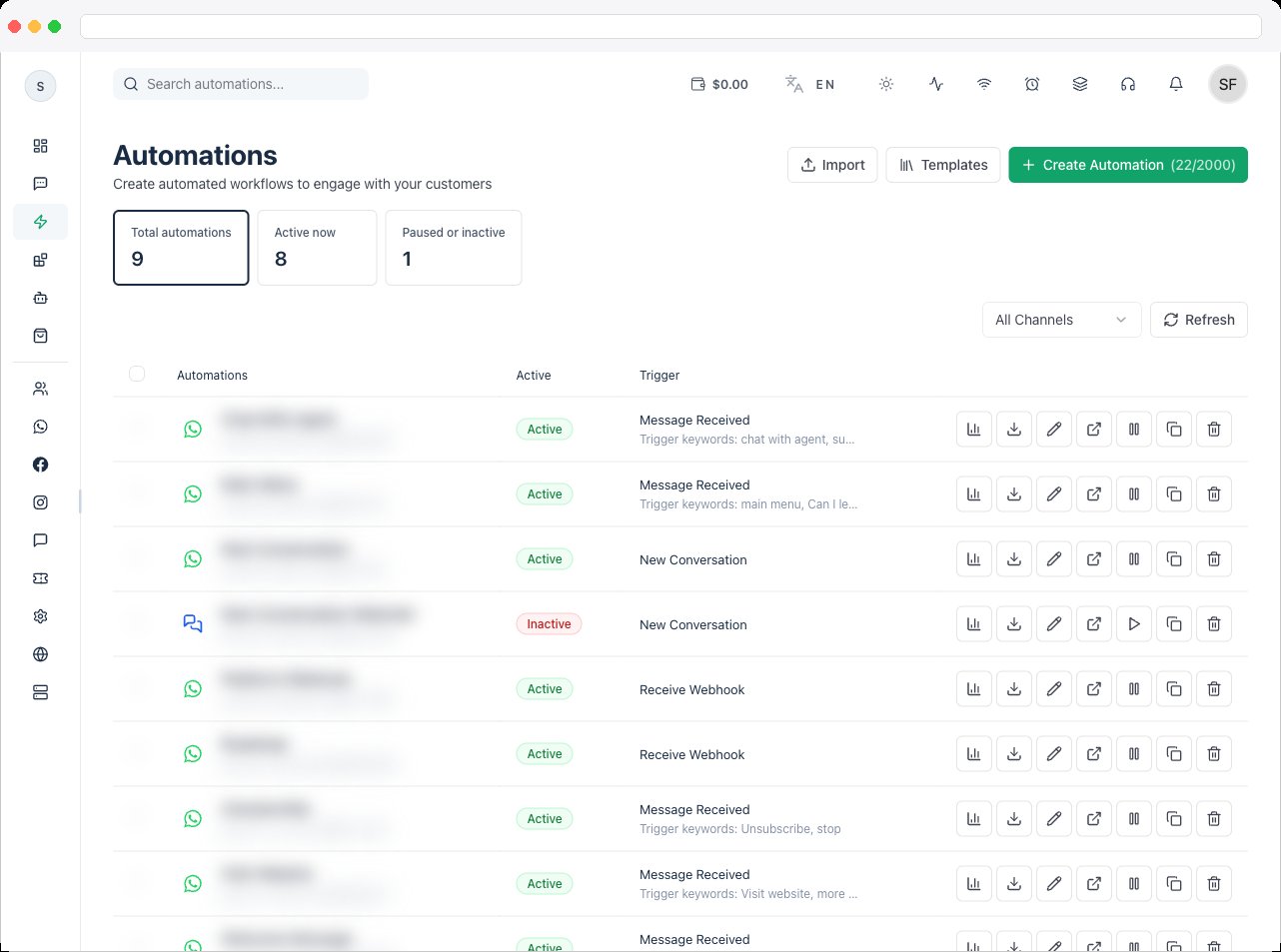
What can I do here?
- Review all workflows for the current channel, with summary tiles for Total automations, Active now, and Paused or inactive — click a tile to filter the list
- Search automations, filter by channel (All Channels, WhatsApp, Instagram, Facebook, Telegram, Webchat) and by trigger (All triggers), and Sort by name (A–Z or Z–A) or last updated (newest or oldest)
- Check each flow’s channel icon, Active, Paused, or Inactive status, Trigger, trigger keywords, and Last run time (Never if it hasn’t run yet)
- Pause a flow that is misfiring or no longer relevant, and Activate it again later
- Select several flows and Activate Selected, Deactivate Selected, or Delete Selected in one go
- Open automation status to see how a flow is performing
- Edit automation details — its name and description (with Optimize for the description)
- Open the full-page builder to change the flow itself — or click anywhere on the row
- Export an automation as JSON, or submit it as a template for approval
- Delete flows you no longer need
How to use it
1
Open Automation
Go to Automation in the sidebar. The list shows every workflow for the active channel. Import and Templates sit beside Create Automation at the top.
2
Check status before changing anything
Look at the status tag and the Last run time. If a flow misbehaved, check the trigger that started it in Triggers, or open its status with Open automation status.
3
Pause flows that should not run
If a campaign ended, routing changed, or logic is under review, click the Pause icon on its row so it stops firing without losing its configuration. The same icon becomes Activate for a paused flow.
4
Keep only tested automations active
Active means this is safe for customers right now. Reserve it for flows tested with real data — see Create a Workflow.
Row actions
Each row has these icons on the right:Change several flows at once
- Tick the checkbox on each row you want. A bar appears showing how many are selected.
- Click Select All to pick every flow that matches your filters, or Cancel to clear the selection.
- Click Activate Selected or Deactivate Selected to turn them all on or off — you’ll see “Automations activated” or “Automations deactivated” — or Delete Selected to remove them after confirming.
When this matters
- A workflow triggers on the wrong event
- A campaign period has ended but its automation is still active
- Routing or Pipeline stages have changed
- Several admins need to agree on what’s live before a launch
Good practice
- Treat active flows like production deployments — review them weekly and assign an owner to each.
- Pair pauses with a Note or internal comment explaining why the flow was paused and what replaces it.
- Export an automation before making a large change, so you have a backup.
Troubleshooting / Technical Notes
- “No automations found.” Clear your search and channel filter (Clear Filters).
- “Failed to update automation.” Try again; if it persists, refresh the page.
- “Failed to update some automations.” When you activate or deactivate several at once, one or more couldn’t be changed. The list refreshes — check which ones are still in the old state and try those again.
- Deleting is permanent. Confirm you no longer need a flow — export it first if you might.