

What is this?
Templates keep automations predictable and quick to build. There are two kinds:- Automation templates — ready-made workflows you can start from instead of building from scratch
- Message templates — approved WhatsApp message content that you insert into a workflow’s send steps
What can I do here?
- Browse All templates or Yours in the template gallery, and search them
- Start a new automation from a template with Click to use template
- Copy as Template — submit one of your own automations for review so it can be shared once approved
- Use a Send Template step to send an approved WhatsApp template inside a flow
- Use a Send Template (Advanced) step to send a template and branch by its quick-reply buttons
How to use it
Start an automation from a template
- Go to Automation and click Templates.
- Search or browse the gallery, then click a template to use it.
- Adjust the name, channel, and steps, then save it.
Use a message template in a workflow
1
Open the workflow
Go to Automation and open the workflow you’re building in the full-page builder.
2
Add a template step
Add a Send Template step where the customer should receive a structured message.
3
Select the template
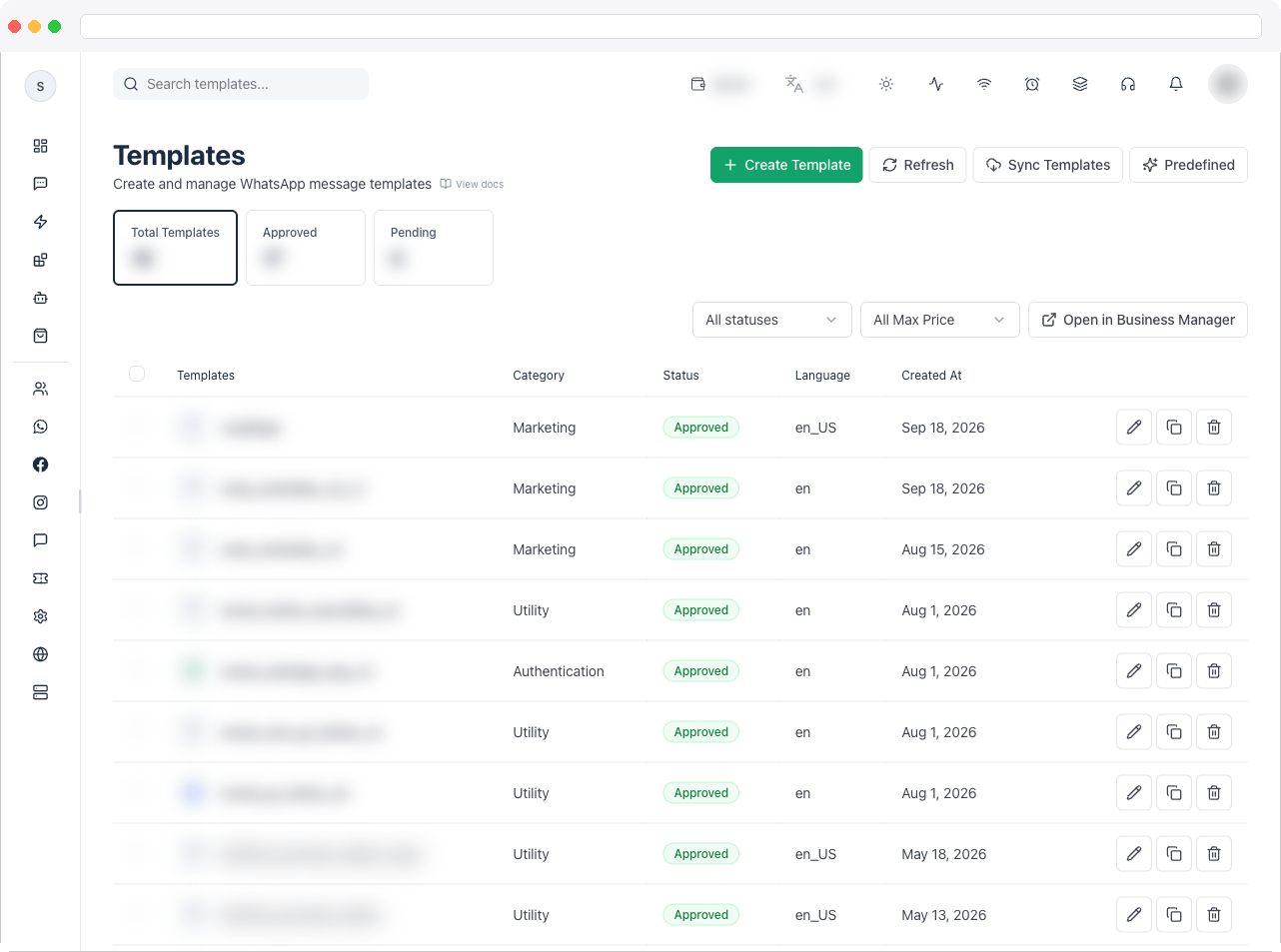
Choose from your approved WhatsApp templates.
4
Review before activating
Confirm the variables are filled correctly and that the message matches the workflow’s purpose before you activate the flow.
When to use templates
- The same welcome or first response is sent repeatedly
- A standard follow-up should always look the same
- Compliance or brand review requires approved wording
Good practice
- Keep one template per distinct job — don’t reuse a generic template across unrelated flows.
- Name templates so their use is obvious in the builder.
Troubleshooting / Technical Notes
- “No templates found.” Try another search, or submit one of your own automations for review so it can appear after approval.
- A message template isn’t in the list. Only approved templates can be sent. Check its status, or sync in Templates.
- “Template submitted for approval.” Your automation was sent for review and will appear in the gallery once approved.
- Verify delivery. After activating a flow, check Campaign analytics or the conversation in Inbox.