Requires the Roadmap feature on your license. Without it, this page doesn’t appear in the Instance menu. Check Licence to see what your instance includes, and see the Self-Hosted overview. It also requires the
instance:view permission.What is this?
Instance Roadmap is where you manage the public feature-request/roadmap board for your instance — reviewing what users have submitted, approving or rejecting items, tracking their status from idea to release, and configuring a webhook that notifies external systems of roadmap activity.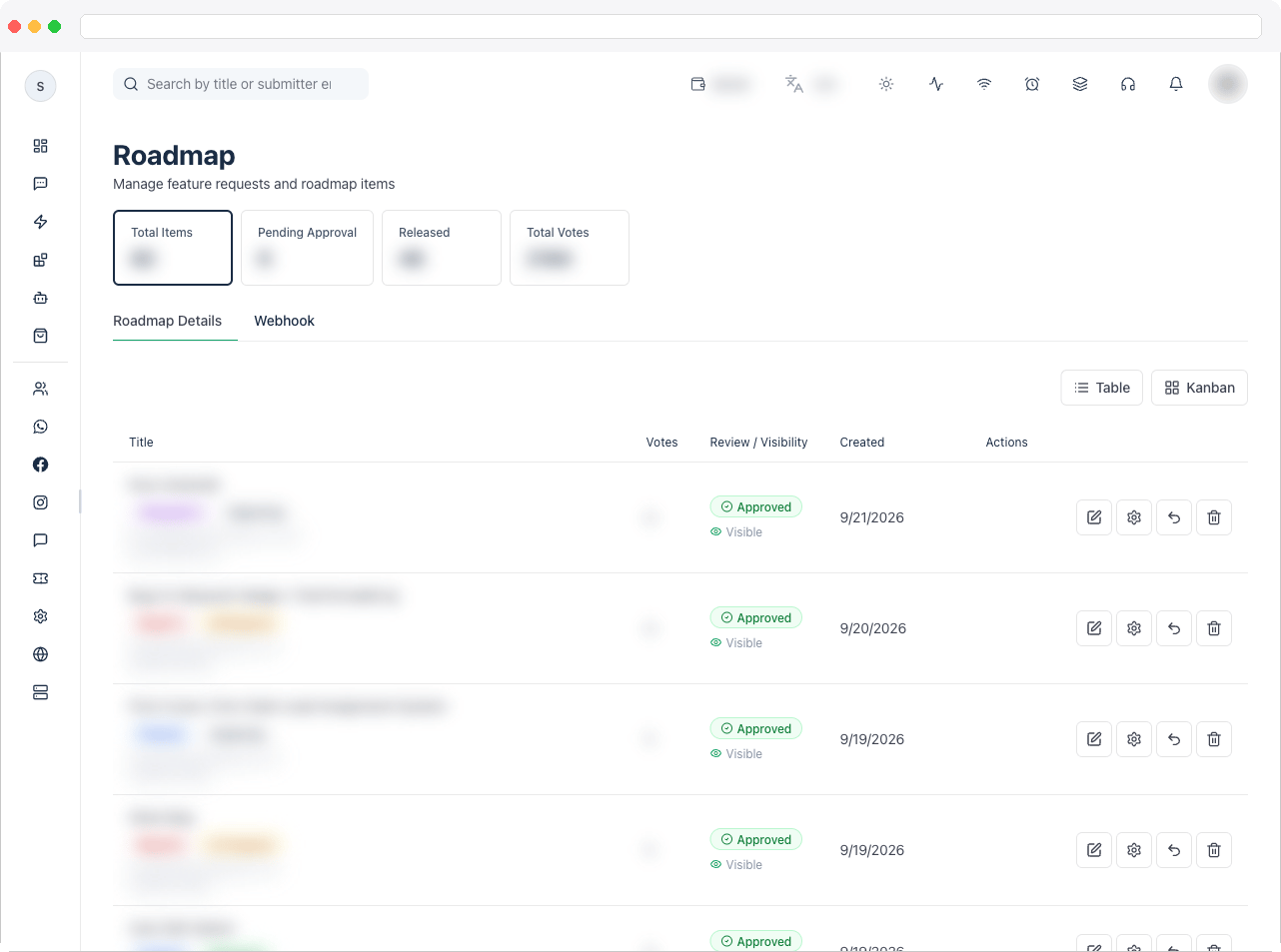
What can I do here?
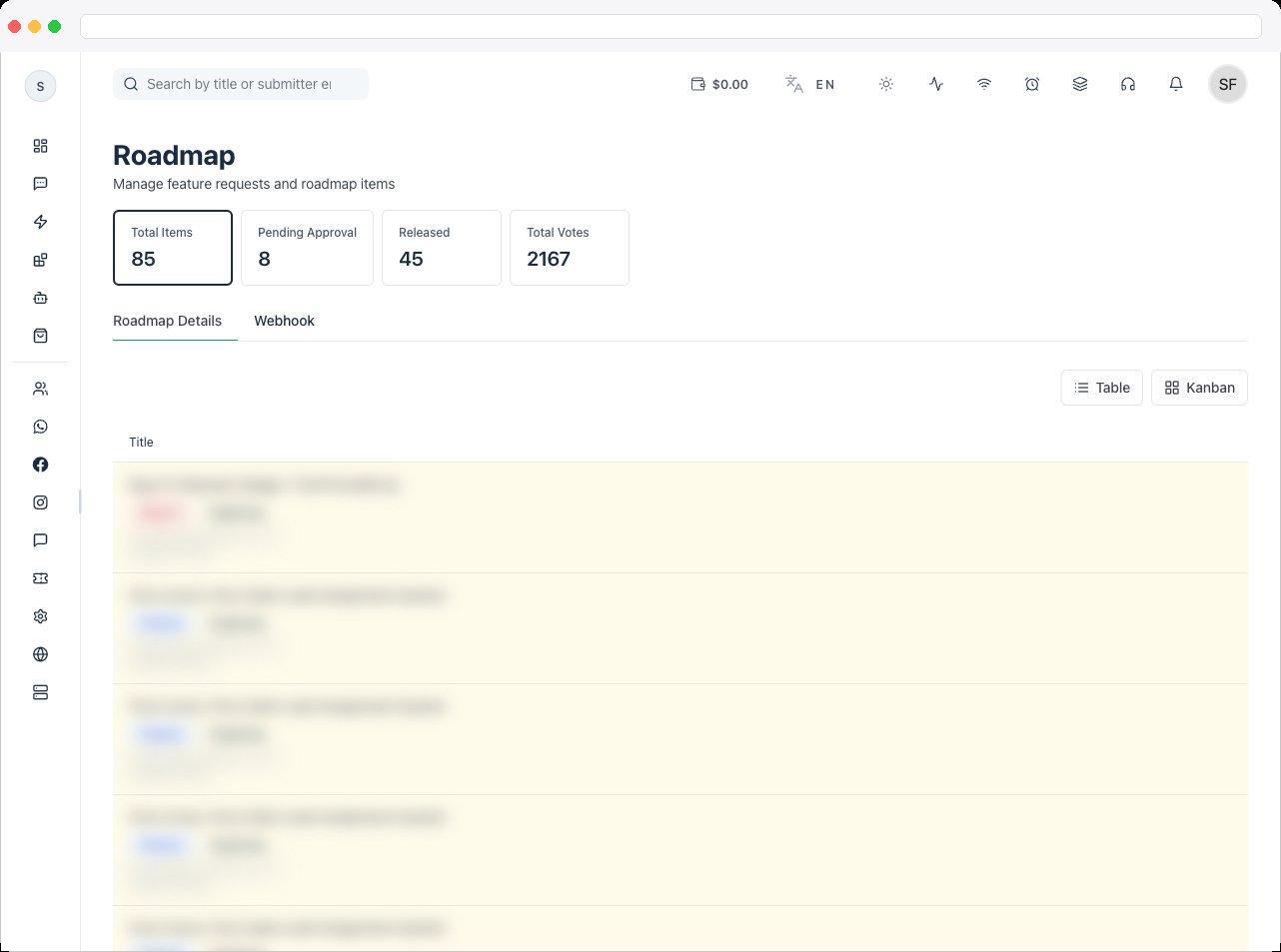
- View summary tiles: Total Items, Pending Approval, Released, and Total Votes
- Switch between two tabs: Roadmap Details and Webhook
- Search roadmap items by title or submitter email
- Toggle between Table and Kanban views (Kanban groups items into columns by status: Exploring, Planned, In Progress, Beta, Released, Rejected)
- For each item, see its title, category (Bug Fix, Feature, WhatsApp, Integration, UI/UX, Performance), vote count, approval/visibility state, rejection reason (if rejected), and creation date
- Edit an item’s title, description, category, pinned state, and visibility
- Approve/unapprove an item
- Reject an item with a required reason
- Change status of an item, including entering release version, release date, and release notes when marking it Released
- Delete an item permanently
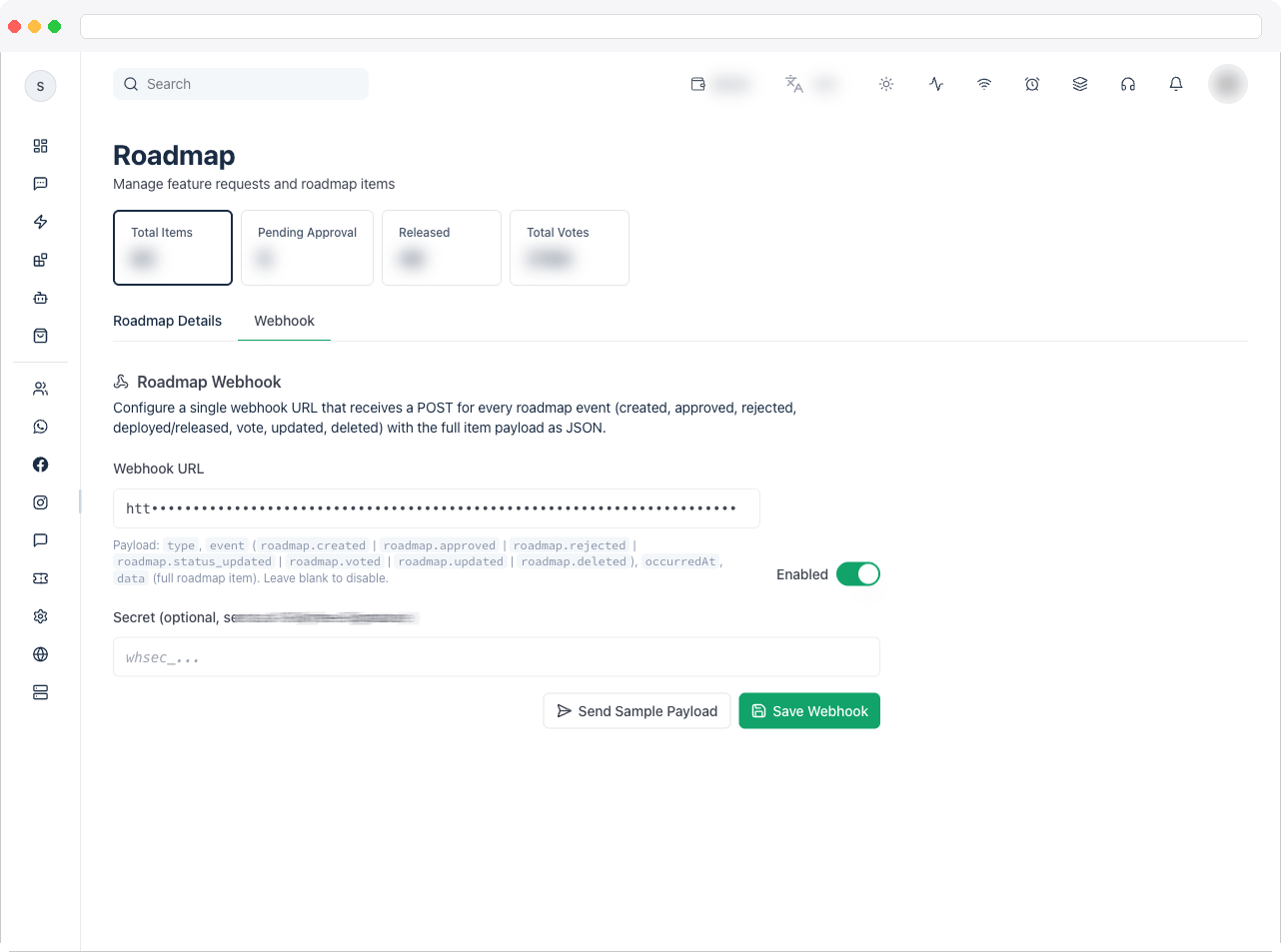
- Configure a global Roadmap Webhook that POSTs every roadmap event to a URL of your choice
How to use it
Open Platform → Instance → Instance Roadmap and choose a tab.- Roadmap Details
- Webhook
Review and approve a submission
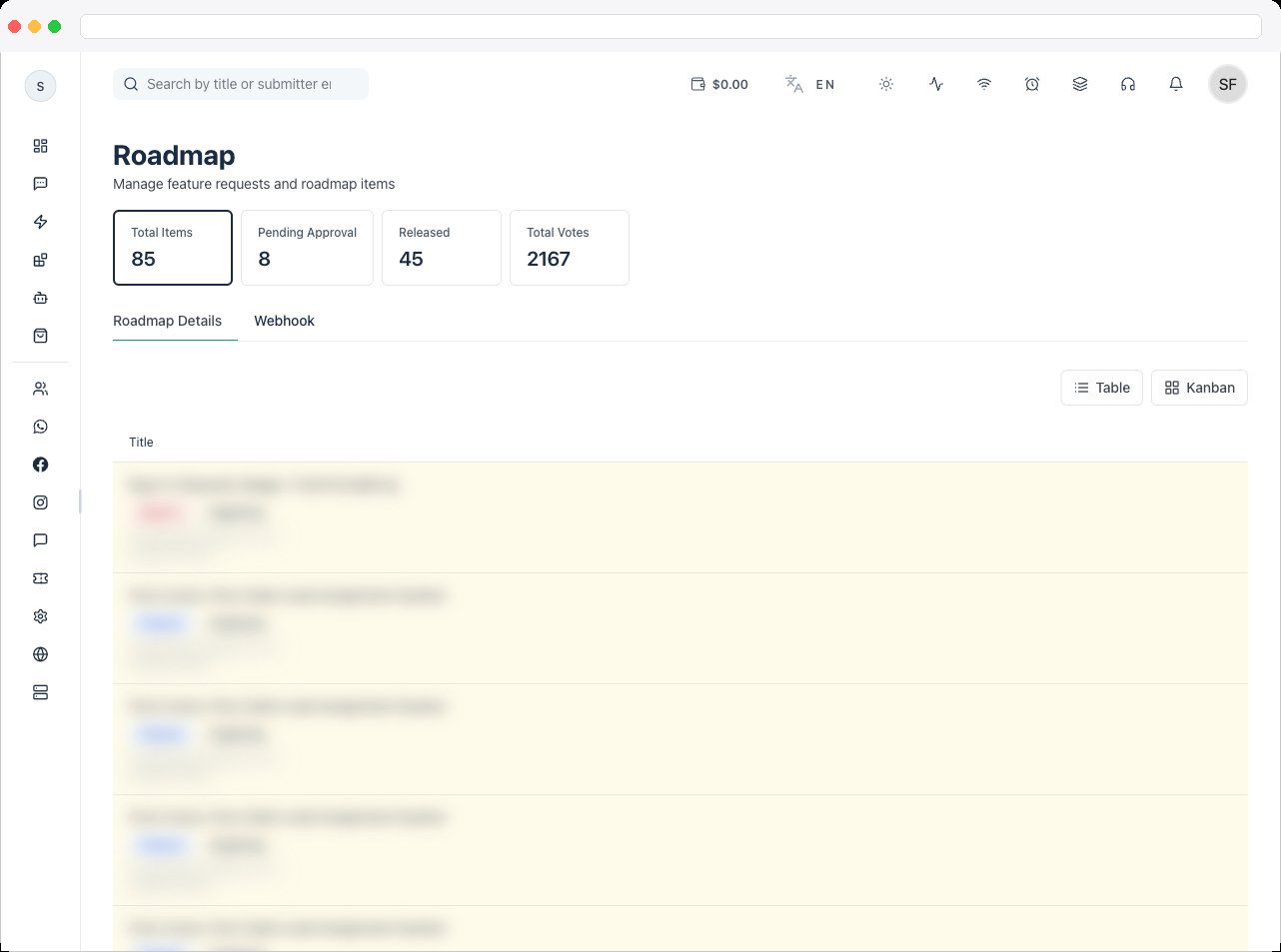
- Find the item — new or unapproved items are highlighted.
-
Click the check icon to approve it (or the same icon again to unapprove), or the X icon to reject it and enter a rejection reason of at least a few characters.
- Click the pencil (edit) icon on an item.
- Update its Title, Description, Category, whether it’s Pinned, and whether it’s Visible.
-
Click Save Changes.
- Click the gear (change status) icon on an item.
- Choose a new status: Exploring, Planned, In Progress, Beta, or Released.
- If you choose Released, also fill in Release Version, Release Date, and Release Notes.
-
Click Update Status.
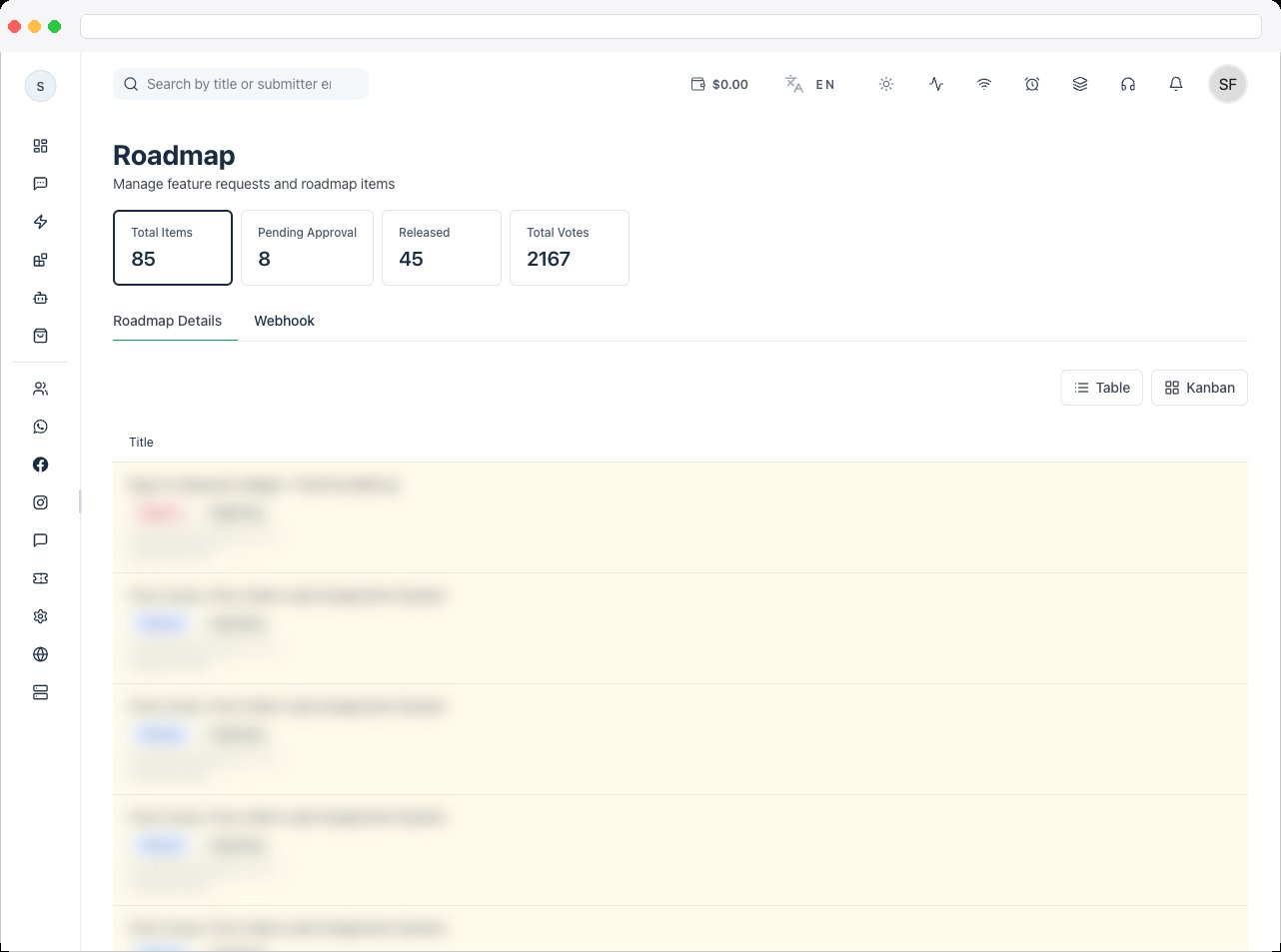
- Use the Table / Kanban buttons above the item list to switch layouts.
-
Kanban view groups items into six columns by status, with the same edit, status, approve, reject, and delete actions available on each card.
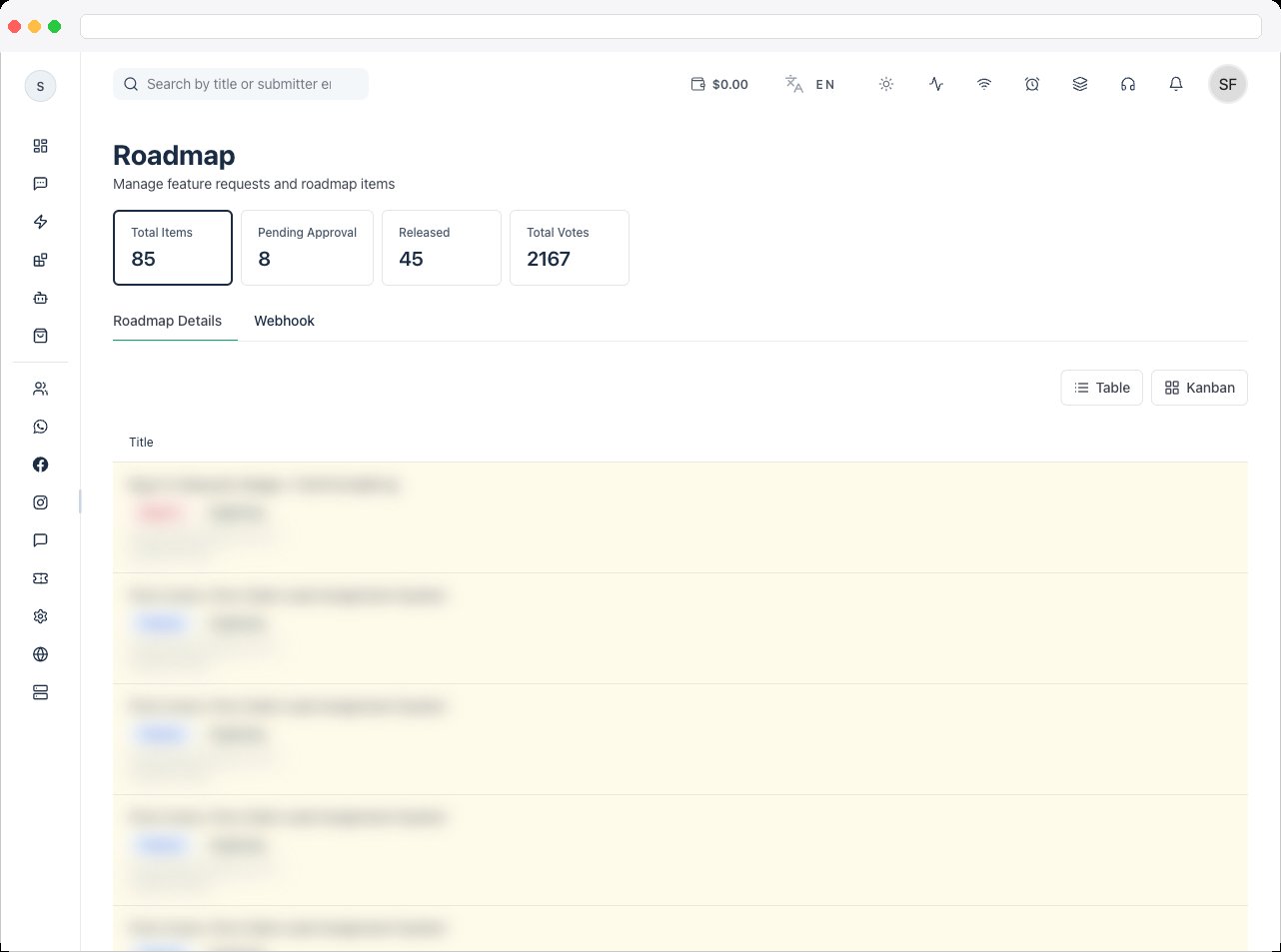
- Click the trash icon on an item.
- Confirm the deletion in the dialog. This permanently removes the item and its votes and cannot be undone.