

Requires the White-Label add-on. This page is part of the White-Label add-on, which lets you create and sell white-label platforms to your own customers. Without the add-on, it doesn’t appear in the Instance menu. See the Self-Hosted overview to compare the two levels, and check Licence to see what your instance includes. It also requires the
instance:view permission.What is this?
Whitelabel Users lists every platform (tenant) that has been provisioned under your white-label instance. Each row is one platform owner’s account, with their domain, credit balance, billing mode, and total spend, plus tools to manage that account directly from your instance.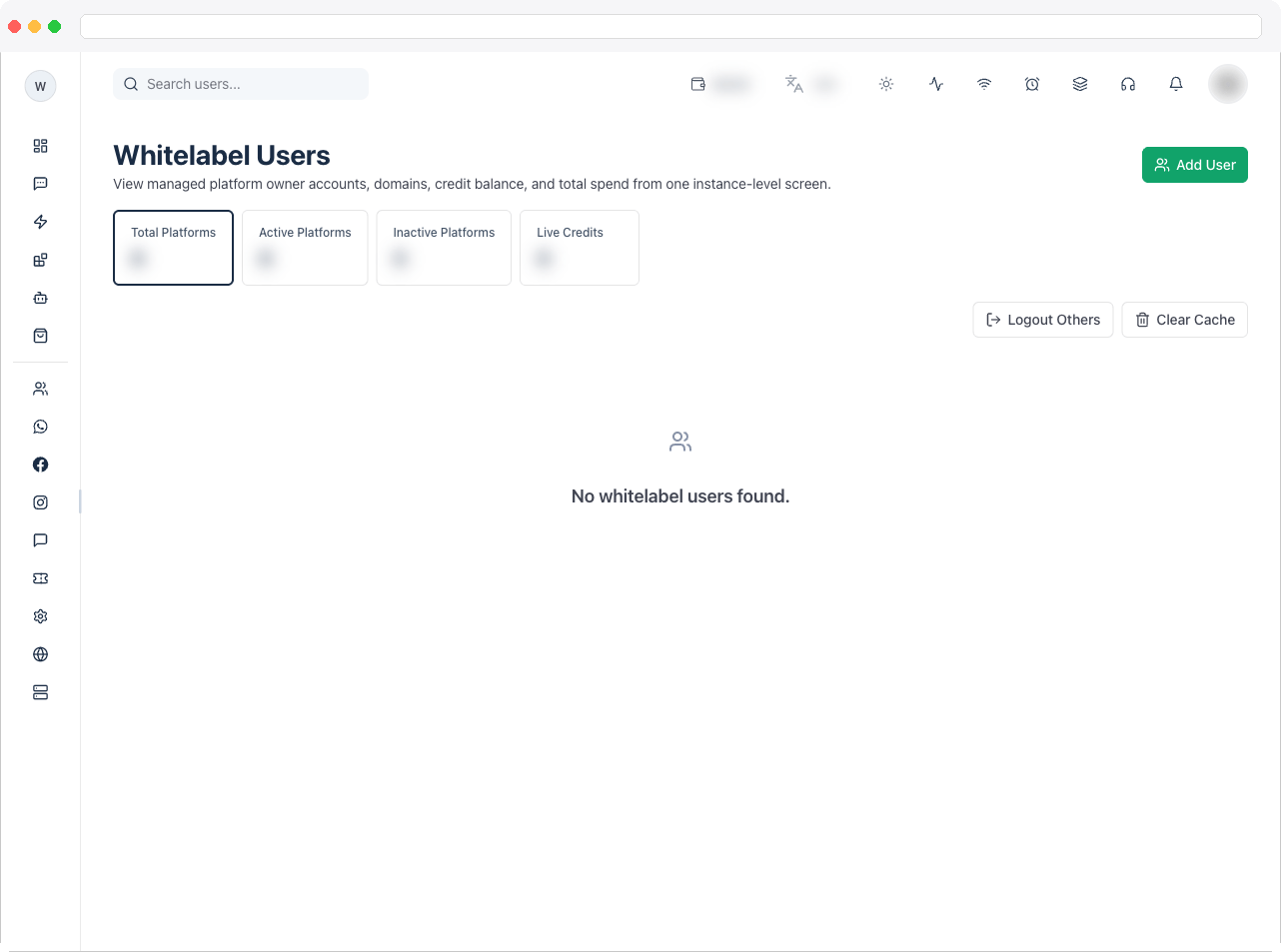
What can I do here?
- View summary tiles: Total Platforms, Active Platforms, Inactive Platforms, and Live Credits
- Search platforms by keyword (debounced search box)
- For each platform, see: owner username/email/phone, platform name and domain, active/inactive status, billing mode (Credits or Commission), total amount paid, and creation date
- Open a platform’s full detail view (owner info, users, transactions, and plans)
- Manually assign an Addon Plan, Manual Credits, or a Wallet Recharge to a platform
- Log in directly to a platform as its owner (impersonation) for support
- For platforms on the Commission billing mode: run the monthly settlement and refresh the billing lock status
- Instance owner only: manually add a new whitelabel platform (bypassing the payment gateway), log out all other admin/team sessions instance-wide, and clear in-memory server caches
How to use it
View a platform’s details
- Find the platform in the table (use search if the list is long).
- Click the eye icon in the row’s actions to open the platform’s detail view, which shows owner info, connected users, transactions, and plans.

Assign an addon, credits, or a wallet recharge
- Click the crown icon on a platform’s row to open the Assign to Platform dialog.
- Choose a tab: Addon Plan, Manual Credits, or Wallet Recharge.
- On Addon Plan: pick an addon plan, confirm/adjust the amount, and enter a Manual Transaction ID, then click Assign Addon.
- On Manual Credits: pick a credit plan, enter a Manual Transaction ID and an optional note, then click Assign Credits.
- On Wallet Recharge: pick a wallet plan, enter a Manual Transaction ID and an optional note, then click Assign Wallet Recharge.

Log in to a platform for support
- Click the login icon on the platform’s row.
- A new browser tab opens, signed in as that platform’s owner. (Disabled if the platform has no owner account, or if pop-ups are blocked.)
Manage a commission-billed platform
For platforms with Billing Mode = Commission only, two extra icons appear on the row:- The settlement icon runs the monthly commission settlement for the previous UTC month. It is safe to re-run — already-settled periods are skipped.
- The shield icon refreshes the platform’s billing lock status, showing current wallet balance versus the minimum required and whether the domain would be locked.
Add a new whitelabel platform manually (instance owner only)
- Click Add User in the top-right.
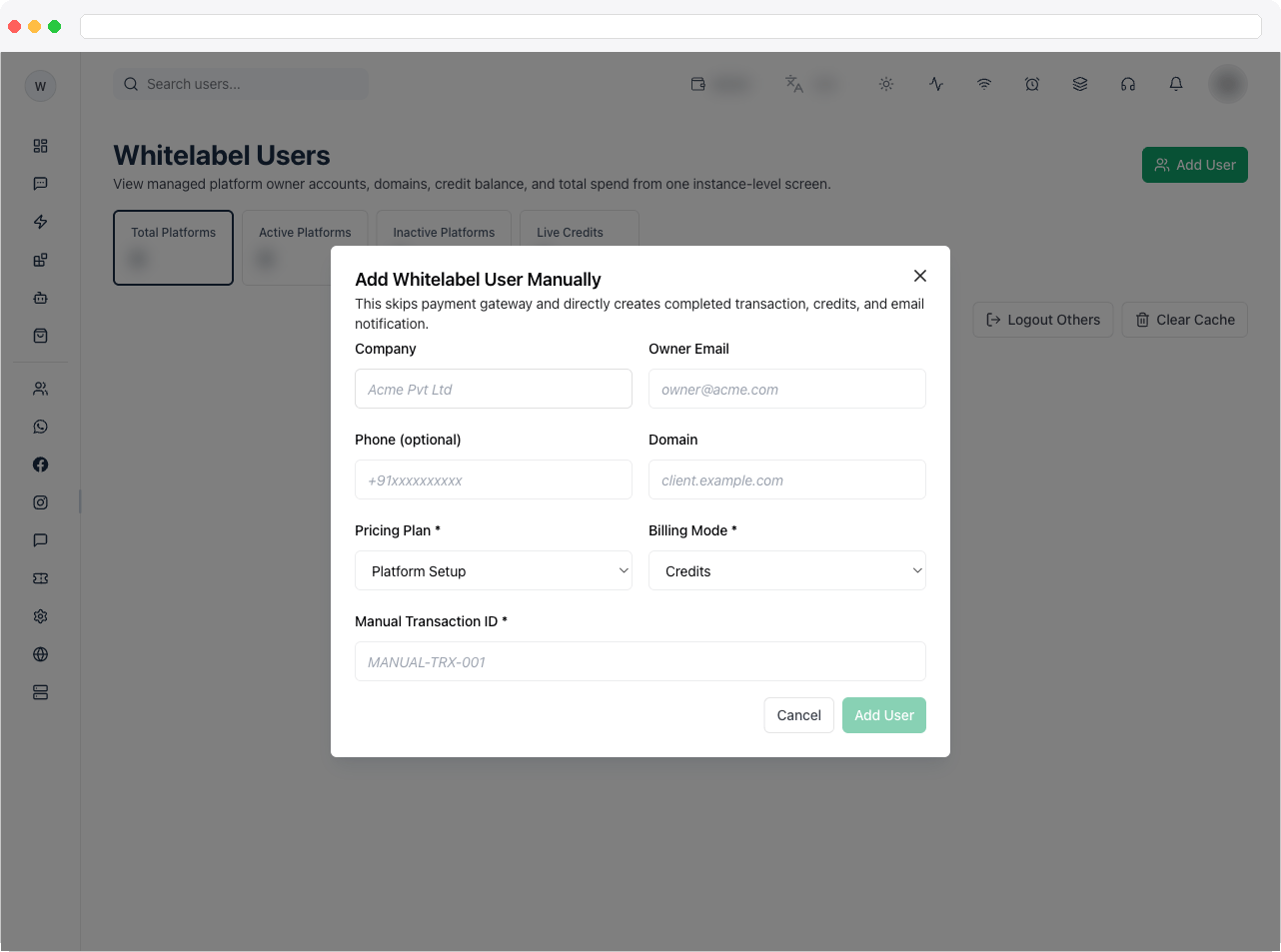
- Fill in Company, Owner Email, Phone (optional), Domain, a Pricing Plan (from active setup plans), Billing Mode (Credits or Commission), and a Manual Transaction ID.
- Click Add User. This skips the payment gateway and directly creates a completed transaction, assigns credits, and emails the new owner.
Instance-wide maintenance actions (instance owner only)
- Log Out Others: immediately signs out all active admin/team sessions across the instance (the current owner session stays active).
- Clear Cache: clears runtime in-memory caches without restarting the server — use only while troubleshooting instance-level issues.
Troubleshooting / Technical Notes
- “Add User” stays disabled. Company, Owner Email, Domain, Pricing Plan, Billing Mode, and Manual Transaction ID must all be filled in. Fields containing only spaces count as empty. If Pricing Plan has no options, no active setup-category plan exists yet — see the next item.
- The plan dropdowns in the Assign dialogs and the Add User dialog are empty. They only list active plans of the matching category, and show “No active … plans configured” otherwise. Go to Whitelabel Plans, create or re-activate a plan in the needed category, then come back.
- The settlement and billing-lock icons are missing. They’re only shown for platforms on Commission billing. On a Credits platform they’re hidden by design, and using them on any other platform shows “Not Available.”
- “Login to platform” doesn’t open anything. Your browser probably blocked the pop-up (“Popup blocked. Allow popups and try again.”). Allow pop-ups for the instance domain and retry. If the platform has no owner account, you’ll see “Owner missing.”
- Add User, Log Out Others, and Clear Cache aren’t visible. These are only available to the instance owner. An administrator with
instance:viewcan see the page but not these actions — that’s expected.