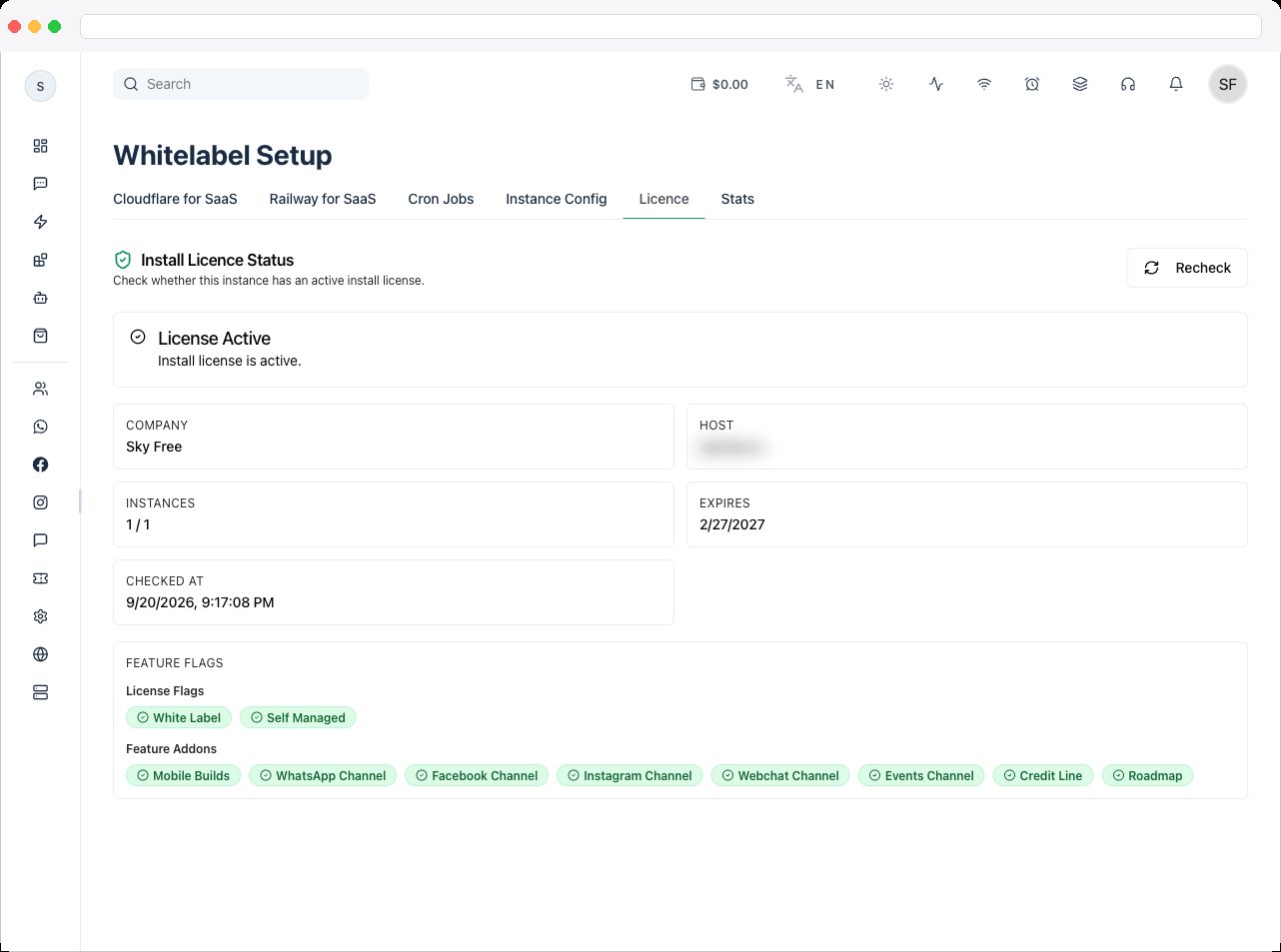
Included with every self-managed instance. This tab is part of Whitelabel Setup.
What is this?
The Licence tab (shown as “Install Licence Status” on the page) checks whether this instance has an active install license, and shows exactly what that license entitles the instance to.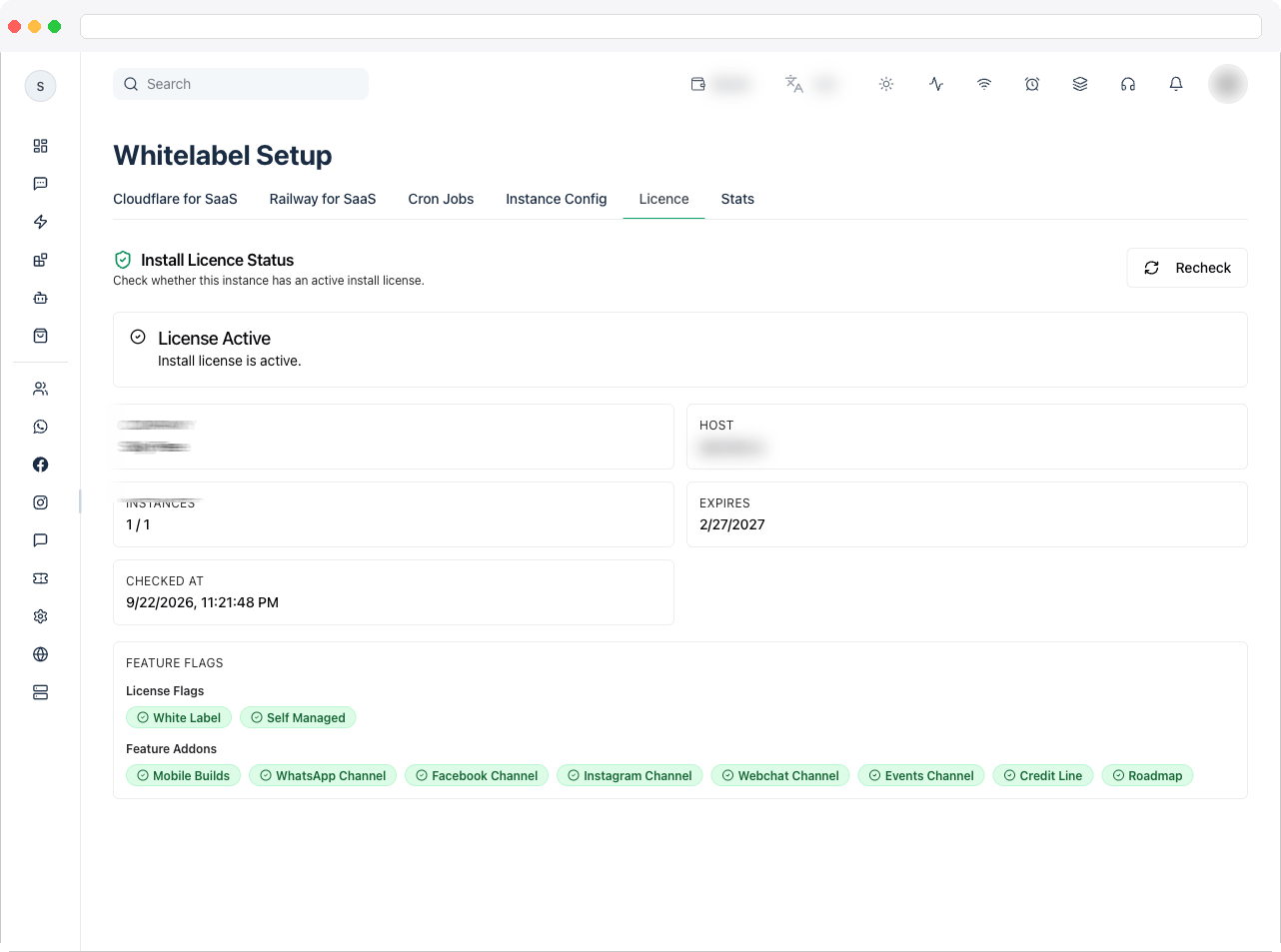
What can I do here?
- See an at-a-glance status: License Active or License Not Active, with an accompanying message.
- View license details in a grid of cards:
- Company (if applicable)
- Host — the request host this license check was made against.
- Instances — active instances used vs. the maximum allowed, if the license caps instance count.
- Expires — the license expiry date, or “Never”.
- Checked At — when the status was last verified.
- Error Code — shown only if the last check returned an error.
- View License Flags: whether White Label and Self Managed are enabled for this license.
- View Feature Addons: whether Mobile Builds, WhatsApp Channel, Facebook Channel, Instagram Channel, Telegram Channel, Webchat Channel, Credit Line, and Roadmap are allowed.
- Click Recheck to force a fresh license validation against the licensing server.
How to use it
-
Open the Licence tab to see the current license status at the top — a green “License Active” alert means the instance is licensed and running normally; a red “License Not Active” alert means there’s a problem.
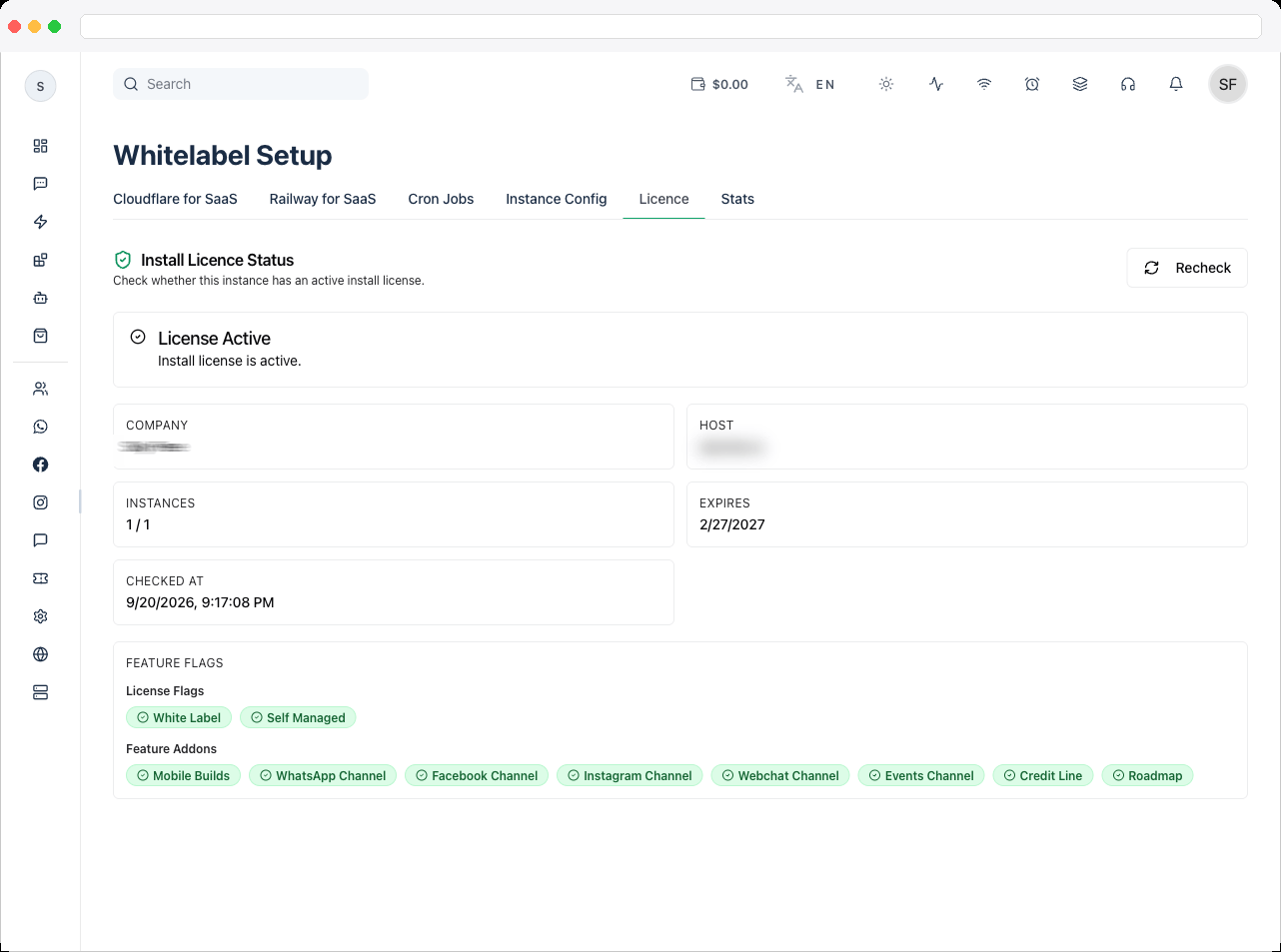
- Check the detail cards for Instances (to see if you’re near your instance cap) and Expires (to see how much runway is left before renewal is needed).
- If the status shows an error, check the Error Code card for the specific reason the check failed.
- Review License Flags and Feature Addons to confirm which capabilities (white-labeling, self-managed mode, specific channels, mobile builds, credit line, roadmap) are actually unlocked on this license — this is useful when troubleshooting why a feature elsewhere in the app (like the Railway for SaaS tab) isn’t showing up.
-
Click Recheck any time you’ve changed your license or want to confirm the latest status — this re-runs the license check and refreshes every field on the page.