

Requires the White-Label add-on. This page is part of the White-Label add-on, which lets you create and sell white-label platforms to your own customers. Without the add-on, it doesn’t appear in the Instance menu. See the Self-Hosted overview to compare the two levels, and check Licence to see what your instance includes. It also requires the
instance:view permission.What is this?
Whitelabel Plans is where you define the pricing catalog that platform owners on your white-label instance can buy or be billed against — setup plans, credit packs, wallet recharge packs, add-ons, and the default commission terms.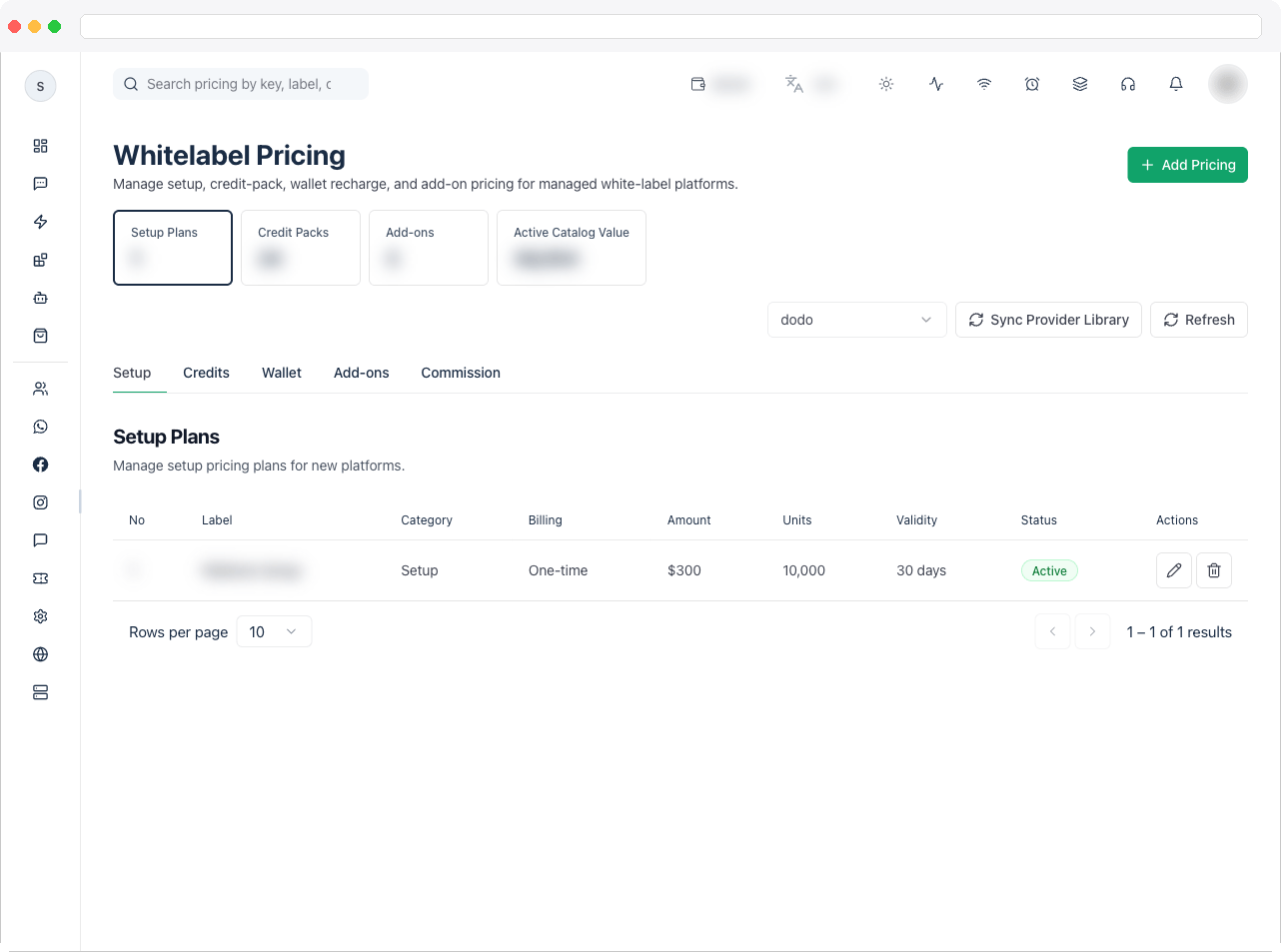
What can I do here?
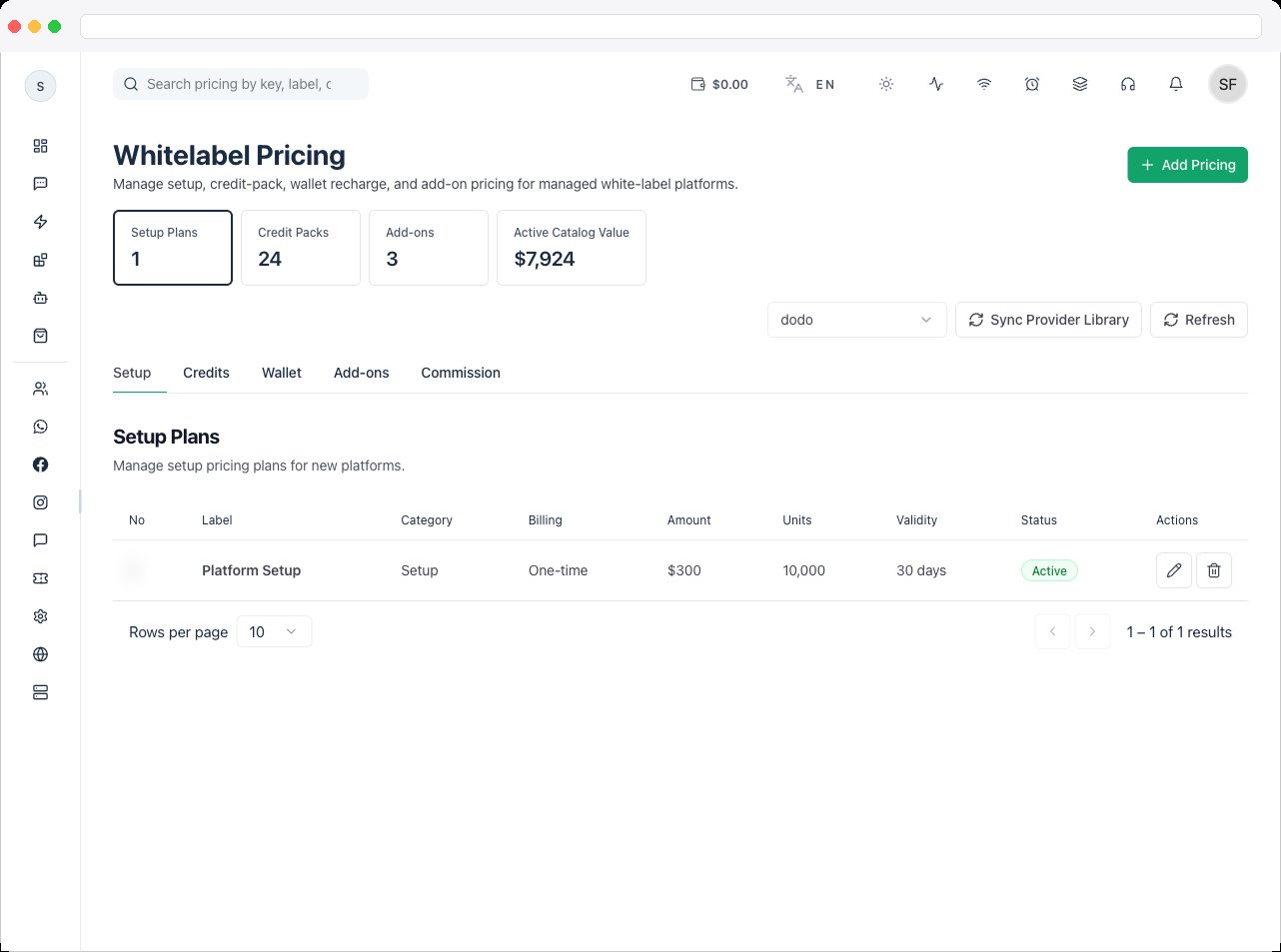
- View summary tiles: Setup Plans, Credit Packs, Add-Ons, and Active Catalog Value
- Switch between five tabs: Setup, Credits, Wallet, Add-Ons, and Commission
- Search pricing rows by key, label, or category
- Add a new pricing row, or edit/delete an existing one, for any category
- Sync your pricing catalog to an active payment gateway provider (single click if one gateway is active, or choose which provider to sync to if more than one is active)
- View and update the default Commission settings used for commission-billed platforms
How to use it
Open Platform → Instance → Whitelabel Plans and choose a tab. Each of the first four tabs holds one category of pricing rows.- Setup
- Credits
- Wallet
- Add-Ons
- Commission
Setup plans — the one-time purchase a platform owner makes to get started. Setup plans are always One-time, and can include Credits Included.
Add a pricing row
- Open the tab for the category you want (Setup, Credits, Wallet, or Add-Ons).
- Click Add Pricing.
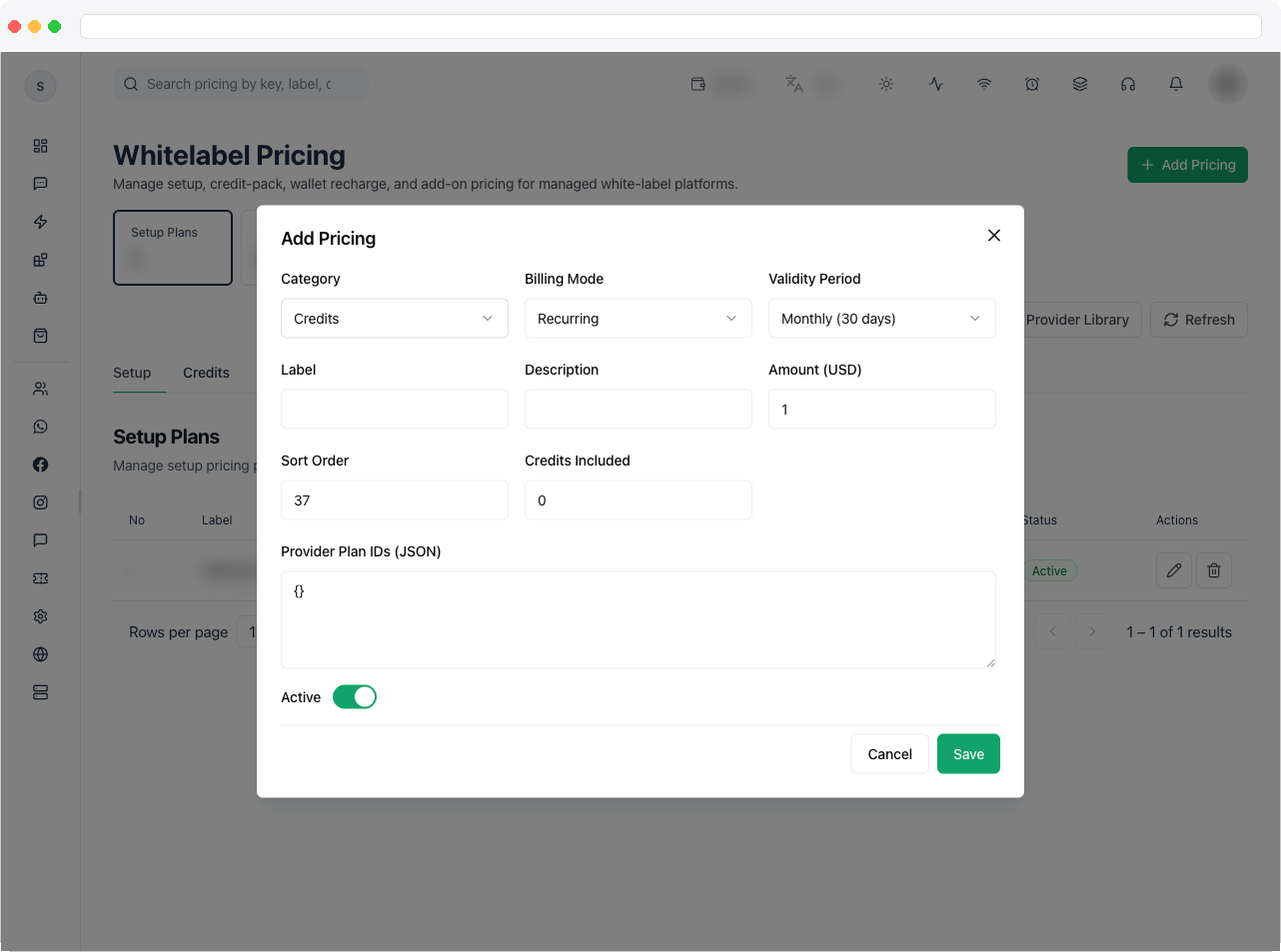
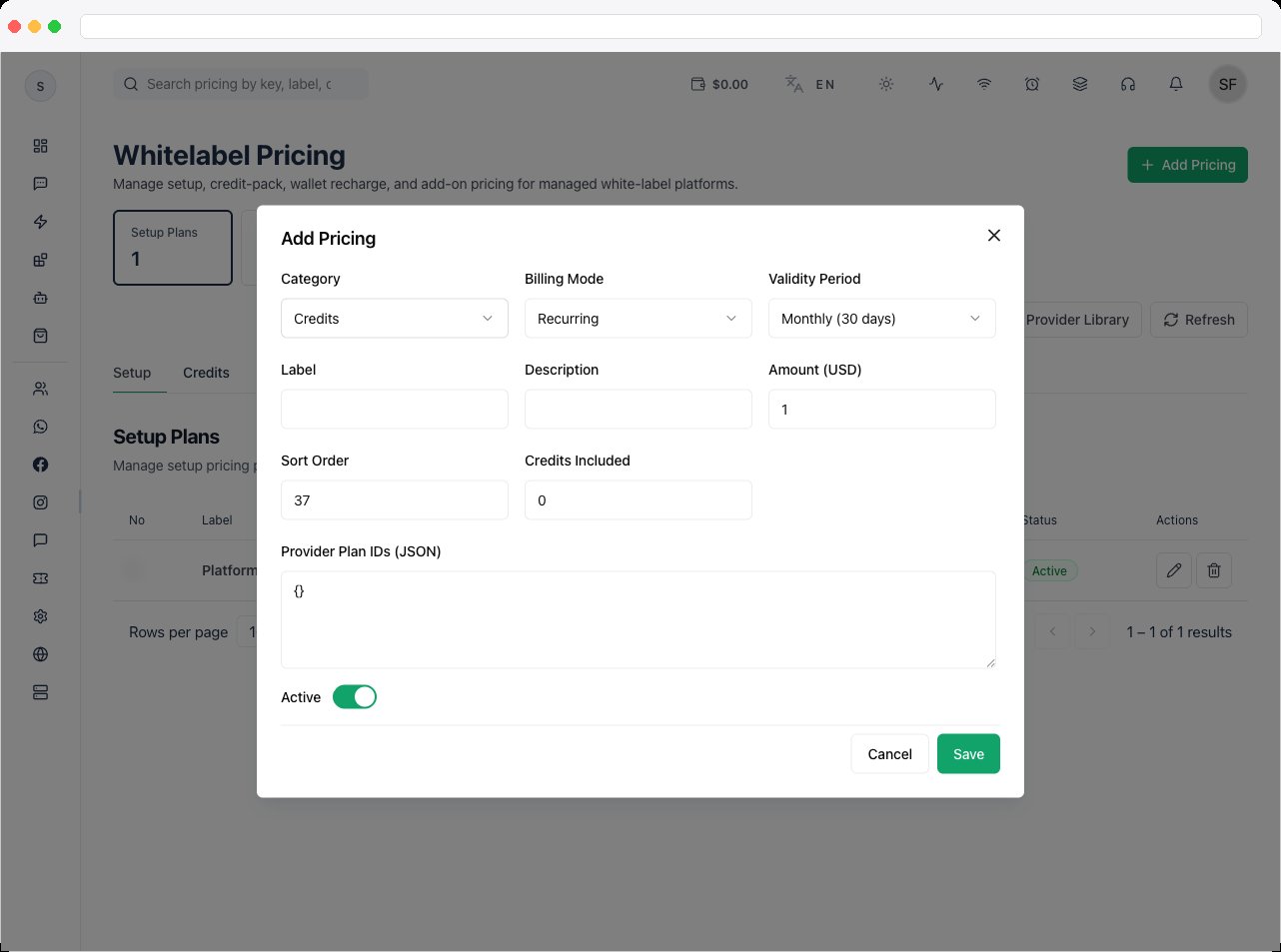
- Fill in the pricing form:
- Label and, for Add-Ons, an Addon Key (pick a known key such as
android_app,ios_app,storage,priority_support,custom_integrations, or type a custom one) - Category and Billing Mode (One-time or Recurring — Setup plans are always one-time)
- Amount, Description, Sort Order
- Credits Included (Setup and Credits categories only)
- Validity Period (Monthly, Quarterly, Half-Yearly, or Yearly)
- Provider Plan IDs as a JSON object, for mapping this plan to payment-gateway-specific plan IDs
- An Active toggle
- Label and, for Add-Ons, an Addon Key (pick a known key such as
- Click Save.
Edit or remove a pricing row
- In the pricing table, click the pencil icon on a row to edit it, or the trash icon to delete it.
- Deleting a row saves the updated catalog immediately.
Sync pricing to your payment gateway
- In the toolbar, select a provider if more than one payment gateway is active.
- Click Sync Provider Library to push all pricing rows to that gateway as a background job. A toast confirms when the sync completes, with a success/fail count.
- To sync a single row’s provider plan ID after editing it, open that row for editing, choose a provider under Sync Provider IDs, and click Sync Provider IDs.
Set default commission terms
- Open the Commission tab.
- Set Default Commission %, Min Monthly Commission, and Min Wallet Balance.
- Click Save Commission Settings. These defaults apply to platforms billed under the Commission mode (see Whitelabel Users).
Troubleshooting / Technical Notes
-
Save is rejected. The message names the exact rule that failed. Common causes:
- A row is missing a Label or has an invalid Category (“Each pricing row must include a label and valid category.”)
- A row’s Amount isn’t a number greater than zero
- Two rows share the same key (“Duplicate pricing key found” or “Pricing key already exists”)
- The Provider Plan IDs field isn’t valid JSON (“Provider IDs must be a JSON object.”)
- Credits Included disappears. It’s only kept for Setup and Credits categories, and resets to 0 for Wallet and Add-On rows. It has no meaning for those categories.
- “Sync Provider IDs” is missing on a new row. It only appears for rows that are already saved. Save the new row first, then re-open it — Sync Provider IDs now appears.
-
A customer can’t be billed for a mobile app build or credit-line add-on. The Addon Key picker suggests
whatsapp_credit_line,android_app, andios_appas “(Required)”, but nothing checks that those keys exist or stay active. Make sure an active add-on row exists with the exact key. Whitelabel App Generation and the assign dialogs on Whitelabel Users only use active add-on rows.