

Included with every self-managed instance. This tab is part of Whitelabel Setup.
What is this?
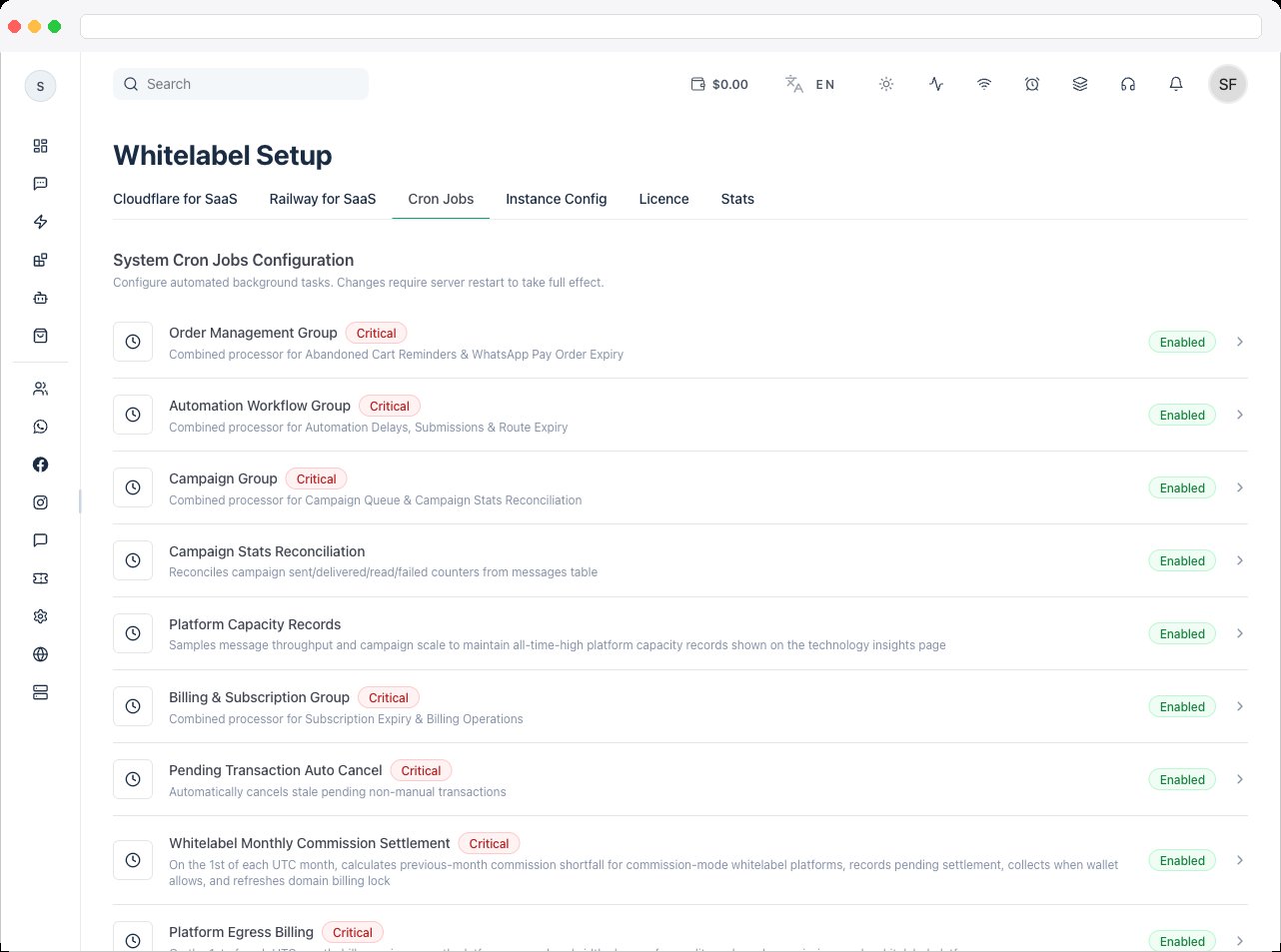
The Cron Jobs tab (labeled “System Cron Jobs Configuration” on the page itself) lists every background job the platform runs — campaign sending, billing, cleanup, reminders, license checks, and more — and lets a platform owner enable/disable each one and tune how often it runs. Changes require a server restart to take full effect.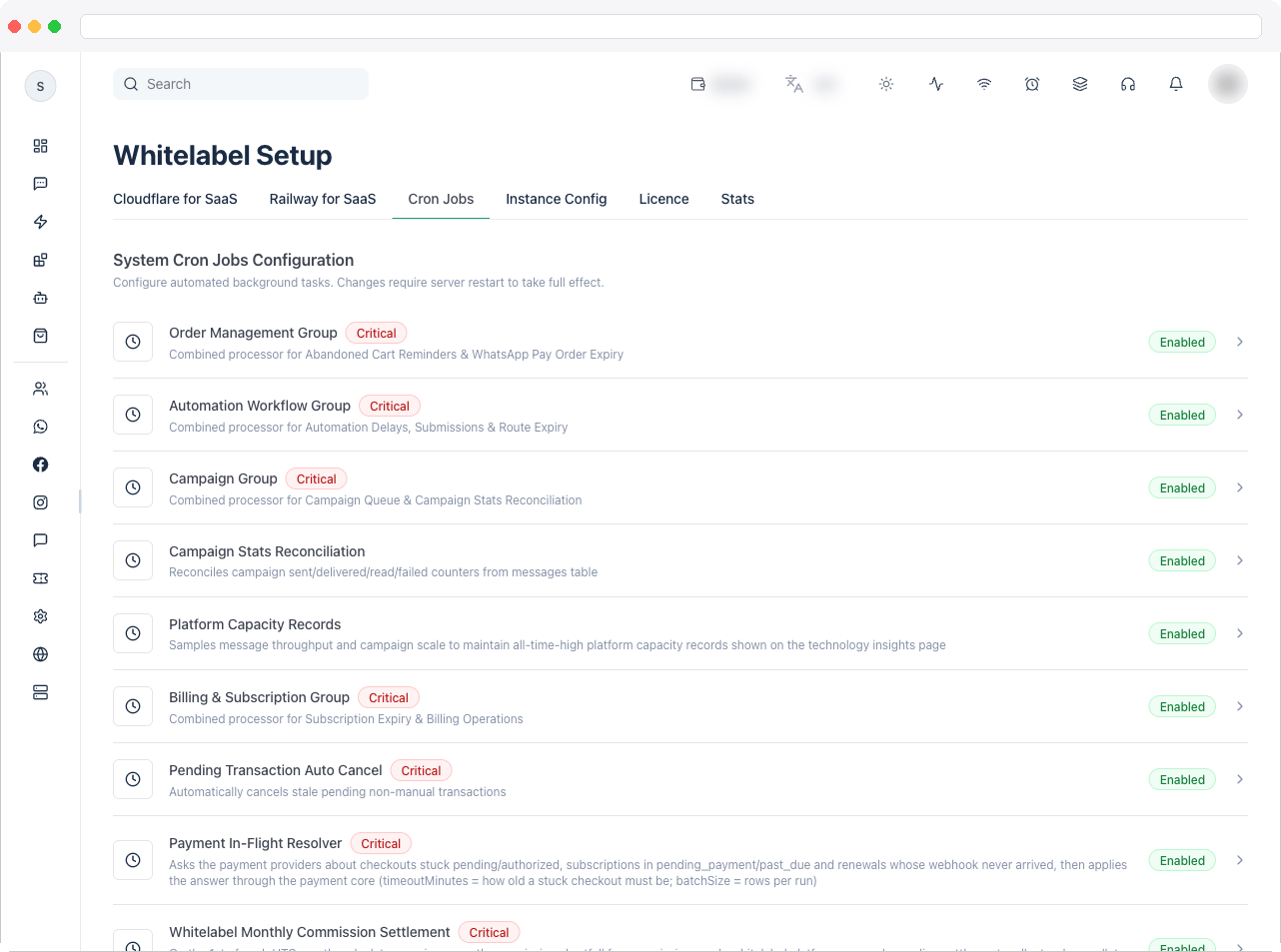
What can I do here?
- See every configured background job as a row, with its name, a short description, and a status pill (Enabled or Disabled).
- Jobs marked Critical are flagged with a badge and cannot be disabled, since they’re required for system operation.
- Click any job row to open its settings in a dialog, where you can:
- Toggle it Enabled (unless it’s critical).
- Adjust its Interval (seconds) if it’s an interval-based job (higher = less server load).
- Adjust its Cron Schedule if it’s a schedule-based job (always interpreted in UTC, standard 5-field cron syntax, e.g.
0 0 * * *for daily at 00:00 UTC). - Adjust its Batch Size if the job processes items in batches.
- Save changes with Save Changes.
- Order Management Group (critical) — combined processor for abandoned cart reminders and WhatsApp Pay order expiry.
- Campaign Group (critical) — combined processor for the campaign queue and campaign stats reconciliation.
- Billing & Subscription Group (critical) — combined processor for subscription expiry and billing operations.
- Ticket Auto Close (critical) — automatically closes resolved support tickets after a grace period.
- License Heartbeat (critical) — periodic license validation heartbeat.
- OTP Cleanup — removes expired OTP codes.
- Log Retention Cleanup — deletes old audit/activity logs and memory snapshots.
- Message Archive — moves messages older than 90 days to an archive table.
- Channel Health Monitor — checks WhatsApp channel health status.
- Event Reminder — sends automated pre-event WhatsApp reminders to registrants.
How to use it
-
From the job list, click a row for the job you want to adjust. This opens a dialog with that job’s name and description.
- If the job isn’t critical, use the Enabled switch to turn it on or off.
-
Depending on the job type, set either:
- Interval (seconds) — how often the job runs, in seconds (min 10, max 3600 in the UI), or
- Cron Schedule — a standard cron expression, always evaluated in UTC.
- If the job supports batching, set the Batch Size — how many items it processes per run.
- Click Save Changes. A confirmation toast appears once the update is applied; note that some jobs only fully pick up the new settings after the server restarts.
- Close the dialog and repeat for any other job you want to adjust.